













 AIIllustrative image: AI-generated
🔐 Correct file and folder permissions for WordPress: a complete guide to 755 and 644
Moved your site to hosting, and plugins stopped installing. Or media files won't upload through the admin panel. Or a core update fails with "Could not create directory." Sound familiar?
The cause is almost always the same: incorrect file and folder permissions. A local server (OpenServer, MAMP) runs under the current Windows/macOS user and forgives everything. A production Linux hosting does not. Every file and directory has an owner and three permission levels, and if the web server can't write to the required folder, the site breaks silently or with a cryptic error.
Below you'll find what 755 and 644 actually mean, how to set them once via FileZilla for the entire site, and which files require special handling.
💡 Quick overview:
- What the numbers 755 and 644 mean and why 777 is a security hole
- How to bulk-set permissions via FileZilla in 2 passes: folders first, then files
- What permissions wp-config.php, .htaccess, and the wp-content folder need
- How to do the same thing via SSH with one command in 5 seconds
What permissions mean and why 777 is a disaster
Every file and folder on a Linux server stores three permission sets: for the owner, for the group, and for everyone else. The number is a sum of bits: 4 (read) + 2 (write) + 1 (execute, which for folders means entering them).
755 for folders breaks down as follows: the owner can do everything (7), the group and others can read and enter (5). The folder is accessible to the web server for scanning and creating files and subfolders inside, but no outsider can delete or rename it.
644 for files: the owner can read and write (6), others can only read (4). PHP files are executed by the interpreter, not the system, so they don't need the execute bit.
777 (owner+group+others = everything) is an open door. Any process on the server, including scripts from neighboring sites on shared hosting, can read, modify, and delete your files. According to WPScan's 2025 data, incorrect permissions are among the top five most common WordPress attack vectors on shared hosting. Never set 777. If a plugin or theme requires such permissions, that's a red flag.
What permissions WordPress considers correct
The official WordPress documentation defines recommended permissions as follows:
Resource | Permissions | Why |
|---|---|---|
Folders (all nesting levels) | 755 | The web server must enter and create files inside |
.php,.js,.css files and media files | 644 | Readable by all, writable only by owner |
| 600 or 440 | Contains database passwords, readable only by owner |
| 644 | Read by Apache but shouldn't be accessible externally |
On most hosts, the filesystem owner matches the user PHP runs as (suPHP/FastCGI + suEXEC configuration). In this setup, 755/644 permissions are sufficient: WordPress can write to wp-content/uploads, update the core and plugins, and install themes without escalating to 777.
Check if this applies to your host: go to the admin panel and try installing any free plugin. If it installs without asking for FTP credentials, the 755/644 scheme works and permissions are already correct.
How to set permissions via FileZilla: step by step
FileZilla is a free FTP client that can bulk-change permissions recursively. Download it from the official website if you haven't already.
Step 1: connect and navigate to the WordPress root
Connect to your hosting via FTP (login/password are the same as your hosting account, port 21). In the right panel, navigate to the site's root folder, where wp-config.php, wp-content, wp-admin, and wp-includes are located.
Step 2: set 755 on all folders
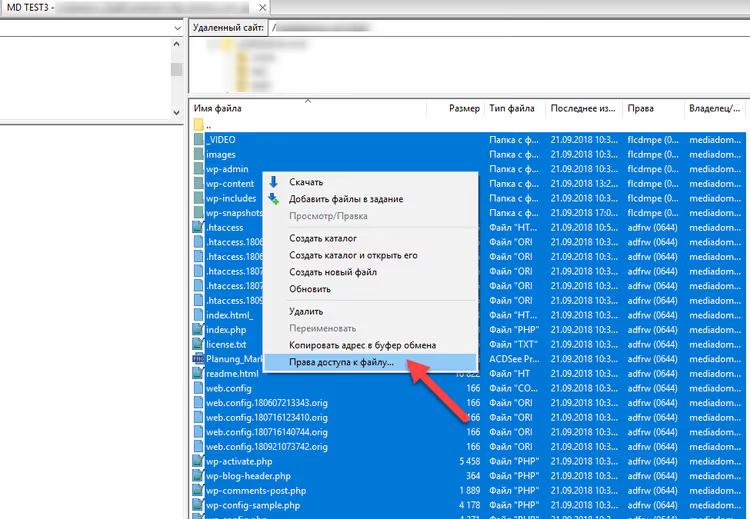
Select all files and folders in the root (Ctrl+A). Right-click → "File permissions".
In the dialog that opens, enter 755 in the "Numeric value" field. Check the "Recurse into subdirectories" checkbox. Set the radio button to "Apply to directories only". Click OK.
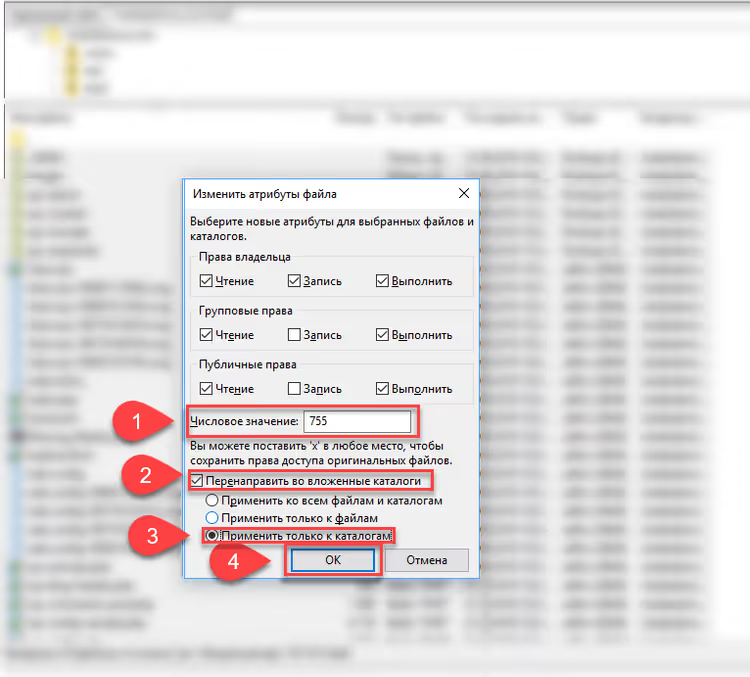
FileZilla will go through every folder and subfolder of the site and set 755. The process takes from a few seconds to a couple of minutes depending on site size.
Step 3: set 644 on all files
Select everything in the root again (Ctrl+A), right-click again → "File permissions".
Now enter 644. Check "Recurse into subdirectories". Set the radio button to "Apply to files only". OK.
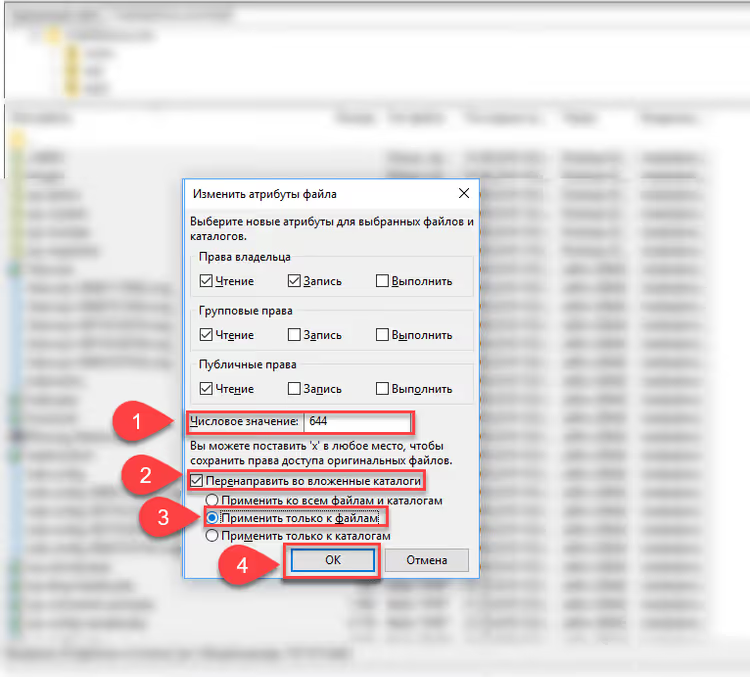
Done. Two passes (folders and files) and the entire site is brought to standard.
Quick method via SSH: the find command
If you have SSH access to the server, the same operation takes two commands and five seconds:
1 find /path/to/wordpress -type d -exec chmod 755 {} \; 2 find /path/to/wordpress -type f -exec chmod 644 {} \;
The first goes through all folders (-type d) and sets 755. The second goes through all files (-type f) and sets 644. Replace /path/to/wordpress with the actual path to your site root (usually /home/username/public_html).
After that, separately tighten wp-config.php:
1 chmod 600 /path/to/wordpress/wp-config.php
And .htaccess, if you have one (Apache server):
1 chmod 644 /path/to/wordpress/.htaccess
If your site runs on Nginx, there's no .htaccess file, so skip this step.
What to do if permissions get reset
Situation: you set 755/644, everything worked, and a week later you get the same error. The cause is usually a process running under a different user.
Typical culprits:
- Hosting cron jobs. Some hosts run maintenance scripts as root, and they create files with permissions the web server can't overwrite afterward. Solution: ask support to configure cron to run under your user.
- Third-party backup plugin. Writes dumps and archives to
wp-contentunder whichever user it runs as. Check the plugin logs. If it creates files under a user other than the site owner, switch to an alternative. - Caching plugin. Creates cache folders with incorrect permissions. Go to the plugin settings and find "Clear cache" or "Reset permissions" button.
Universal quick fix: repeat the procedure from the section above (FileZilla in 2 passes or two find commands). This won't solve the root cause but will restore the site to working condition.
⁉️🤔 Frequently asked questions
What if the site crashes to a "white screen of death" after changing permissions?
A white screen (WSOD) after bulk permission changes is extremely rare but possible. First: enable
WP_DEBUGinwp-config.phpso you'll see the error text instead of a white screen. Second: check whether you accidentally set 644 on folders (folders need the execute bit, meaning 5 at the end). Fix it with onefindcommand:find /path -type d -exec chmod 755 {} \;. This is enough in most cases. If the site still doesn't work, restore from backup and change permissions gradually: first onwp-content, then on the root, watching for reactions.
Can I set permissions through the hosting's built-in file manager?
Yes, but only for individual files and folders. cPanel hosts provide a File Manager with "Change Permissions" in the context menu. However, recursively setting permissions on hundreds or thousands of files through a web interface is practically impossible. For bulk operations, use FileZilla or SSH.
What permissions should the wp-content/uploads folder have?
Standard 755, like all other folders. If a plugin or theme creates subfolders inside
uploadsand has problems, check the process owner (should match the folder owner) rather than raising permissions to 777. Sometimes the problem is solved by addingdefine('FS_METHOD', 'direct');towp-config.php.
Do I need to set permissions on files inside wp-admin and wp-includes?
Yes, standard 644 for files and 755 for folders, same as the rest of the site. The FileZilla procedure (selecting everything in the root) handles them automatically.
My host requires 777 on some folders. Is this normal?
No. Requiring 777 is a sign that PHP on the server runs under a user different from the file owner (for example, mod_php without suEXEC). In this configuration, WordPress can't write to folders without "world" access. Options: switch to a host that uses suPHP/FastCGI (most modern ones do), or add
define('FS_METHOD', 'direct');towp-config.php, which is sometimes enough.
Correct permissions are a foundation, not an option
Setting 755 on folders and 644 on files closes the most common channel for "mysterious" errors when migrating a site. Two minutes in FileZilla or two SSH commands save hours of guessing over logs.
If your site is on a good hosting with suPHP/FastCGI, these permissions are enough for everything: installing plugins, uploading media, and automatic core updates. Don't raise permissions to 777, even if an old plugin's instructions ask for it. And add wp-config.php as a separate item: chmod 600. It contains the database password, and outsiders don't need access to it.

A professional team of writers and editors specializing in creating quality content.