













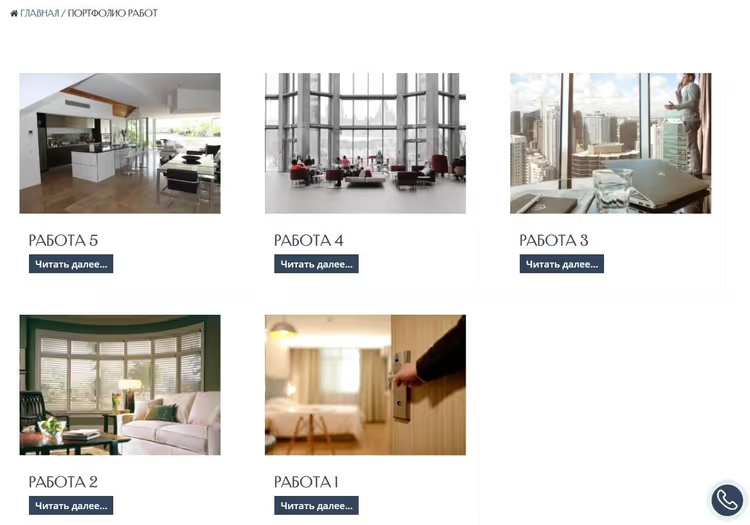
🚀 How to create an archive page for custom post types in WordPress
When a site outgrows the "blog plus a few pages" stage, standard posts and categories are no longer enough. Portfolios, teams, testimonials, case studies, job listings: all of this wants to live in its own structure rather than being crammed into the general post stream with category workarounds.
WordPress solves this problem through custom post types. But creating a CPT is not enough; you also need a page where all entries of that type are gathered together: an archive page. Without it, visitors simply will not see your portfolio items or team members displayed as a unified block.
Grid plugins like Essential Grid handle the visual side, but they add extra CSS and JS. On small projects this goes unnoticed, but on a site with tens of thousands of visitors every kilobyte counts. The built-in WordPress archive mechanism provides the same functionality without frontend overhead, and it takes just 10 minutes to configure.
💡 Quick overview:
- Create a custom post type via CPT UI and enable archive support in the settings right away
- Write a custom template for precise layout control if needed
- Configure SEO metadata via Yoast SEO: title, description, and og:image for the archive page
- Disable the sidebar and add Open Graph markup if needed
1. Creating a custom post type
The simplest and most reliable way to register a CPT without a single line of code is the Custom Post Type UI plugin. It is installed on over a million sites and has been maintained since 2010, and the interface is intuitive: form fields correspond one-to-one with register_post_type() function arguments.

After installing the plugin, go to CPT UI → Add/Edit Post Types. Fill in the minimum:
- Post Type Slug: Latin characters, no spaces (for example
portfolio) - Plural Label: "Portfolio"
- Singular Label: "Work"
You can leave the remaining settings at their defaults; the default values cover the vast majority of typical scenarios. Click Add Post Type, and the new type will appear in the admin panel as a separate menu item.
2. Configuring the archive page
For entries of the new type to be collected on a separate page, you need to explicitly enable archive support. It is disabled by default.
Go to CPT UI → Edit Post Types and select the type you created from the list:
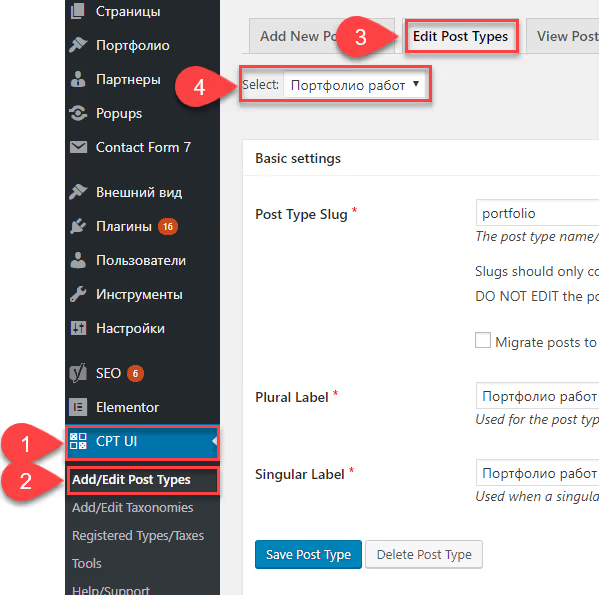
Scroll down to the Settings section and fill in two key fields:

- Has Archive: set to
True. This is the switch for the archive page. - Custom Rewrite Slug: the slug where the archive will be accessible. Usually matches the post type slug (for example
portfolio).
Save your changes and navigate to http://YOUR_SITE/portfolio. You will see a list of all entries of this type, styled with the standard archive.php template of the active theme:

The basic page is ready. If the standard appearance is sufficient, you can stop here. But in most cases you will want to refine the look.
3. Custom archive-{posttype}.php template
WordPress uses a clear template hierarchy. When a visitor lands on a CPT archive page, the core looks for files in this order:
archive-{posttype}.phparchive.phpindex.php
This means you only need to create a file named archive-portfolio.php (where portfolio is your post type slug), and WordPress will pick it up automatically.
Steps:
Copy the contents of your theme's archive.php into a new file archive-portfolio.php. Then modify the markup to suit your needs: hide the date if it is not relevant for a portfolio; output the thumbnail in a different size; replace the standard the_excerpt() with the_content().
1 <?php 2 /* Template for Portfolio archive — overrides archive.php */ 3 4 if ( have_posts() ) { 5 while ( have_posts() ) { 6 the_post(); 7 // Your custom markup here 8 the_post_thumbnail( 'medium' ); 9 the_title( '<h3>', '</h3>' ); 10 the_excerpt(); 11 } 12 }
If you are working with an FSE theme (Block Theme), the archive template is created in the site editor: Appearance → Editor → Templates → Add New Template → Archive: Portfolio. No PHP, purely blocks, but the logic is the same: custom layout for a specific CPT.
4. SEO optimization for the archive page
An archive page is not just a utility URL. Search engines index it, and it can easily drive traffic for commercial queries like "web studio portfolio" or "agency team."
If you have Yoast SEO installed, metadata for CPT archives is configured in one place:
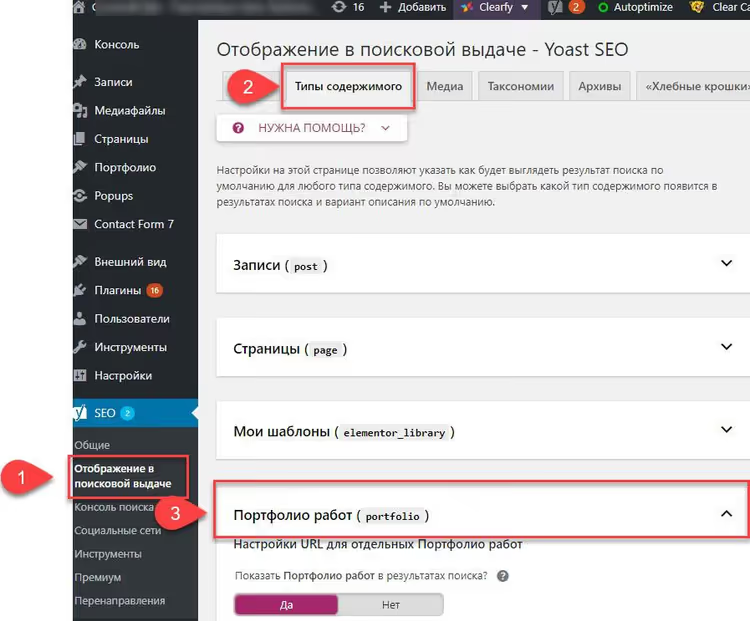
Open Yoast SEO → Settings → Content Types, find your Custom Post Type, and expand the section. Set templates for title and meta description:
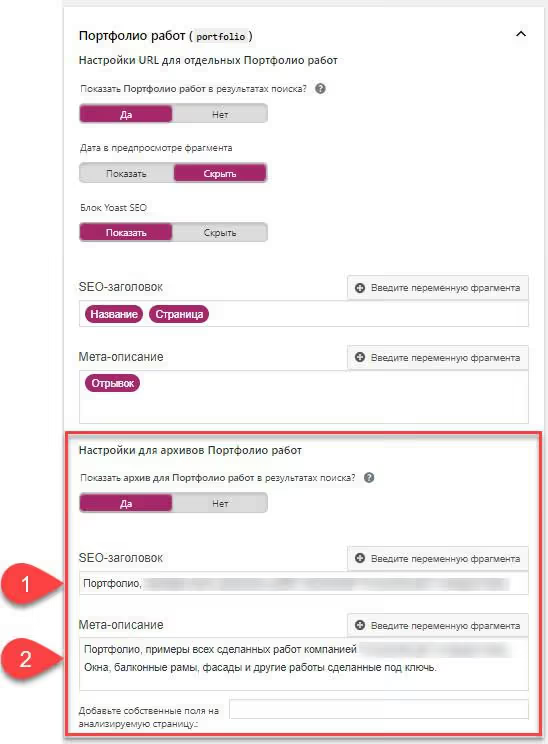
Recommended templates:
- Title:
%%pt_plural%% %%page%%, %%sitename%% - Meta description:
%%pt_plural%%, work samples, case studies and projects. %%sitename%%
Yoast automatically substitutes the variables %%pt_plural%% and %%pt_single%% from your CPT settings. Do not forget to disable noindex for the archive page if it is enabled by default; the Show in search results checkbox must be active.
5. Open Graph markup and sidebar
To ensure an image is pulled when sharing the archive page link on social media, add og:image via the wp_head hook. Insert the code in your active theme's functions.php or via the Code Snippets plugin:
1 add_action( 'wp_head', 'cpt_archive_og_image' ); 2 function cpt_archive_og_image() { 3 if ( is_post_type_archive( 'portfolio' ) ) { 4 echo '<meta property="og:image" content="' . 5 get_template_directory_uri() . '/images/portfolio-og.jpg' . '" />'; 6 } 7 }
The is_post_type_archive() condition triggers only on the archive page of the specified CPT, so the markup will not affect other pages. Place the image in your theme folder or upload it via the media library and use the direct URL.
One last touch: the sidebar. On archive pages it is often unnecessary, especially for portfolios or teams where card width matters. Most modern themes let you disable the sidebar in the page settings:
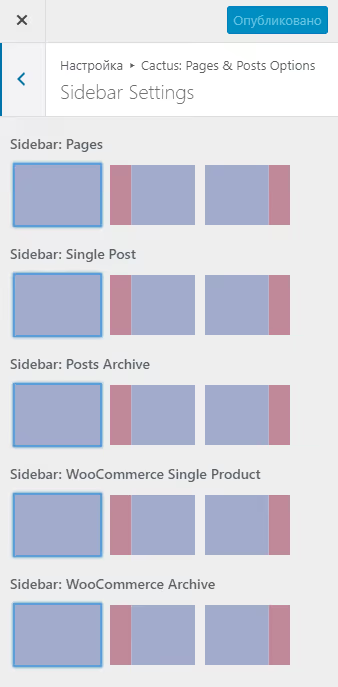
In block themes, switch the template to Full Width in the archive page settings. In classic themes, look for Page Attributes → Template → Full Width in the customizer or editing metabox.
📺 Video: the entire process in 8 minutes
A short English demo covering CPT creation, enabling the archive, and a custom template from first click to finished page:
⁉️🤔 Frequently asked questions
Why does the archive page return a 404 after creating the CPT?
Most likely you did not enable the Has Archive parameter. Go to CPT UI → Edit Post Types, find your type, set Has Archive to True, and specify a Custom Rewrite Slug. After saving, be sure to go to Settings → Permalinks and click "Save Changes"; this flushes the rewrite rules cache.
Can I skip the CPT UI plugin?
Yes, custom post types can be registered in
functions.phpvia theregister_post_type()function. It takes about 15-20 lines of code, a couple of minutes for a developer. The plugin simply provides a visual interface and prevents typos in arguments.
How do I display CPT entries on the homepage?
Add
'has_archive' => trueto theregister_post_type()arguments, and to include entries in the main feed, set'public' => trueand'exclude_from_search' => false. For targeted output, useWP_Querywith the argument'post_type' => 'portfolio'.
What is the difference between archive-{posttype}.php and taxonomy-{taxonomy}.php?
The first handles the page with ALL CPT entries; the second handles filtering by a specific taxonomy term (for example, "Project type: landing page"). Both follow the template hierarchy but trigger on different URLs.
Is a custom template mandatory?
No. If the standard
archive.phpsuits you, just enable Has Archive and use it. A custom template is needed when you require unique markup: different thumbnail sizes, no dates, a grid instead of a list.
What if the standard template does not work for you?
An archive page for custom posts is something you set up once and forget. CPT UI plus a few lines in functions.php cover the issue completely: no all-in-one plugins, no extra code on the frontend.
If you still have questions about a specific theme or plugin combination after reading this, leave a comment below the post. We will examine your case separately.

A professional team of writers and editors specializing in creating quality content.