














📋 Post Grid plugin for WordPress: review, setup and an honest look at Premium
Added three new post types to your site and the standard blog turned into a mess? Sounds familiar. When WordPress runs not just a blog but a catalog, portfolio, or store, the standard post output stops working by the second dozen pages.
Post Grid by PickPlugins solves this problem without a single line of code: any post type, any grid design, category filters, and asynchronous loading. The plugin is free and recently received a completely rewritten React builder with a 2026 interface, not a 2015 legacy. In practice, the free version covers most scenarios, but Premium adds a couple of features worth opening your wallet for.
Below is an honest breakdown: what Post Grid can do, how to set it up in 10 minutes, and when paying for Premium makes sense.
💡 Quick overview:
- Install Post Grid from the WordPress.org directory and activate it
- Create your first grid using the visual builder: select the post type, configure columns and filters
- Copy the shortcode
[post_grid id="1234"]and paste it on any page - For stores and portfolios, check out the filterable grid and AJAX pagination
- Decide if you need Premium: cloud templates, masonry, and styling without CSS
What is Post Grid and what problems does it solve
Post Grid is a plugin for displaying any WordPress post types as a customizable grid, slider, or masonry layout. Not just standard blog posts: WooCommerce products, portfolios, calendar events, custom post types, anything registered in the system.
The plugin is over 8 years old, and during that time it has accumulated more than 30,000 active installations on WordPress.org with a 4.3 rating. In early 2025, a version with the React builder was released: the entire settings interface is now in a single SPA window with live preview and drag-and-drop elements. No jQuery magic and scattered fields across different tabs.
Three main scenarios where Post Grid is indispensable:
- Blog with many categories. Set up one grid with category and tag filters, and readers filter what they need themselves. AJAX loading eliminates page reloads when switching pages.
- Product catalog on WooCommerce. A beautiful showcase with prices, ratings, and an "Add to Cart" button right in the product card. Masonry layout for stores with products of varying heights.
- Portfolio or case studies. A custom post type "Projects," filter by technologies or industries, and the portfolio page is ready in 5 minutes.
Free version: what's in the box
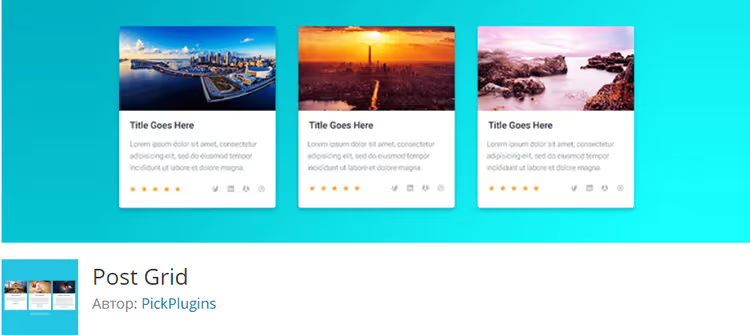
The free version on WordPress.org covers most needs. Here's what you get right after activation:
Database queries. The plugin can select posts of any type, including multiple types simultaneously. Filtering by categories, tags, taxonomies, and specific terms. Sorting by date, title, custom fields. Excluding or including posts by ID.
Grid, slider, and masonry. Three display modes in one plugin. The slider runs on Splide.js (lightweight, no theme conflicts). Column settings are separate for desktop, tablet, and mobile.
Five pagination types. Classic with page numbers, AJAX without reload, "Previous-Next" buttons, "Load More" button, and infinite scroll. Switch between types with a single setting.
Media content in cards. Instead of standard thumbnails, you can display YouTube, Vimeo, Dailymotion, and SoundCloud. Font Awesome icons in place of thumbnails.
Ready-made skins. Three built-in themes plus the ability to set your own colors, spacing, and fonts through settings fields.
Note: the free version lacks a visual card editor and you cannot change the HTML structure of the grid element. Design is configured only through options, but with no risk of breaking anything.
What Premium adds
The Premium license removes limitations and adds tools for those who want customization without code. Prices from the official PickPlugins site as of June 2026:
Plan | Sites | Price per year | Lifetime |
|---|---|---|---|
Personal | up to 3 | $39 | $99 |
Plus | up to 10 | $99 | $199 |
Agency | up to 500 | $199 | $299 |
Here's what you get in addition to the free features:
React builder with live preview. A Gutenberg-style interface: element list panel, editing panel, and template panel in one window. Change a setting and see the result immediately. No "save and refresh the page."
Layout Builder. Drag and drop fields in the visual editor to build the post card as needed: thumbnail on the left, title and date on the right, meta fields at the bottom. Change order, sizes, and spacing with your mouse.
Cloud template library. Ready-made professional grid layouts for different niches. Select a template, apply it, adjust colors to match your brand, and the grid is ready in a couple of clicks.
Advanced styling. Access to all CSS properties and pseudo-selectors like :hover, ::before, and ::after directly from the builder. You can style each card element without a style.css file.
Filterable grid. Visitors select a category or tag, and the grid updates asynchronously without reloading. Filter grouping by taxonomies.
Extended plugin support. WooCommerce, Easy Digital Downloads, Advanced Custom Fields, CMB2, The Events Calendar, meta fields and data from these plugins are available for display in grid cards.
Check your scenario: if the site is a blog with a dozen categories and standard card design, the free version will be more than enough. Premium is justified for stores, catalogs, and projects where the card appearance directly affects conversion.
How to install and configure Post Grid: step-by-step guide
Setup from scratch to a working grid takes 10 minutes. The steps are the same for the free and Premium versions.
Step 1: plugin installation
Go to the WordPress admin panel, open Plugins → Add New. In the search bar, type Post Grid, find the plugin by PickPlugins, and click Install Now, then Activate.
After activation, the Post Grid menu item will appear in the left sidebar. This is the hub for managing all grids.
Step 2: creating your first grid
Click Post Grid → New Post Grid. The settings interface will open. Go through four tabs:
Query Post. Select the post type: post for blog, product for WooCommerce, or a custom type. Specify categories and tags for filtering if needed. Set the number of items per page and sort order.
Layout. Choose the mode: Grid, Slider, or Masonry. Configure the number of columns for desktop, tablet, and mobile. Determine which elements to show in the card: thumbnail, title, date, author, excerpt.
Styling. In the free version, colors, fonts, spacing, and border radius are available. In Premium, full control through Style Components.
Pagination. Choose one of five types. For blogs, "Load More" or infinite scroll is convenient; for stores, classic with numbers.
Click Publish. The system will generate a shortcode like [post_grid id="1234"].
Step 3: inserting the grid on a page
Copy the shortcode. Open the desired page in the editor, paste the shortcode into a Shortcode block (Gutenberg) or the text editor. Save the page and preview it, your grid is ready.
For developers: the shortcode also works in PHP templates via <?php echo do_shortcode('[post_grid id="1234"]'); ?>. This is a standard WordPress mechanism, so there are no theme conflicts.
Video review: Post Grid in action
A short video from the developers shows the settings interface and finished grids on real sites. 11 minutes that will save an hour of experimenting with settings:
⁉️🤔 Frequently asked questions
How is Post Grid different from the standard "Query Loop" block in Gutenberg?
Query Loop displays posts but lacks flexibility: no filterable grid, masonry layout, slider, or five pagination types in one interface. Post Grid was designed specifically for beautiful showcases, not standard blog output.
Do I need Premium for a small blog with 3-5 categories?
In practice, no. The free version covers grid, slider, AJAX pagination, and basic styling. Premium shines for stores and catalogs: that's where you need the visual card editor, masonry, and product attribute filters.
Does the plugin conflict with themes and other plugins?
Over 8 years and 30,000+ installations, conflicts are rare. Splide.js for the slider is isolated, styles load precisely. On test sites with Astra, GeneratePress, and OceanWP, no problems were noticed. If your theme heavily overrides grid styles, a couple lines of CSS will fix it.
Can I display WooCommerce ratings and prices in a grid card?
In the free version, no, these meta fields are only available in Premium (Layout Builder tab). In the free version, the card shows standard WordPress fields: title, thumbnail, date, author, excerpt.
What about speed: does the plugin slow down the site?
AJAX pagination loads posts via the WordPress REST API, which can stress the server with large volumes. For sites with 1000+ posts in the grid, set up query caching (WP Rocket or LiteSpeed) and limit the number of items per page. The plugin itself is lightweight: scripts and styles load only on pages with the shortcode.
Is Post Grid Premium worth paying for in 2026?
In short: the free version is a solid tool for blogs and landing pages. Premium is for those building a store showcase, catalog, or portfolio who want to control every detail of the card without code.
Decision matrix:
- Blog, news site, article collection: the free version is enough. Set up AJAX pagination and category filters, and readers won't leave from page ten.
- WooCommerce store, product showcase: get Premium (Personal, $39/year). Price display, ratings, and "Add to Cart" button in the card plus masonry for products of varying heights.
- Portfolio, case studies, project catalog: Premium is justified if you need custom card designs. The free version will also work, but with a standard appearance.
- Client site that needs a visual editor: Premium. The React builder and drag-and-drop elements save nerves and support time.
Plugin hasn't been updated in six months? Pay attention to the last update date on the WordPress.org page. If a plugin hasn't been touched for more than two years, that's a red flag for any tool in the WordPress ecosystem. With Post Grid as of June 2026, this isn't an issue: the React builder came out in 2025, and the developer is active.

A professional team of writers and editors specializing in creating quality content.