













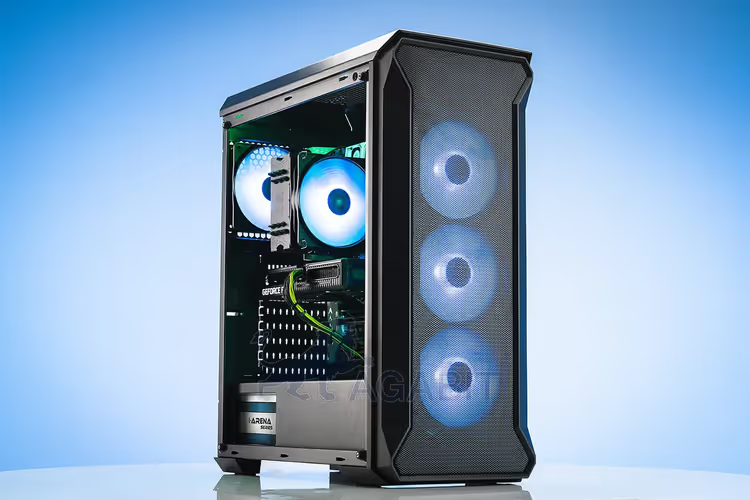
🖥️ Graphics workstation: a complete selection guide (2026)
The render hangs for half an hour, and the timeline turns into a slideshow of three frames per second. Familiar to anyone who has tried to assemble a 3D scene or finish a 4K project on a regular gaming PC. It is not about lack of skill, the hardware simply lacks the endurance margin for professional workloads.
A graphics workstation solves this problem at the root: it is not "just a powerful computer", but a tool built for specific work scenarios. It does not choke under rendering, maintains stability under hours-long loads, and is certified for professional software, from AutoCAD to DaVinci Resolve.
Below, a detailed breakdown: which components are critical, how a workstation differs from a regular PC, how to choose one for your profile, and which models are relevant right now. No marketing fluff.
💡 Quick overview:
- Processor: multi-core Xeon W or Threadripper, the more cores, the faster the render
- Graphics card: professional NVIDIA RTX PRO or AMD Radeon Pro with ECC memory, drivers certified for work applications
- Memory: from 32 GB ECC (with error correction), for complex projects, 64-128 GB
- Storage: fast NVMe SSD for active projects + HDD for archive
- Monitor: 4K with factory color calibration, DCI-P3 or Adobe RGB coverage
- 2026 models: HP Z8 Fury G6, Dell Precision 7960, Lenovo ThinkStation P7, Apple Mac Studio (M4 Ultra)
What a graphics workstation is and how it differs from a regular PC
The difference lies in three things: component selection, driver certification, and engineering headroom.
A regular desktop, even a top-tier gaming one, is built from consumer components. They are designed for peak but short loads: you launch a game for a couple of hours, then close it. A professional workstation is engineered for continuous operation: a render that runs for eight hours straight, or a physics simulation that maxes out the processor for days.
The second difference, certification. Workstation manufacturers (HP, Dell, Lenovo) test each configuration with specific versions of professional software: Autodesk Maya, SolidWorks, Ansys, DaVinci Resolve. If the vendor says "certified for Maya 2026", Maya will not crash or produce artifacts.
The third, ECC memory. In regular RAM, bit errors occur once every few hours under load. For a browser, this is unnoticeable. For an engineering calculation, where an error in the tenth decimal place means a defective part, it is unacceptable. ECC (Error-Correcting Code) corrects single-bit errors on the fly and detects double-bit errors.
Parameter | Regular PC | Workstation |
|---|---|---|
Processor | Core i5/i7/i9, Ryzen 5/7/9 | Xeon W, Threadripper PRO |
Memory | DDR5 non-ECC | DDR5 ECC |
Graphics card | GeForce RTX / Radeon RX | RTX PRO / Radeon Pro |
Cooling | standard air | enhanced, often liquid |
ISV certification | none | AutoCAD, Maya, SolidWorks, etc. |
Operating mode | 2-4 hours peak load | 24/7 at 100% load |
Key components: where you cannot cut corners
A workstation is a system where a weak link drags down everything else. A powerful processor will hit a wall with a slow disk, a fast disk will hit a wall with insufficient RAM.
Processor. The main rule: the more cores, the faster the render. For 3D modeling and video, Intel Xeon W (up to 60 cores in top models) or AMD Threadripper PRO (up to 96 cores). For CAD applications, where single-core frequency matters more, a Xeon W with 8-16 cores and maximum turbo boost is sufficient.
Graphics card. Professional GPUs differ from gaming ones not so much in "hardware" as in drivers. NVIDIA RTX PRO 6000 Blackwell (96 GB GDDR7 ECC) and its lower-tier versions are certified for hundreds of professional applications. Drivers undergo validation with every update; in work tasks, stability matters more than an extra frame per second. For video editing and color grading, RTX PRO 4000/5000 is often enough. AMD Radeon Pro, an alternative for Mac Pro users and specific OpenCL tasks.
RAM. The minimum today, 32 GB. For 3D scenes and 8K video, 64-128 GB. The key word, ECC. Without error correction, a render that ran for eight hours can produce a corrupted frame due to a random bit flip. And you will only find out at the final review.
Storage. The scheme "NVMe SSD for the system and active projects + HDD or SATA SSD for archive" works flawlessly. PCIe Gen 5 NVMe delivers up to 14,000 MB/s, a gigabyte-sized project opens in seconds. For archive, a regular 4-8 TB HDD: last year's renders do not need extreme speeds, but they take up space.
Monitor. 4K resolution, the de facto standard for graphics work. More importantly, color gamut: for print, you need Adobe RGB, for video, DCI-P3. Factory calibration (Delta E < 2) eliminates surprises when printing or delivering a project to a client.
How to choose a workstation for your tasks
The main guide is not the budget, but the work scenario. Hardware ideal for a video editor will sit idle for a CAD engineer, and vice versa.
3D modeling and rendering. Maximum processor cores + a professional graphics card with a large VRAM capacity. Render engines (V-Ray, Redshift, Octane) load the GPU; here, video memory capacity is critical: the scene must fit entirely in VRAM. 24-48 GB is a reasonable minimum for complex scenes.
Video editing and color grading. A processor with high core frequency (4+ GHz) + a GPU with hardware encoders. DaVinci Resolve and Premiere Pro actively use the GPU for decoding source footage and computing effects. NVMe SSD is mandatory: 4K ProRes means gigabytes per second.
CAD and engineering design. High frequency of one or two cores is more important than their quantity. SolidWorks and AutoCAD are still poorly parallelized. An entry-level certified graphics card (RTX PRO 2000/4000) + ECC memory + a monitor with an IPS panel.
Graphic design. Moderate CPU requirements, moderate GPU requirements, maximum monitor requirements. Color gamut, factory calibration, and backlight uniformity matter more than core count.
And separately, about upgradeability. A workstation lives for 3-5 years, and tasks can change during that time. Choose a chassis that supports adding memory modules, replacing the GPU, and installing additional drives without fully disassembling the system.
Current models on the market: from professional to ultimate
All four models below are current as of mid-2026, available in build-to-order configurations, and support certified configurations for professional software.
HP Z8 Fury G6, HP's flagship on the latest generation Intel Xeon W processors. Up to 60 cores, up to 2 TB ECC memory, support for four professional GPUs. Cooling has been redesigned compared to the G5: more fans, quieter operation. Target user, 3D visualization studios and scientific computing.
Dell Precision 7960, a direct competitor to the Z8, built on the same Xeon W platform. The difference, Dell's proprietary cooling system with dedicated chambers for each component. Up to 56 cores, up to 2 TB ECC, up to four GPUs. Dell is traditionally strong in certification for engineering software; if you work in CATIA or ANSYS, this is a significant argument.
Lenovo ThinkStation P7, the successor to the legendary P620 line on the AMD Threadripper PRO platform. Maximum configuration, 96 cores and 128 threads. For studios that render on the CPU (Corona Renderer, partially Arnold), the core count outweighs any drawbacks. The chassis is designed for tool-less access to all components.
Apple Mac Studio (M4 Ultra, 2026), the choice for those working in the Apple ecosystem. The M4 Ultra chip combines CPU and GPU on a single die with unified memory up to 256 GB. Performance in Final Cut Pro and Logic Pro is on par with or higher than x86 competitors at half the power consumption. The limitation, the GPU is not discrete and cannot be expanded: what you choose at purchase is what you work with for the entire service life.
⁉️🤔 Frequent questions
Is it worth overpaying for a professional graphics card if a gaming one is cheaper and more powerful in benchmarks?
In synthetic benchmarks, the gaming RTX 5090 outperforms the RTX PRO 6000, but this has no bearing on work tasks. Professional card drivers undergo ISV certification: Autodesk and Dassault test every driver version on their products. A gaming driver can produce an artifact in SolidWorks that you will only notice at the part production stage. ECC memory on professional cards corrects bit errors that are critical during hours-long renders. If your income depends on stability, the extra cost is justified from the first missed deadline.
Is 32 GB of RAM enough to start?
For 4K video editing and simple 3D scenes, yes, with room for an upgrade. For 8K projects, simulations, and scenes with thousands of objects, 32 GB will run out quickly. The practical minimum in 2026, 32 GB, a comfortable margin, 64 GB. And definitely ECC.
Can I build a workstation myself from consumer components?
You can, and for a freelancer on a limited budget, this is a viable option: Ryzen 9 / Core i9, fast DDR5, a pair of NVMe drives. But you lose two key advantages of a brand-name workstation: ISV certification (no one guarantees that your specific driver set will not crash Maya) and ECC memory. For commercial projects, "built it myself" = "no vendor support, figure it out yourself".
Which monitor to get for precise color work?
Look for factory calibration with Delta E no higher than 2 and coverage close to full sRGB, with extended DCI-P3 coverage for video or Adobe RGB for print. Entry-level professional models: Dell UltraSharp U series, ASUS ProArt, BenQ DesignVue. 4K at 27 inches, the optimal ratio of pixel density to desktop area.
Workstation or powerful laptop, which to choose?
A laptop is justified if you work on the go or show projects to a client on site. But a desktop workstation for the same money gives noticeably more performance and is silent under load (laptop fans at full speed sound like a runway). A typical compromise: a workstation in the office + an ultrabook for meetings and edits on the road.
If you are building a station yourself or choosing between pre-built configurations, this video will give you a clear picture of what a proper workstation build for creative tasks looks like: from processor selection to cooling setup.
Which workstation to choose: the final breakdown
There is no ideal "do-it-all" workstation; hardware is selected for the scenario. Here is a recommendation matrix based on real mid-2026 configurations:
- If you render 3D on GPU (V-Ray GPU, Octane, Redshift), get the Dell Precision 7960 with RTX PRO 6000 and 64+ GB ECC. Dell's certification for engineering software and fault tolerance outweigh the marketing here.
- If you render on CPU (Corona, Arnold), the Lenovo ThinkStation P7 on Threadripper PRO with 64-96 cores. Thread count is everything here.
- If you work in Final Cut Pro or Logic Pro, the Apple Mac Studio M4 Ultra. Unified memory and Apple's hardware encoders provide an advantage that x86 builds cannot match.
- If the budget is limited and the tasks are 4K video and design, build a station on the latest generation Ryzen 9 with an RTX 5070 and 64 GB DDR5. It will not pass ISV certification, but it will handle the tasks with room to spare.
A graphics workstation is not just a computer, but a work tool on which the speed and quality of your projects depend. Whether you are setting up a studio or refreshing your machine fleet, verified configurations at serverparts.com.ua cover all the scenarios listed above.
And what do you work on? Share your configuration in the comments, processor, GPU, and memory capacity: it is interesting to see what hardware actually runs in studios.

A professional team of writers and editors specializing in creating quality content.