


📌 How to add a favicon in WordPress: 3 ways for any site
A site without a favicon looks unfinished. A visitor opens five tabs, looks for yours among them, and can't find it because instead of an icon there's a gray browser placeholder. A small thing? Yes. But it's these small things that shape the impression: someone took care of you or threw it together in a hurry.
WordPress has simplified adding a site icon down to a couple of clicks, yet half of site owners either don't know about this feature or, after uploading, run into the favicon not displaying. The reason is almost always browser cache or an incorrect file size.
Below, three working ways to add a favicon in WordPress: via the Customizer (the easiest), manually through code, and via a plugin. Plus a breakdown of size and format requirements so the icon displays everywhere: in tabs, bookmarks, on iPhone and Android.
💡 Quick overview:
- What a favicon is and why your site needs one: brand recognition, trust, tab navigation
- File requirements: a square image of standard size, PNG, ICO or SVG format
- Method 1: upload via "Site" → Customizer (2 minutes, no plugins)
- Method 2: manual insertion via
functions.phporheader.php(for those who edit themes) - Method 3: install the Site Favicon plugin (if the Customizer is unavailable)
- What to do if the favicon doesn't display: browser cache, old ICO, CDN
Why your site needs a favicon and what the requirements are
A favicon (short for favorite icon) is a small icon that the browser shows to the left of the page title in the tab, in bookmarks, and in browsing history. A user with a dozen open tabs finds your site by sight in a split second, precisely by the favicon, not by the title text.
The second function is less obvious: the favicon contributes to building a micro-brand. When someone bookmarks a page or adds the site to their smartphone's home screen, it's the site icon that appears there. Without one, WordPress substitutes either a gray placeholder or a screenshot of the page, which looks sloppy.
Size and format requirements
Since 2014, WordPress has supported uploading a site icon via the Customizer. The requirements are standard:
- Size: 512×512 pixels. WordPress automatically generates scaled-down copies for browsers (32×32, 180×180 for Apple touch icon, 192×192 and 512×512 for Android). You don't need to upload separate files for each resolution; the core does it on its own. More about site icon requirements in the official WordPress documentation.
- Format: PNG (recommended), ICO or SVG. PNG gives the best quality on retina screens. ICO, a legacy format for old browsers, is practically unnecessary in 2026.
- What to use as a favicon: a logo that is recognizable in a square and legible when scaled down significantly. Three or four letters of text on a colored background works better than a complex illustration.
The main rule when preparing the file: it must be square. WordPress will forcibly crop a non-square image, and the result may not be to your liking.
How to add a favicon in WordPress: 3 methods
Method 1: via the Customizer, the simplest
This method works on any modern version of WordPress with a classic theme. For block themes (FSE) the route is slightly different; I'll show both.
Classic theme (Customizer):
- Log into the WordPress admin.
- Go to Appearance → Customize.
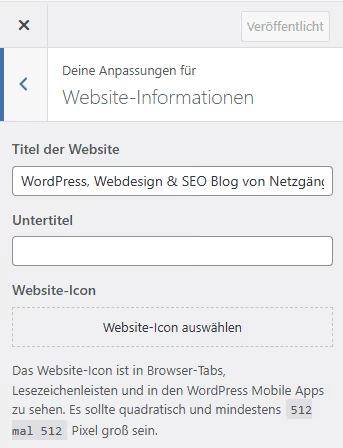
- Select the Site Identity section. In some themes it's called "Site Information" or "Site Icon & Logo".
- Find the Site Icon field. Click "Select site icon" and upload a square PNG; WordPress expects an image of at least 512×512, according to the documentation.
- If necessary, crop the image using the built-in editor and click "Save Changes".
Block theme (Site Editor, WordPress 5.9+):
If the theme supports Full Site Editing, the Customizer is replaced by the Site Editor. Go to Appearance → Editor, open the Styles panel or Settings, find the Site Icon section and upload the same square image. The logic is the same, the interface is different.
After saving, open the site in a new private browser window; the favicon should appear in the tab. If it doesn't appear immediately, don't panic: browsers aggressively cache favicons. More on this in the FAQ section below.
Method 2: manually via functions.php
An option for those who edit a child theme and don't want to rely on the Customizer. Add the following code to the child theme's functions.php or via the Code Snippets plugin:
1 /** 2 * Include favicon via wp_head. 3 * The favicon.png file should be in the root of the child theme. 4 */ 5 add_action( 'wp_head', 'sdstudio_add_favicon' ); 6 7 function sdstudio_add_favicon() { 8 $favicon_url = get_stylesheet_directory_uri() . '/favicon.png'; 9 echo '<link rel="icon" href="' . esc_url( $favicon_url ) . '" type="image/png" sizes="512x512">' . "\n"; 10 echo '<link rel="apple-touch-icon" href="' . esc_url( $favicon_url ) . '" sizes="180x180">' . "\n"; 11 }
What's happening here: the wp_head hook inserts two <link> tags into the <head> of every page. The first is a standard favicon for browsers, the second is an Apple touch icon for Apple devices (iPhone, iPad). The get_stylesheet_directory_uri() function returns the URL of the child theme; the favicon needs to be placed there, in the root of the theme folder.
Renaming the file to favicon.ico is not necessary. WordPress works fine with PNG, and browsers understand it without issues. The main thing is a square of standard size.
If you are linking the favicon not from the theme but from the site root, replace get_stylesheet_directory_uri() with home_url() and adjust the path:
1 $favicon_url = home_url( '/favicon.png' );
After adding the code, upload favicon.png to the corresponding folder via FTP or the hosting file manager. Check the result in a private browser window.
Method 3: via a plugin
If the Customizer for some reason won't let you upload a site icon (this happens in custom and outdated themes), install the Site Favicon plugin, which is minimalistic and free. Install it the standard way: Plugins → Add New → search "Site Favicon" → Install → Activate. After activation, a Settings → Site Favicon menu item appears in the admin, where you can upload an icon and see a preview immediately.
Another option is All in One SEO. If the SEO plugin is already on the site, check its settings: there is a site icon upload section there that does the same thing without an additional plugin. But we don't recommend installing a heavy SEO suite just for a favicon; Site Favicon handles the task, weighs less, and doesn't add extra load.
After setting up the favicon using any of the three methods, verify that the icon actually displays: open the site in incognito mode and look at the browser tab.
The video above is a step-by-step demonstration of all three methods on a live WordPress site. If after reading you still have doubts about any of the steps, watch the video: at 1:15 they show the upload via the Customizer, at 3:40 the manual method.
⁉️🤔 Frequently asked questions
Why doesn't the favicon display after uploading via the Customizer?
In most cases the problem is browser cache. Favicons are cached aggressively; the browser can hold the old version for several days. Open the site in incognito mode (Ctrl+Shift+N in Chrome): if the icon appears, the issue is indeed the cache. Clear your browser cache or wait for it to expire naturally. The second most common reason is that the favicon was uploaded in ICO format while the browser expects PNG. WordPress since version 4.3 prefers PNG; upload a square of standard size in PNG, as the documentation requires, and the problem will go away.
Can I use my logo as a favicon?
You can and should; it's standard practice. But not every logo is suitable. Check how your logo looks at a small scale: if the details merge into an illegible blob, make a simplified version. A good example is the WordPress icon (W on a blue background): recognizable even at a tiny size. A horizontal logo with ten letters of text will turn into a gray stripe when scaled down significantly; for the favicon, use only the mark without the text.
Why does WordPress require a favicon of exactly this size?
For WordPress, yes. The core accepts exactly this size as the source and generates all the necessary scaled-down copies automatically; the official documentation confirms the minimum requirement of 512 px on each side. If you upload a smaller favicon (for example, 128×128), scaling up to 512 pixels will happen with quality loss, and on retina screens the icon will look blurry. The exception is if you link the favicon manually via code (method 2): then you can prepare several sizes and specify them with separate
<link>tags.
How do I remove or replace a favicon?
Replacement is done through the same interface where you uploaded it: Customizer → Site Identity → Site Icon → "Remove" and then upload a new one. The old icon will linger in the browser cache for some time (up to several days); this is normal. For complete removal, use the "Remove" button in the same interface, after which WordPress will stop outputting favicon tags and the browser will revert to the gray placeholder.
Does a favicon affect SEO?
Directly, no. Google does not use the presence or absence of a favicon as a ranking factor. Indirectly, yes: a site with a favicon looks more professional, and users are less likely to confuse it with competitors when navigating tabs. This reduces the pogo-sticking rate (returning to the search results), which search engines take into account indirectly. Plus, Google sometimes shows favicons in mobile search results; the icon makes the snippet more visually noticeable, which improves CTR.
Which method to choose: a short algorithm
If you have a standard theme with a Customizer, use method 1. It's two clicks, and WordPress handles all the technical work: resizing, tag generation, Apple and Android support. Nine out of ten WordPress sites solve the favicon question exactly this way.
A custom theme without site icon support? Link it via functions.php (method 2); the three-line code gives you full control over sizes and format. Save the plugin (method 3) for cases when neither the Customizer nor theme editing is available, for example, if the site is on a multisite installation with restricted permissions or you're working with a builder that doesn't give access to functions.php.
And most importantly: after uploading the favicon, check the site in a new browser's incognito mode. Don't rely on a regular window; the old version or the placeholder itself may be cached there. See the icon in the tab? You're done.

A professional team of writers and editors specializing in creating quality content.