













💾 How to choose an SSD for your PC: types, interfaces and capacity
Bought an SSD and the system wouldn't boot? Or the opposite: you overpaid for a flagship NVMe that runs at a third of its capability in your PC. People get storage wrong more often than you'd think: interfaces, form factors, PCIe generations, and marketing gigabytes in spec sheets confuse even experienced builders.
The SSD market in 2026 is overheated to the limit. On one side, PCIe 5.0 drives pushing nearly 15,000 MB/s reads. On the other, SATA disks at $45 per terabyte, still going into office machines and NAS boxes. The gap between them is 26x in sequential speed and more than 20x in random IOPS, and that gap costs real money. According to price aggregator data for April 2026, SATA SSDs sell at $0.05-0.08 per gigabyte, while a top-end PCIe 5.0 drive goes for $0.10-0.14.
Below, no fluff and no marketing: what SSD types exist, how SATA actually differs from NVMe in practice, how many gigabytes you really need, and how to avoid throwing money at speed your computer will never see.
💡 Quick overview:
- Determine which interface your motherboard supports: SATA, PCIe 3.0, 4.0, or 5.0.
- Match SSD types to your task: SATA for upgrading old systems and cold storage, NVMe PCIe 4.0 for gaming and work, PCIe 5.0 if you're loading AI datasets or editing 8K.
- Pick the right capacity: 500 GB for office use, 1-2 TB for a gaming PC, 4 TB and up for a workstation.
- Check TBW in the specs, it's an honest indicator of drive endurance.
- Enable TRIM and watch temperatures: PCIe 5.0 drives without a heatsink throttle within minutes.
SSD types: SATA, NVMe, and what the real difference is
On a store shelf you see two drives of the same capacity with a 2x price gap. It's not the brand, it's the interface and protocol.
SATA SSDs work through the AHCI controller, designed in 2003 for hard drives. The SATA III interface hit its 6 Gbit/s ceiling back in 2009, yielding roughly 560 MB/s of real-world read speed. One command queue, 32 entries deep. That's enough for office tasks, booting Windows, and storing media files, but modern games and productivity apps hit the SATA wall immediately.
NVMe SSDs use the Non-Volatile Memory Express protocol, written specifically for flash memory. It supports 65,535 queues with 65,536 commands each and works directly over PCIe lanes. NVMe PCIe 4.0 drives, which dominate the mass market in 2026, read at 7,000-7,400 MB/s. Flagship PCIe 5.0 models, Samsung 9100 Pro, WD Black SN8100, and Crucial T705, have reached 14,500-14,800 MB/s.
The key number a user actually feels is not the gigabytes per second on the box, but the latency on small-block random reads (4K, QD1). An NVMe drive handles such a request in 10-20 microseconds. SATA takes 100-200. That's what determines how instantly applications open.
Drives are also available in the catalog at https://www.aks.ua/uk/catalog/nakopiteli-ssd/.
If you're a visual learner and want to see the difference between SSD types with your own eyes, here's an 8-minute breakdown of all formats and interfaces.
Form factors: 2.5-inch, M.2, and when it matters
The form factor determines whether the drive physically fits in your case. Three main options in the consumer segment:
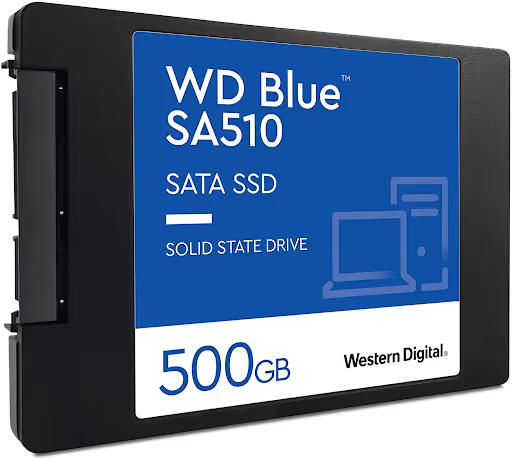
2.5-inch (SATA). The classic 7 mm thick enclosure, connects via a SATA cable to the motherboard and a power cable from the PSU. Fits any desktop and most laptops older than 2017. Absolute compatibility is SATA's main trump card.
M.2 2280. A stick 22 mm wide and 80 mm long, plugs directly into a slot on the motherboard. No cables. Can be either SATA (slow) or NVMe (fast), so check the slot labeling: M.2 SATA and M.2 NVMe look identical but are not always interchangeable. Most modern boards support both modes, but budget ones may support only one.
U.2 and add-in cards. Server and enthusiast formats. Not found in consumer PCs, don't worry about them.
Before buying an M.2 drive, open your motherboard spec sheet and look for the phrase "M.2 slot (Key M), supports NVMe." If it only says "M.2 SATA," an NVMe stick won't boot.
PCIe generations: 3.0, 4.0, or 5.0, which to pick in 2026
Different PCIe generations differ in per-lane bandwidth. Four PCIe lanes (x4), the standard for NVMe drives:
Generation | Speed per lane | x4 (read, max) | Real-world difference vs SATA |
|---|---|---|---|
PCIe 3.0 | ~1 GB/s | ~3,500 MB/s | ~6x |
PCIe 4.0 | ~2 GB/s | ~7,400 MB/s | ~13x |
PCIe 5.0 | ~4 GB/s | ~14,800 MB/s | ~26x |
The numbers look great, but reality is sobering. PCMark 10 Full System Drive, a benchmark of real-world scenarios (launching Photoshop, copying an ISO, opening Excel, loading Battlefield V), shows a 3.7x difference between PCIe 5.0 and SATA, not 26x. The reason: workloads hit CPU and memory bottlenecks long before the interface becomes the limiting factor.
Practical lay of the land for 2026:
PCIe 3.0: still alive. A gaming PC with an RTX 4060 won't notice the difference between Gen 3 and Gen 4 in 9 out of 10 games. Upgrading an old system to NVMe Gen 3 already gives a 5-6x boost over SATA.
PCIe 4.0: the sweet spot. Samsung 990 Pro and WD Black SN850X, proven workhorses. DirectStorage 1.3, built into Windows 11 24H2 and supported by Unreal Engine 5.5, fully utilizes Gen 4 speed.
PCIe 5.0: makes sense in three cases: you're loading AI models from disk, editing 8K RAW in DaVinci Resolve, or running a write-intensive database. In games, the difference from Gen 4 is 1-3 seconds on level load times. But there's a catch: heat.
Gen 5 drives consume 10-12 W under load versus 5-8 W for Gen 4. Without a heatsink, any PCIe 5.0 drive hits thermal throttling within 2-3 minutes of continuous writing. Motherboards with a factory heatsink on the M.2 slot solve the problem; budget boards don't. Make sure a heatsink is included.
What capacity to get: from 500 GB to 4 TB
Capacity is the spec where a mistake hits your wallet immediately. Too little, and the drive is full in a month. Too much, and you overpaid for gigabytes you'll never fill.
Guidelines for mid-2026:
500 GB. Office PC, a parent's laptop, a terminal. OS, browser, a set of documents. Windows 11 with updates takes about 40 GB, the Office suite another 5. Roughly 380 GB remains free. Plenty of headroom.
1 TB. A gaming PC with 5-7 modern titles. The average AAA game in 2026 weighs 80-150 GB. On 1 TB you can fit Windows, all your software, and about six blockbusters at once. Optimal for most gamers.
2 TB. Workstation, game collection, video recording. Two terabytes cover the "install and forget" scenario for several years ahead. The price difference between 1 TB and 2 TB on mainstream NVMe models is noticeably less than double, manufacturers incentivize buying larger capacities.
4 TB and up. Video editing, RAW photo work, virtual machines. A 4 TB drive holds an active 8K project and your entire media library. 4 TB SATA drives are a sensible compromise for cold storage at a price well below NVMe equivalents.
An important nuance: don't fill an SSD to the brim. The controller needs free space for wear leveling and garbage collection. Leave at least a tenth of the drive free, otherwise write speed drops and wear accelerates.
TBW and endurance: how long your SSD will live
TBW (Terabytes Written) is the key endurance metric. It's the amount of data the manufacturer guarantees you can write before the drive fails. Typical figures for a 2 TB TLC drive in 2026: 1,200-2,400 TBW.
What that means in practice. At a realistic load of 30 GB of writes per day, a home drive with 1,200 TBW would exhaust its rated life over decades; the controller or NAND chips will degrade sooner.
The only scenario where TBW matters: a server with intensive writes (database, caching proxy, video surveillance). There the endurance can be consumed in 3-5 years.
For a home user, overall health status is more important: Windows shows it under "Manage Disks and Volumes," and the CrystalDiskInfo utility gives a detailed picture. If the percentage of used life increases by 1-2 points per year, the drive will outlive your computer.
SSDs for different scenarios: gaming, work, OS
Gaming PC. Priority: NVMe PCIe 4.0 or 5.0 at 1-2 TB. Major engines (Unreal Engine 5.5, Frostbite, RAGE) support DirectStorage 1.3: compressed assets fly directly from SSD to video memory, bypassing the CPU. Cyberpunk 2077: Phantom Liberty loads from PCIe 5.0 in 4.8 seconds versus 15.3 on SATA. Star Citizen, 22 seconds versus 71.
For light and older games, speed is non-critical. Valorant, CS2, Dota 2 will launch from SATA with no perceptible delays.
Workstation (video, photo). NVMe is mandatory here. Exporting a 4K project from Premiere Pro goes significantly faster on NVMe, thanks to source read speed and output write speed. Two drives (NVMe for the project, SATA for the media archive) give the best price/performance balance.
Office PC / student laptop. A 500 GB SATA SSD covers all needs. The difference in Windows boot time between SATA and NVMe is fractions of a second against the total startup time. Word, Excel, and browsers don't load the disk enough for SATA to become a bottleneck.
NAS / home server. SATA, the king of cold storage. A 1 GbE network speed is 5 times slower than any SATA SSD. NVMe in a NAS only makes sense as a cache on a 10-gigabit network.
How to extend your SSD's life: three rules
An SSD needs no defragmentation, isn't afraid of vibration, and runs silently. But three things kill it faster than you'd like.
Enable TRIM. TRIM is a command the OS uses to tell the SSD controller which data blocks can be erased. Without TRIM, the controller treats all blocks as occupied and wastes write cycles on garbage. In Windows 10 and 11, TRIM is enabled by default. Check it: open Command Prompt as administrator, run fsutil behavior query DisableDeleteNotify. A result of 0 means TRIM is working.
Watch the temperature. The comfortable range for an NVMe drive under load is 40-65 °C. Above 70 °C, throttling begins: the controller reduces speed to cool down. Above 80 °C, there's a risk of irreversible NAND degradation. The CrystalDiskInfo utility shows temperature in real time. If it's consistently above 65 °C, install a heatsink on the M.2 stick or check case airflow.
Update the firmware. Manufacturers (Samsung Magician, WD Dashboard, Crucial Storage Executive) release firmware updates that fix controller bugs, improve compatibility, and sometimes boost performance. Do this every six months, after backing up important data first.
⁉️🤔 Frequent questions
NVMe on an old PC, will it boot or not?
It will boot if the motherboard has an M.2 slot with NVMe support (Key M). Boards on Intel 100-series chipsets (Skylake, 2015) and newer usually have such a slot. If the M.2 slot is SATA-only, the NVMe stick will physically fit, but the BIOS won't see it. In an old computer without M.2, you can install an NVMe drive via an adapter in a PCIe x4 slot, but booting from it works only if the BIOS supports NVMe Boot (UEFI). Check the boot device list; there should be a "Windows Boot Manager (NVMe)" entry.
Is a SATA SSD useless in 2026?
No. SATA is still the best choice for three scenarios: upgrading an old PC or laptop without an M.2 slot, cold storage of large volumes (NAS, media archive), and maximum cost savings when building office machines. The noticeable price-per-gigabyte difference versus NVMe means that for a secondary file disk, SATA is more rational.
Do I need a heatsink for NVMe?
For PCIe 4.0, it's advisable under sustained loads. Without a heatsink, temperatures rise to 65-70 °C, which is acceptable. For PCIe 5.0, it's mandatory. These drives consume 10-12 W under load and throttle without cooling within 2-3 minutes. Motherboards with a factory M.2 heatsink solve the problem; on budget boards, the heatsink is purchased separately.
What's the difference between TLC and QLC, and which should I get?
TLC (Triple-Level Cell, 3 bits per cell) is the standard for most modern SSDs: high speed, decent endurance (1,200-2,400 TBW on 2 TB). QLC (Quad-Level Cell, 4 bits per cell) is noticeably cheaper per gigabyte, but writes slower and has lower endurance (600-1,200 TBW). For a system drive and games, get TLC. QLC is suitable for a pure file storage drive where writes are rare and reads are the primary operation.
How much free space should I leave?
Leave roughly a tenth of the drive free. On a 1 TB drive, that's about 100-150 GB. The controller uses free blocks for wear leveling and background garbage collection. Filling the drive to the brim slows writes and accelerates wear.
So which SSD to get for your task
The decision matrix is simple. If you're building a new gaming PC, get an NVMe PCIe 4.0 at 1 or 2 TB. If you're upgrading an old computer without M.2, get a SATA at 500 GB or 1 TB. If you work with 4K/8K video or AI models, get a PCIe 5.0 at 2 TB with a heatsink. And in any build, keep a second drive for files and backups: a 2-4 TB SATA drive costs reasonable money and solves storage for years ahead.
Check your motherboard specs before buying, enable TRIM after installation, and don't chase the numbers on the box. The real-world difference between 7,400 MB/s and 14,800 MB/s in daily work is nearly invisible, while the price difference is very much visible.

A professional team of writers and editors specializing in creating quality content.