













👌 Multiple selection in Google Sheets: script for cells with data validation
A dropdown list in Google Sheets is a handy feature. Set up data validation, and the cell only accepts values from a range. But there's a catch: you can only select one item. What if your task needs a tag "urgent, budget, design", three values in one cell? With standard tools, there's no way.
In practice, this need comes up constantly: categorizing expenses, tagging tasks, listing participants. Opening the editor each time and adding values separated by commas wastes time. The solution is a small Google Apps Script that adds a sidebar with checkboxes for any data validation range.
Below is step-by-step setup: from creating the script file to a ready-made "Scripts" menu in your spreadsheet. The code has been tested on real spreadsheets, works without additional permissions, and requires no programming knowledge.
💡 Quick overview:
- Set up data validation for a cell by range and choose to show a warning instead of rejecting input
- Create two files in the script editor:
multi-select.gswith logic anddialog.htmlwith the sidebar interface - Save the project, refresh the spreadsheet, and the Scripts menu item will appear
- Select a cell with data validation, run the script, and check the desired values with checkboxes
- Click Select, and the cell will fill with the selected items separated by commas
Step 1: Prepare the spreadsheet and data validation
Open the Google Spreadsheet you're working with. Select the target cell (or range) and set up data validation: Data → Data validation. In the "Criteria" field, select "List from a range" and specify the list from which options will be drawn.
Important point: don't enable "Reject input", because if you do, the script won't be able to write multiple comma-separated values to the cell. Showing a warning is sufficient.
If you don't have a ready range, create a separate "Reference" sheet and list all allowed values in a column there. Reference this range in the data validation.
Step 2: Create the Apps Script
In the Spreadsheet menu: Extensions → Apps Script. The editor will open with a clean tab and an empty file. First, we'll create the server-side part.
Click File → New → Script file. Name it multi-select.gs and paste the code:
1 function onOpen(e) { 2 SpreadsheetApp.getUi() 3 .createMenu('Scripts') 4 .addItem('Multi-select for this cell...', 'showDialog') 5 .addToUi(); 6 } 7 8 function showDialog() { 9 var html = HtmlService.createTemplateFromFile('dialog').evaluate(); 10 SpreadsheetApp.getUi() 11 .showSidebar(html); 12 } 13 14 var valid = function() { 15 try { 16 return SpreadsheetApp.getActiveRange() 17 .getDataValidation() 18 .getCriteriaValues()[0] 19 .getValues(); 20 } catch(e) { 21 return null; 22 } 23 }; 24 25 function fillCell(e) { 26 var s = []; 27 for (var i in e) { 28 if (i.substr(0, 2) == 'ch') s.push(e[i]); 29 } 30 if (s.length) SpreadsheetApp.getActiveRange().setValue(s.join(', ')); 31 }
What's happening here: onOpen adds the "Multi-select for this cell…" item to the spreadsheet's custom menu. showDialog opens the sidebar with the HTML interface. The valid function extracts the list of allowed values from the active cell's data validation. And fillCell collects the checked checkboxes and writes them to the cell separated by commas.
Note: i.substr(0, 2) filters only those parameters whose names start with ch, these are checkbox identifiers from the HTML form. Other parameters are ignored.
Click File → Save (or Ctrl+S). On the first save, the script will request permissions, this is normal, without them it won't be able to read cell data and show the sidebar.
Step 3: Add the HTML interface
Now we'll create the sidebar itself. In the same editor: File → New → HTML file. Name it dialog.html and paste:
1 <div style="font-family: sans-serif;"> 2 <? var data = valid(); ?> 3 <form id="form" name="form"> 4 <? if (Object.prototype.toString.call(data) === '[object Array]') { ?> 5 <? for (var i = 0; i < data.length; i++) { ?> 6 <? for (var j = 0; j < data[i].length; j++) { ?> 7 <input type="checkbox" 8 id="ch<?= '' + i + j ?>" 9 name="ch<?= '' + i + j ?>" 10 value="<?= data[i][j] ?>"> 11 <?= data[i][j] ?><br> 12 <? } ?> 13 <? } ?> 14 <? } else { ?> 15 <p>This cell has no 16 <a href="https://support.google.com/drive/answer/139705?hl=en">Data validation</a>. 17 </p> 18 <? } ?> 19 <input type="button" value="Select" 20 onclick="google.script.run.fillCell(this.parentNode)" /> 21 <input type="button" value="Refresh validation" 22 onclick="google.script.run.showDialog()" /> 23 </form> 24 </div>
The logic is simple: the server-side tag <? var data = valid(); ?> calls the valid() function from the GS file and gets an array of allowed values. If a range is specified, checkboxes are rendered, one for each value. The Select button sends the form to fillCell, the Refresh validation button re-reads the data validation (convenient when switching between cells).
If the selected cell has no data validation, the panel will show a message with a link to Google help.
Save the file: File → Save. Both files (multi-select.gs and dialog.html) should be in the same project.
Step 4: Run and use
Return to the spreadsheet and refresh the page. After a couple of seconds, a new Scripts item will appear in the menu bar, this is the result of onOpen.
Now the workflow:
- Select any cell that has data validation by range configured.
- Go to Scripts → Multi-select for this cell….
- A sidebar will open on the right with a list of checkboxes, all values from your validation range.
- Check the desired items and click Select.
- The cell will fill with the selected values separated by commas:
urgent, budget, design.
You don't have to close the sidebar. Just click another cell (also with data validation) and click Refresh validation, the checkbox list will update for the new cell.
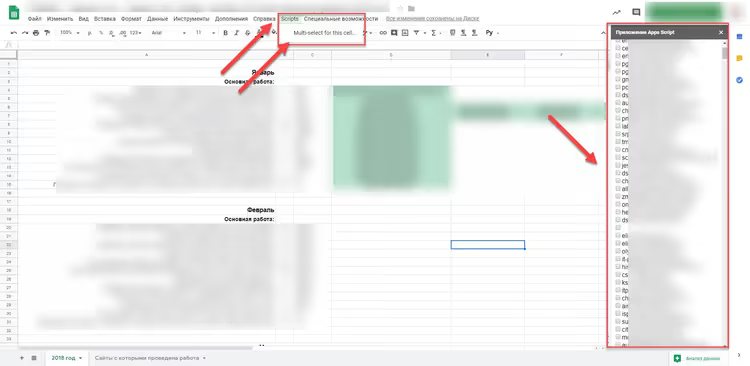
In the screenshot, the result: a cell with data validation, a sidebar with active checkboxes, and the Scripts menu in the menu bar. This is exactly how the solution looks in action.
Step 5: What can be improved
The basic script solves the task "select multiple values from a dropdown list", and for most scenarios this is enough. But if you work with the spreadsheet intensively, there are a couple of improvements:
- Add "Select All" / "Deselect All". Two buttons in the HTML form that programmatically check or uncheck all checkboxes. A couple of lines in JavaScript, and you save a dozen clicks on a large range.
- Replace the comma with another delimiter. In the
fillCellfunction, thes.join(', ')line joins values with a comma. If your data contains commas as part of the value, replace with;or|. - Auto-refresh on cell change. Instead of manually clicking "Refresh validation", you can attach a trigger to the cell selection event (
onSelectionChange), but this requires slightly more complex code and manual trigger installation.
The script source code is an adaptation of Alexander Ivanov's solution, posted by Arthur Attwell on GitHub Gist. You can also find community discussion and improvements there.
Below is a video tutorial in English, if you prefer watching over reading:
⁉️🤔 Frequently asked questions
The script doesn't appear in the menu after saving. What should I do?
Refresh the spreadsheet page (F5 or Ctrl+R). If that doesn't help, check that the function is named exactly
onOpen(case matters), and that there are no errors in the script editor: View → Logs will show the stack trace. Sometimes it helps to close the script editor and reopen it.
The sidebar opens, but there are no checkboxes, only a message about Data Validation.
This means the selected cell has no data validation by range. Select the cell for which you configured validation in Step 1. If validation is configured for a range of cells rather than one, make sure the active cell is exactly the one that's in the range.
Can the script be used on multiple sheets in one spreadsheet?
Yes. The script is attached to the container (spreadsheet), not to a specific sheet. Data validation works at the sheet level, configure it on the needed sheets, and the sidebar will pick up values from the active cell regardless of the sheet.
After selecting values, the cell shows an error "Invalid value".
You enabled "Reject input" in the data validation settings. Go back to Data → Data validation, select "Show warning" instead of "Reject input". If the data is critical, leave the warning, it doesn't block writing by the script.
The script requests access to the Google account, is this safe?
Yes. Permissions are needed for
SpreadsheetApp.getActiveRange()(reading cell data) andSpreadsheetApp.getUi()(displaying menu and sidebar). The script only works inside your spreadsheet and has no access to other files on Drive. The full list of permissions is visible in the authorization window.
Which multi-select script to install in your spreadsheet
The described solution is a minimal working framework. Two files, not a single external library, clear logic. For expense tracking, task tagging, and any scenarios where you need to write multiple values from a reference list into one cell, it's more than enough.
If you work with Google Sheets heavily, check out the Apps Script documentation. The capabilities go far beyond checkboxes: automatic email sending when a cell changes, generating documents from templates, integration with Google Calendar. Start with this script, and who knows, you might write your own automations.

A professional team of writers and editors specializing in creating quality content.