














🛡 Sandboxie sandbox review: application isolation for Windows in 2026
Downloaded an.exe from an untrusted source and afraid to run it? Or need to open a suspicious link, but the browser is a window into your main system with all your passwords and files? Anyone who administers a Windows computer eventually runs into this dilemma. Antivirus software does not catch everything, and a virtual machine is a cumbersome solution for just one file.
This is where a sandbox comes in: an isolated environment where an application runs normally but cannot touch the real system. Since 2020, the best tool for this on Windows has been Sandboxie, which became open source and got a new lease on life.
💡 Quick overview:
- Download Sandboxie Plus from the official website and install it; the isolation driver integrates into the system in a couple of minutes.
- Launch a browser or any program via the "Run Sandboxed" context menu; the window will appear with a
[#]prefix in the title. - Verify isolation: download a test file inside the sandbox, close the program, and notice that it is not on the real disk.
- If needed, recover the file via "Quick Recovery," select the destination folder, and confirm the transfer.
What Sandboxie is and where it came from
Sandboxie creates an isolated operating environment on top of Windows. Inside it, applications see their own copy of the registry and file system, but the real registry and disk remain untouched. Close the program and all changes disappear.
The project has a long history. The original author Ronen Tzur wrote the first version back in 2004. Later, Invincea bought the product, then Sophos acquired it. In 2017, Sophos integrated Sandboxie into its enterprise package, and in 2020 announced the end of development and released the source code under the GPLv3 license.
Since then, David Xanatos has led the project, and he has seriously breathed new life into Sandboxie. Today two versions are available:
- Sandboxie Plus, a modern build with a Qt interface, new features, and active development (latest release 1.15.6, February 2025).
- Sandboxie Classic, the original MFC interface, without new capabilities, but on the same proven isolation kernel.
On GitHub, the project has 18,600 stars and over 2,000 forks; for a utility of this class, that is a lot. Development continues steadily: Windows 11 support, ARM64 processors, new isolation modes.
Installation and first launch
Installation is simple but requires attention. The main component is the Sandboxie driver, which intercepts system calls at the kernel level and redirects them to the isolated environment. On a test computer with Windows 10 Home, the driver installed without conflicts with the built-in Windows protection.
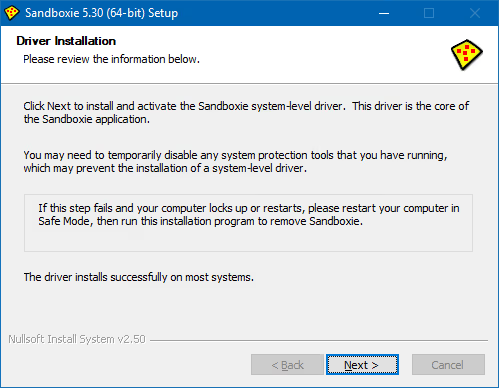
On first launch, Sandboxie scans installed programs and offers to apply compatibility templates for browsers, email clients, and other software. Do not decline; the templates save setup time, and you can remove unnecessary ones later.
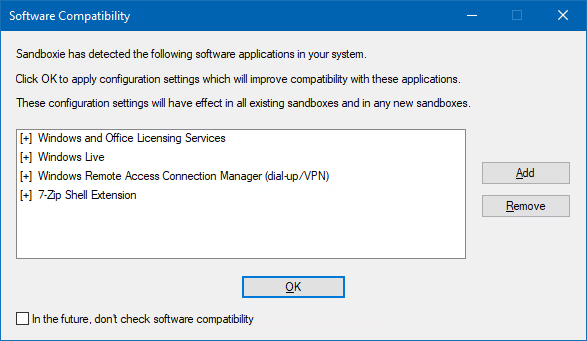
Immediately after the wizard, a shortcut labeled "Sandboxie, Default Browser" appears on the desktop. This is the DefaultBox sandbox with a preconfigured profile for your browser.
Interface and basic usage
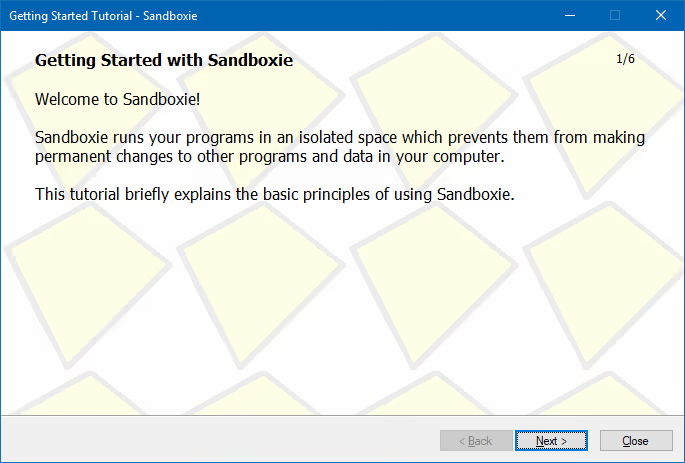
The main program window resembles Task Manager. On the left is a list of sandboxes (containers), on the right are processes running in the selected sandbox. Everything is grouped by container: you can create separate isolated environments for the browser, email, and suspicious files.
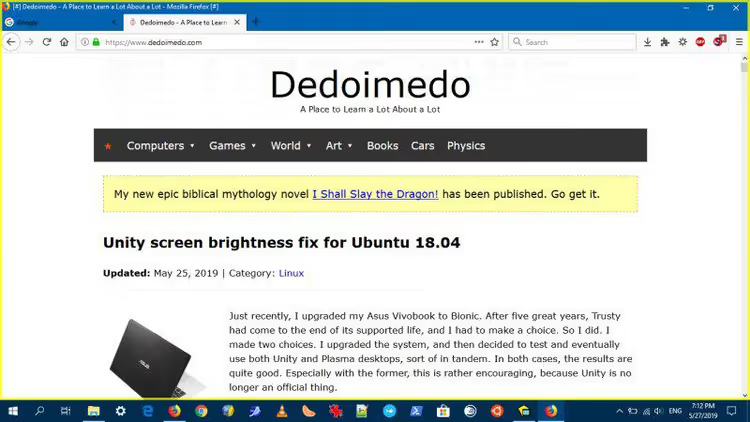
The main visual indicator that a program is sandboxed is the [#] prefix in the window title. In Firefox and most classic applications, this works reliably. In Chrome, the title is hidden, so there is no visual marker; it can only be identified by hovering over the window in the taskbar. In practice, we recognize a sandboxed Chrome by the absence of bookmarks and history from the real profile.
You can run any program in the sandbox: right-click on an executable file or shortcut → "Run Sandboxed" → select a container. There are no restrictions on application types; exe, msi, and portable builds all work the same way.
How file isolation works
The key mechanism: everything a program does inside the sandbox stays there. Download a file through the sandboxed browser and it saves to the virtual file system inside the container. Close the browser and the virtual system is cleaned up; nothing remains on the real disk.
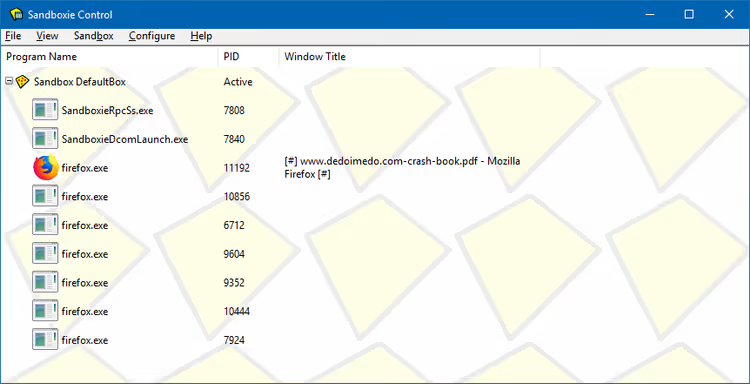
But what if you actually need the file? That is what "Immediate Recovery" is for. When you try to save a file to one of the system folders (Downloads, Documents, Desktop), Sandboxie intercepts the operation and offers to recover it (that is, copy it from the sandbox to the real system).
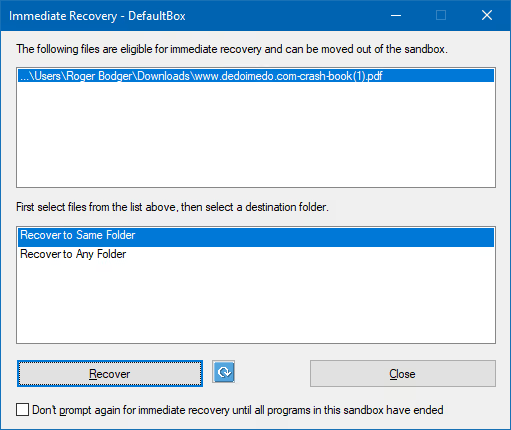
The mechanism is not the most intuitive. The "Close" option in the recovery dialog does not cancel saving; the file remains inside the sandbox. "Recover" copies it out. After closing the application, unrecovered files are deleted. In practice, you get used to this after a couple of days of active use.
Launching via the context menu is the most common scenario in daily work. You select a container and the program starts in isolation without additional actions.
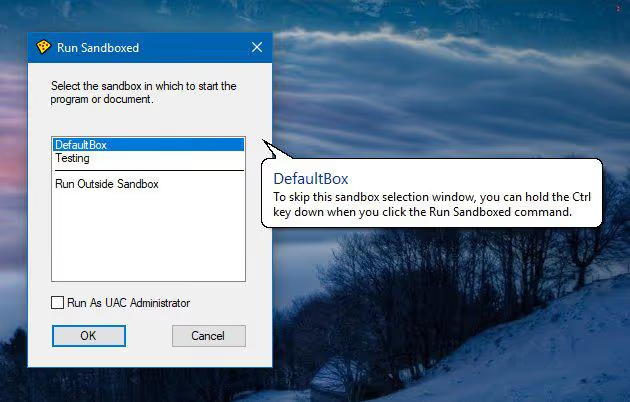
From a performance standpoint, there are no complaints. In the sandboxed Firefox and Chrome, there was no noticeable speed drop, no conflicts with extensions, and no problems playing video. The overhead of isolation is minimal.
Fine-tuning: restrictions and permissions
Sandboxie settings are divided into two levels. The first is quick settings for the current process: right-clicking on a process in the main window lets you change behavior for that session. The second is global settings for each sandbox separately.
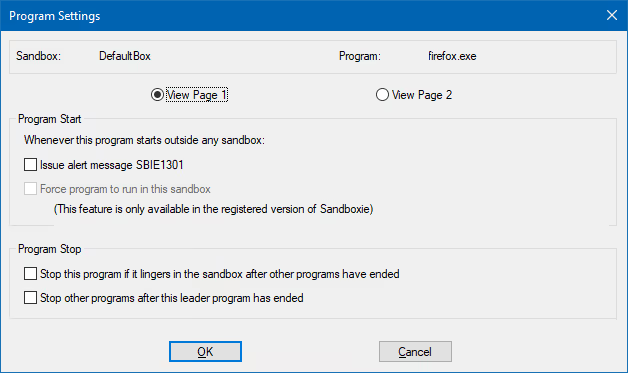
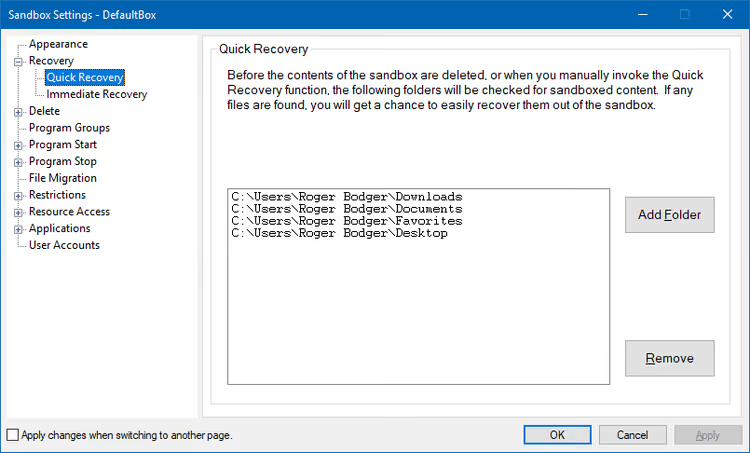
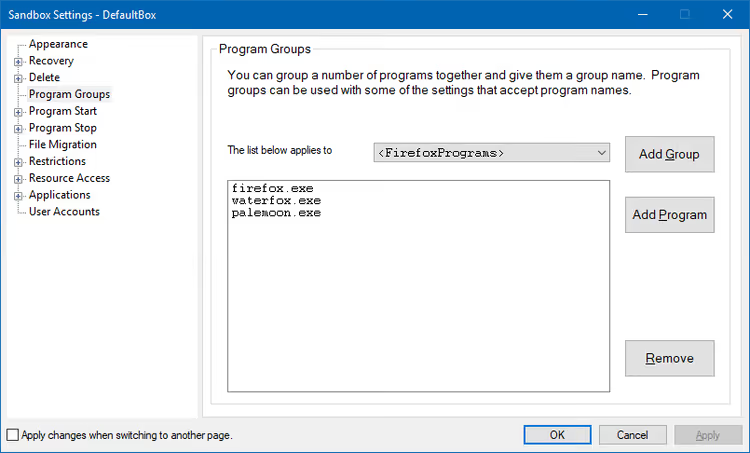
Global settings are hidden deeper than one might like. They open via the "Sandbox" menu → "Sandbox Settings," and this is a long list of tabs: appearance, file recovery and deletion, grouping programs by type, transferring files between environments.
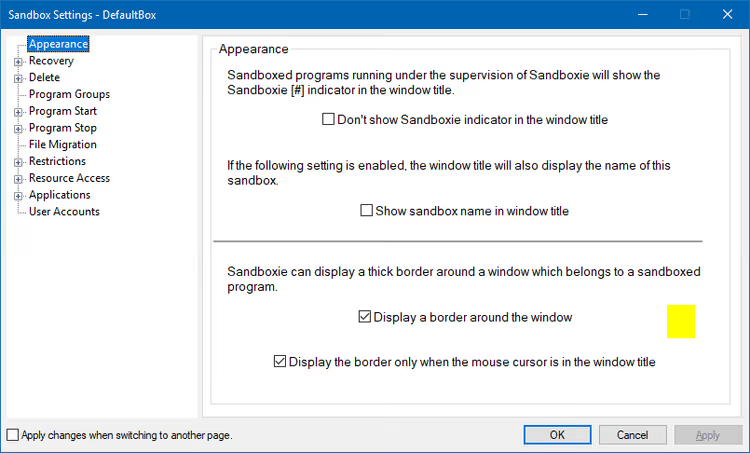
Here you define folders for which "Immediate Recovery" triggers and behavior when programs inside the sandbox close.
Grouping lets you combine browsers on the same engine or all office applications under a single set of rules, so you do not have to configure each one separately.
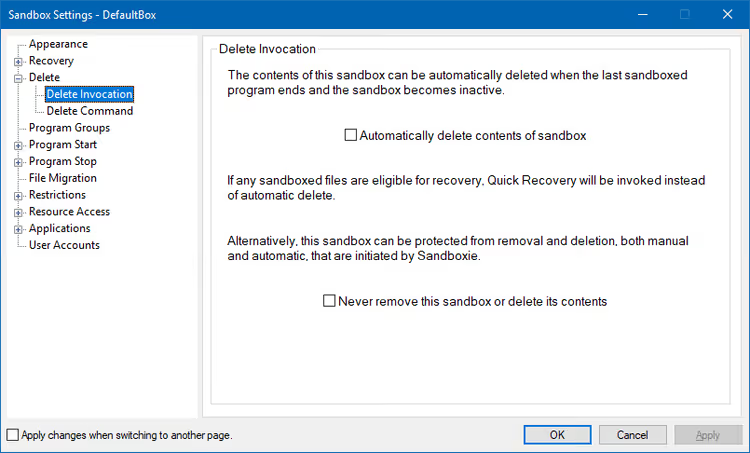
Transferring files between sandboxes is useful when you have multiple containers and need to pass data from one to another without going through the real system.
File system restrictions control which folders the isolated application can access and which are completely hidden.
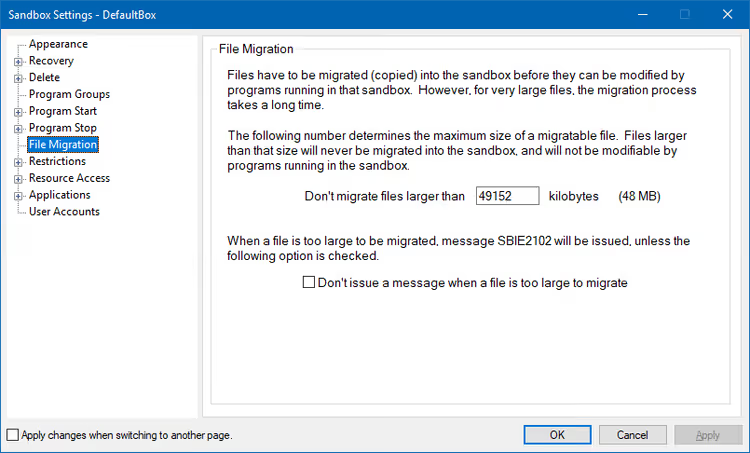
Note: some parameters are described through negations ("do not block," "do not prohibit"). This is a legacy of the old configuration approach and is confusing. You have to mentally flip the logic to understand what will happen when you enable an option.
Next comes a truly low-level section, access rights. Here you can configure for each sandbox: which files are available for reading and writing, which are completely hidden, which network ports are open, which DLLs can be loaded. In essence, this is analogous to SELinux or AppArmor in the Windows world: powerful, but requiring deep system understanding.
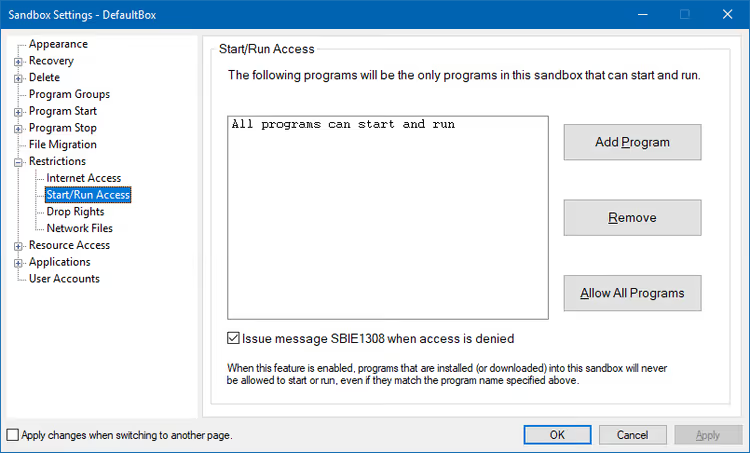
Each line in this list is a rule that determines whether an application inside the sandbox can read a specific file, write to it, or even see that it exists.
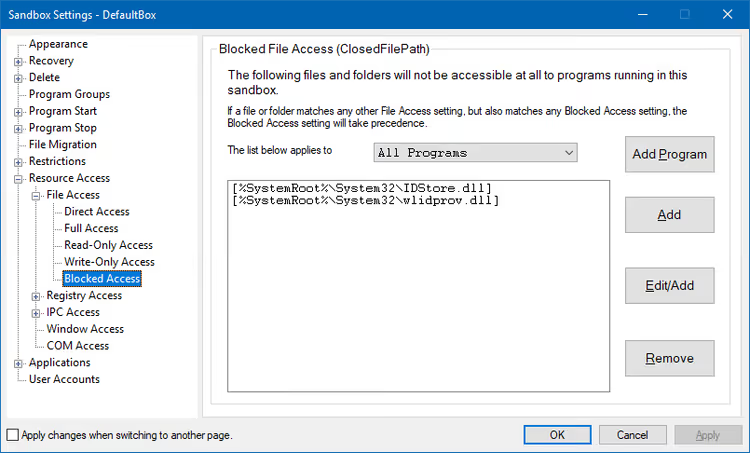
The registry, IPC, and COM sections are territory for system administrators and developers. If you do not know what a process descriptor table or registry virtualization is, it is better not to go into these sections. A configuration error can block Windows from booting or make applications inside the sandbox non-functional.
The "Applications" tab is an extremely long list of categories with preset rules: browsers, email clients, PDF readers, multimedia, archivers. For each category, you can enable or disable a group of rules with a single checkbox.
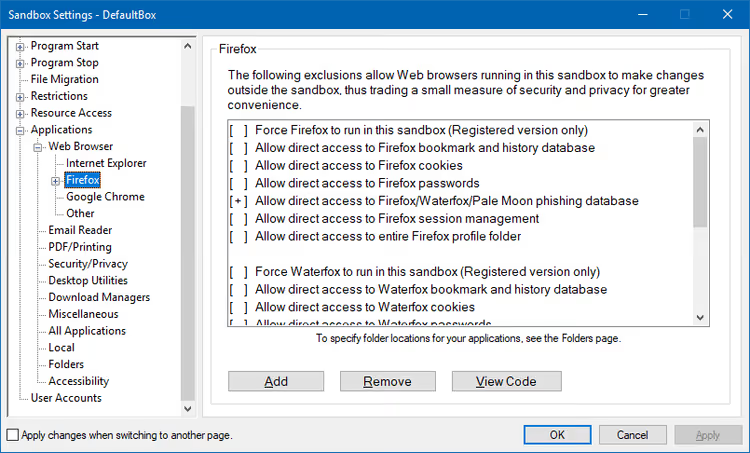
Compatibility templates are a ready-made set of rules for specific programs. For example, permissions for accessing the profile and cache are already defined for Firefox, so the browser works without additional manual configuration.
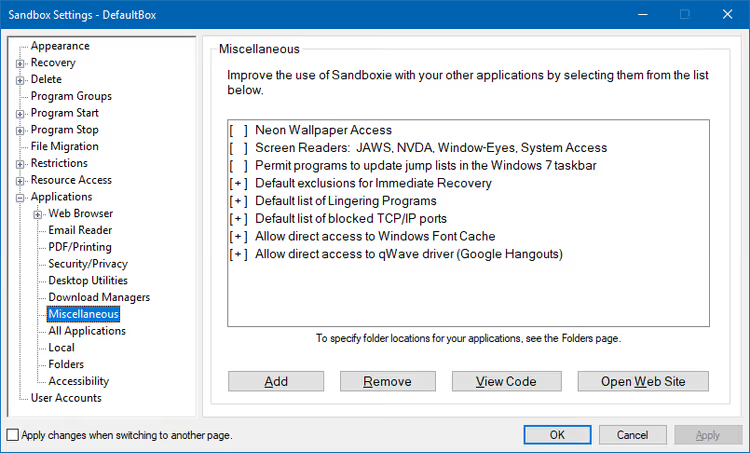
Configuration is also available through an ini file for those who need mass deployment or automation. It looks archaic but works and allows copying settings between computers in a single operation.
Bottom line on settings: Sandboxie provides an unprecedented level of control for a free tool. However, the configuration interface remains an entry barrier that discourages beginner users.
A visual demonstration of the basic scenario (launching a browser in a sandbox and verifying file isolation) is in the video above.
Where the sandbox model fails
On paper, Sandboxie looks flawless: the program is isolated from the system and cannot cause harm. In practice, the model breaks down at three points.
First, the user themselves. The "Immediate Recovery" mechanism is convenient, but it is also the main risk vector. You downloaded a file in the sandboxed browser, recovered it to the real Downloads folder, and launched it outside. If the file is malicious, the sandbox did not save you: it only isolates what is inside. The decision to recover is made by a person, and having Sandboxie can create a false sense of security. In our experience, the "downloaded in sandbox → recovered → launched outside" chain is the most common compromise scenario.
Second, misconfiguration. You relaxed restrictions so that the program inside the sandbox would work "properly," opening access to a real folder or registry branch. At that moment, you created a breach in isolation. The paradox is that the strictest settings often interfere with convenience, and the user softens them. And not always competently.
Third, alternative protection mechanisms that already exist in the system. Modern browsers (Chrome, Edge, Firefox) have long operated in their own process-level sandboxes. Windows has built-in Exploit Protection and Controlled Folder Access. Running a browser under a restricted Windows account actually covers most scenarios for which users install Sandboxie.
This does not mean Sandboxie is useless. It provides what browser sandboxes lack: isolation for any application, not just web pages. Testing installers, running old utilities of unknown origin, checking trial versions with aggressive DRM: these are scenarios where built-in Windows protection is insufficient.
⁉️🤔 Frequently asked questions
Is Sandboxie an antivirus?
No. Sandboxie isolates applications from the system but does not search for or remove malicious code. It prevents infection by blocking changes to the disk rather than scanning files. For full protection, use it together with an antivirus, not instead of one.
Which version is better, Plus or Classic?
Sandboxie Plus. It has a modern Qt interface, a recovery panel with preview, process grouping, and active developer support (releases every few months). Classic only makes sense on older machines where the Qt version does not run.
Can you run a virus inside the sandbox?
You can, and it is safe under two conditions: you do not recover the malicious file to the outside via "Immediate Recovery" and you have not given the sandbox access to real system folders. The sandbox isolates changes, but it does not make the virus itself harmless. If you recover it and run it outside, infection will occur.
Does Sandboxie work on Windows 11?
Yes. Starting with version 1.3.5 (September 2022), Sandboxie Plus fully supports Windows 11, including integration with the updated context menu. Additionally, ARM64 processor support was added in version 1.5.0.
What happens if you uninstall Sandboxie with running sandboxes?
All files inside sandboxes will be deleted along with the program. Before uninstalling, go into each sandbox through the main window and recover needed files via "Immediate Recovery." After that, uninstall the program in the usual way.
Are there alternatives for macOS or Linux?
There is no direct equivalent. On Linux, the isolation task is handled by Firejail and Bubblewrap; they work at the namespace and control groups level rather than through a kernel driver like Sandboxie. On macOS, the closest tool in spirit is the built-in App Sandbox, but users cannot apply it to arbitrary programs.
A sandbox for everyday use: when it pays off
Sandboxie is not for everyone. If you work in a browser, do not download files from questionable sources, and use a standard account without administrator rights, built-in Windows protection is sufficient.
But if you regularly test software, open attachments from unknown senders, or work with programs you do not fully trust, Sandboxie Plus pays off on the very first day. It is a free, open-source tool that provides a level of isolation comparable to a virtual machine, but without the overhead of a second operating system.
The main thing to remember: the sandbox protects the system from the application, not the application from the user. The decision to recover a file to the outside is yours. And that is the weakest link.

A professional team of writers and editors specializing in creating quality content.