














🧮 Simple JavaScript calculator: step by step guide
Need a simple calculator on your site, a shipping calculator, mortgage calculator, or just "calculate something on the fly"? Writing a backend for this is like using a cannon to shoot sparrows. JavaScript on the client handles it in an evening.
The problem with most guides: they give you a jQuery version from 2017 with eval(), and that's a security hole they won't tell you about. We'll take a different path: build a calculator in pure JavaScript, with proper layout and without the "install three dependencies" agenda.
By the end of this article, you'll have working code that adds, subtracts, multiplies, and divides, and an understanding of why eval() is better avoided.
💡 Quick overview:
- HTML: build calculator markup with CSS Grid, no table and center
- CSS: add responsive grid, button styling, and display
- JavaScript: write click capture, expression collection, and calculation without eval()
- Security: learn what to replace eval() with and why it matters
Step 1: HTML, calculator markup
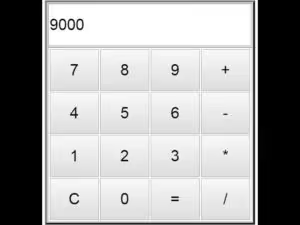
First, we build the skeleton. No <center> and <table border="4"> from 2005, we use CSS Grid: four columns for digits and operators plus a display row on top.
Create an index.html file and add this markup:
1 <div class="calculator"> 2 <input class="display" type="text" readonly> 3 4 <div class="buttons"> 5 <button class="btn-clear" data-action="clear">C</button> 6 <button class="btn-operator" data-action="operator" data-value="/">/</button> 7 <button class="btn-operator" data-action="operator" data-value="*">*</button> 8 <button class="btn-operator" data-action="operator" data-value="-">-</button> 9 10 <button class="btn-number" data-action="number" data-value="7">7</button> 11 <button class="btn-number" data-action="number" data-value="8">8</button> 12 <button class="btn-number" data-action="number" data-value="9">9</button> 13 <button class="btn-operator" data-action="operator" data-value="+">+</button> 14 15 <button class="btn-number" data-action="number" data-value="4">4</button> 16 <button class="btn-number" data-action="number" data-value="5">5</button> 17 <button class="btn-number" data-action="number" data-value="6">6</button> 18 <button class="btn-equals" data-action="calculate">=</button> 19 20 <button class="btn-number" data-action="number" data-value="1">1</button> 21 <button class="btn-number" data-action="number" data-value="2">2</button> 22 <button class="btn-number" data-action="number" data-value="3">3</button> 23 <button class="btn-number btn-zero" data-action="number" data-value="0">0</button> 24 </div> 25 </div>
Here the display (<input>) is read-only: the user doesn't enter data from the keyboard but clicks buttons. This protects against garbage characters in the expression. Buttons are divided by data-action attributes, "number", "operator", "calculate", and "clear", so the script knows what to do with a click. The data-value attribute stores the button value: a digit or operation sign.
Note: the display has a readonly attribute, the user won't be able to type alert('hack') there from the keyboard.
Step 2: CSS, appearance
Now the styles. Without CSS, the calculator looks like a stack of buttons, the grid fixes everything. In the same index.html, inside <head>, add:
1 <style> 2 .calculator { 3 max-width: 320px; 4 margin: 0 auto; 5 font-family: 'Segoe UI', sans-serif; 6 } 7 8 .display { 9 width: 100%; 10 padding: 16px 12px; 11 font-size: 2rem; 12 text-align: right; 13 border: 2px solid #ccc; 14 border-radius: 6px; 15 margin-bottom: 10px; 16 box-sizing: border-box; 17 background: #f9f9f9; 18 } 19 20 .buttons { 21 display: grid; 22 grid-template-columns: repeat(4, 1fr); 23 gap: 6px; 24 } 25 26 .buttons button { 27 padding: 18px 0; 28 font-size: 1.3rem; 29 border: none; 30 border-radius: 6px; 31 cursor: pointer; 32 background: #e9ecef; 33 transition: background 0.15s; 34 } 35 36 .buttons button:hover { 37 background: #dee2e6; 38 } 39 40 .btn-operator { 41 background: #ff922b !important; 42 color: #fff; 43 } 44 45 .btn-operator:hover { 46 background: #f76707 !important; 47 } 48 49 .btn-equals { 50 background: #228be6 !important; 51 color: #fff; 52 } 53 54 .btn-equals:hover { 55 background: #1971c2 !important; 56 } 57 58 .btn-clear { 59 background: #fa5252 !important; 60 color: #fff; 61 } 62 63 .btn-clear:hover { 64 background: #e03131 !important; 65 } 66 67 .btn-zero { 68 grid-column: span 2; 69 } 70 </style>
The grid-template-columns: repeat(4, 1fr) grid gives an even keyboard of four columns, buttons distribute themselves. The "0" button is stretched across two columns via grid-column: span 2, a standard technique for calculator layout.
Colors here are functional: orange for operators, blue for "equals", red for reset. The user instantly reads the button's purpose before reading the text.
Step 3: JavaScript, logic without eval()
The main part. Let's connect the script at the end of <body> in the same index.html:
1 <script> 2 const display = document.querySelector('.display'); 3 4 let expression = ''; 5 6 document.querySelector('.buttons').addEventListener('click', function (e) { 7 const btn = e.target.closest('button'); 8 if (!btn) return; 9 10 const action = btn.dataset.action; 11 12 if (action === 'number') { 13 expression += btn.dataset.value; 14 display.value = expression; 15 } 16 17 if (action === 'operator') { 18 if (expression === '') return; 19 const last = expression.slice(-1); 20 if (['+', '-', '*', '/'].includes(last)) return; 21 expression += btn.dataset.value; 22 display.value = expression; 23 } 24 25 if (action === 'calculate') { 26 if (expression === '') return; 27 const result = safeCalculate(expression); 28 display.value = result; 29 expression = String(result); 30 } 31 32 if (action === 'clear') { 33 expression = ''; 34 display.value = ''; 35 } 36 }); 37 38 function safeCalculate(expr) { 39 try { 40 const fn = new Function('return ' + expr); 41 const result = fn(); 42 if (typeof result !== 'number' || !isFinite(result)) { 43 return 'Error'; 44 } 45 return Math.round(result * 1e10) / 1e10; 46 } catch (e) { 47 return 'Error'; 48 } 49 } 50 </script>
Let's break down what happens here, line by line.
Click capture. addEventListener is attached not to each button but to the .buttons container, this is event delegation. On click, e.target.closest('button') finds the nearest button (even if you clicked on text inside it). btn.dataset.action reads the data-action attribute, and then the logic branches.
Expression collection. Each digit press appends it to the expression string. An operator is appended only if the expression is not empty and the last character is not an operator (protection against double ++ and */). The display updates on every press, the user sees the entire string, like on a real calculator.
Calculation. Instead of eval(), the new Function() constructor. It also executes a string as code, but with one difference: eval() has access to the local scope, while Function only has access to the global scope. This is not a silver bullet, but for a client-side calculator where the user enters the expression themselves, it's a sufficient level of isolation. After calculation, the result is rounded to 10 decimal places, otherwise 0.1 + 0.2 turns into 0.30000000000000004.
Reset. The "C" button zeros both expression and the display.
Fool protection. If the expression is empty, calculate and operator are silently ignored. Division by zero gives Infinity, isFinite() catches this and outputs "Error".
Step 4: putting it all together
Let's combine the three parts into one file. Here's the complete index.html that can be opened in a browser:
1 <!DOCTYPE html> 2 <html lang="ru"> 3 <head> 4 <meta charset="UTF-8"> 5 <meta name="viewport" content="width=device-width, initial-scale=1.0"> 6 <title>JavaScript Calculator</title> 7 <style> 8 .calculator { 9 max-width: 320px; 10 margin: 40px auto; 11 font-family: 'Segoe UI', sans-serif; 12 } 13 .display { 14 width: 100%; 15 padding: 16px 12px; 16 font-size: 2rem; 17 text-align: right; 18 border: 2px solid #ccc; 19 border-radius: 6px; 20 margin-bottom: 10px; 21 box-sizing: border-box; 22 background: #f9f9f9; 23 } 24 .buttons { 25 display: grid; 26 grid-template-columns: repeat(4, 1fr); 27 gap: 6px; 28 } 29 .buttons button { 30 padding: 18px 0; 31 font-size: 1.3rem; 32 border: none; 33 border-radius: 6px; 34 cursor: pointer; 35 background: #e9ecef; 36 transition: background 0.15s; 37 } 38 .buttons button:hover { background: #dee2e6; } 39 .btn-operator { background: #ff922b !important; color: #fff; } 40 .btn-operator:hover { background: #f76707 !important; } 41 .btn-equals { background: #228be6 !important; color: #fff; } 42 .btn-equals:hover { background: #1971c2 !important; } 43 .btn-clear { background: #fa5252 !important; color: #fff; } 44 .btn-clear:hover { background: #e03131 !important; } 45 .btn-zero { grid-column: span 2; } 46 </style> 47 </head> 48 <body> 49 <div class="calculator"> 50 <input class="display" type="text" readonly> 51 <div class="buttons"> 52 <button class="btn-clear" data-action="clear">C</button> 53 <button class="btn-operator" data-action="operator" data-value="/">/</button> 54 <button class="btn-operator" data-action="operator" data-value="*">*</button> 55 <button class="btn-operator" data-action="operator" data-value="-">-</button> 56 <button class="btn-number" data-action="number" data-value="7">7</button> 57 <button class="btn-number" data-action="number" data-value="8">8</button> 58 <button class="btn-number" data-action="number" data-value="9">9</button> 59 <button class="btn-operator" data-action="operator" data-value="+">+</button> 60 <button class="btn-number" data-action="number" data-value="4">4</button> 61 <button class="btn-number" data-action="number" data-value="5">5</button> 62 <button class="btn-number" data-action="number" data-value="6">6</button> 63 <button class="btn-equals" data-action="calculate">=</button> 64 <button class="btn-number" data-action="number" data-value="1">1</button> 65 <button class="btn-number" data-action="number" data-value="2">2</button> 66 <button class="btn-number" data-action="number" data-value="3">3</button> 67 <button class="btn-number btn-zero" data-action="number" data-value="0">0</button> 68 </div> 69 </div> 70 71 <script> 72 const display = document.querySelector('.display'); 73 let expression = ''; 74 document.querySelector('.buttons').addEventListener('click', function (e) { 75 const btn = e.target.closest('button'); 76 if (!btn) return; 77 const action = btn.dataset.action; 78 if (action === 'number') { 79 expression += btn.dataset.value; 80 display.value = expression; 81 } 82 if (action === 'operator') { 83 if (expression === '') return; 84 const last = expression.slice(-1); 85 if (['+', '-', '*', '/'].includes(last)) return; 86 expression += btn.dataset.value; 87 display.value = expression; 88 } 89 if (action === 'calculate') { 90 if (expression === '') return; 91 const result = safeCalculate(expression); 92 display.value = result; 93 expression = String(result); 94 } 95 if (action === 'clear') { 96 expression = ''; 97 display.value = ''; 98 } 99 }); 100 function safeCalculate(expr) { 101 try { 102 const fn = new Function('return ' + expr); 103 const result = fn(); 104 if (typeof result !== 'number' || !isFinite(result)) return 'Error'; 105 return Math.round(result * 1e10) / 1e10; 106 } catch (e) { 107 return 'Error'; 108 } 109 } 110 </script> 111 </body> 112 </html>
Save it, open in a browser, the calculator works immediately, no server, no npm install. In practice, this code is enough for a shipping calculator on a landing page or a discount calculation form.
Why not eval(): security that beginner guides don't mention
If you've read old tutorials, you've probably seen eval(expression). Yes, it works. But the problem is that eval() executes any JavaScript code passed as a string. If alert(document.cookie) gets into the display, it will execute. And if the display is open for manual input, you can insert something more serious there.
In our case, the display works in readonly mode, the expression is assembled only by clicking buttons. The risk is minimal. But the habit of using eval() is bad: one day you'll copy this pattern into a form with user input and get an XSS hole.
There are three alternatives, in increasing order of complexity:
Approach | Protection | Complexity |
|---|---|---|
| Doesn't see local variables, only global | Minimal |
Manual parser (parsing string by operators) | Full control over expression | Medium |
Web Worker with isolated context | Expression doesn't touch DOM at all | High |
For an educational calculator and most real scenarios, new Function() with result verification is enough. But if you're embedding a calculator in an e-commerce form (price × quantity), don't bother with string parsing at all: take values from fields and calculate directly: priceInput.value * qtyInput.value. No eval is needed there in the first place.
How to extend: keyboard input and operation chains
When the basic version is working, add two features that turn a craft into a tool:
Keyboard input. Attach addEventListener('keydown', ...) to document and map keys to buttons: digits and dot to data-action="number", Enter to "equals", Escape to "C", +-*/ to operators. Ignore letters and special characters.
Operation chains. Right now our calculator calculates "everything at once". But if you press 5 + 3 = and then * 2, it won't continue, expression is already reset to the result. This is fixed simply: after = don't overwrite expression, but save the last result in a separate lastResult variable. On the next operator, start expression with lastResult.
Both improvements are 15-20 lines of code each. Try them yourself as an exercise: it's the best way to understand that a calculator is not an "educational project" but a normal engineering mini-task.
⁉️🤔 Frequently asked questions
Can you do without JavaScript at all?
For four arithmetic operations on the client, no. HTML and CSS are markup and styles, they don't do calculations. Server-side calculation via PHP means reloading the page on every "=" press. JavaScript here is the only practical option. There are CSS tricks with
calc()and checkboxes imitating logic, but that's an attraction, not a calculator: maximum one operation, no reset, with terrible code.
How does this approach differ from "take a ready-made npm package"?
Not a single dependency.
npm install calculator-libpulls 40 more packages, a bundler, and half a megabyte of bundle, for adding two numbers. Our variant: one HTML file, 90 lines of JavaScript, opens in any browser without a server. For most typical tasks, a shipping calculator, mortgage calculation on a landing page, "calculate cost" form, this is enough.
Why not jQuery?
jQuery for a calculator is like a minibus for bread. In 2017, it still made sense:
$('.btn')is shorter thandocument.querySelectorAll('.btn'), and browsers behaved differently. TodayaddEventListenerandclosest()work the same in all browsers, and dragging 87 KB of compressed jQuery for five click handlers is excessive. If jQuery is already on the project, use it, but for new code write in pure JS.
What to do with floating point? 0.1 + 0.2 still gives 0.30000000000000004.
In the code we put
Math.round(result * 1e10) / 1e10, this removes the tail for ten digits. For financial calculations (prices, percentages), use integers, calculate in cents, not in dollars:(100 + 200) / 100 = 3.00instead of0.1 + 0.2. NoevalandFunctionare needed here, just take numbers from fields and add them.
Should you write your own calculator or take a ready-made one?
If you need a calculator for one page, write it yourself in an hour using this guide. The code is less than 100 lines, zero dependencies, you control the behavior.
If you're embedding calculation in WooCommerce or an order form, don't write an expression parser. Take values from input fields and calculate directly: total = basePrice + optionsSum. This is more reliable, simpler, and safer than any string calculation.
The code from the article is a working foundation. Change the layout, add percentages, memory (M+/M-/MR buttons), operation history. Write a calculator once with your own hands, and the question "how does this work" will be closed forever.

A professional team of writers and editors specializing in creating quality content.