













 AIIllustrative image: AI-generated
🔌 What determines the price of an SSD: 6 factors that shape the price tag
Two SSDs of the same capacity can differ in price by a factor of two. Both are 1 TB, both are new, yet the price gap equals the cost of another drive.
The difference is not marketing. It is shaped by six technical factors: memory type, interface, form factor, capacity, brand, and caching. Understanding each one will save you from overpaying for features you do not need and from buying a drive that disappoints with its speed after a month.
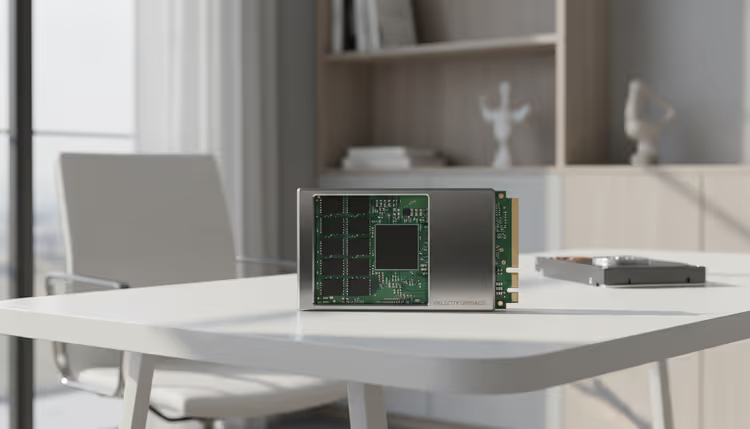 AIIllustrative image: AI-generated
💡 Quick overview:
- NAND memory: QLC is the cheapest, but slow and with low endurance; TLC, the sweet spot for price and longevity; MLC, expensive and for enthusiasts.
- Interface: NVMe (PCIe) is many times faster than SATA, but the price gap is shrinking; for basic tasks SATA is still justified.
- Form factor: M.2 is more compact and faster, 2.5" is cheaper; the choice is dictated by the motherboard.
- DRAM buffer and SLC cache directly affect responsiveness under load: drives without DRAM are cheaper, but slow down during intensive writes.
NAND memory type comparison
Memory type | Bits per cell | Endurance (P/E cycles) | Write speed | Price per 1 TB | Suitable tasks |
|---|---|---|---|---|---|
MLC | 2 | 10,000-35,000 | High | ~$65-90 | Workstations, NAS, caching |
TLC | 3 | 1,500-3,000 | Medium | ~$45-65 | System drive, games, everyday work |
QLC | 4 | 500-1,000 | Low (after SLC cache fills) | ~$35-50 | Media storage, archive, secondary drive |
The figures are approximate: exact numbers depend on the controller and 3D NAND generation, but the ratio holds across all vendors.
NAND memory type: what the letters MLC, TLC, and QLC stand for
The heart of any SSD is the NAND memory chips. Their type is what primarily determines the price tag.
MLC (Multi-Level Cell) stores 2 bits per cell. Rewrite endurance is the highest among consumer chips, 10,000 cycles and above. The price for reliability: MLC drives are one and a half to two times more expensive than TLC equivalents. In the consumer segment such drives have almost disappeared; manufacturers switched to TLC, while MLC remained in server and enterprise solutions. The Samsung 860 PRO was one of the last mass-market MLC drives.
TLC (Triple-Level Cell), 3 bits per cell, is the sweet spot for most users. Modern 3D TLC with caching delivers speeds sufficient for the OS, games, and everyday work. Endurance of 1,500-3,000 cycles under typical scenarios means years of service. The vast majority of SSDs sold today are TLC.
QLC (Quad-Level Cell), 4 bits per cell, maximum density, minimum price. The trade-off is twofold: endurance is half that of TLC (500-1,000 cycles), and after the SLC cache fills, write speed drops to hard drive levels. For a system drive with intensive workloads, QLC is not worth buying. But for a game library or photo archive, it is an excellent budget choice.
Interface: SATA vs NVMe
The interface determines how fast data travels between the drive and the system.
SATA III, ceiling ~550 MB/s. The standard came from the hard drive era, and an SSD hits that ceiling head-on. On the plus side, SATA drives are cheaper: the difference between the SATA and NVMe version of the same model amounts to a noticeable sum at comparable capacity. For an office PC or upgrading an old laptop, SATA is still relevant.
NVMe (PCIe) works over the PCI Express bus, like a graphics card. Bandwidth is an order of magnitude higher: Gen3 delivers up to 3,500 MB/s, Gen4 up to 7,000 MB/s, Gen5 over 10,000 MB/s. The difference is especially noticeable when working with large files: video editing, code compilation, databases. For a system drive in a new PC or laptop, NVMe is the de facto standard.
A nuance: an NVMe drive will only fit into an M.2 slot with PCIe support. If the motherboard has only a SATA M.2 connector, the drive will not work; check specifications before buying.
Form factor: 2.5-inch or M.2
The physical size affects not only installation convenience but also the price.
2.5-inch enclosure, the SATA classic. Requires a power and data cable, takes up space in the case. But it is cheap: a Kingston 512 GB in the 2.5-inch form costs roughly 200 UAH less than the SSD M2 512GB from the same manufacturer. The difference stems from the more expensive controller and compact layout of the M.2 version.
M.2, a board the size of a stick of gum, plugs directly into a slot on the motherboard. No cables. NVMe drives come only in this format. SATA drives also exist in M.2; they are cheaper than NVMe, but before buying, clarify exactly which protocol the slot supports.
Worth a separate mention are PCIe expansion cards (AIC), a format for desktops when there are no free M.2 slots. Essentially the same NVMe, but installed in a PCIe slot. The price is higher due to the massive heatsink, but cooling is excellent.
Drive capacity
SSD price grows non-linearly with capacity. Entry-level models are often poor value per gigabyte.
- 120-128 GB, the absolute minimum. Enough for Windows without applications. Buying it just for a symbolic saving versus 256 GB makes no sense: smaller capacity means fewer chips and, consequently, lower speed.
- 256 GB, for the OS and a couple of programs. In 2026, it is a bit tight: Call of Duty alone or an Adobe suite will eat half of it.
- 512 GB, a sensible starting point for a general-purpose PC. OS, software, and several games fit without compromise.
- 1 TB, the sweet spot for price-to-capacity ratio. A TLC drive of this size sits in the mid-range segment and covers the needs of most users.
- 2 TB and above, for video editing, game collections, or a complete move away from HDDs. QLC models are especially attractive on price here.
A practical rule: buy capacity with a noticeable margin over your current needs. An SSD filled to the brim loses speed due to SLC cache exhaustion and increased cell wear.
Manufacturer: what you pay for
Controller, firmware, and quality control are the three components that distinguish Samsung from a no-name brand given the same memory type.
Tier-one brands, Samsung, WD (Western Digital), Kingston, Crucial (Micron), SK hynix. These companies either manufacture NAND memory themselves or source it directly from fabs and write their own firmware. The result: stable speed, predictable endurance, and a proper warranty (3-5 years).
Tier-two brands, ADATA, Transcend, Patriot, Team Group. They assemble drives from off-the-shelf components; firmware is often the stock version from the controller maker (Phison, Silicon Motion). The price is noticeably lower, quality is a lottery: you might get an excellent drive, or one with slow memory and early degradation.
No-name and Chinese brands, Goldenfir, KingDian, DM, AITC. The price is half as much. Components: refurbished chips or factory rejects, budget-series controllers. For storing non-critical data and experiments, fine. For the OS or work files, a pig in a poke.
Pay attention to the TBW (Total Bytes Written) figure in the specifications: it directly indicates the guaranteed write endurance. For a Samsung 1 TB it is 600 TBW; for a budget equivalent, 200 TBW at the same price.
DRAM buffer: the invisible accelerator
DRAM cache is a separate fast-memory chip on the SSD board. It stores the mapping table of logical addresses to physical cells (the FTL table). Without DRAM, the controller has to blindly search for data in slow NAND memory every time.
The result of having DRAM: higher random read/write speed, more stable responsiveness under load, longer drive life due to fewer NAND accesses.
DRAM models are a few dollars more expensive, but deliver predictable performance. Modern buffers use DDR4, an order of magnitude faster than the DDR2/DDR3 found in assemblies from a decade ago.
DRAM-less models are cheaper and run cooler. HMB (Host Memory Buffer) technology allows such drives to borrow a portion of the computer's RAM for their needs. In everyday scenarios the difference is almost unnoticeable. But under intensive load (backup server, compilation, torrents) a DRAM-less drive slows down noticeably.
For a system drive, get an SSD with DRAM. For a secondary drive for games or an archive, an HMB model is sufficient.
SLC caching: why the speed is labeled "up to"
Almost all modern TLC and QLC drives use SLC cache: they reserve a portion of memory in "one cell, one bit" mode. In this mode, writes fly at maximum speed. As soon as the cache fills, the controller switches to direct TLC/QLC writing, and speed drops.
SLC cache types:
- Static (fixed): a dedicated amount, usually 2-8 GB per 250 GB of capacity. Predictable, but small.
- Dynamic: uses the drive's free space as cache. On an empty drive the cache is large, speed is high. It shrinks as the drive fills.
- Hybrid: a combination of static and dynamic, the best option.
Practical takeaway: a 1 TB drive with dynamic SLC cache, filled almost completely, can show write speeds three to five times lower than advertised. Hence the rule: do not stuff an SSD to the brim.
Some budget models have no SLC cache at all and write directly to TLC/QLC; speed is at hard drive level from the first second. Before buying, look for a sustained write performance graph in reviews.
Video: how NAND memory works on the inside
A short video in English clearly explains the difference between SLC, MLC, TLC, and QLC, the role of DRAM, and why one type of SSD outright loses to the others:
⁉️🤔 Frequent questions
SSD with DRAM or without: how critical is the difference for an average user?
For office work and browsing there is practically no difference: HMB technology compensates for the lack of a physical buffer. But if you regularly write large volumes of data (video editing, backup, databases), a DRAM model is worth the small premium. Without a buffer, random write speed under sustained load drops noticeably, by several times.
Which NAND type to choose for a system drive in 2026?
TLC with dynamic SLC cache. Endurance of 2,000-3,000 rewrite cycles will last 5-7 years of active use, and the price per 1 TB sits in a reasonable mid-range. QLC is not recommended for a system drive: after the cache fills, speed drops to HDD levels, and the system starts to lag.
Is it worth overpaying for NVMe if I am building an office PC?
For an office PC or upgrading an old laptop, a SATA SSD for noticeably less money will deliver practically the same user experience as an NVMe drive. System boot and program launch will be nearly instant. NVMe is justified if you work with video, compile code, or run databases.
Why do SSDs of the same capacity from different brands cost different amounts?
The difference lies in three components: the controller (in-house design vs an off-the-shelf chip), firmware (optimized wear algorithms vs standard ones), and the quality of NAND chip selection (first-tier factory binning vs refurbished). For Samsung and WD, vertical integration adds to this: they manufacture memory themselves and pay no middlemen.
What is more important when choosing: capacity or speed?
Capacity. A slow SSD is still many times faster than an HDD, and a 256 GB drive runs out of space in half a year. Get the maximum available capacity within your budget, then look at DRAM presence and memory type. NVMe vs SATA is the third priority.
Is it worth overpaying for a fast SSD: the final breakdown
A TLC drive with a DRAM buffer at 1 TB is the point of best balance between price and performance for a system drive in 2026. Such an SSD sits in the mid-range segment and will last the entire lifecycle of the computer.
- If the budget is tight and the laptop is old, get a SATA TLC without DRAM. You will not notice the difference in everyday tasks.
- If you are building a workstation for editing or compilation, NVMe Gen4 with DRAM, 2 TB or larger. Sequential write speed pays back the price difference.
- If you need a drive for a game library, QLC at 2 TB for the lowest price per gigabyte. Low write speed after the cache fills is not critical: you write games once, and they read equally fast.
Check which interface and form factor your motherboard supports; this will narrow the choice to compatible models and save time on returns.
What SSD is in your system? Write the model and capacity in the comments; let's discuss how relevant it is in today's reality.

A professional team of writers and editors specializing in creating quality content.