














🔧 Featured images not loading in WordPress: 8 ways to get them back
You published a post, but the image didn't appear in the blog feed. Or you switched themes, and all article covers vanished from the homepage.
The problem with post thumbnails in WordPress comes up more often than anyone would like. The cause is rarely just one thing: from theme settings to plugin conflicts, there are plenty of possibilities. The good news: almost all of them can be fixed without a developer, right from the admin panel.
Below, eight proven methods that bring the featured image back where it belongs. From the obvious check of whether an image is even assigned, to hunting down the culprit plugin using Health Check.
💡 Quick overview:
- Check whether a thumbnail is assigned in the editor
- Disable lazy loading, it sometimes hides the featured image
- Look into theme settings: Astra, GeneratePress, and Divi have their own toggles
- Regenerate thumbnails after switching themes
- Raise the WordPress memory limit to 256M
- Check user permissions in User Role Editor
- Add thumbnail support in functions.php (for custom themes)
- Find a plugin or theme conflict using Health Check
Why thumbnails don't load: the main causes
A post thumbnail (featured image) is the picture that represents a post in the blog feed, on the homepage, and on social media when sharing. WordPress displays it next to the title on archive pages:

Before fixing, let's understand what could have gone wrong:
- Image files are corrupted during upload or optimization. Restoring from a backup helps.
- Browser or server cache holds an old version of the page. Clear the cache and recheck.
- Permissions on the uploads folder are wrong.
/wp-content/uploads/should be 755. - PHP memory limit is too low, 32 MB is no longer enough for modern WordPress.
- A plugin or theme is conflicting, especially after an update.
Now, in order, from simple to complex.
Step 1: Check whether a post thumbnail is assigned
The most common cause, and the simplest. Open the post editor (Gutenberg or Classic Editor) and look at the right sidebar. There should be a "Featured image" block with a selected picture.
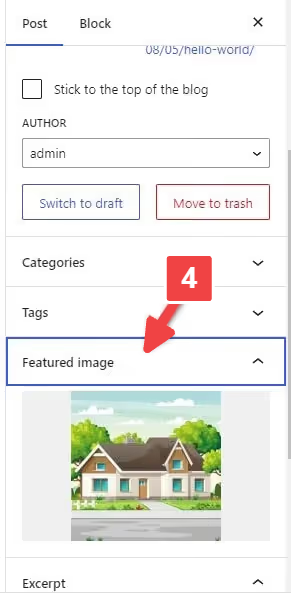
If the field is empty, the thumbnail is not assigned:
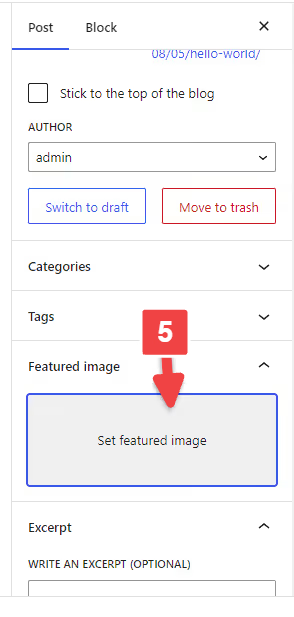
Click "Set featured image" and choose a picture from the media library:

In rare cases, the "Featured image" panel itself is missing from the editor. This is a simple visibility setting: click the three dots in the top right corner of Gutenberg → Preferences:

In the panel that opens, go to Panels and enable the "Featured image" toggle:

In Classic Editor, open Screen Options at the top of the page and check the "Featured image" box.
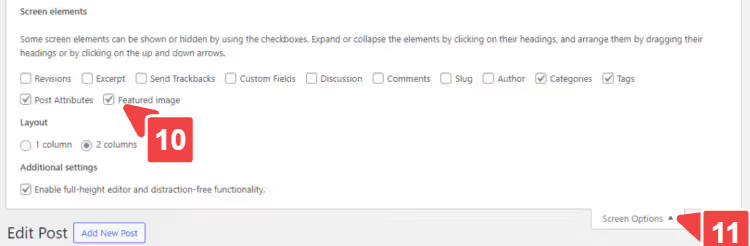
After these steps, check the blog archive or homepage, the thumbnail should appear. If it didn't, we move on.
Step 2: Disable lazy loading
Lazy loading saves bandwidth: images load only when a visitor scrolls to them. But sometimes it hides the featured image, especially if the image is above the fold and the script mistakenly considers it "out of view."
Check which plugin handles lazy loading on your site: it could be a standalone tool like BJ Lazy Load or a module inside a performance plugin (Perfmatters, WP Rocket, FlyingPress). Temporarily disable lazy loading in the plugin settings and recheck the page.
Did it work? Either leave lazy loading off, or add an exclusion class for the featured image in the plugin settings, most have an "Exclude CSS classes" or "Skip images with class" option.
Step 3: Check theme settings
Popular themes, Astra, GeneratePress, Divi, OceanWP, have their own toggles for thumbnails. If you disabled the featured image in the theme customizer, WordPress won't show it, even if it's assigned in the post editor.
Go to Appearance → Customize and look for a section related to Blog, Posts, Archive, or Featured Image. In Astra, the path is Customizer → Blog → Blog / Archive:

Make sure featured image display is enabled. Here you can also configure the aspect ratio, hover animation, and image size. For other themes, the logic is the same, look for a Featured Image or Post Thumbnail block in the customizer or in the theme settings panel.
Step 4: Regenerate thumbnails after switching themes
Every WordPress theme defines its own thumbnail sizes, aspect ratios and resolutions differ from theme to theme. After switching themes, the old sizes no longer fit, WordPress cannot automatically regenerate image files for the new sizes. The result: white rectangles or broken images in place of the featured image.
The Regenerate Thumbnails plugin solves this in three clicks. Install and activate it:

After activation, go to Tools → Regenerate Thumbnails:
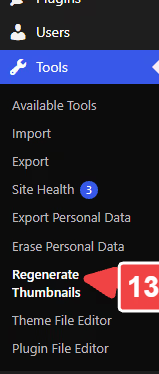
The plugin will show all available image sizes:

Click Regenerate Featured Images, and the plugin will process all posts:

Depending on the size of your media library, the process will take anywhere from a minute to half an hour. Once it finishes, check your site.
If your theme uses a custom thumbnail size, add it to your child theme's functions.php:
1 add_image_size( 'custom-featured-image', 1200, 720, true );
After adding the code, run Regenerate Thumbnails again; the new size will appear, and the plugin will create the files for it.
Step 5: Increase the WordPress memory limit
WordPress allocates 32 MB or 128 MB of RAM for PHP processes by default, a value set by your hosting provider. When processing images (resizing, AVIF/WebP conversion), memory runs out quickly, and the thumbnail simply does not get generated. No error in the logs, just no image.
Add a single line to wp-config.php, before /* That's all, stop editing! Happy publishing. */:
1 define( 'WP_MEMORY_LIMIT', '256M' );
You can open wp-config.php through your hosting file manager, an FTP client (FileZilla), or the Filester plugin. Install Filester, find wp-config.php in the site root, right-click → Code Editor:

Paste the line, save the file. Done, the limit is now raised to 256 MB. On premium hosting (WP Engine, Kinsta, Cloudways), the memory limit is often configurable right from the control panel; look for a PHP Memory Limit setting.
Step 6: Adjust user permissions
If your site has multiple authors and one of them does not see the option to upload a featured image, the issue lies with role permissions. WordPress does not let you flexibly configure file upload permissions for individual roles by default.
The User Role Editor plugin adds this capability. Install and activate it:

After activation, go to Users → User Role Editor:

From the dropdown, select the role that lacks the permission (for example, Author):

In the capabilities list, find upload_files and check the box:

Save the changes. Now users with that role can upload images and set them as the featured image.
Step 7: Adding thumbnail support in functions.php
Custom themes (built from scratch or assembled on a framework) don't always include featured image support. The corresponding panel simply isn't there in the editor.
Check whether your theme's functions.php contains this line:
1 add_theme_support( 'post-thumbnails' );
If not, add it to your child theme's functions.php or via the Code Snippets plugin:
1 add_theme_support( 'post-thumbnails', array( 2 'post', 3 'page', 4 'your-custom-post-type', 5 ) );
The array lists the post types for which thumbnail support is enabled. If the site uses custom types (such as portfolio or product in WooCommerce), include their slugs here as well.
After saving the file, clear the site cache and open a post in the editor. The "Featured image" panel should appear in the right sidebar.
Step 8: Looking for plugin and theme conflicts
If the previous steps didn't help, a conflict is almost certainly to blame. Image optimization, caching, and security plugins most often intercept image processing and break the featured image. Especially after a bulk update.
The Health Check & Troubleshooting plugin, WordPress's official diagnostics tool. Install it:

After activation, go to Tools → Site Health:

The plugin will show a list of detected issues and recommendations:

The critical feature, Troubleshooting Mode. Enable it:

How it works: the mode is enabled only for your session. Visitors see the normal site. You enable plugins one by one and check after which one the featured image disappears. Once you find the culprit, disable it or replace it with an alternative.
How to add a default thumbnail for all posts
If the site has hundreds of posts and you're tired of manually assigning a featured image to each one, set a default image for the entire site. The Default Featured Image plugin does exactly that.
Install and activate it:
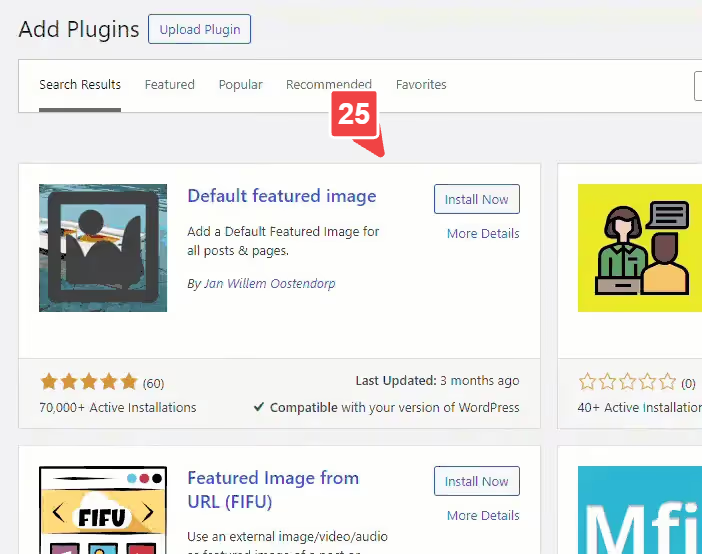
Go to Settings → Media:

A "Default Featured Image" block will appear at the bottom of the page:

Select an image from the media library and save:

Now every new post without its own thumbnail will automatically get this image. The rule also applies to already published posts that lack a featured image. If you want to override it for a specific post, just assign its own thumbnail in the editor.

How to bulk-change thumbnails
Scenario: you rebranded, changed the design, or simply decided to update the covers on a hundred articles. Manually changing them is not an option for busy people.
Quick Featured Images can bulk-assign, replace, and remove thumbnails. Install the plugin:

A "Featured Images" section will appear in the sidebar menu:

Select "Bulk Edit":

A step-by-step wizard will open. Step one, choosing a new image:

Next, the plugin will walk you through filtering posts (by type, category, date) and show you which posts the replacement will be applied to:

Final step, confirmation and launch. The plugin will show a list of affected records:

Click Apply, and you're done. Important: back up your site before any bulk operation. You cannot roll back changes through the plugin.
Useful plugins for working with featured images
Three tools that cover the remaining scenarios:
Image Watermark, protects images from copying. Automatically applies a watermark to all new and existing images. You can adjust transparency, position, and size. Includes a right-click disable option for images. Download from WordPress.org.

Auto Featured Image, generates a featured image from the post title or pulls one from stock sources (Google, Unsplash, Pixabay). Bulk mode for existing posts. Free version in the directory, Pro starting at $55 one-time.

Quick Featured Images, in addition to bulk editing, can set the first image from the content as the featured image. This is a lifesaver if you imported hundreds of posts, each has an image inside the text, but no featured image was set. Free, in the WordPress.org directory.

All three plugins are free and updated. Image Watermark protects images, Auto Featured Image generates them, Quick Featured Images handles bulk management. They cover most common featured image tasks without buying premium themes or editors.
⁉️🤔 Frequently asked questions
Why does the featured image show in the admin but not on the site?
Cache is the first thing to suspect. Clear your plugin cache (WP Rocket, FlyingPress, W3 Total Cache) and CDN cache (Cloudflare). If that doesn't help, check your theme settings (Step 3): featured image display might be disabled in the customizer specifically for archives or post lists.
Browser cache can also hold an old version. Open the page in incognito mode or with a cleared cache: Ctrl+Shift+R in Chrome. If the featured image appears in incognito, the issue is cache, not WordPress.
I updated my theme and all featured images disappeared. What should I do?
Run Regenerate Thumbnails (Step 4). When you switch themes, WordPress does not automatically create image files for the new sizes, this is a manual operation. The plugin will go through the media library and generate thumbnails for the active theme's sizes.
The process can take 10-30 minutes on a large library. Do not close the browser tab or shut down your computer during regeneration; an interrupted process will leave some files ungenerated.
Can I regenerate thumbnails without a plugin?
Yes, via WP-CLI: the wp media regenerate command does the same thing from the server console. This is for those who prefer the terminal. For the average user, the Regenerate Thumbnails plugin is faster and more visual.
The WP-CLI option is good for large sites (10,000+ images): the
wp media regenerate --yes --only-missingcommand processes only missing sizes and doesn't burden the server by reprocessing existing files.
The Health Check plugin shows everything is fine, but featured images still won't load. What next?
Enable Troubleshooting Mode inside Health Check and activate plugins one by one. Even if Health Check sees no errors, it won't detect a conflict between two specific plugins without a targeted check. Start with image optimization plugins (Smush, ShortPixel, Imagify, EWWW); they account for most conflicts with featured images.
On a test site, this approach catches the problem in 5-10 minutes. We had a case: after an update, EWWW Image Optimizer converted featured images to AVIF, but the theme didn't support the format. Health Check stayed silent, and images were missing.
How do I add a featured image for a custom post type?
In your child theme's functions.php, add your CPT to the add_theme_support('post-thumbnails') array. See Step 7 for details. Don't forget to re-save Permalinks afterward (Settings → Permalinks → Save Changes) to flush the rewrite rules cache.
The same applies to taxonomies: some themes and plugins register featured images for category and tag terms via a separate
add_theme_support('category-thumbnails')hook. If you use WooCommerce, featured image support for products is already built in, so you don't need to add it separately.
What to do if nothing helped: final checklist
Go through this list top to bottom; it's ordered from most common to least common:
- Is the featured image set in the editor? → Step 1
- Is lazy loading disabled? → Step 2
- Is the theme hiding the featured image? → Step 3
- Has Regenerate Thumbnails been run? → Step 4
- Is the memory limit ≥ 256M? → Step 5
- Do all roles have the
upload_filescapability? → Step 6 - Is
add_theme_support('post-thumbnails')present in the theme code? → Step 7 - Has Health Check in Troubleshooting Mode been run against all plugins? → Step 8
If all eight steps are completed and the featured image still won't load, the problem runs deeper: contact your host and ask them to check the server PHP logs (error_log). Sometimes mod_security on the server is to blame, blocking requests to images.
Start with the free Health Check; it will show whether there's a problem at all. And let us know in the comments which method worked for you.

A professional team of writers and editors specializing in creating quality content.