














🚫 How to exclude yourself from Google Analytics
Your site receives dozens or even hundreds of your own visits per day. You test the layout, check a new plugin, log into the admin panel, and each such visit is honestly recorded by Google Analytics as a "session." For a blog with a couple of authors, this is just noise in the reports. For a company with a development department running stress tests, it's already thousands of phantom sessions distorting the real traffic picture.
The problem isn't that you're "peeking" at your own analytics. The problem is the decisions you make based on corrupted data: incorrect conclusions about conversion, wrong evaluation of channels, advertising budget wasted on a garbage segment.
Below are four ways to exclude yourself, your team, or your entire company from Google Analytics 4 statistics. From the simplest (a browser extension in 30 seconds) to the systematic (a built-in GA4 filter for static IP).
💡 Quick overview:
- Install the official Google browser extension: method for individual users, not tied to a specific site
- Activate the WebKinder WordPress plugin: method for WP sites, automatically excludes logged-in users
- Add tracker domains to the system hosts file: operating system level method, blocks analytics script before it loads
- Configure an internal traffic filter in GA4: native method for static IP, requires no plugins or system modifications
1. Browser extension, Google Analytics Opt-out Add-on

The fastest method, requiring neither site access nor administrator rights. The official Google Analytics Opt-out extension is available for Chrome, Firefox, Safari and Edge, and it simply prevents Google's JavaScript tracker (ga.js, analytics.js, gtag.js) from sending data about your visits.
Install it and become invisible to Google Analytics on all sites, wherever you are. No settings, no filters. The extension weighs less than a megabyte and doesn't slow down the browser.
The downside is it only works in the browser where it's installed. Open the site in another browser or in incognito mode, and tracking is back on. For a solo blogger this isn't critical, for a team of ten developers it's already a headache: everyone needs to install the extension manually.
Suitable for: individual site owners, bloggers, freelancers, anyone working with one browser on one device.
2. WordPress plugin, WebKinder Integration for Google Analytics

If your site is on WordPress and you have multiple authors or editors constantly logging into the admin panel, a browser extension for each person isn't an option. The WebKinder plugin solves the problem centrally: any logged-in user is automatically excluded from tracking via cookie.
Works with both Google Analytics 4 and Google Tag Manager. In settings, you can choose between GA tracking and GTM container, an IP anonymization option, and even a shortcode for the Privacy Policy page through which visitors can opt out of tracking.
The plugin is actively supported: 10,000+ active installations, tested up to WordPress 6.9, last update in spring 2026. Weighs minimally and doesn't add unnecessary code to the frontend, only the analytics script and cookie to determine user status.
Suitable for: WordPress sites with multiple authors, editors, content managers, anyone regularly logged into the admin panel.
Tip: if you already have multiple analytics plugins on your site, keep WebKinder alone and remove the rest. Duplicate trackers distort data worse than internal traffic.
3. System hosts file, OS-level blocking
A method for those who need absolute guarantee: the analytics script won't load physically because your computer won't be able to reach Google's tracker domains. Not an extension, not a plugin, the system hosts file redirects requests to www.google-analytics.com and ssl.google-analytics.com to localhost (127.0.0.1), and the browser simply doesn't receive the tracking code.
Important nuance: tracker domains are not the same as the domain of Google Analytics itself. You'll still be able to visit analytics.google.com and view reports. Only the data collection endpoints are blocked.
Where the hosts file is located
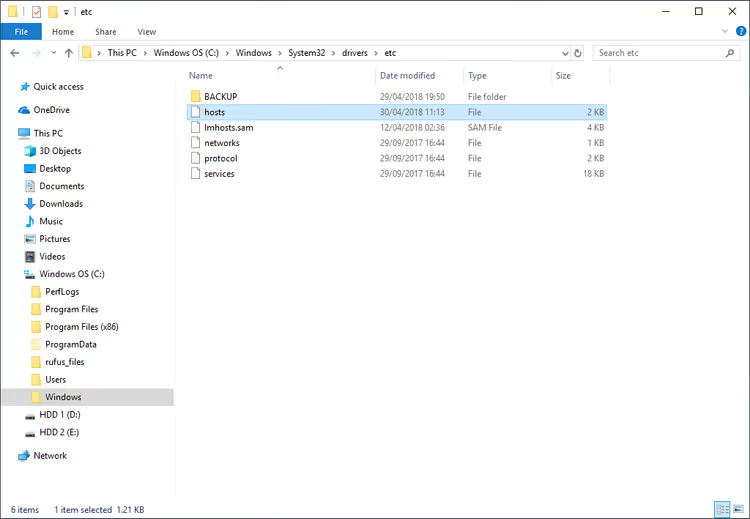
In Windows the file path is:
C:\Windows\System32\drivers\etc\hosts
If the file isn't displayed, enable hidden files in Explorer (View → Show → Hidden items).
How to edit
Before editing, make a copy of the file (Ctrl+C, Ctrl+V in the same folder). This is a backup: if something goes wrong, you'll restore the original.
Open the original file as administrator through Notepad and add two lines at the end:
1 127.0.0.1 www.google-analytics.com 2 127.0.0.1 ssl.google-analytics.com
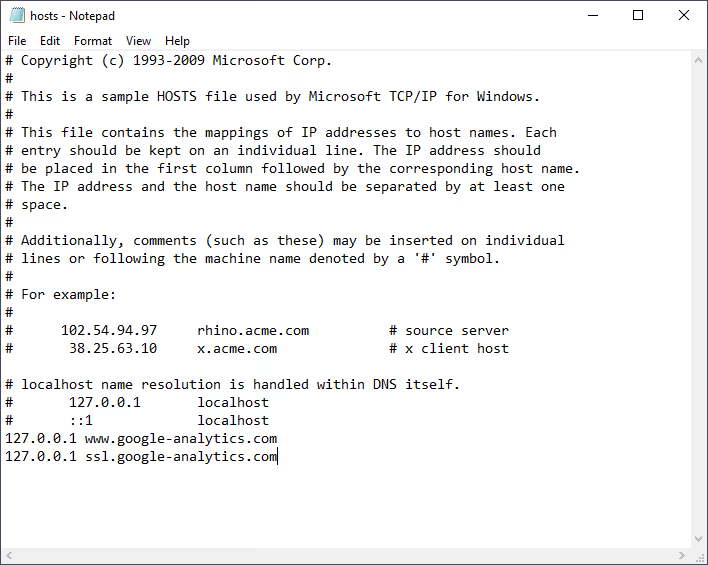
Between the IP address and domain, at least one space. Save the file. If Windows requests administrator rights, confirm. Without admin rights hosts can't be edited.
For Mac: path /etc/hosts, editor is Terminal with sudo nano /etc/hosts. Same lines.
Suitable for: developers testing a site locally who don't want to pollute analytics; static IP owners who need an "iron-clad" method without plugins and extensions.
4. Built-in internal traffic filter in GA4
Until July 2024 in Universal Analytics this was an "IP filter" in view settings. In Google Analytics 4 the mechanism is different and, frankly, more logical: you define internal traffic at the data stream level, then enable a filter that excludes it from reports.
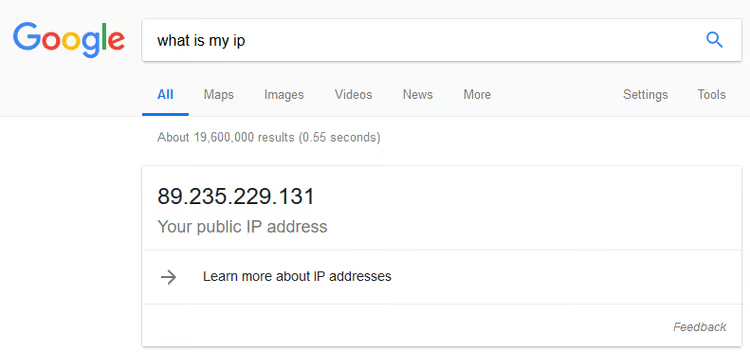
Step 1: find out your IP
Type "what is my ip" into Google or go to WhatIsMyIP.com. Write down the address.
Step 2: check if the IP is static
Restart the router and check the IP again. Changed, the address is dynamic, and the IP filter won't work for you: it will break at the next address change. Didn't change, it's static, move forward.
Step 3: configure the filter in GA4
Go to Google Analytics → Admin → Data Streams → select your stream. In the "Tag settings" section click "Define internal traffic" and create a rule: specify the IP address (or range) and set the value traffic_type = internal.
Now GA4 will add the parameter tt=internal to all requests from your IP, but by itself it doesn't exclude them. For this, go to Admin → Data Filters → find the pre-created "Internal Traffic" filter and switch it to "Active (testing)." Check for a couple of days in DebugView that the filter catches only your visits, then switch to "Active."
⚠️ Important: after activating the filter, excluded data cannot be restored, it doesn't even get into BigQuery. Therefore the testing stage is mandatory.
For reference: how it looked in Universal Analytics
Before the transition to GA4, the filter was configured differently, through Admin → View → Filters:
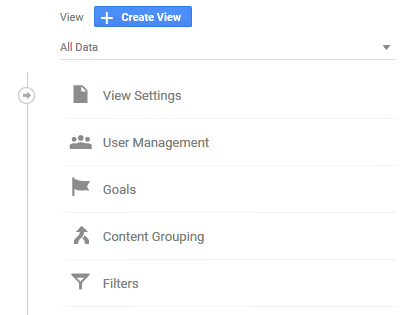
And here's the IP filter addition form in the same Universal Analytics interface. Note: fields "Filter Name," "Filter Type" (Predefined), "Exclude" and selection "traffic from the IP addresses," this logic no longer exists in GA4, where filtering is configured through the traffic_type parameter in the data stream.
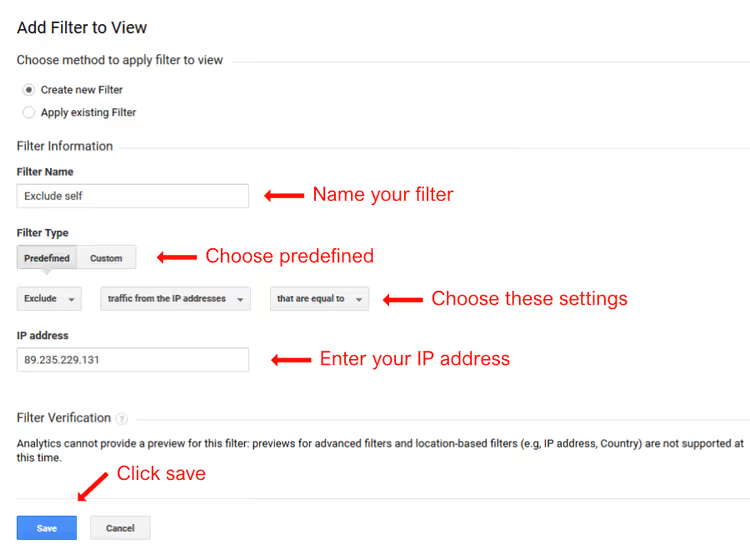
Universal Analytics stopped processing data on July 1, 2024. If you still see the interface with "Views," it means you're looking at an archive, not active analytics. Time to migrate to GA4.
Suitable for: companies and teams with static IP; those who want to use the native GA4 tool without third-party plugins and extensions.
⁉️🤔 Frequently asked questions
Does the Google Analytics Opt-out extension work with GA4?
Yes, it works. The extension blocks Google's JavaScript tracker at the browser level, it doesn't matter if it's ga.js, analytics.js or gtag.js (GA4). You're invisible to any version of Google Analytics on any site, regardless of which tracking library the owner uses.
What to do if the IP is dynamic but you want to configure a GA4 filter?
Use the browser extension (method 1) or WebKinder WordPress plugin (method 2), both are not tied to IP. Alternative for teams: configure exclusion through Google Tag Manager with a custom variable based on cookie, cookies don't change when the IP address changes, and the GA4 filter remains operational.
Can you exclude company employees centrally, without editing hosts on each computer?
Yes, through Windows group policies (GPO), the hosts file can be distributed to all domain machines with one policy. For Mac, through MDM profiles (Jamf, Kandji). But the easiest way is the GA4 internal traffic filter if the office has a static IP: one parameter in the data stream settings, and the entire team is excluded at once.
Why WebKinder plugin and not MonsterInsights or Site Kit?
WebKinder is minimal: only tracking code and cookie for excluding logged-in users. No dashboard in the admin panel, no Pro upsells, no unnecessary code. MonsterInsights and Site Kit are powerful tools, but for the task "just exclude yourself from statistics" they're excessive and add dozens of requests per page.
I edited the hosts file but still see traffic. What's wrong?
Most likely you're opening the site from another browser or device where hosts wasn't edited. Or Google Analytics loads not from
google-analytics.combut through Google Tag Manager (googletagmanager.com), in which case hosts-blocking the tracker domain won't work. Add to hosts also127.0.0.1 www.googletagmanager.com, but keep in mind this will disable GTM entirely on your machine.
Which exclusion method to choose for your task
If you're a solo blogger on WordPress, install WebKinder. Five minutes and forget about it.
If you're alone and have many sites or the site isn't on WordPress, browser extension. Thirty seconds and done.
If you're a developer and need an "iron-clad" method working regardless of browser and CMS, edit hosts. Ten minutes, but forever.
If you're a company with an office on static IP, built-in GA4 filter. Native tool, doesn't require installing anything on employee computers.
None of the four methods requires budget and doesn't break the rest of analytics. Choose the one that fits your infrastructure, configure it in an evening, and the data in reports will finally become data about real visitors, not about your own clicks on your own site.

A professional team of writers and editors specializing in creating quality content.