













 AIIllustrative image: AI-generated
🔍 List mode in Screaming Frog SEO Spider: loading, crawling and auditing URLs
An SEO specialist regularly faces the task of checking not an entire site, but a specific set of pages. You've compiled a URL list after a content audit, prepared a redirect map for migration, want to scan only competitor landing pages, and the standard Spider mode turns out to be excessive. It crawls all links indiscriminately, wasting time and resources.
Screaming Frog SEO Spider solves this task through list mode. It looks simple: you upload a list of URLs and get data only for them. But behind this simplicity lies a flexible mechanism capable of handling dozens of non-standard audit scenarios.
Below is a complete guide to list mode: from basic uploading to advanced techniques with API integrations and redirect audits.
💡 Quick overview:
- Switching to list mode:
Mode > Listin the SEO Spider top menu - Loading URLs: file, manual entry, or XML sitemap
- Automatic normalization and deduplication on upload
- Data export in original order for matching with external spreadsheets
- Advanced scenarios: redirect audits, external link collection, and metrics via API
How list mode works
SEO Spider has two main crawl modes. The first, Spider by default: you enter a domain, and the spider crawls pages by following links. The second, List: you upload a ready-made list of URLs, and the spider works only with them.
Switching between modes is simple: Mode > List in the top-level navigation.

Two key differences from Spider mode. The interface changes: instead of an address bar, an upload button appears. And crawl depth limiting is automatically enabled with a value of "0". This means the spider will not follow links from the uploaded pages, it will only scan the URLs you gave it, and nothing more. No images on them, no external links, no outbound links.
There's a nuance: if JavaScript rendering is enabled, SEO Spider will load page resources (scripts, styles, images) to properly render it in headless Chrome. But this is still not crawling other pages, only resources of the loaded page itself.
Loading a URL list
In list mode, click the Upload button and choose a method: upload a file, paste URLs into a dialog box, or import an XML sitemap.
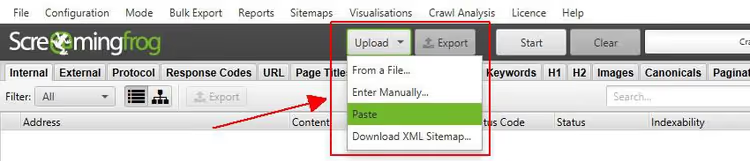
Two things worth knowing before uploading.
Protocol requirement
If you omit http:// or https:// and enter just www.screamingfrog.co.uk/, SEO Spider will not read the URL. You will see a message "0 URLs found".

Always specify the protocol: https://www.screamingfrog.co.uk/.
Normalization and deduplication
SEO Spider normalizes addresses on upload and automatically removes duplicates before crawling. For example, you upload four URLs:
https://www.screamingfrog.co.uk/``https://www.screamingfrog.co.uk/#fragment-this-wont-be-crawled``https://www.screamingfrog.co.uk/seo-spider/``https://www.screamingfrog.co.uk/seo-spider/
The spider will determine the number of unique addresses. A URL with a fragment (#) is not considered a separate page and gets normalized. The duplicate /seo-spider/ collapses into one entry.
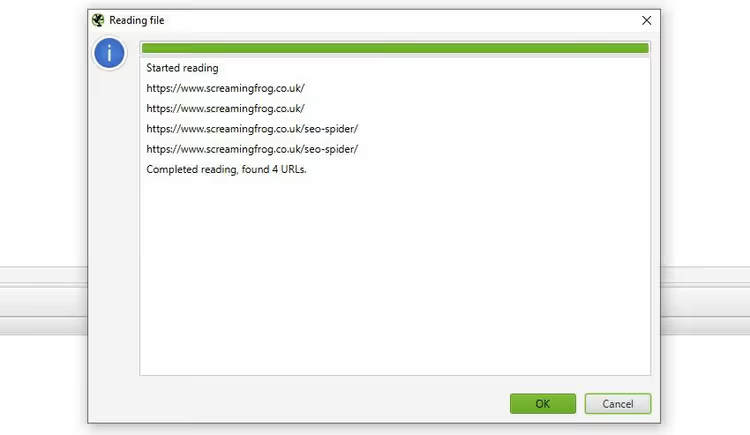
The tool will report that 4 URLs were found and normalize them in the dialog box. When you start the crawl, it will process only 2 unique addresses.
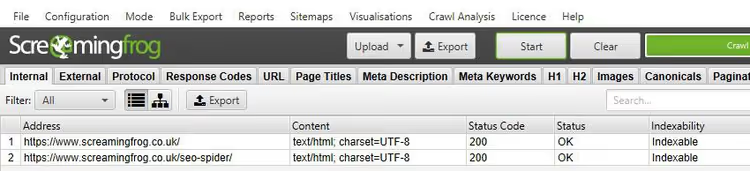
And although 2 URLs out of 4 uploaded were scanned, you can export the original list in the same order you submitted it.
Exporting data in original order
For regular data export from any tab, use the standard Export button. But if you need to preserve the order in which URLs were uploaded, for example, to match results with an external spreadsheet or dataset, use the export button in the top toolbar, next to Upload and Start.

Data in such an export preserves the original sequence and includes all URLs from the upload, with duplicates and corrections.

The Original URL column is the address you uploaded. The Address column is the URL that SEO Spider actually scanned. The difference between them is the result of normalization.
Advanced scenarios
List mode becomes truly powerful when you go beyond "upload and scan". The three advanced scenarios below cover most real audit tasks.
Crawling a URL list and additional elements
Suppose you need to check a list of pages and all images on them. Or collect external links from specific URLs for broken link building. Or audit hreflang and canonical tags on selected pages without touching the rest of the site.
To do this, remove the automatic depth limit. Go to Configuration > Spider > Limits and disable Limit Search Depth.
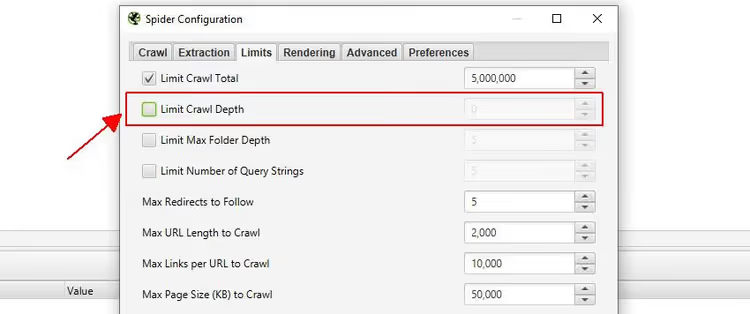
Now SEO Spider can go beyond the uploaded list. To prevent it from wandering across the entire site, configure filters in Configuration > Spider > Crawl. Disable all Resource Links and Page Links, then selectively enable only what you need to crawl additionally.
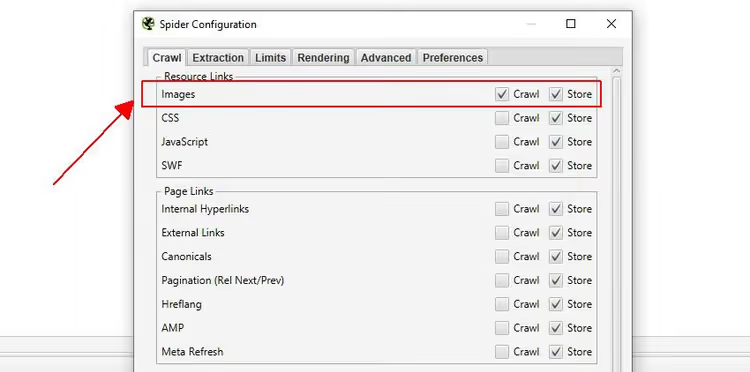
For example, to audit a page and its images, enable only Images in Resource Links. Upload one URL and you'll see in the interface the scanned page plus all images on it.
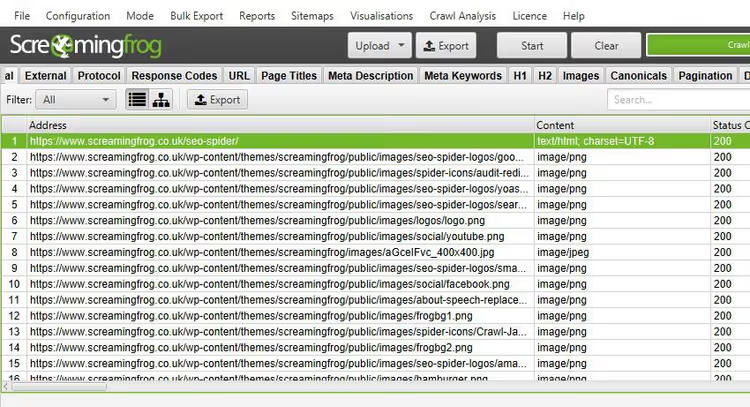
This flexibility provides literally laser-focused auditing: you check only those markup elements and resources you need, without wasting time on a full crawl.
Audit of redirects during migration
During site migration, it's critical to check each redirect and ensure chains don't break. List mode allows you to upload source URLs, and SEO Spider will follow the entire chain itself.
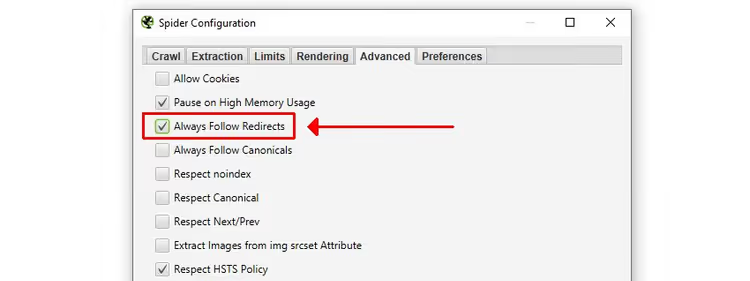
Enable the Always Follow Redirects option in Configuration > Spider > Advanced. With this setting, the depth limit is ignored for redirects: the spider follows the chain until it gets a 200 response (or until it hits the maximum number of redirects from Configuration > Spider > Limits).
After crawling, open the All Redirects report: it will show the complete chain for each source URL in one view.
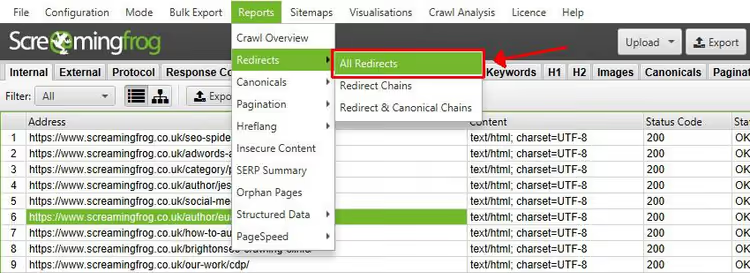
This eliminates the tedious work of sequentially loading target URLs from each redirect step, the tool reaches the final destination itself.
Connecting to APIs and collecting metrics
List mode supports integration with Google Analytics, Google Search Console, PageSpeed Insights, and backlink analysis tools.
For example, by connecting the Ahrefs API, you get metrics for each URL including referring domains, keyword rankings, estimated traffic, and link value. All data is displayed on a separate Link Metrics tab.
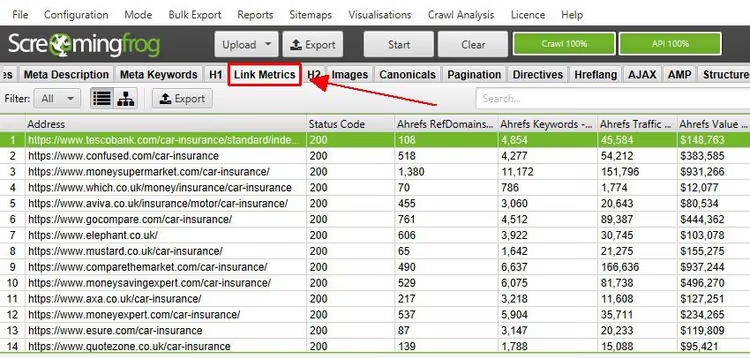
In practice, this is invaluable for competitive analysis: you upload a list of competitor pages and immediately see organic metrics without switching between tools.
⁉️🤔 Frequently asked questions
How does list mode differ from regular Spider mode?
In Spider mode, SEO Spider crawls a site by following links, starting from a starting URL. In List mode, you upload a ready-made list of addresses, and the spider scans only them. Depth is set to 0 by default, meaning no external or child pages are requested. This gives complete control over the set of URLs being checked.
Can I upload a URL list from Google Sheets or Excel?
Yes. Export the URL column from the spreadsheet to CSV or TXT, then upload the file via
Upload > From a File. Or copy the column and paste it into thePastedialog box. Each URL must have a protocol (https://), otherwise SEO Spider will not accept it.
How do I export data in exactly the order I uploaded the list?
Use the export button in the top toolbar (next to
UploadandStart), not the standard button on the tabs. Export from the toolbar preserves the original sequence and includes all uploaded URLs, including duplicates and normalized ones. TheOriginal URLcolumn will show what you submitted, andAddresswill show what was actually scanned.
What should I do if some URLs from the list are not crawling?
Check the protocol: all addresses must start with
http://orhttps://. Make sure URLs are responding (not 404, not 500). Look at theResponse Codesreport after crawling: it will show the status of each uploaded address. If SEO Spider reports "0 URLs found" at the upload stage, the problem is most likely with the format: the file is not readable, or the pasted text is not recognized as URLs.
Is list mode available in the free version of Screaming Frog?
Yes, List Mode works in the free version of SEO Spider. The free version limitation is 500 URLs in the crawl queue, and it applies equally to both modes. For lists of more than 500 URLs, you need a paid license.
Is it worth mastering list mode deeper?
List mode in Screaming Frog is not just an alternative way to upload URLs. It's a precision audit tool that saves hours when you need to check a specific set of pages rather than perform a full site crawl.
After mastering basic uploading, definitely try the combination of "removing depth limit + selective resource inclusion", this is the most useful advanced scenario. It's what transforms SEO Spider from a regular crawler into a surgical tool for the task.
Check out the complete user guide and FAQ section on the official Screaming Frog site. If you have remaining questions, technical support responds promptly and to the point.

A professional team of writers and editors specializing in creating quality content.