













🔄 VGA adapters: how to connect incompatible devices and avoid mistakes
Bought a laptop with HDMI, but the office monitor only has VGA. Or the other way around: a desktop with VGA, and the only free display is a modern one with DisplayPort. You plug it in, the screen is black. Because analog VGA doesn't understand a digital signal without an intermediary.
A familiar picture for anyone who works with a mixed fleet of equipment: at home, in the office, at conferences. But the problem is solved by a dirt-cheap device: a VGA adapter https://allo.ua/ua/data-kabeli/connector2-vga/. The key is knowing exactly which one to get. Active or passive? With external power or without? With audio support or video only?
Below, a complete breakdown: from how it works to specific scenarios and common mistakes. No marketing, only what's been verified in real-world connections.
💡 Quick overview:
- Determine the direction: HDMI→VGA and VGA→HDMI are different adapters with different chips inside.
- Check whether the adapter is active: without a converter chip, a digital signal won't turn into an analog one.
- Make sure the adapter supports your resolution (Full HD minimum) and has external power if it's VGA→HDMI.
- Don't buy no-name cables: the difference between a branded adapter and a generic one is hours of downtime.
What VGA is and why adapters are still needed
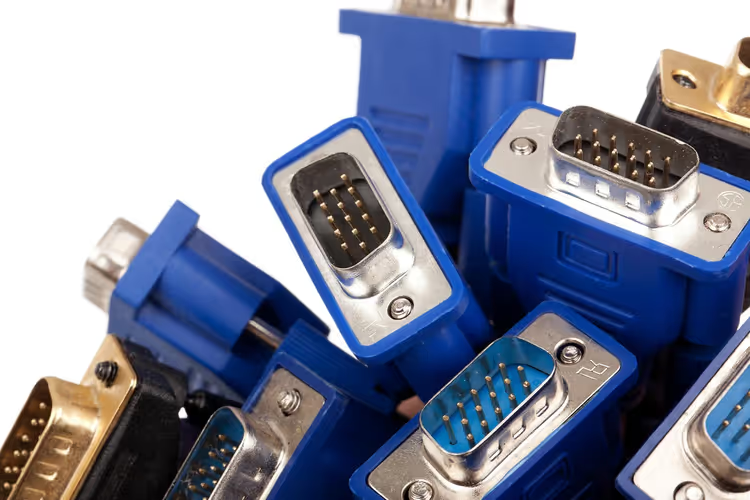
VGA (Video Graphics Array), an analog video interface introduced by IBM back in the late 80s. Three rows of five pins in a trapezoidal connector, a picture remembered by everyone who built computers in the 2000s. VGA carries video only, no audio, and its ceiling is roughly 2K horizontal, though in practice stability gets shaky above Full HD.
Modern interfaces, HDMI, DisplayPort, USB-C with DisplayPort Alt Mode, are digital. They carry both video and audio over a single cable, supporting 4K and beyond. But millions of monitors, projectors, and industrial displays with VGA inputs are still in service. Schools, conference rooms, service centers, medical equipment, replacing that entire installed base would cost hundreds of thousands.
That's why the VGA adapter market is alive and well. The range goes from no-name cables for a couple of dollars to branded adapters for several dozen, and the difference between them isn't just the price.
Active and passive: what's the difference
This is the first thing to understand before buying.
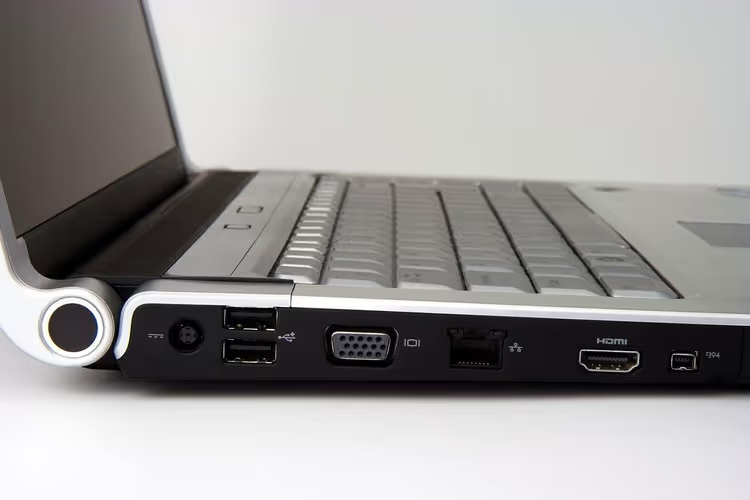
A passive adapter is just a cable with different connectors on each end, no electronics inside. It changes the connector form factor but not the signal type. It works ONLY if the source itself can output an analog signal through a digital port. This is found on some older graphics cards with DisplayPort++ (Dual Mode), but for HDMI and USB-C, practically never.
An active adapter contains a converter chip that transforms a digital signal into an analog one (or vice versa). This is exactly what you need in the vast majority of cases: HDMI→VGA, USB-C→VGA, DisplayPort→VGA, VGA→HDMI. Active models often require external power via microUSB or USB, the chip needs power for the conversion.
The rule is simple: if the packaging doesn't say "active" and the price is suspiciously low, there is almost certainly no chip inside. It won't work.
Table: all types of VGA adapters
Direction | Type | Audio | Power | Typical price | Note |
|---|---|---|---|---|---|
HDMI → VGA | Active | No | No (powered by HDMI) | $10-20 | The most common scenario |
USB-C → VGA | Active | No | No (powered by USB-C) | $15-25 | MacBook, ultrabooks |
DisplayPort → VGA | Active | No | No | $10-18 | PCs and workstations |
VGA → HDMI | Active | Yes (separate output) | Yes (microUSB/USB) | $15-30 | Old PC to new monitor |
VGA → DVI-A | Passive | No | No | $5-10 | Only if the graphics card outputs analog |
5 Factors that decide everything when choosing
1. Direction. Adapters do NOT work in reverse. HDMI→VGA ≠ VGA→HDMI. The chip inside is programmed for a specific direction. Buy the wrong one, the screen stays black.
2. Resolution. Check the spec: the adapter must support your target resolution. Most models handle Full HD without issues. For higher, look for a model explicitly marked "2K/4K support", but note: the VGA interface itself is unstable above 1080p on long cables.
3. External power availability. VGA→HDMI adapters WITHOUT an additional microUSB input are a red flag. The chip needs more power for reverse conversion than a VGA port can provide. Buy one without power, you'll get a flickering screen or no signal at all.
4. Build quality and cooling. Cheap enclosures without ventilation overheat after 20-30 minutes of operation. Symptoms: screen noise, signal dropouts, smell of melting plastic. Look for adapters with an aluminum housing or at least ventilation slots.
5. Brand. UGREEN, Baseus, Vention, Belkin, Club 3D, Cable Matters, vendors with real quality control. A no-name adapter from AliExpress for pennies might work, or it might not, a lottery that isn't worth the money saved when you need results here and now.
Common mistakes (and how to avoid them)
Mistakes that turn "just connect a monitor" into an evening of troubleshooting.
Mistake 1: a passive cable for HDMI→VGA. Looks like an active adapter on the outside, but inside there are only wires. If the box or description lacks the words "active converter" or "chipset", don't buy it. A sure sign: a suspiciously low price.
Mistake 2: ignoring power on VGA→HDMI. You connected VGA→HDMI without microUSB power, the chip didn't start. Always connect power, even if "it worked without it last time." Power instability = a drifting signal.
Mistake 3: resolution incompatibility. You bought an adapter, but it "can't handle" Full HD on your monitor. Before buying, check the adapter's maximum resolution against the display's native resolution. A typical fail: cheap models are advertised as Full HD, but actually output noticeably less.
Mistake 4: a bad VGA cable with a good adapter. Even an expensive adapter won't save you if the VGA cable is a thin, unshielded cord from a 15-year-old bundle. Get a cable with ferrite beads and shielding, this eliminates "snow" and ghosting.
Mistake 5: a no-brand "two in one". Adapters that have HDMI on one side and a switch for VGA and something else on the other are almost always a compromise in quality. Every extra switch in an analog signal chain adds noise.
Which adapter for which scenario
The same adapter behaves differently in different situations. Here's a matrix for quick orientation.
Scenario | Type needed | Why | Recommendation |
|---|---|---|---|
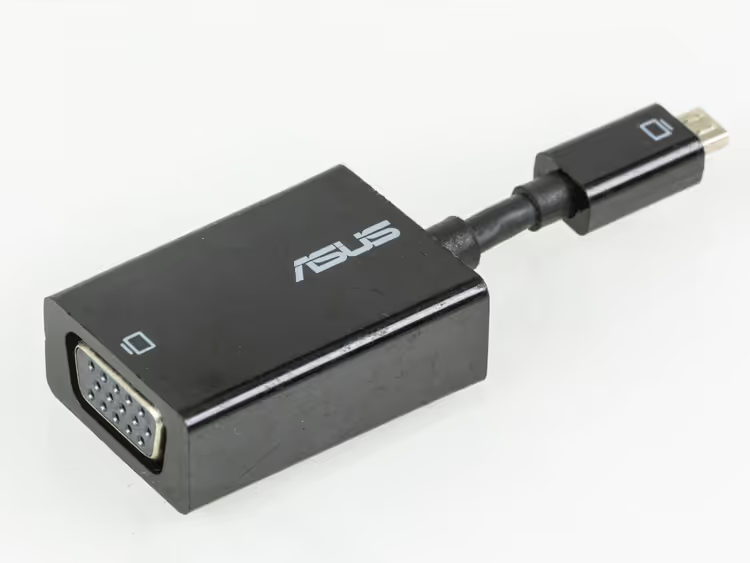
Laptop with HDMI → old VGA projector | HDMI → VGA (active) | Simplicity, powered by HDMI | UGREEN, Vention |
MacBook → VGA projector in a meeting room | USB-C → VGA | Compact, no extra adapters | Baseus, Belkin |
Old office PC (VGA) → new HDMI monitor | VGA → HDMI (with power) | Reverse conversion | Must have microUSB |
Two monitors: one VGA, one HDMI | DisplayPort → VGA | DP is on discrete cards | Club 3D, Cable Matters |
One-off connection for diagnostics | Any active HDMI→VGA | Versatility | UGREEN as a compromise |
Common problems: diagnostics in 5 minutes
No image at all. First, check whether your adapter is active. A passive HDMI→VGA cable will not produce a picture under any settings. Second: is microUSB power connected on VGA→HDMI adapters. Third: try a different VGA cable, a faulty cable is more common than you'd think.
Image is there, but with noise or ghosting. The culprit is the VGA cable. An analog signal is sensitive to electromagnetic interference: power supplies, Wi-Fi routers, even a phone nearby can cause interference. Replace it with a shielded cable and route it away from power sources.
Black-and-white picture instead of color. A VGA classic: one of the three color channels (RGB) has lost contact. Check if the connector is fully inserted and whether there are bent pins inside the VGA plug. Sometimes gently wiggling the connector helps, if colors appear, the problem is in the contact.
Monitor says "mode not supported". The resolution you're trying to output is higher than the adapter or the VGA channel itself supports. Lower it to Full HD or below and reconnect. Some cheap adapters can't negotiate EDID, in that case try forcing the parameters in the graphics card settings.
VGA, HDMI, and DisplayPort: when to use which
Each interface has its own niche, and VGA isn't "worse" in situations where it's needed.
Characteristic | VGA | HDMI | DisplayPort |
|---|---|---|---|
Signal type | Analog | Digital | Digital |
Audio | No | Yes | Yes |
Maximum resolution | ~2048×1536 | 4K@60 (2.1: 8K) | 8K@60 (2.0) |
Compatibility with old equipment | Full | Limited | Limited |
Copy protection (HDCP) | No | Yes | Yes |
Typical scenario | Old monitors, projectors | TVs, monitors, consoles | PCs, workstations |
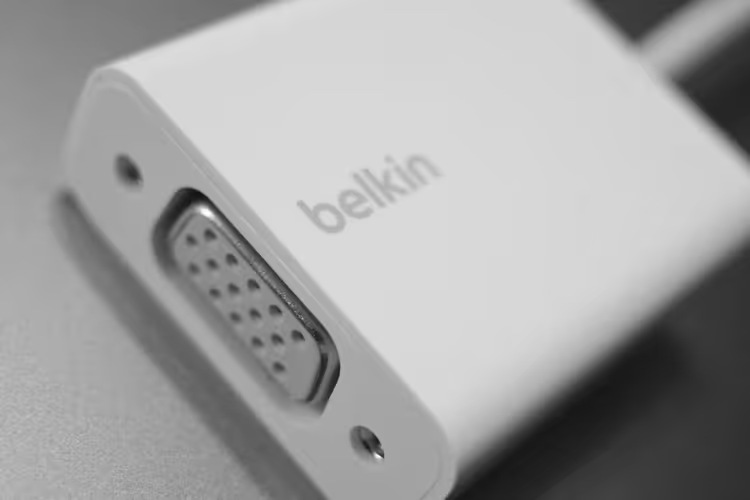
VGA persists not because of technical superiority, but because of the installed base of devices. When a meeting room has a 2012 projector with a single VGA input, an adapter solves the problem for pennies instead of replacing the projector for hundreds of dollars.
⁉️🤔 Frequent questions
Can I connect an HDMI laptop to a VGA monitor without external power?
No. An active HDMI→VGA adapter is powered by the HDMI port itself, no extra cable is needed. But for the reverse direction (VGA→HDMI), external power via microUSB is mandatory: the VGA port doesn't provide enough power for the converter chip.
Active HDMI→VGA adapters draw power directly from the HDMI connector, 5V is enough to run the chip that converts digital to analog. So no additional power cable is required here. The exception is long chains with intermediate HDMI extenders, where voltage can drop.
Does a VGA adapter carry audio?
Standard VGA, no. VGA as an interface doesn't carry audio at all. Some VGA→HDMI adapters have a built-in audio output (3.5 mm mini-jack) and take sound either from a separate audio cable from the source or via USB. HDMI→VGA and USB-C→VGA do not carry audio, output audio to speakers or headphones directly from the laptop.
The VGA specification does not provide for an audio channel, only RGB video and sync signals. In VGA→HDMI adapters, audio is fed via a workaround: either through a separate audio input on the adapter body, or via USB (the adapter is recognized as a USB sound card).
Does the adapter work in reverse?
No. Every adapter is unidirectional. HDMI→VGA cannot be used as VGA→HDMI, even if the connectors physically match. The chip inside is programmed for a specific conversion direction. Mix them up, you get no signal.
Inside an active adapter is a specialized chip (e.g., AG6200) that receives the TMDS signal from HDMI and outputs analog RGBHV. This chip physically cannot work in the opposite direction, VGA→HDMI requires a different controller (e.g., TV5725 or LKV353).
Is there a delay when using an adapter?
Yes, but minimal, around 10-30 milliseconds for active conversion. For office work, presentations, and video watching, this is unnoticeable. For gaming, a VGA adapter is not suitable: the delay is compounded by VGA's refresh rate limitation (60 Hz at Full HD).
The converter chip buffers several lines of the frame before output, which creates a delay that is imperceptible for office scenarios. But on 120+ Hz monitors, the VGA path still operates at 60 Hz, plus the digital-to-analog conversion adds its own 10-30 ms, making the combined experience uncomfortable for shooters.
How to tell if an adapter is active or passive without opening it?
Three signs. First: price, active ones are noticeably more expensive than passive ones. Second: description, active ones almost always include the phrase "active converter built-in chip" or "converter chip". Third: the presence of a microUSB port on the body, a sure sign of an active adapter (though some active HDMI→VGA adapters do without it).
A passive adapter electrically represents a direct connection of source and sink contacts in a different form factor, with no logic between them. An active one contains a PCB with a microchip, a quartz crystal, and passive components. The presence of a microUSB connector is the most reliable external sign, but not universal: some active HDMI→VGA adapters are powered by HDMI and have no additional input.
Does the VGA cable affect picture quality?
Significantly. Unlike digital HDMI/DP, where the signal is either there or it isn't, analog VGA degrades gradually: a thin cable means more noise, a long cable means loss of sharpness. On cables longer than 5 meters, the quality drop is visible to the naked eye. Ferrite beads on the ends and thick shielding are not marketing, they're a necessity.
Bottom line: which adapter to get for your task
A VGA adapter is not a universal key, it's a tool for a specific pair of ports. Identify the "source, sink" pair and get the corresponding active adapter.
- Laptop with HDMI → monitor/projector with VGA: HDMI→VGA (active). UGREEN and Vention handle it without complaints.
- MacBook or ultrabook with USB-C → VGA device: USB-C→VGA from Baseus or Belkin. Compact, no extra adapters.
- Old PC (VGA) → new HDMI display: VGA→HDMI with mandatory microUSB power. Get models with an audio output if you need sound.
- Workstation with DisplayPort → VGA monitor: DisplayPort→VGA. Club 3D and Cable Matters are stable options for professional use.
And the main rule: don't skimp on the adapter if you need results today and on the first try. The difference between a no-name for pennies and a branded adapter at a reasonable price is an evening of downtime or a working screen. And which adapter has saved you, write in the comments.

A professional team of writers and editors specializing in creating quality content.