














🔍 3 ways to find out what WordPress themes and plugins your favorite sites use
You've landed on a competitor's site or just a project you liked, and the first thought: "What is this even built with? What theme, what plugins?" Sounds familiar.
Under the hood, WordPress powers more than a third of the entire internet, and almost every other site on this CMS looks and works differently. Different themes, different plugin sets, unique tool combinations. The secret behind someone else's design doesn't have to stay a secret: there are three ways to reveal it, and all three require neither money nor access to the target site's admin panel.
In this guide, three proven methods: from a mouse click to manual code analysis. You'll learn not only what tools can help, but also how to use them, even if you've never looked at a site's source code before.
💡 Quick overview:
- Online detectors (Scantower, ScanWP, BuiltWith), copy the URL, get the theme name and plugin list in a second.
- Browser extension, CMS and plugin detection right while browsing a site, without visiting a third-party service.
- Manual check via DevTools, for those who need the full picture: all connected theme and plugin files are visible in the source code.
1. Online theme and plugin detectors
The simplest and fastest method: paste the URL of the site you're interested in into a form on a detector site. The service will scan the page, match found signatures against its database, and provide results: theme name, version, author, purchase link, and a list of detected plugins.

There are several such tools, each with its own focus. Scantower shows the theme and plugins, and also identifies the hosting provider. ScanWP specializes specifically in WordPress and can find even rarely used plugins, its database includes thousands of themes and plugins, the algorithm searches by WordPress-characteristic paths like /wp-content/themes/theme-name/style.css.
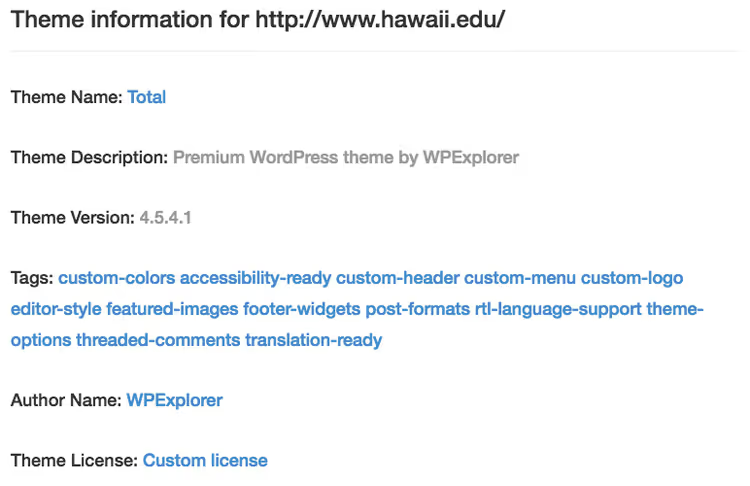
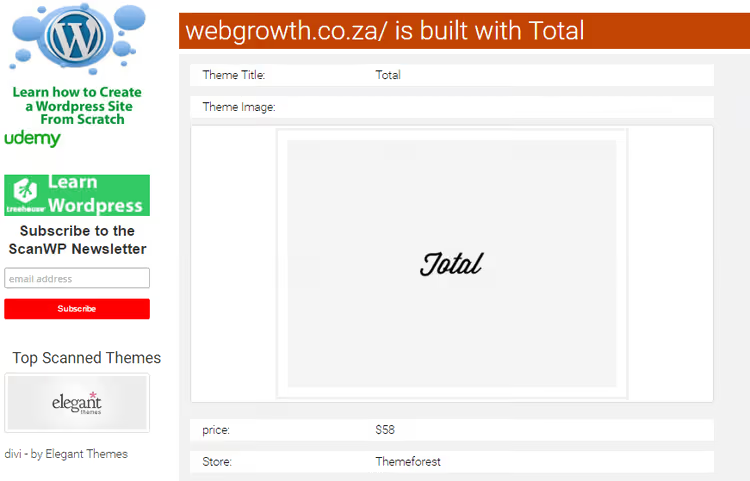
If the detector finds the theme in its database, you'll get not only the name, but also the description, author, and link to the theme page. Note: custom themes without public distribution won't be recognized by the detector, instead of a name you'll see an error message or "theme not detected." The same applies to non-WordPress sites: a good detector will immediately tell you the CMS is different.
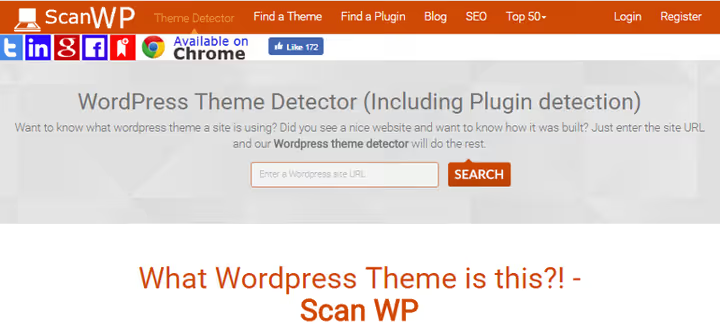
Besides the theme name, ScanWP and similar tools show one or two of the most prominent plugins. For example, for a WordPress site the detector might report that WPBakery Page Builder is being used, a page builder with drag-and-drop that leaves characteristic traces in the code.
For deeper technical analysis, there's BuiltWith. It looks much broader: shows not only the theme and plugins, but also CDN, hosting provider, analytics, ad networks, SSL certificate, widgets, and dozens of other technologies. There's a lot of information, BuiltWith's interface is more complex than simple detectors, but if you need to understand the entire technology stack of a site, this tool is indispensable.
2. Browser extension
Online detectors are convenient, but require you to visit a third-party site and paste the URL each time. If you're researching many sites in a row, it's faster to have a detector right in your browser.
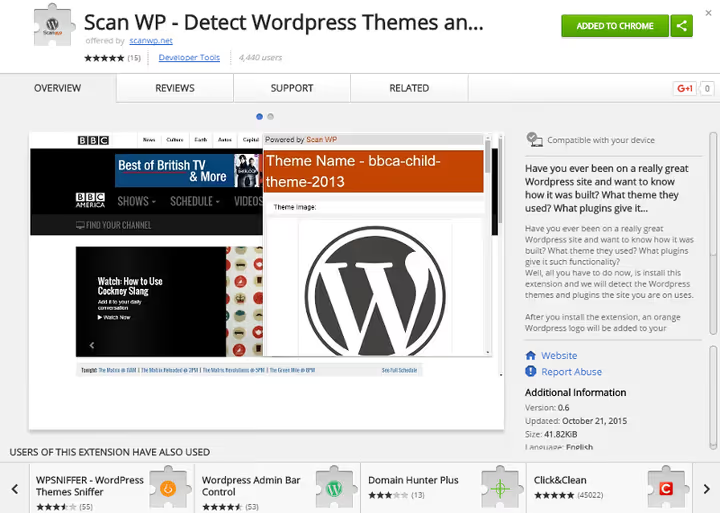
ScanWP has a Chrome extension, free, installation takes a minute. After installation, an icon appears in the top right corner of the browser that changes depending on the current site's CMS. On a WordPress site, the icon turns into a stylized letter W on a blue background. Click on it, and in the popup window you'll see the theme and main plugins.
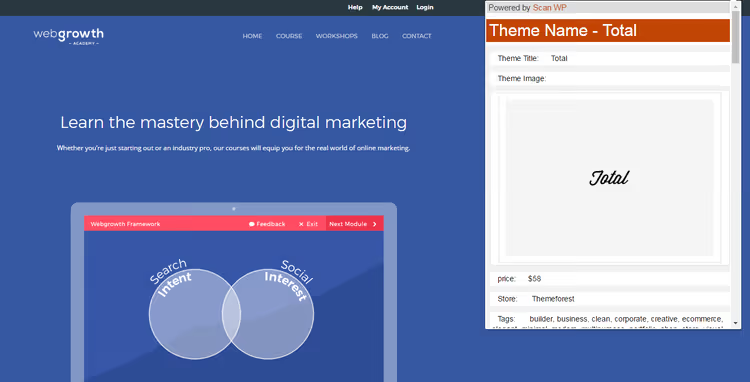
The extension works locally: it analyzes the code of the open page and matches found signatures against its database. No data about visited sites is sent to a server, unlike online detectors where you enter a URL into a form on someone else's site. For regular analysis of dozens of sites, the extension saves a ton of time.
An alternative, Wappalyzer, is a more universal extension that detects technologies not only on WordPress, but on any other platforms: Shopify, Wix, React, Vue, nginx, Cloudflare, and hundreds of others. It shows fewer WordPress plugins than specialized detectors, but covers the entire technology stack.
3. Manual check via developer tools
Online detectors and extensions show only part of the picture, for example, out of a dozen plugins they might detect only two or three of the most common ones. If you need the full picture, you'll have to look at the code.
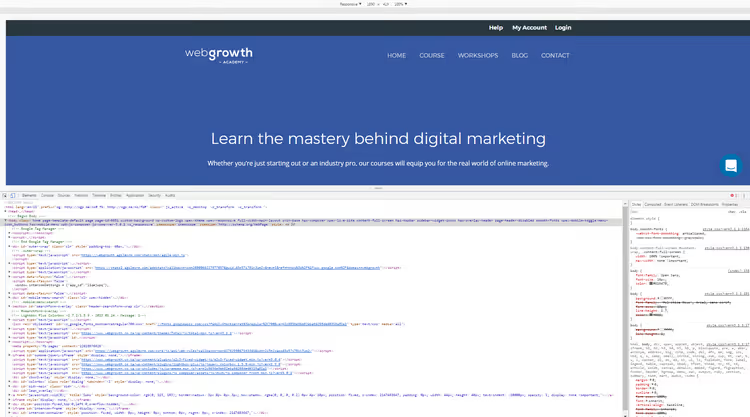
In Chrome (and in any modern browser), open the page, right-click and select "Inspect" or press Ctrl+Shift+I. The developer tools panel will open, intimidating at first glance, but for our task you only need to find one thing.
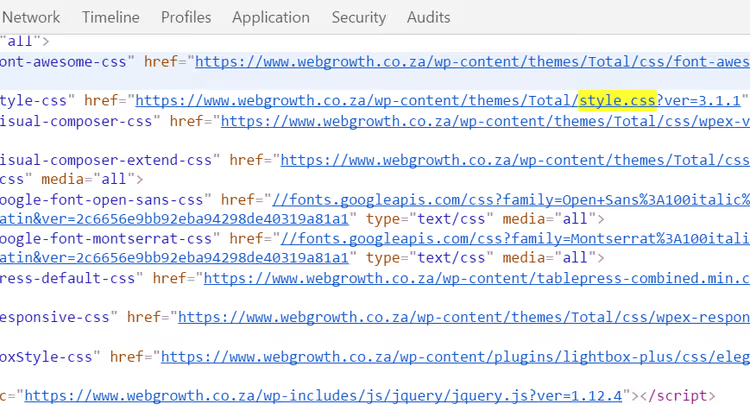
Press Ctrl+F and enter style.css in the code search bar. There should be few results, and one of them will be part of a URL containing the path to the theme: /wp-content/themes/theme-name/style.css. This way you'll learn the exact name of the active theme, even if it's custom and hasn't been registered in any public catalog.
With plugins it's more complex. They leave traces in the HTML: each plugin connects its CSS and JS files via /wp-content/plugins/plugin-name/. In the DevTools panel, go to the "Sources" tab and expand the site's domain, you'll see a folder tree wp-content/plugins/, where each subfolder corresponds to one installed plugin. The method is labor-intensive, but gives the most complete list.
This same approach works in Firefox and Safari. If there are many plugins and you don't want to sort through folders manually, you can use the Codeable service, which describes a combined method: first the detector, then manual checking by characteristic classes in HTML.
In practice, the three methods work best together: a quick detector gives the general picture in a second, an extension for everyday surfing, and DevTools when you need to dig deeper and find what automated tools missed.
⁉️🤔 Common questions
Why doesn't the detector show all plugins?
Services like ScanWP find plugins by signatures in the HTML code of the page. But not every plugin leaves externally visible traces: backend, security, or caching plugins can work completely behind the scenes. The more popular the plugin, the higher the chance the detector will recognize it. Plugins from the official WordPress.org catalog with thousands of installs are detected almost always. Highly specialized or custom ones, almost never. That's exactly what the manual method via DevTools is for.
Is it possible to hide the theme and plugins from detectors?
Yes, technically possible. You can rename the theme folder, remove standard WordPress comments from
style.css, use path-hiding plugins (like Hide My WP). But in practice, very few do this: most site owners don't bother with hiding because it doesn't provide real protection, and obfuscation plugins often break site functionality. Full invisibility is almost impossible to ensure, indirect signs always remain: HTML structure, CSS class names, script loading order. An experienced developer will detect the theme and plugins even on a "protected" site.
What if the site isn't on WordPress at all?
Detectors like BuiltWith and the Wappalyzer extension determine the platform before searching for a theme. For Shopify, there are dedicated detectors (Shopify Inspector, Coala), for Wix and Squarespace too. If a site is written in pure HTML without a CMS, you'll see it immediately: the code won't have characteristic paths like
/wp-content/,/skin/, or/assets/themes/. In any case, always check the platform first. Spending time looking for a WordPress theme on a site that runs on Tilda or custom PHP is pointless.
Do you need to pay for detectors?
All the tools mentioned in the article are free for basic use. ScanWP, Scantower, and BuiltWith show the theme and main plugins without registration. BuiltWith has paid plans for bulk analysis and access to historical data, but for a one-time theme search they aren't needed. Chrome extensions are also free. The manual method via DevTools doesn't require any third-party tools at all, just a browser.
Can you copy someone else's site design by knowing the theme and plugins?
Technically, yes. If you found out that a site uses the Astra theme and Elementor plugin, you can install them yourself and get the same base. But exact design replication will require configuration: colors, fonts, block layout, custom CSS tweaks, all of this is unique to each site and isn't copied automatically. Plus don't forget about copyrights on images and texts. The theme and plugins are the foundation. The design on top of it is the result of a designer's or site owner's work. The tools described in the article will help you understand the technological basis, but won't make an exact clone for you.
Is it worth digging into someone else's code, or is a detector enough?
An online detector covers the vast majority of tasks: you can find out the theme, main plugins, and hosting in seconds. If you're just scoping out the market or looking for inspiration, that's enough.
A browser extension speeds up the process many times over when there are many sites, and works right while surfing, you don't even get distracted from browsing.
DevTools is for those who need the full picture and aren't afraid to look under the hood. It's the only way to find all plugins, including backend ones, and understand the site structure thoroughly.
Start with a detector. If the result is incomplete, install an extension. If that's not enough, open DevTools. Three tools, three levels of depth, and all three are free.

A professional team of writers and editors specializing in creating quality content.