














📖 5 best glossary plugins for WordPress 2026 (free and paid)
An unclear term in an article, a lost reader. Without a glossary, the user either leaves with questions or doesn't finish the material. Search engines love pages where content is structured and connected by cross-links.
A properly configured glossary solves both tasks: it provides term definitions through tooltips and automatically stitches the site with internal links. No code required.
We've selected 5 WordPress plugins that turn scattered terms into a working navigation and SEO tool. Three out of five have a free version on WordPress.org.
💡 Quick overview:
- Choose a plugin from the table below: compare price, glossary type and compatibility
- Install the plugin through the WordPress admin panel and add your first terms to the dictionary
- Set up auto-linking of terms in content and the appearance of tooltip hints
- Check the indexing of glossary pages in search console in two to three weeks
Plugin | Free version | Glossary type | Auto-linking | Gutenberg / Classic | Pro price |
|---|---|---|---|---|---|
| Yes | Tooltip + pages | Yes | Both | From $49/year |
| Yes | Tooltip + categories | Yes | Both | From €49/year |
| Yes | Block glossary (Gutenberg) | No | Blocks only | Free |
| No | Tooltip + index | Yes | Classic | $35 |
| Yes | Tooltip + directory | Yes | Both | From $39 |
1. CM Tooltip Glossary
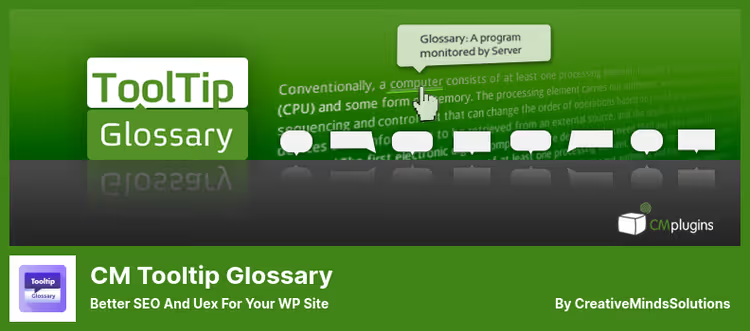
The most feature-rich combine in the niche. 12+ years of development, 8,000+ active installations, compatible with WordPress 7.0. The plugin automatically finds terms in content, inserts links to definition pages and shows tooltips on hover.
What distinguishes CM Tooltip Glossary from competitors is the volume of integrations: Wikipedia, Merriam-Webster, Google Translate, ChatGPT for auto-generating definitions. In paid versions, audio and video hints, Amazon recommendations in tooltips, synonyms and term variations.
Pros:
- Automatic term detection through AI module (Pro+)
- 240+ settings in the maximum edition
- Integration with WooCommerce and multisite
- Support for synonyms, abbreviations and variations
Cons:
- Free version limited to 500 terms
- Pro and higher edition prices noticeably higher than free
- Settings interface overloaded for beginners
Price: free (Lite, up to 500 terms) / Pro from $49/year / Pro+ and Ecommerce, on request
🔗 CM Tooltip Glossary on WordPress.org🔗 CMinds site, Pro and Ecommerce
2. Glossary by Codeat
The main competitor to CM Tooltip Glossary with a focus on clean auto-linking of terms. 2,000+ active installations, 83 ratings, tested with WP 7.0. The plugin automatically builds a word list from your content, groups terms by categories and shows styled tooltips on hover.
Developer Daniele Scasciafratte keeps the plugin in active development: ChatGPT integration for generating definitions, Schema.org DefinedTerm, CSV import, migration from CM Glossary. Pro version adds tooltip customization, footnotes output and ACF compatibility.
Pros:
- 4 free tooltip templates + customization in Pro
- Compatibility with Elementor, Bricks, Divi, Genesis out of the box
- One-click migration from CM Tooltip Glossary
- WPML and Polylang support
Cons:
- Free version without premium support
- Pro price in euros, inconvenient for non-European users
- No audio/video in tooltips (unlike CM)
Price: free (basic) / Pro from €49/year
🔗 Glossary on WordPress.org🔗 Codeat site, Pro and demo
3. Heroic Glossary

A fresh take on glossaries: not a tooltip engine, but a Gutenberg block for building dictionary pages. From HeroThemes, the same developers who make the top Heroic KB for knowledge bases. 3,000+ installations, updated January 2026.
Different approach: instead of auto-linking terms in content, Heroic Glossary gives you a drag-and-drop dictionary page builder with A-Z navigation, instant search and categories. The glossary is inserted as a block into any post or page. Minimal settings, results in minutes.
Pros:
- Completely free, no premium tiers
- Instant search by terms
- A-Z navigation, reusable blocks
- Ideal for a dictionary page, not for auto-linking
Cons:
- Gutenberg only, classic editor not supported
- No tooltips and auto-linking of terms in content
- Not directly compatible with Elementor (only through HTML copying)
Price: free
🔗 Heroic Glossary on WordPress.org
4. WP Glossary
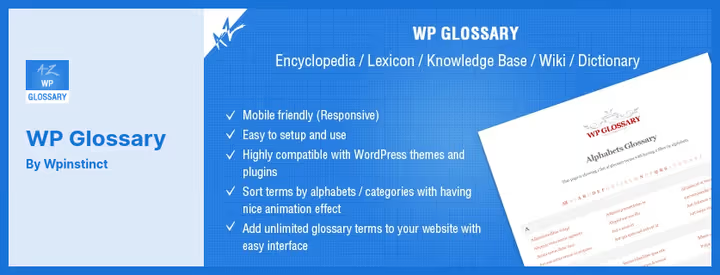
A CodeCanyon plugin for building encyclopedias, lexicons and dictionaries through custom post types. Works in the classic editor: terms are created as separate posts, the plugin automatically places links to definition pages.
The feature of WP Glossary is the animated index page. Terms are displayed with effects, images are shown both in tooltips and on the glossary page. A short shortcode inserts a complete A-Z list of terms anywhere on the site.
Pros:
- Images in tooltips and on definition pages
- Animated term index
- Custom post types, can be embedded in any theme
- Filtering of empty categories and alphabetical groups
Cons:
- No free version, paid license only
- No Gutenberg block support
- Classic editor only, not for block themes
Price: $35 (one-time, includes 12 months of support)
5. WordPress Tooltips
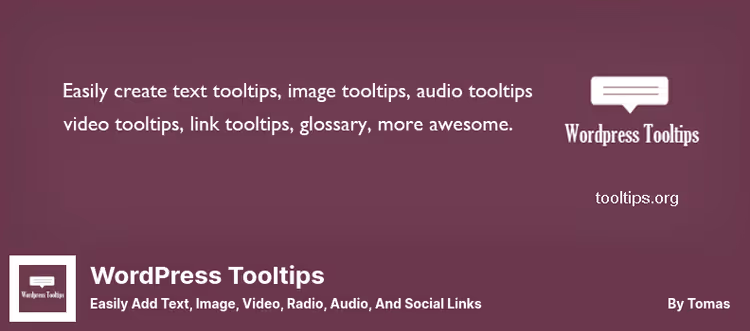
The most versatile tooltip engine in the selection. 5,000+ active installations, 75 ratings. In addition to term glossaries, the plugin adds tooltips to images, audio, video, Google Maps, QR codes, PDF, YouTube, SoundCloud and Contact Form 7 forms.
The glossary here is a built-in function: the [glossary] shortcode creates a dictionary page with A-Z navigation, search and SEO indexing. Plus WordPress Tooltips automatically places hints in posts, tags, menus, WooCommerce products and ACF fields.
Pros:
- 4 tooltip color schemes in the free version
- Compatibility with Elementor, WPForms, TablePress, NextGEN
- Multimedia tooltips: audio, video, maps, QR
- Glossary page with A-Z navigation out of the box
Cons:
- Pro license for 1 site (cost increases for multisite)
- Multiple settings require time to master
- No ChatGPT/AI definition generation
Price: free / Pro from $39
🔗 WordPress Tooltips on WordPress.org🔗 Tooltips.org site, demo and Pro
We've selected a video overview that shows by example how to set up a glossary in WordPress from scratch, from plugin installation to indexing of dictionary pages by search engines:
⁉️🤔 Frequently asked questions
Is a glossary needed for SEO in 2026?
A working glossary gives three SEO effects simultaneously. First, term pages are indexed as independent content units, these are additional entry points from search. Second, auto-linking stitches the site with internal links with relevant anchors. Third, Schema.org DefinedTerm markup (available in Glossary by Codeat) helps search engines understand the structure of definitions. In practice, sites with a glossary get noticeably more indexed pages 4.6 weeks after launch.
What's the difference between a tooltip glossary and a page-based one?
The tooltip approach (CM Tooltip Glossary, Glossary by Codeat, WP Glossary, WordPress Tooltips) automatically finds terms in text and shows the definition on hover, the user doesn't leave the page. The page-based approach (Heroic Glossary) creates a separate dictionary page with search and A-Z navigation, convenient for large reference books and knowledge bases. The best result comes from a combination: tooltips for quick definitions plus an index page for the complete dictionary.
Do glossary plugins work with caching?
Yes, all five plugins are compatible with server and client caching. Glossary by Codeat officially states full compatibility with backend and frontend cache. After changing tooltip styles in the Pro version, you need to clear the frontend cache, this is standard practice for any plugin that modifies the frontend. WordPress Tooltips can move JavaScript to the footer to speed up loading.
Can you use multiple glossaries on one site?
Yes, with limitations. CM Tooltip Glossary in Pro+ and Ecommerce supports multiple glossaries with separate indexes. Glossary by Codeat allows grouping terms by categories through shortcodes, this gives separate vertical archives for different site sections. Heroic Glossary supports unlimited dictionary blocks through reusable blocks. WP Glossary and WordPress Tooltips, one glossary per site within a standard installation.
Which plugin to choose for a multilingual site?
The combination of Glossary by Codeat + WPML or Polylang is the most refined: the plugin recognizes the language of each post type and substitutes the corresponding definitions. CM Tooltip Glossary is also compatible with WPML, plus it has built-in integration with Google Translate and Merriam-Webster. WordPress Tooltips supports translation through.po files and multilingual glossary pages. Heroic Glossary is translated into 9 languages through translate.wordpress.org.
Final breakdown: what to install in 2026
If budget doesn't matter and you need maximum features, CM Tooltip Glossary in Pro+ edition. AI term search, Wikipedia and ChatGPT inside tooltips, Amazon recommendations. Covers almost any scenario.
If you need a fast and lightweight auto-glossary with excellent compatibility, Glossary by Codeat. The free version is generous, Pro adds tooltip customization and footnotes.
If a dictionary page without auto-linking is enough, Heroic Glossary will handle the task for free and without messing with settings. Insert a block, add terms, done.
If you're on the classic editor and want an animated glossary with images, WP Glossary with one-time payment. No subscriptions.
If in addition to a glossary you need tooltips for images, videos, maps and forms, WordPress Tooltips. The widest coverage of content formats.
Choose for your task, not someone else's rating. And launch the glossary before the volume of content exceeds a hundred posts, manually marking up terms later will be painful.

A professional team of writers and editors specializing in creating quality content.