














🥇 6 best accessibility plugins for WordPress 2026 (free and Pro)
A screen reader announces a chaotic mess of headings. A visually impaired user cannot increase the font size. A form button is inaccessible from the keyboard. All these errors cost you real audience: according to W3C data, about 15-20% of people worldwide live with some form of disability.
WordPress out of the box covers only part of WCAG requirements. Themes add contrast problems, third-party plugins break keyboard navigation, and by the end of a typical project, a dozen standard accessibility errors accumulate. Fixing them manually is slow and expensive.
We sorted through the tools from the repository and tested six that cover different scenarios: from one click to AI monitoring. Here's how it went.
💡 Quick overview:
- Decide on an approach: toolbar for users, markup modifier, or scanner for code audit
- Choose a plugin for your task and budget: free One Click Accessibility in 5 minutes or WP ADA Compliance Check with detailed reports
- Install, check the result with a screen reader, and close typical theme gaps
Plugin comparison table
Plugin | Type | Free version | Pro | Active installations | Updated |
|---|---|---|---|---|---|
WP Accessibility | Modifier | ✅ | On request | 60,000+ | March 2026 |
One Click Accessibility | Toolbar | ✅ | No | 500,000+ | June 2026 |
WP Accessibility Helper | Toolbar | ✅ | From $49/year | 10,000+ | May 2025 |
AccessiBe | AI service | ✅ (lite) | From $49/mo | 10,000+ | February 2026 |
UserWay | Widget + AI | ✅ | From $49/mo | 80,000+ | December 2025 |
WP ADA Compliance Check | Scanner | ✅ (25 pages) | $179/year | 3,000+ | May 2026 |
1. WP Accessibility
WP Accessibility, a veteran among accessibility tools for WordPress. The plugin doesn't promise to make a site WCAG compliant with one button. Instead, it methodically fixes typical theme and core problems: adds skip links, removes title attributes from images, forcefully adds alt to images in the classic editor, removes target="_blank" from links.
In practice, the plugin works quietly and without visual overhead. No toolbars, no popup panels. Just code that fixes accessibility at the markup level.
The author, Joe Dolson, is one of the key contributors to the WordPress Accessibility Team. The latest release, 2.3.3, came out in March 2026, with over 60,000 active installations on WordPress.org. Stable.
Pros:
- ✅ Doesn't add unnecessary frontend code, works at the
wp_headandwp_footerlevel - ✅ Built-in colour contrast checker for quick color combination testing
- ✅ Diagnostic CSS for visual audit of problem areas
- ✅ Full control: any feature can be disabled if it conflicts with the theme
Cons:
- ❌ No visual interface for site visitors
- ❌ Settings require understanding of what exactly you're fixing
- ❌ Doesn't replace a full accessibility audit
Price: Base version is free. Pro, individual quote via joedolson.com.
Download: 🔗 WP Accessibility on WordPress.org | 🔗 Developer site
2. One Click Accessibility
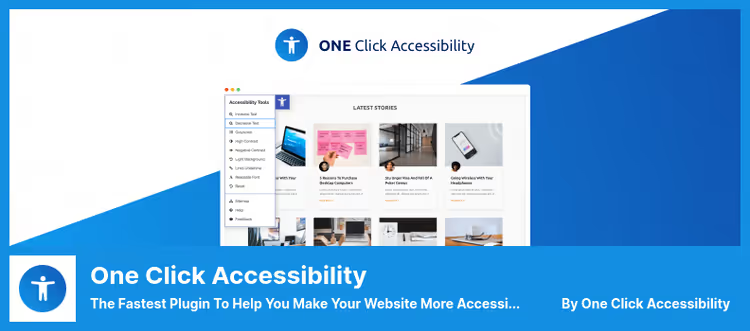
The fastest way to add an accessibility toolbar to a site. One Click Accessibility installs in a minute and immediately shows visitors a panel: increase or decrease font, toggle contrast, underline links, go to sitemap.
Under the hood there's more than it seems: the plugin adds ARIA landmarks for all links, adds outline for elements in focus, removes target from external links. With 500,000+ active installations and version 4.1.2 updated in June 2026, this is the largest accessibility tool in the WordPress repository.
Works well if the task is to add something in 5 minutes without diving into code. Don't expect deep customization.
Pros:
- ✅ Installation and setup in 2-3 minutes, without a line of code
- ✅ Toolbar works out of the box, doesn't conflict with most themes
- ✅ Open source, no paid plans
- ✅ Regular updates (latest: June 2026)
Cons:
- ❌ Minimal feature set, no brand customization
- ❌ Doesn't solve deep accessibility problems in the theme
- ❌ No monitoring or compliance reports
Price: Completely free.
Download: 🔗 One Click Accessibility on WordPress.org
3. WP Accessibility Helper
WP Accessibility Helper occupies the niche between minimalist One Click Accessibility and expensive AccessiBe. In the free version, users get a toolbar with font size adjustment, contrast, link underlining, and monochrome mode.
Pro adds accessibility widgets, popups, WPML and PolyLang support, and sepia mode. The Premium plan on WordPress.org, from $49 per year, is noticeably cheaper than SaaS solutions like AccessiBe and UserWay.
The plugin claims WCAG and ADA compliance, but a toolbar alone isn't enough for full compliance. Think of it as a quick accessibility layer for visitors, not as an audit replacement.
Pros:
- ✅ Flexible toolbar: user enables only needed options
- ✅ Multilingual support via WPML and PolyLang
- ✅ Sepia and monochrome modes for users with special visual needs
- ✅ Relatively inexpensive Pro versus SaaS competitors
Cons:
- ❌ Last update: May 2025, development pace has slowed
- ❌ Free version limited to basic toolbar settings
- ❌ Doesn't replace full accessibility code review
Price: Base version is free. Pro, from $49/year (in the WordPress.org repository).
Download: 🔗 WP Accessibility Helper on WordPress.org
4. AccessiBe
AccessiBe, a cloud AI service, not just a plugin. It scans the site, finds accessibility problems on the frontend and backend, and automatically rebuilds pages: adapts dropdown menus, forms, popups, and skip links for keyboard navigation. A separate plus, AI screen reader that understands element context and recognizes images.
The plugin works by subscription, from $49 per month for the basic plan (see AccessiBe pricing). There's a free lite version from the WordPress repository that gives access to some features, but the main AI engine requires payment.
In practice, AccessiBe causes controversy in the accessibility community: some praise it for implementation speed, others criticize it for overselling full compliance with one button. In our experience: as a quick first layer, it works. As the only solution, not enough.
Pros:
- ✅ AI automatically processes images, forms, ARIA attributes
- ✅ Daily monitoring of content changes
- ✅ Contextual screen reader with element meaning recognition
- ✅ Full customization of accessibility panel appearance
Cons:
- ❌ Expensive for small sites, from $49/mo (see pricing)
- ❌ Dependency on external service, AI doesn't work without internet
- ❌ Accessibility community has mixed feelings about full automation
Price: Lite free. Pro, from $49/mo (trial period available, more on site).
Download: 🔗 AccessiBe on WordPress.org | 🔗 Official AccessiBe site
5. UserWay
UserWay, a direct AccessiBe competitor with a similar model: free basic widget from the WordPress repository and paid AI engine for deep accessibility. The widget adds contrast settings, font size, keyboard navigation, and focus. The Pro version includes a screen reader with hotkeys and automatic monitoring.
The plugin claims GDPR and CCPA compliance, which is important: many accessibility solutions collect user data through AI processing. UserWay provides a documented Data Processing Agreement.
Support responds within a day, helps with widget brand customization. With 80,000+ active installations, this is one of the leading accessibility tools for WordPress with AI features.
Pros:
- ✅ Quick widget installation, out-of-the-box brand customization
- ✅ Built-in screen reader with hotkeys
- ✅ GDPR compliance and CCPA with DPA document
- ✅ Responsive support, customization help
Cons:
- ❌ Pro version expensive for small projects, $49/mo (see UserWay pricing)
- ❌ Some features duplicate native browser accessibility
- ❌ Dependency on UserWay cloud for AI features
Price: Free version, $0. Pro, from $49/mo (more on site).
Download: 🔗 UserWay on WordPress.org | 🔗 Official UserWay site
6. WP ADA Compliance Check Basic
A fundamentally different approach. WP ADA Compliance Check doesn't change the site, it scans it for Section 508 and WCAG 2.1 Level A/AA compliance. Essentially, it's a built-in accessibility auditor.
The free version checks up to 25 pages and doesn't touch theme files. Pro ($179/year, developer data) removes these limitations, adds integration with Elementor and Beaver Builder, and automatically fixes some problems.
The strong side, reports. The plugin doesn't just say "you have 47 errors," it shows the specific code section, explains the problem, and gives fix instructions. For a developer who wants to understand accessibility independently, this is the best tool in the selection.
Pros:
- ✅ Detailed reports with problem code indication and instructions
- ✅ WCAG 2.1 and Section 508 compliance out of the box
- ✅ Integration with Elementor and Beaver Builder in Pro version
- ✅ Automatic fixing of some problems in Pro
Cons:
- ❌ Free version limited to 25 pages
- ❌ Pro ($179/year, see site) more expensive than direct modifier competitors
- ❌ Doesn't add accessibility tools for site visitors
Price: Base version free (up to 25 pages). Pro, $179/year (alumnionlineservices.com).
Download: 🔗 WP ADA Compliance Check on WordPress.org | 🔗 Official site
See how web accessibility works in practice
A short video from W3C: why accessibility is needed and how WCAG standards turn into real use scenarios. 4 minutes that will put everything in place.
⁉️🤔 Frequently asked questions
Can you make a site fully accessible with one plugin?
No. No plugin will make a site WCAG 2.2 AA compliant automatically. Toolbars like UserWay and AccessiBe add an accessibility layer for visitors, but they don't solve problems in theme markup and content. Full accessibility is a combination of the right theme, plugin, and manual content audit: alt texts, headings, contrast.
What's the difference between a scanner and a modifier?
A scanner (WP ADA Compliance Check) checks the site and produces a report with specific code errors, you fix them yourself. A modifier (WP Accessibility) automatically changes markup: adds skip links, removes unnecessary attributes, fixes keyboard focus. A scanner gives understanding, a modifier gives results. Ideally use both.
Do you need an accessibility plugin if the theme is labeled accessibility-ready?
Preferably. The accessibility-ready tag means the theme passed basic WordPress Theme Review Team review. But it doesn't account for your specific content, third-party plugins, and custom blocks. A minimal plugin like One Click Accessibility or WP Accessibility will close typical gaps without theme conflicts.
How much does accessibility compliance cost for a WordPress site?
From free solutions to several hundred dollars per year. Free plugins, One Click Accessibility and WP Accessibility, cover basic needs without budget. Pro solutions: WP Accessibility Helper ($49/year), WP ADA Compliance Check ($179/year), UserWay and AccessiBe (from $49/mo each). Plus possible manual audit costs if certification is needed.
Is WCAG compliance mandatory for a small site?
Legally depends on country and site type. In the US, ADA Title III applies to commercial sites. In Europe, the European Accessibility Act took effect in June 2025. Practically: accessibility expands audience reach and improves SEO. Search engines consider accessibility signals when ranking. Even for a small site, basic accessibility is an investment in reach, not costs.
What to install in 2026: final breakdown
Six plugins, four approaches to accessibility. The choice depends on task and budget.
- If budget is zero and you need accessibility yesterday: take One Click Accessibility. The toolbar will appear in 3 minutes, and under the hood the plugin silently adds ARIA landmarks and fixes keyboard focus.
- If you need control over markup without extra frontend code: take WP Accessibility. A plugin from a WordPress core contributor that fixes specific problems, not imitates compliance.
- If you want a detailed audit and understanding of errors: take WP ADA Compliance Check. It will scan the site, show every code error, and give instructions. Best choice for developers.
- If you're ready to pay for AI and minimal manual work: choose between AccessiBe and UserWay. Both provide cloud monitoring and AI screen reader. AccessiBe is more aggressive in automatic page rebuilding. UserWay wins in support and documented compliance.
Accessibility is not a task to "do once and forget." Install one of the six plugins for your task and budget. Check the result with a screen reader and return to auditing with each major site update.

A professional team of writers and editors specializing in creating quality content.