














📑 7 best tab plugins for WordPress 2026 (free and paid)
Content on a page without structure is like a book without a table of contents. A visitor scrolls through and leaves because they can't see where the answer to their question is.
Tabs solve this problem: they compress three screens of information into one click without overloading the page. For a WooCommerce store, descriptions and specifications in tabs boost conversion. For a blog, guides and FAQs in tabs keep readers engaged longer.
In this roundup, 7 tab plugins for WordPress that we tested manually on a test site under load: from lightweight shortcode solutions to Gutenberg blocks and WooCommerce tools. No "everything and the kitchen sink" page builders, only plugins that actually work with tabs.
💡 Quick overview:
- Read the comparison table at the beginning of the article, it will immediately filter out unsuitable options.
- Choose a plugin for your task: WooCommerce →
Custom Product Tabs, Gutenberg →Ultimate Blocks, side-tab CTA →Simple Side Tab. - Install the plugin, add tabs to a post or page via shortcode or block, and check how the tabs look on mobile.
Comparison table of plugins
Plugin | Free version | Premium from | Tab type | Gutenberg | WooCommerce | Side-tab |
|---|---|---|---|---|---|---|
| Yes | $9 | Horizontal, vertical | Yes | Yes | No |
| Yes | $29 | WooCommerce tabs | Yes | Yes | No |
| Yes | From $19.99 | Horizontal | Partial | Yes | No |
| Yes | $29/year | Horizontal, vertical | Yes | No | No |
| Yes | £24 | Horizontal, accordion on mobile | Yes | No | No |
| Yes | $49/year | Horizontal (3 styles) | Gutenberg only | No | No |
| Yes | No | Vertical side-tab | N/A | N/A | Yes |
In the video above, the step-by-step process of adding tabs in WordPress through the standard editor. The same principle works with all plugins from this roundup.
1. Tabs Responsive
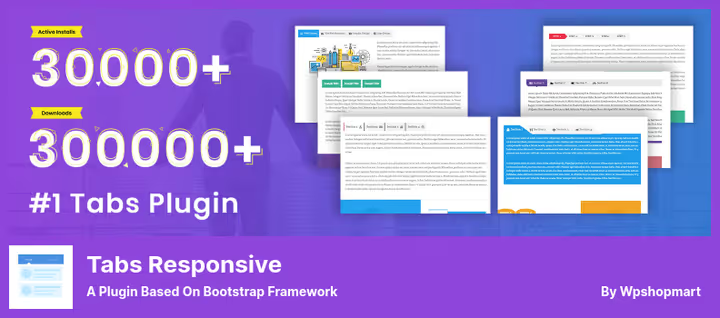
A plugin based on the Bootstrap framework, responsive and mobile-friendly out of the box. Displays both horizontal and vertical tabs equally well. You add tabs via the [TABS_R id=xx] shortcode on any page or post.
Inside a tab, text, images, video, music and nested shortcodes. There's a separate widget for the sidebar. The free version provides drag-and-drop assembly, custom icons via Font Awesome and unlimited tabs.
Pros:
- Works with WooCommerce, separate extension for product tabs.
- 20+ templates and 500+ Google Fonts in Pro.
- Drag-and-drop tab sorting right in the admin panel.
Cons:
- WYSIWYG editor sometimes resets HTML formatting, check after saving.
- Pro license for one site, support for six months.
Price: Free. Pro, $9 for one site.
🔗 Tabs Responsive on WordPress.org🔗 Live Pro demo
2. Custom Product Tabs for WooCommerce
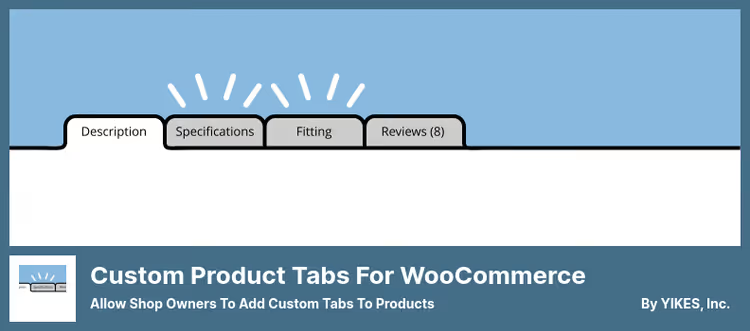
A narrow but powerful tool: adds custom tabs to WooCommerce product pages. Standard "Description", "Details" and "Reviews" can be removed or supplemented, for example, with a "Shipping", "Size chart" or "Video review" tab.
Tab content is entered in the standard WordPress editor, text, HTML, images, shortcodes. Saved tabs are applied to multiple products at once. The plugin is compatible with WPML, critical for multilingual stores.
Pros:
- Extends standard WooCommerce search to custom tab content.
- Global hiding of tab title without external filters.
- Free version is not cut down in functionality.
Cons:
- WooCommerce only, not suitable for regular posts and pages.
- Support, according to user reviews, responds slowly.
Price: Free. Pro, $29.99.
🔗 Custom Product Tabs on WordPress.org
3. Responsive Tabs

A lightweight shortcode plugin from WP Darko. You create a set of tabs in the admin panel, each with its own title and content, copy the shortcode and paste it anywhere. The free version has no limitations: you change color, tab order and the breakpoint for switching to accordion on mobile.
In practice, this is the fastest way to add tabs to an existing site: five minutes from installation to result. Supports PHP 8, compatible with the latest WordPress version (tested up to 6.9.4).
Pros:
- Free version is fully functional, no artificial limits.
- Automatically turns tabs into an accordion on narrow screens.
- Supports nested shortcodes inside tabs.
Cons:
- Pro version mainly adds icons and styles, the core is simple.
- Early versions had XSS vulnerabilities, update to 4.0.11.
Price: Free. Pro, from $19.99 per site.
🔗 Responsive Tabs on WordPress.org
4. WP Tabs
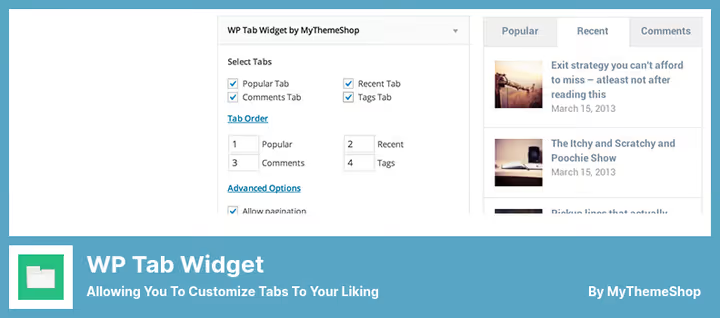
A plugin from ShapedPlugin with a convenient shortcode generator. You create an unlimited number of tab sets, each with its own set of settings: colors, fonts, margins, icons. The finished shortcode is inserted into a post, page or widget.
RTL compatibility and translation into several languages, a plus for multilingual projects. Tabs switch by click or hover, are sorted by drag-and-drop. The second version of the plugin is completely rewritten for Gutenberg.
Pros:
- 30+ style customization options in the free version.
- Shortcode generator compatible with all popular page builders.
- Clean and intuitive control panel.
Cons:
- Tab editing only in the backend, no visual preview on the page.
- Pro version by annual subscription, not one-time.
Price: Free. Pro, from $29/year.
🔗 WP Tabs on WordPress.org🔗 ShapedPlugin site
5. Tabby Responsive Tabs
An ultra-lightweight plugin for minimalists. No admin panel, only shortcodes in text. On desktop it's horizontal tabs, on mobile (narrow screen) they automatically collapse into an accordion.
Developers will appreciate: tabs are customized via CSS, support semantic heading markup (H1-H2 inside tab content improves SEO) and are keyboard accessible. Font Awesome icons are enabled with one checkbox. Multiple tab groups on one page, no problem.
Pros:
- Loads exactly what's needed, without extra code.
- Keyboard-accessible and screen-reader-friendly.
- Accordion on mobile out of the box.
Cons:
- No visual editor, only CSS.
- One layout type: horizontal tabs.
Price: Free. Tabby Tabs Customizer, £24 for one site or £89 for unlimited.
🔗 Tabby Responsive Tabs on WordPress.org🔗 Cubecolour site
6. Ultimate Blocks

A plugin of 22 blocks for Gutenberg, one of which is "Tabbed Content". Three styles to choose from: classic tabs, "pills" and underline. You configure colors, tab order and anchor right in the block editor sidebar.
In addition to tabs, Ultimate Blocks provides blocks for reviews, table of contents, "Share" buttons and schema markup (FAQ, HowTo). Rating of 4.9 stars on WordPress.org with 60,000+ active installations. Completely free, including for commercial use.
Pros:
- Three tab styles (tabs, pills, underline), for any design.
- 21 more useful blocks included.
- Free without limitations, including commercial projects.
Cons:
- Gutenberg only, doesn't work in classic editor and page builders.
- Tab customization is limited to the block editor framework.
Price: Free. Pro, $49/year for one site.
🔗 Ultimate Blocks on WordPress.org
7. Simple Side Tab

A niche tool for one task: adds a vertical tab to the left or right of the browser window. The tab is fixed and remains visible when scrolling, ideal for CTA: "Contact", "Portfolio", "Sign up".
No graphics, only CSS. Seven standard fonts, unlimited color palette. Filter for conditional display of the tab on specific pages and for changing text via code. Plugin tested up to WordPress 6.9.4, updated six months ago.
Pros:
- Loads only CSS, zero impact on speed.
- Works on mobile without glitches.
- Filters for custom display logic.
Cons:
- One tab, can't handle more than one.
- For advanced customization you need CSS.
Price: Free.
🔗 Simple Side Tab on WordPress.org
Comparison: shortcode, block or widget?
Three approaches to adding tabs solve different problems. Shortcode plugins are universal and work in any editor and any page builder: Tabs Responsive / Responsive Tabs / WP Tabs / Tabby. Block-based in the form of Ultimate Blocks is tailored for Gutenberg with visual configuration without leaving the editor. Side-tab Simple Side Tab is not even about content tabs, but about navigational CTA, always visible.
Custom Product Tabs stands separately, it's not about pages but about WooCommerce products. This is not a competitor to the other six plugins, but a complement to any of them.
⁉️🤔 Frequently asked questions
Can you use multiple tab plugins simultaneously?
Yes, but with a caveat. Different plugins usually don't conflict if they don't try to manage the same tabs. In practice, we install
Custom Product Tabsfor WooCommerce products andWP Tabsfor blog pages, they work in parallel without problems. Check the frontend after activation: if tabs overlap or the layout breaks, disable one of the plugins.
How do tabs affect SEO?
Content inside tabs is indexed by Google provided it's loaded in HTML when rendering the page, not via AJAX on click. Most plugins from the roundup:
Tabs Responsive,WP TabsandTabbyrender content server-side, it gets into the source code and is indexed. AJAX loading (WP Tab Widget, excluded from the roundup for this very reason) doesn't give content to the indexer. If in doubt, open the page with JavaScript disabled and check if the tabs are visible.
What to replace closed plugins, Easy Side Tab and Tabs Plugin from Oxilab?
Easy Side Tabwas removed from the WordPress.org catalog in March 2023 for violating rules. Direct replacement,Simple Side Tab: the same side tab, but actively supported and doesn't violate guidelines.Tabs Pluginfrom Oxilab was closed in March 2024 due to a vulnerability. Instead,Responsive Tabsfrom WP Darko: free without limitations, shortcode-based, with auto-accordion on mobile.
Do tabs work on mobile devices?
Yes, all plugins from the roundup are responsive.
Tabby Responsive TabsandResponsive Tabsautomatically turn horizontal tabs into an accordion on narrow screens.Simple Side Tabchanges the size and margins of the side tab for mobile viewport. Check on real devices: what looks beautiful at 1920px might break at 375px.
How to add tabs without a plugin, with pure HTML/CSS/JS?
Write HTML markup with a
ullist for labels anddivcontainers for content, connect CSS with:targetor radio trick, and minimal JS for switching classes. Code, in the theme'sfunctions.phpor a snippet plugin (Code Snippets). Option for those who need full control over markup and zero dependency on third-party code.
Which tab plugin to install in 2026?
If it's a WooCommerce store, Custom Product Tabs is unmatched. It does nothing extra and doesn't steal speed.
If it's a blog on Gutenberg, Ultimate Blocks: tabs plus two dozen more useful blocks, free and with visual configuration.
If the site is on classic editor or page builder, Tabs Responsive or WP Tabs. The first is good for loaded free functionality, the second for clean interface and shortcode generator.
If you need a side CTA tab, Simple Side Tab. Nothing faster and lighter on the market.
Try one plugin, installation and the first tab take less than five minutes. Didn't fit, delete and install the next. That's how you find the tool that takes root in the project.

A professional team of writers and editors specializing in creating quality content.