














🥇 8 best Markdown editors for WordPress in 2026 (plugins and apps)
You wrote an article in Markdown and open Gutenberg. And it begins. Headings are misaligned, tables turn into mush, code looks like plain text. Copy-pasting from a .md file into WordPress works unpredictably: sometimes fine, sometimes the structure collapses in seconds.
The problem isn't the format. The problem is there's no reliable bridge for this process. Two types of bridges exist: a plugin directly in the WordPress admin or a desktop editor that can publish via the REST API.
We reviewed eight tools that actually close this gap. Two plugins live directly in Gutenberg. Three desktop editors publish directly to WordPress. Three more for those who prefer to write and copy without loss.
💡 Quick overview:
- Install Ultimate Markdown if you want to import
.mdfiles directly in the WordPress admin, without copy-pasting and external services. - Enable the Markdown module in Jetpack if the plugin is already on your site and basic Markdown inside Gutenberg is enough.
- Install Iceberg to write in a minimalist environment directly in WordPress with live Markdown formatting.
- Download Typora if you need the best WYSIWYG experience on desktop: live preview, tables, Mermaid diagrams, LaTeX formulas.
- Try Obsidian if you maintain a knowledge base and want to publish notes to WordPress with one click.
- Choose iA Writer when you need an ascetic editor with direct connection to WordPress via the REST API.
- Master Caret if keyboard speed matters: Monaco engine, snippet autocomplete, and LaTeX support.
- Install MarkText for free, an open-source WYSIWYG editor with six working modes.
Editor | Type | Price | Direct WP publishing | Code highlighting | Offline |
|---|---|---|---|---|---|
Ultimate Markdown | WP plugin | Free | Yes (import.md) | No | - |
Jetpack Markdown | WP plugin | Free | Built-in (block) | No | - |
Iceberg | WP plugin | $49 | Built-in (editor) | No | - |
Typora | Desktop | $14 | No (copy-paste) | Yes | Yes |
Obsidian | Desktop | Free | Yes (via plugin) | Yes (plugins) | Yes |
iA Writer | Desktop/Mobile | from $29.99 | Yes (REST API) | No | Yes |
Caret | Desktop | $29 | No (copy-paste) | Yes | Yes |
MarkText | Desktop | Free | No (copy-paste) | Yes | Yes |
1. Ultimate Markdown: direct.md file import to WordPress

Ultimate Markdown is the most direct route from a local .md file to a published post. The plugin adds its own document manager to the WordPress admin: you upload a file, select a post, click "Publish". No copy-pasting.
Under the hood, integration with the block editor. Markdown content appears in the sidebar as a separate panel: you simultaneously see the source and how it will appear in Gutenberg. For those who write locally in VS Code or Obsidian and publish on WordPress, this is exactly the missing link. In practice, importing a batch of files takes a few seconds, heading and list structure transfers without manual editing. The plugin supports batch export and works with the classic editor via metaboxes. The current version on WordPress.org is stably updated.
Pros:
- Direct import of
.mdfiles without losing formatting. - Batch processing of multiple documents at once.
- Everything inside the WordPress admin, no external dependencies.
Cons:
- No built-in syntax highlighting in the editor (requires a separate plugin).
- Interface is functional but cluttered with buttons.
💵 Price: free.
🔗 Ultimate Markdown on WordPress.org
2. Jetpack Markdown: built-in Markdown in Gutenberg
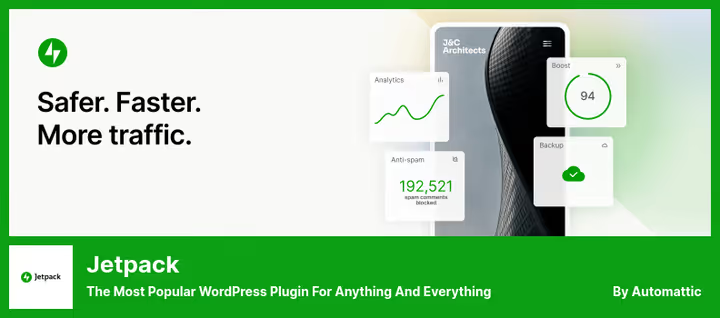
Jetpack is known as the Swiss Army knife of WordPress: security, CDN, statistics, backups. Among its modules is a Markdown block. You insert text with markup into a special block, and on publish it renders to clean HTML.
The main argument here is one: if Jetpack is already on your site, Markdown is available immediately after activating the module. One block, no additional settings. Basic syntax is supported: headings, lists, links, text emphasis, code in backticks. In our experience, for a blog with simple text posts this is enough. There's no live preview: in the editor you see raw markup, the final HTML appears only on the published page. Tables and diagrams are not supported. Code highlighting requires a separate plugin. The current version on WordPress.org is stably maintained.
Pros:
- No separate plugin needed if Jetpack is already running.
- Maximum simple entry: one block without settings.
- Free module.
Cons:
- No live preview, tables, or diagrams.
- Jetpack itself is heavy: installing it just for Markdown isn't worth it.
- Code highlighting will need to be added with a separate plugin.
💵 Price: free module; full Jetpack from $4.95/month, plans on the Jetpack plugin page.
3. Iceberg: minimalist writing environment in WordPress
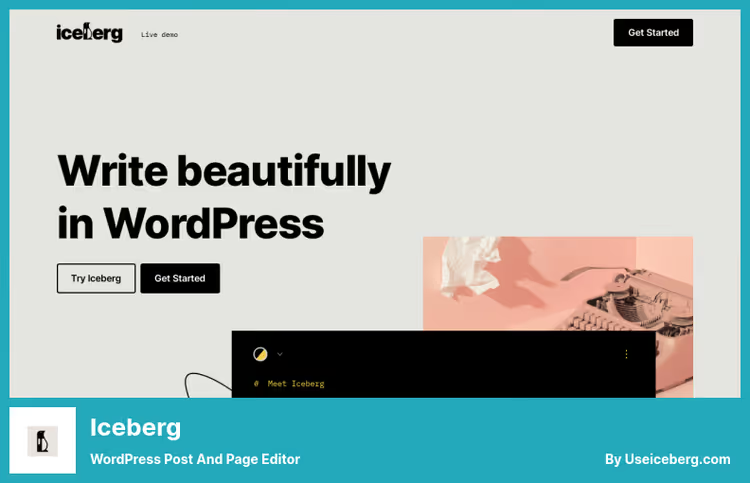
Iceberg doesn't replace Gutenberg, it removes everything unnecessary from it. After activation, the editor turns into a clean sheet: sidebars disappear, blocks go to the background, only text remains. Markdown syntax is formatted on the fly.
In practice, it looks like Medium or iA Writer, but inside your WordPress. Headings are highlighted immediately on input, Ctrl+B and Ctrl+I behave predictably. No jumping blocks on paste. Three color schemes (light, dark, sepia), focus mode, support for custom post types. The price is one-time, no subscription. Details on the official Iceberg site.
Pros:
- Clean minimalist interface without distracting panels.
- Full-featured Markdown directly inside Gutenberg.
- Doesn't conflict with the block editor, just wraps it.
Cons:
- Paid (there's a 7-day trial before purchase).
- Works only inside WordPress, not for local writing.
- No direct
.mdfile import.
💵 Price: $49, one-time.
🔗 Iceberg on the developer site
4. Typora: best WYSIWYG editor for Markdown on desktop
Typora is where you should start getting acquainted with Markdown on desktop. Instead of split mode with "code on the left, preview on the right" you get a single window: you write # Heading and immediately see a large heading, not the # symbol. No mode switching.
The editor supports tables with sorting, diagrams (Mermaid, Sequence, Flowchart), LaTeX math, and export to PDF, HTML, Word. For technical authors, this is an almost perfect set in one application. There's no direct publishing to WordPress, copy-paste is needed. But conversion is honest: Markdown goes to HTML correctly, blocks don't break. The price is one-time, $14 without subscription.
Pros:
- True WYSIWYG without a single mode switch.
- Tables, Mermaid diagrams, LaTeX formulas.
- One-time purchase, no subscription.
Cons:
- No direct publishing to WordPress.
- Not free.
💵 Price: $14, one-time.
5. Obsidian: knowledge base with publishing to WordPress

Obsidian grew from a niche note-taking tool into a full-fledged knowledge work platform. At its core, local Markdown files and a graph of connections between them. The main thing for our topic: a community plugin for WordPress allows you to publish notes directly to WordPress with one click.
The workflow is built like this: you write an article in Obsidian, fill in the YAML front matter with title and tags, click "Publish to WordPress". The plugin sends content via the REST API, uploads images to the media library, assigns categories. In our experience, this is one of the most flexible scenarios for authors who simultaneously maintain a knowledge base and a blog. Code highlighting, tables, canvas, autocomplete via CodeMirror: all this is available through the plugin ecosystem. Obsidian is free for individual use, synchronization between devices is optional. Details on obsidian.md.
Pros:
- Free engine plus free WP publishing plugin.
- Powerful ecosystem: canvas, dataview, templates, connection graph.
- Data is stored locally, full control.
Cons:
- Learning curve: the interface is not for beginners.
- WP publishing plugin is community-level, not an official Obsidian product.
💵 Price: free for individual use (synchronization is optionally paid, details on the official Obsidian site).
🔗 Obsidian on the official site
6. iA Writer: ascetic editor with direct connection to WordPress

iA Writer is "nothing unnecessary" as a conscious philosophy. White sheet, monospace font, not a single distracting panel. And at the same time, full integration with WordPress: you add your site account in settings, publishing becomes a menu command.
Unlike Typora, here's a classic split: Markdown source on the left, preview on the right. For some this is a minus, for others, a conscious choice: seeing the source is useful for complex formatting. iA Writer supports built-in templates and style checking. Platforms: macOS, Windows, iOS, Android. Licenses for different platforms are purchased separately, plans on ia.net/writer.
Pros:
- Direct publishing to WordPress via the REST API.
- Cross-platform, including iOS and Android.
- One-time purchase on each platform, no subscription.
Cons:
- Classic split mode, not WYSIWYG like Typora.
- Licenses for different platforms are purchased separately.
- No built-in code highlighting on the WordPress side.
💵 Price: plans by platform on the official iA Writer site.
🔗 iA Writer on the official site
7. Caret: editor on Monaco with autocomplete and LaTeX
Caret is the choice for those who need keyboard speed. The editor is built on Monaco, the same engine as VS Code: autocomplete for paths, emoji names, and HTML tags works instantly. LaTeX support for mathematical expressions is built in without additions.
Caret's feature is a command palette and multi-window editing. You can keep multiple Markdown files open, edit them in batches through multiple cursors, format tables and lists with hotkeys. The sidebar with table of contents lets you jump between headings without scrolling. There's no direct publishing to WordPress, you need to export to HTML and paste into Gutenberg. Note: public editor updates haven't been released in a long time. Before purchasing, check the current build's compatibility with your OS with the developer.
Pros:
- Monaco engine: autocomplete and snippets like in VS Code.
- Multiple cursors and command palette.
- Built-in LaTeX rendering.
Cons:
- No direct publishing to WordPress.
- Public updates are released rarely, compatibility needs to be checked.
- Paid.
💵 Price: one-time license, details on the developer site caret.io.
8. MarkText: free open-source WYSIWYG editor

MarkText is the answer to the question "is there a free Typora?". Open source on GitHub with over 54,000 stars, six editing modes (source, WYSIWYG, focus, typewriter scroll, and others), support for Mermaid, Flowchart, Sequence, and LaTeX.
The interface is slightly less polished than Typora: table rendering isn't as smooth, PDF export sometimes messes up fonts. Note: official releases from the main team haven't come out in several years. The program works, the community maintains active forks, including jacobwhall/marktext. If you need guaranteed support, get Typora. For students, open-source developers, and anyone who values zero cost, MarkText is still the best free option. There's no direct publishing to WordPress. Markdown is converted to HTML, insert it via the "Custom HTML" block in Gutenberg.
Pros:
- Completely free and open-source.
- Six editing modes to choose from.
- Diagrams, LaTeX, custom CSS themes.
Cons:
- No official releases in several years.
- Slightly less interface polish than Typora.
- No direct publishing to WordPress.
💵 Price: free, source code on GitHub.
Markdown in WordPress in practice: video overview
See how Markdown fits into a real WordPress workflow: from setup to publishing a finished article.
⁉️🤔 Frequently asked questions
Why a separate tool if Gutenberg understands Markdown itself?
Gutenberg supports only basic constructs: headings, lists, and quotes. It doesn't parse tables, Mermaid diagrams, links with anchors, and nested lists. For simple text posts, the built-in editor is enough. For technical or structured materials, you need one of the eight tools above.
Which editor to choose if I write both code and articles?
Obsidian or Typora. Obsidian is suitable if you simultaneously maintain documentation or a knowledge base: connection graph, autocomplete plugins, publishing to WordPress with one button. Typora, if you need a pure writing experience with live rendering of tables and Mermaid diagrams. Code is more than a third of the content, get Obsidian. Code is only in snippets, Typora is enough.
Can you get by without plugins, only a desktop editor?
Yes. The combination of "Typora plus copy-paste to Gutenberg" works. But you lose code highlighting on the WordPress side, automatic image uploads to the media library, and SEO metadata from front matter. For a small blog this is acceptable. For regular publishing, a reasonable compromise: free Jetpack Markdown block plus Typora for writing.
What's best for team collaboration on articles?
iA Writer or Obsidian with Git synchronization. iA Writer publishes directly to WordPress: any team member sends the final version in one action. Obsidian with a Git plugin gives full blame and change history: you wrote, pushed, reviewer checked the diff, published.
Is it worth paying for an editor if MarkText is free?
If you write rarely, MarkText covers everything. If every day, Typora or iA Writer pay for themselves through micro-ergonomics: Typora renders tables quickly and smoothly, iA Writer doesn't distract with a single extra button, Caret gives autocomplete at IDE level. The difference in paid editors is not in what they can do, but in how quickly they do it.
Which Markdown editor to choose for your task?
Eight tools for different scenarios: the choice depends on where you write and how you publish.
- If you write directly in the WordPress admin and don't want to leave the browser: Ultimate Markdown (free
.mdimport) or Iceberg ($49, minimalist environment in Gutenberg). - If you prefer to write on desktop and need the best WYSIWYG: Typora ($14, one-time). Free analog with open code: MarkText.
- If Jetpack is already installed: just enable the Markdown module, this is the fastest start.
- If you maintain a knowledge base and publish in parallel: Obsidian (free plus community WP plugin).
- If keyboard efficiency and LaTeX are important: Caret ($29, Monaco engine).
- If you need minimalism and direct publishing via the REST API: iA Writer (plans by platform on ia.net).
Start with free options: Ultimate Markdown for importing .md or the Jetpack Markdown block for basic markup in Gutenberg. Switch to paid only when free hits your real tasks. Which editor eventually stuck in your workflow, write in the comments.

A professional team of writers and editors specializing in creating quality content.