













🔒 Contact Form 7 and reCAPTCHA v3: setup and hiding the badge in 2026
What is reCAPTCHA v3 and why does your website need it
Spam through contact forms is a headache for any WordPress site owner. Contact Form 7 is free and flexible, but it does not filter bots out of the box. A couple of weeks after launching your site, your mailbox gets flooded with "Test form" submissions and links to online casinos.
Google reCAPTCHA v3 solves this problem without a single click from the user. Unlike v2, where you need to check a box saying "I'm not a robot" or solve picture puzzles with traffic lights, version three works in the background. The algorithm analyzes visitor behavior on the page and returns a score from 0.0 (bot) to 1.0 (human). No captchas, no friction, just protection.
Since 2021, Contact Form 7 has natively supported reCAPTCHA v3 starting with version 5.1. And in 2026, Google launched a mandatory key migration to Google Cloud. I will cover that too, so your protection does not shut off at the worst possible moment.
💡 Quick overview:
- Register your site in the Google reCAPTCHA admin console and get a pair of keys (Site Key + Secret Key)
- Enter the keys in the "Contact → Integration" section of your WordPress admin panel
- Contact Form 7 automatically verifies each form submission through reCAPTCHA v3, so
[recaptcha]tags are no longer needed - Optionally hide the reCAPTCHA badge via CSS and add the required protection notice
- If you have old keys, migrate them to Google Cloud Console, otherwise they will stop working
Step 1: Getting reCAPTCHA v3 keys
The service is tied to a Google account. Sign in to your Google account and go to the reCAPTCHA admin page.
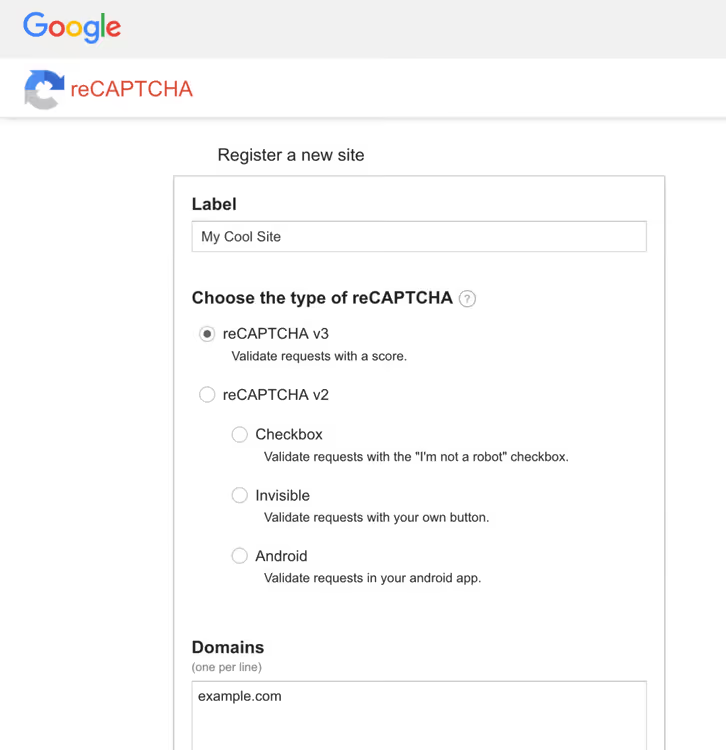
The registration form is straightforward. In the "Label" field, enter any name that makes sense to you, for example, your site's domain. Select the reCAPTCHA v3 type and enter your domain in the "Domains" field (without https:// and path, just example.com).
Click "Submit," and Google will display a page with two keys. Site Key is used on the frontend, Secret Key is used on the server side. You will need both in the next step.
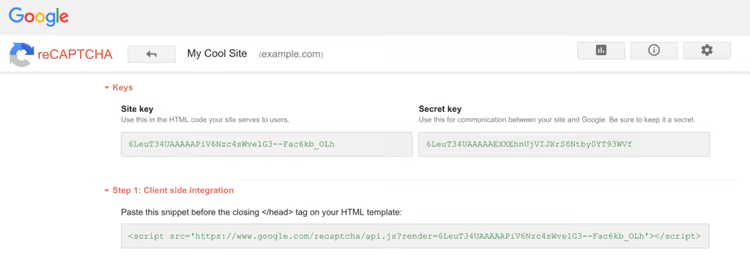
Important note: v2 and v3 keys are not interchangeable. If you already had keys for the old version, register your site again, because the old keys will not work.
Step 2: Integrating keys into Contact Form 7
In the WordPress admin panel, open "Contact → Integration". You will see a reCAPTCHA block with a "Setup Integration" button.
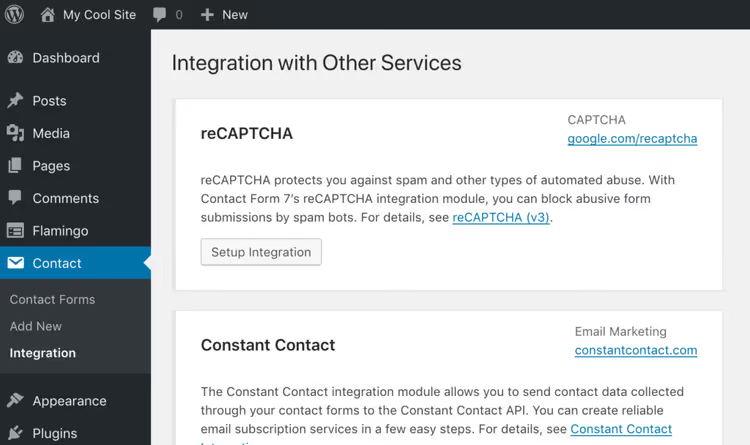
Click it, and two fields will appear: "Site Key" and "Secret Key." Copy the Site Key and Secret Key obtained in the first step here and click "Save Changes."
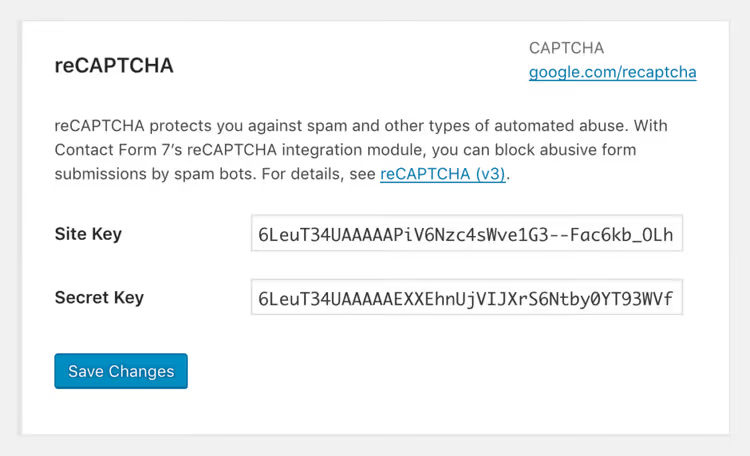
Done. From this point on, all forms created with Contact Form 7 automatically pass reCAPTCHA v3 verification. You do not need to add any additional tags to the form template, because [recaptcha] is no longer used. CF7 simply ignores this tag if it remains from an old configuration.
How do you verify that the protection is working? Open any page with a form in incognito mode and check DevTools. A floating reCAPTCHA badge should appear in the bottom right corner. If it is there, the keys are working.
How to hide the reCAPTCHA v3 badge
The badge in the bottom right corner is annoying. It overlaps content, gets in the way of buttons, and simply looks out of place on a clean design. Google allows you to hide it, but with one condition.
If you remove the badge, you must place the following text somewhere near the form (or in the footer):
This site is protected by reCAPTCHA and the Google Privacy Policy and Terms of Service apply.
Without this, you are violating Google's terms of use. Moderation does not sleep.
The easiest way to hide the badge is CSS. Add these rules to your theme's stylesheet (or through "Appearance → Customize → Additional CSS"):
1 /* Hide reCAPTCHA v3 badge */ 2 3 .grecaptcha-badge { 4 visibility: hidden !important; 5 }
Use visibility: hidden instead of display: none. The difference is subtle but important: display: none completely removes the element from the DOM flow, which can cause reCAPTCHA to work unstably on some themes. visibility: hidden preserves the occupied space, the script continues to function, but the eye does not see the badge.
Add the protection notice to the site footer or right below the form, for example, through a small paragraph in the widget settings.
reCAPTCHA v3 and migration to Google Cloud in 2026
Starting in April 2026, Google is conducting a mandatory migration of classic reCAPTCHA keys to the Google Cloud platform. Old keys created through google.com/recaptcha/admin will gradually stop working and need to be transferred to a Google Cloud Console project.
The migration process is straightforward and takes 5-10 minutes. Go to the reCAPTCHA Admin Console, select your site, and click "Migrate." The system will prompt you to create or select a Google Cloud project and will transfer the keys automatically. You do not need to change any code. Contact Form 7 will continue working with the new keys without any template edits.
If you are creating keys for the first time in 2026, review the current documentation for Google Cloud Fraud Defense. This is the new name for reCAPTCHA in the Google Cloud ecosystem. For WordPress and CF7, nothing fundamentally changes: the same pair of keys, the same API.
The video shows a step-by-step reCAPTCHA v3 setup from scratch: from registering keys to verifying form functionality. If you are a visual learner and prefer watching to reading, 6 minutes of screen time will answer all your questions.
⁉️🤔 Frequently asked questions
Do I need to update Contact Form 7 to work with reCAPTCHA v3?
Yes. Support for reCAPTCHA v3 appeared in Contact Form 7 5.1. We recommend keeping the plugin up to date. As of June 2026, this is version 6.1.6, which has been tested with WordPress 7.0 and includes security fixes for file uploads.
Can I use reCAPTCHA v2 and v3 simultaneously?
No, Contact Form 7 works with either v2 or v3, not both at once. The version choice is determined by which keys you entered in the "Contact → Integration" section. If you need v2 for a specific form, you will have to switch the keys for the entire plugin, which will affect all forms on the site.
Will the badge hide if I use display: none?
It will hide, but you should not do this.
display: noneremoves the element from the rendering flow, and some themes then lose the reCAPTCHA execution context, causing the script to stop correctly evaluating visitors. Usevisibility: hidden: the badge is not visible, but reCAPTCHA works normally.
What happens if I do not migrate keys to Google Cloud?
Keys created through the classic
google.com/recaptcha/adminadmin console will stop processing requests. Forms will continue to submit, but reCAPTCHA will stop filtering them, and spam will return. Migration is free for most sites with moderate traffic, so you should not postpone it.
Does reCAPTCHA v3 work without Contact Form 7?
Yes, reCAPTCHA v3 is a standalone Google API. You can integrate it into any form: custom, through another plugin, or in plain HTML. Contact Form 7 simply provides a ready-made integration without programming.
What to do about spam in Contact Form 7: the final algorithm
The basic Contact Form 7 + reCAPTCHA v3 combination blocks the vast majority of automated spam without any inconvenience to real visitors. The form stays exactly as it was; there is just a smart check under the hood.
Setup takes 5 minutes: register your site with Google, copy two keys into the WordPress admin panel, verify the badge. If the badge interferes with your design, hide it via CSS and add the required protection notice near the form.
If you have old keys, do not forget to migrate them to Google Cloud Console. The process is automatic, the code does not change, and the protection continues working without interruption.
For sites with particularly aggressive spam, reCAPTCHA alone may not be enough. Consider Cloudflare Turnstile as a lighter alternative, or add a second layer through Akismet to filter the content of the messages themselves.

A professional team of writers and editors specializing in creating quality content.