














📹 How to add video in WordPress: 3 methods and why you shouldn't upload directly
Video on a website is not decoration, it's a tool. It keeps visitors engaged, explains the product, and drives conversions. But when it comes down to it, many simply don't know how to approach embedding video in WordPress.
The problem isn't complexity. WordPress handles video out of the box, no plugins, no code, no budget. You just need to know three methods and understand why you shouldn't upload video files directly to the media library.
In 10 minutes you'll master all the options: from copying a link to placing video in a widget. Plus you'll figure out which method to choose for your task.
💡 Quick overview:
- Copy the video URL from YouTube, Vimeo or another platform
- Paste the link in the editor: WordPress automatically loads the player
- Use the "Video" block in Gutenberg for more control over settings
- Add video to the sidebar and footer through the "Text" widget
Why video on a website is not "maybe" but "must"
Hard numbers speak for themselves. According to Marketing LTB, in 2025, 89% of companies used video as a marketing tool. 93% of marketers confirm: video delivers tangible ROI, and 84% link it to direct sales growth.
From the user side, the picture is even clearer. According to the same source, 72% of consumers prefer to watch video about a product rather than read instructions; 64% are more likely to buy after watching branded video. And this isn't "someday": video already accounts for 82% of all internet traffic.
For a WordPress site owner, this means the following. A page with video keeps visitors longer, reduces bounce rate, and sends search engines a signal: quality content. And if the video is hosted on an external platform, you get additional traffic from YouTube or Vimeo without loading your own server.
Watch a quick overview of methods for embedding video in WordPress, then we'll break down each method step by step.
How to add video in WordPress: 3 working methods
WordPress supports embedding video from dozens of platforms, YouTube, Vimeo, TikTok, DailyMotion, TED Talks, Twitch and others. The engine recognizes the URL and automatically turns it into a player. Below, all three methods, from the fastest to the most flexible.
Method 1: Insert with direct link
The simplest and fastest option. Works with any editor, both Gutenberg and classic.
Open the needed video on YouTube (or another platform). Copy the URL from the browser address bar:
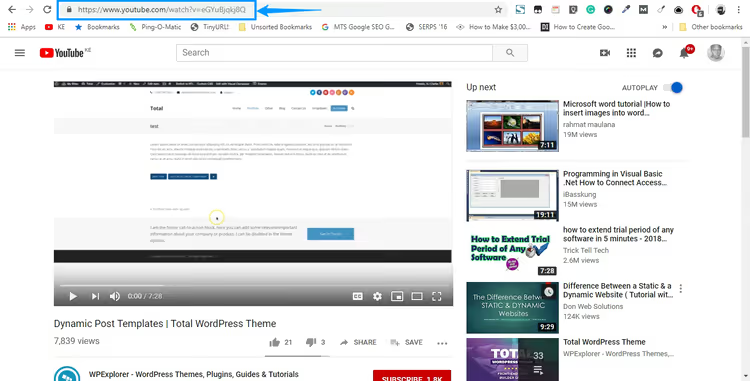
Or right-click on the video and select "Copy video URL":
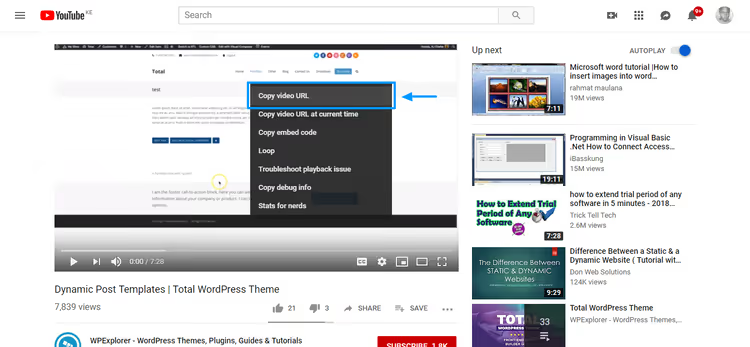
The link looks something like this: https://youtu.be/eGYuBjqkj8Q or https://www.youtube.com/watch?v=..., both formats work.
Now open the page or post where you need to insert the video. If creating a new one, go to Pages → Add New:
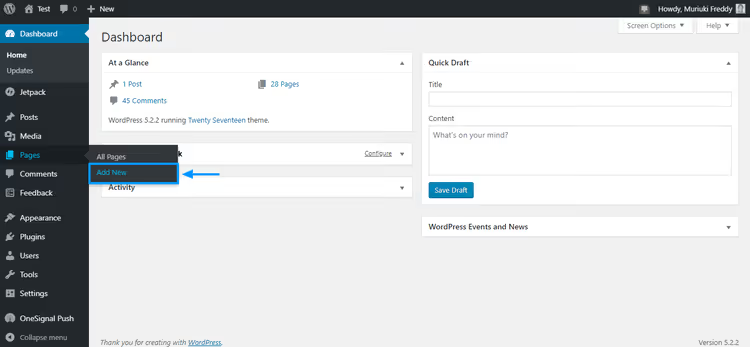
For a post the path is the same, just through Posts → Add New.
When the editor loads, fill in the title, content and SEO fields. I'm using Gutenberg:
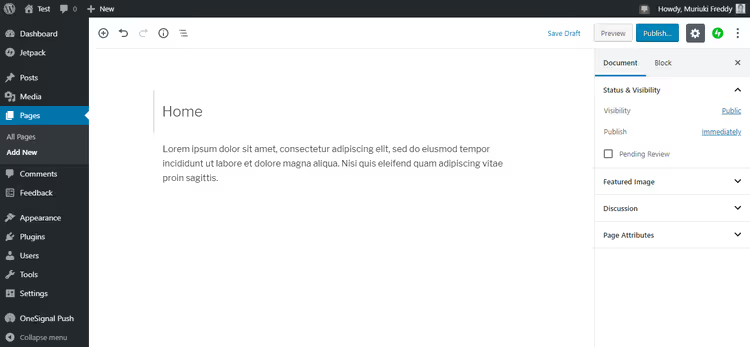
Paste the copied URL on a separate line, just press Enter before pasting so the link ends up on its own line:
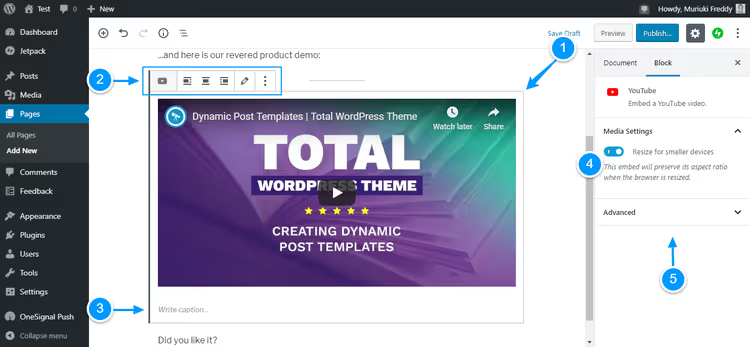
WordPress instantly converts the link to a video preview. The screenshot above shows available actions: align the player, edit URL, copy or remove the video. Here you can also add a caption and enable size adaptation for mobile devices, we recommend leaving this option enabled.
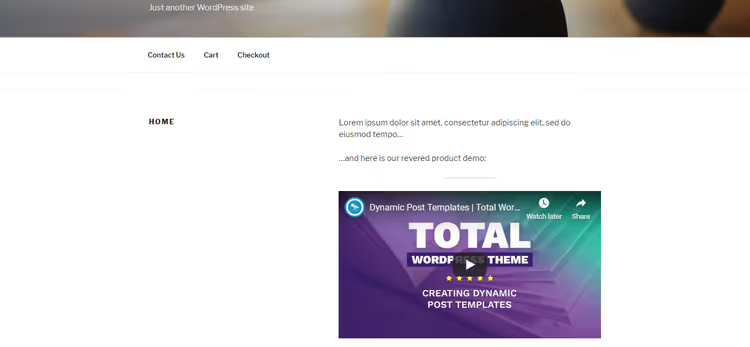
Done, click Preview at the top of the page. Here's how the video looks on the site with the Twenty Seventeen theme:
In the classic editor the result is similar, the URL automatically turns into a player:
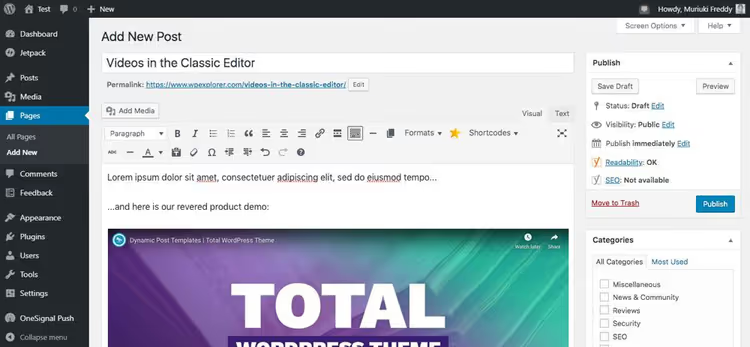
The downside of the classic editor, no alignment and size settings. The video displays as is. But for quick insertion this is enough.
Method 2: "Video" block in Gutenberg
The block gives more control: if the link for some reason wasn't recognized automatically, you insert it manually through the block interface.
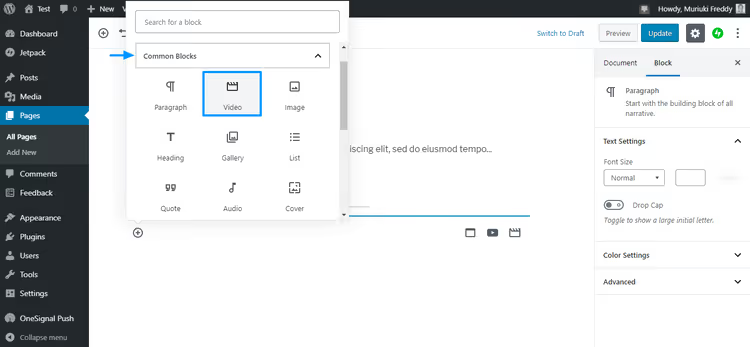
Place the cursor in the desired location and click the plus icon (+):
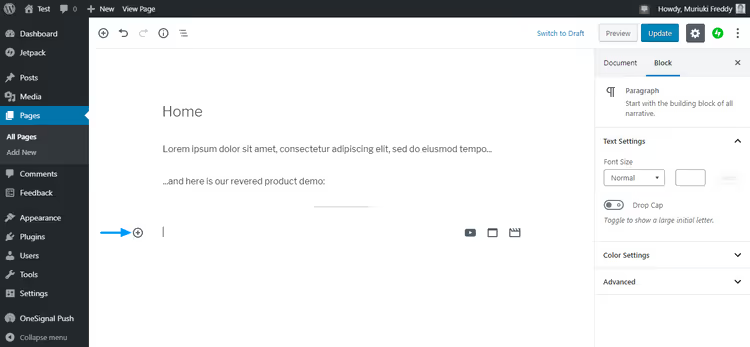
On the opened panel, go to Common Blocks and select Video:
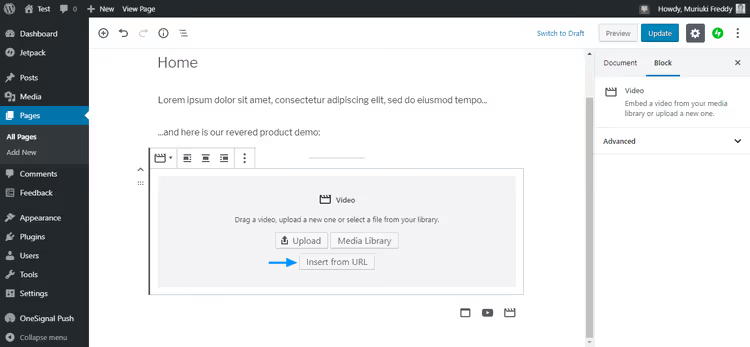
Click Insert from URL:
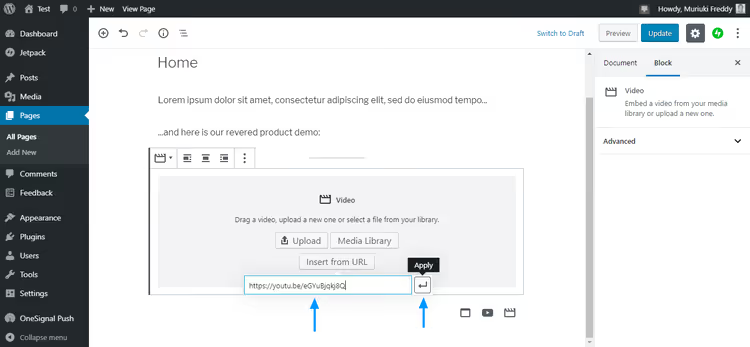
Paste the video URL and click Apply:
The video will appear in the editor:
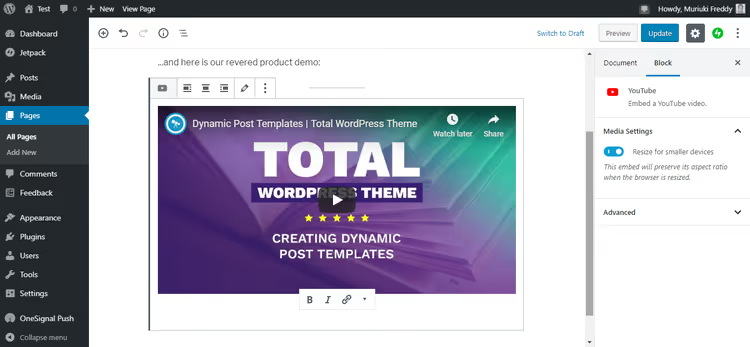
Below the player, formatting buttons: bold, italic, link. They relate to the caption that can be added below the video. When the page is ready, click Publish.
Both methods support a long list of video platforms: YouTube, Vimeo, Facebook, Instagram, TikTok, Flickr, Hulu, DailyMotion, Animoto, TED Talks, Twitch, Wistia, SproutVideo, Vine Archive and others. See the full list in the WordPress codex.
Method 3: Video in widget
For the sidebar or footer, video is added through widgets. Go to Appearance → Widgets:
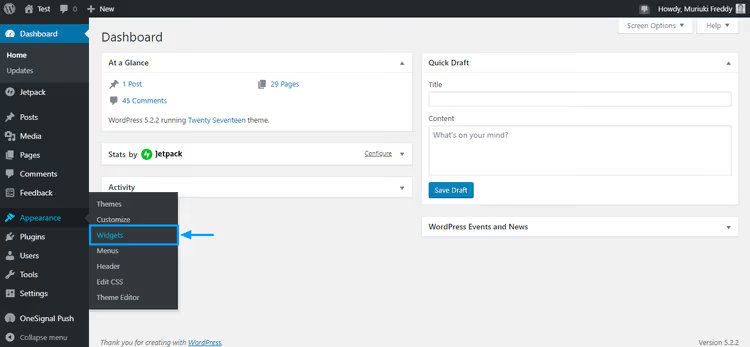
Select the Text widget and specify the placement area. In the example I'm using Blog Sidebar, the blog sidebar. Click Add Widget:
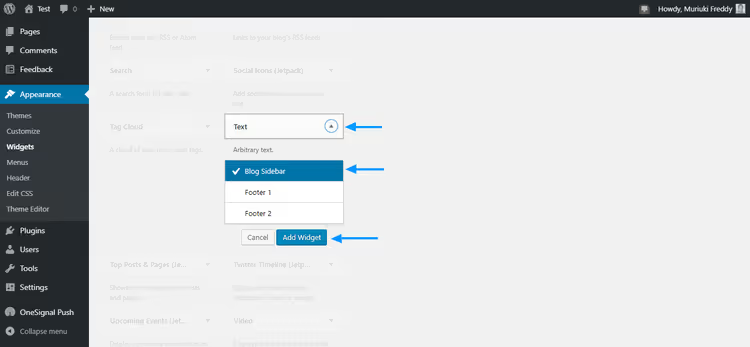
The set of available areas depends on the theme. In modern block themes the widget interface may differ, but the principle is the same: the text widget accepts video URL.
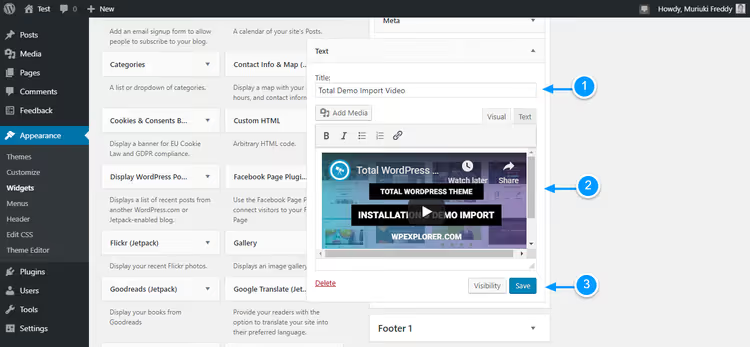
Set the widget title (1), paste the video URL (2) and click Save (3):
Here's how the video looks on the test site with the Twenty Sixteen theme:
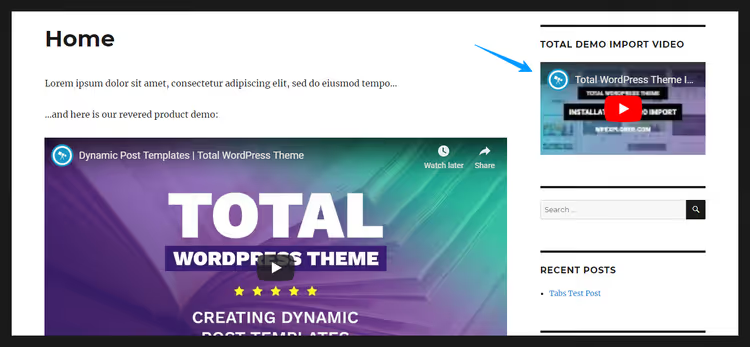
Works flawlessly. Video in the sidebar, done.
Why you shouldn't upload video directly to WordPress
The temptation to upload a clip to the media library is understandable: it seems simpler and "everything is under control." In practice, direct video hosting has three problems.
First, server load. Most sites run on shared hosting. Even if the plan promises "unlimited disk space," limits on bandwidth and number of processes don't go anywhere. A 100 MB video file with a hundred views, that's 10 GB of traffic. On shared hosting such a spike will bring down the site.
Second, loss of traffic from video platforms. When the video sits on your server, users on YouTube, Vimeo and social networks don't see it. You lose a free audience source. Plus, links from video hosts work for your search ranking.
Third, limited reach. On YouTube, videos can be liked, shared and embedded on other sites. Viewers subscribe to the channel. All this organic growth bypasses you if the file just sits in the media library.
Exceptions exist: closed courses, member content, premium video. In these cases direct hosting is justified, but only if the server handles the load. For everything else, YouTube, Vimeo or Wistia.
⁉️🤔 Common questions
Can I embed video from TikTok or Instagram in WordPress?
Yes. WordPress automatically recognizes URLs from TikTok, Instagram, YouTube, Vimeo and three dozen other platforms. Paste the link on a separate line, the engine will load the player. For Reels and Instagram posts the process is similar: copy the publication URL and paste it in the editor.
How do I change the size of embedded video?
In Gutenberg, click on the video block and set the width in the sidebar settings panel. When inserting with a link, size is controlled by the theme's CSS classes. For fine-tuning, use the
widthandheightparameters in the YouTube URL (?width=800&height=450), but keep in mind that the theme may override these values.
Does video slow down the site?
No, if it's embedded from an external platform. The player loads asynchronously and doesn't block page rendering. Delay can only occur at the preview image loading stage. To speed up, use lazy loading: in Gutenberg, enable the "Resize for smaller devices" option or add the
loading="lazy"attribute through a custom HTML block.
Do I have to use YouTube or can I use another platform?
Any of the supported ones. Vimeo offers more privacy and flexible player settings, Wistia is tailored for business analytics. For public content, YouTube is unmatched in reach and loading speed. The choice depends on the task: reach, YouTube, privacy, Vimeo, analytics, Wistia.
How do I add background video without controls?
Through a custom HTML block with the
<video>tag andautoplay muted loop playsinlineattributes. Or use the corresponding theme block if it's provided. The downside of background video, additional page weight, even with aposterplaceholder. Make sure the file is optimized and doesn't exceed 5-8 MB.
Is it worth stressing about embedding video?
No. The three methods above cover the vast majority of tasks. Quick insertion with a link, for blog posts. "Video" block, when you need control over size. Widget, for sidebar and footer.
Main rule: don't upload video files directly to the media library. Host on YouTube or Vimeo and insert with a link. The server will thank you, and traffic from video platforms will start working for you.
Choose the method for your task and try it. The first post will take three minutes, the tenth, thirty seconds.

A professional team of writers and editors specializing in creating quality content.