













 AIIllustrative image: AI-generated
📝 How to add text to a post image in WordPress
You've picked the perfect image for your post, uploaded it as a featured image, published the post, and the caption didn't appear. Or it appeared, but not where and how you wanted. Sound familiar?
WordPress itself doesn't display captions for featured images on post pages. That's the theme's job, and not every theme plays nicely with caption from the media library. The good news is that you can add text over a featured image without editing templates and without hiring a developer: the built-in block, one free plugin, or a page builder will do.
Below are three working methods for any WordPress version (6.0 and higher), from the simplest to the most flexible. No code, no risk of breaking the site, and live screenshots of every step.
First, check if your theme supports featured image captions
💡 Quick overview:
- Check if your WordPress theme supports featured image captions
- Add a text overlay using the built-in Cover block in the Gutenberg editor
- Install the free FSM Custom Featured Image Caption plugin for flexible captions
- Create a custom post template in Elementor Pro for full control
Before installing plugins and figuring out blocks, open any post on your site and see if the caption appears under the featured image right now.
The thing is, some WordPress themes can work with the "Title" field from the media library automatically. For example, the default Twenty Twenty theme (and most modern block themes on Full Site Editing) picks up the title set for the image in the library on its own:
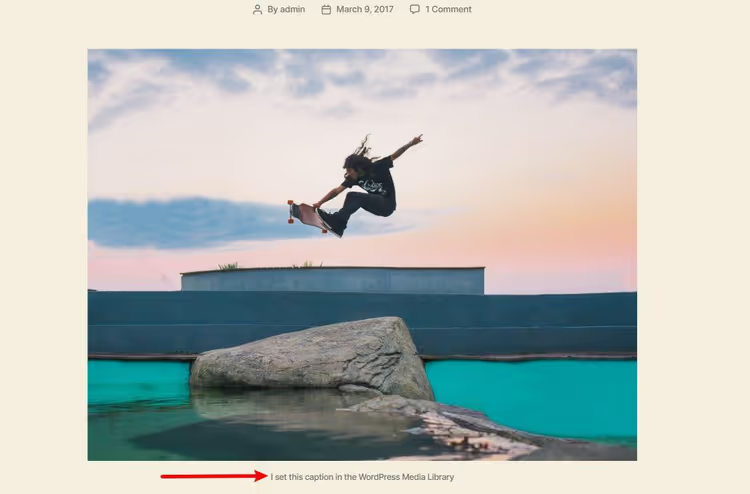
The title is set here, in the WordPress media library, in the "Title" field when editing the file:
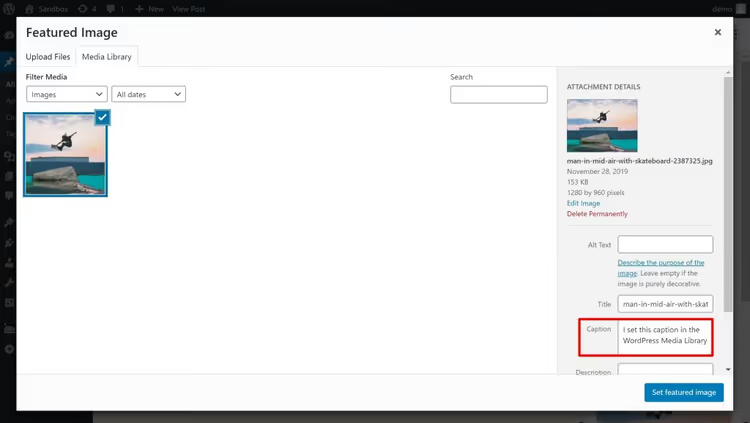
If your theme supports this mechanism, you've solved the problem in 30 seconds. Just fill in the "Title" for each image, and the theme will display it under the featured image on the post page.
But this doesn't work for everyone. A year earlier, Twenty Nineteen didn't display the title from the media library. And most commercial themes don't either. So let's move on to methods that work guaranteed.
1. Cover block in the Gutenberg editor
The simplest and completely native method, the built-in Cover block. It appeared with the launch of the Gutenberg editor and has been steadily updated since: in modern WordPress versions it supports background video, overlay filters, fixed background, and full-width layouts.
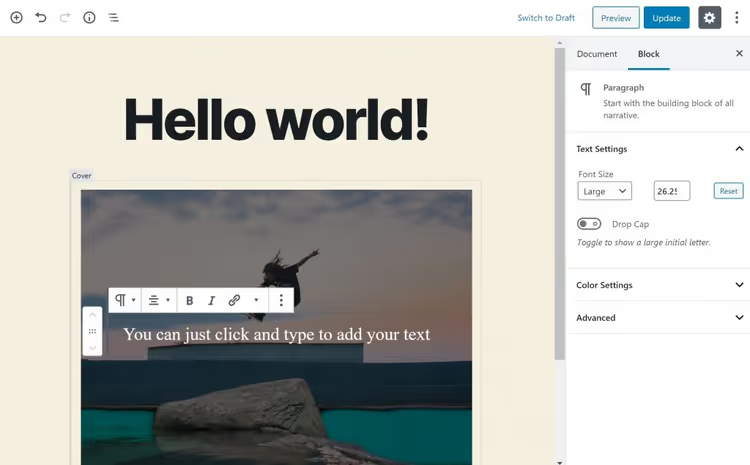
How it works: instead of relying on the theme to display the featured image, you manually place a Cover block at the beginning of the post and set the desired image as the background. On top of the image, you write text, a heading, a subtitle, or any other content.
In the post editor, add a new block, select Cover (or type /cover), upload an image and enter text:
On the frontend, this looks like a full-fledged banner with text over the featured image:
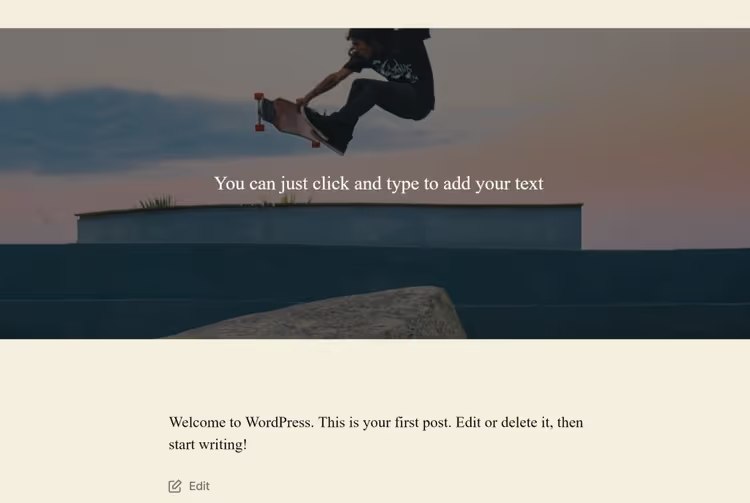
A couple of important nuances. First, the Cover block is technically not linked to the post's featured image, it's a separate media file inside the content. If the theme still displays the featured image automatically, the image will be duplicated. Solution: in the theme settings (through Customizer or site editor for FSE themes), disable automatic featured image display for single post, and leave only the Cover block.
Second, the Cover block gives you text over the image, but not a classic caption "under the image." If you need exactly a caption (like photos in an article), see the next method.
2. FSM Custom Featured Image Caption plugin
FSM Custom Featured Image Caption, a free plugin from WordPress.org that solves exactly one task: adds a customizable caption to the featured image. Works with Gutenberg, the classic editor, and even Divi themes (through a compatibility option in settings).
As of April 2026, the plugin has version 1.26, 5,000+ active installations, and a 4.6/5 rating. It's regularly updated, the latest release came out on April 27, 2026.
Install the plugin through Plugins → Add New, activate it. Then go to Settings → FSM Custom Featured Image Caption and configure the behavior:
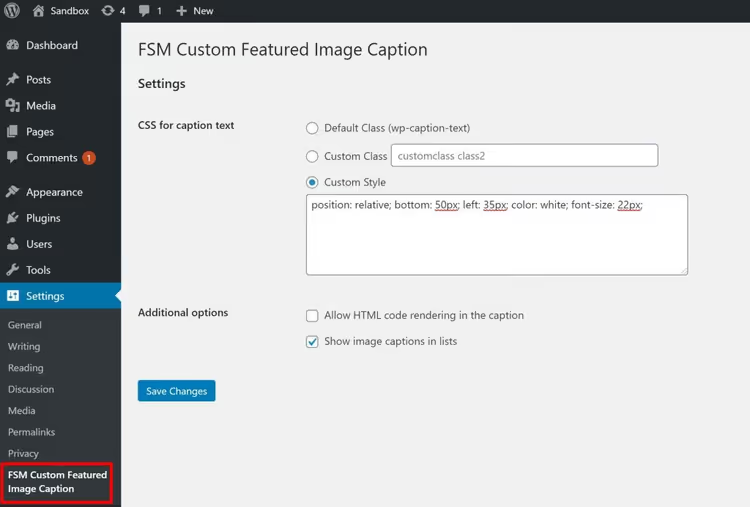
Main options worth paying attention to:
- Show image captions in lists, enable if you want to see captions not only inside the post, but also on archive/category pages;
- CSS for caption text, class(es) for styling the caption (default
wp-caption-text); - Allow HTML code, allows HTML inside the caption text;
- Custom Style, field for inline CSS if you need to move the caption over the image.
By default, the plugin takes the title from the "Title" field in the WordPress media library and displays it as a standard caption under the featured image:
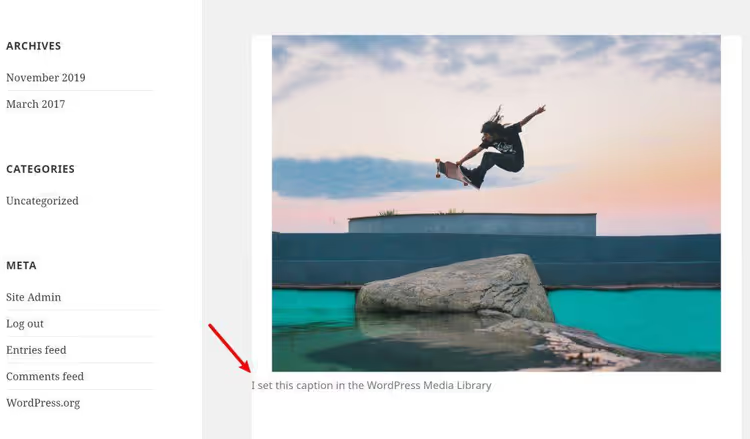
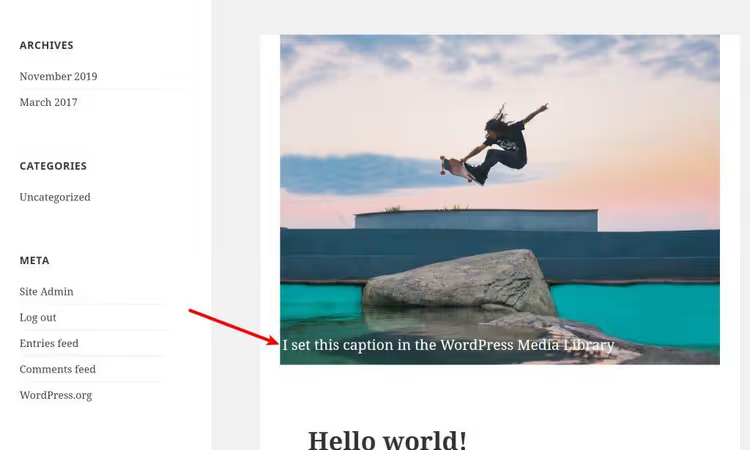
If you want the text to "float" over the image, add roughly this CSS to the Custom Style field:
position: relative; bottom: 50px; left: 35px; color: white; font-size: 22px;
Result, the text shifts up and overlays on the bottom part of the image:
FSM also provides the [FSM_featured_image] shortcode for manually placing a featured image with caption anywhere in the content, with a size parameter to choose one of the standard WordPress sizes. And for developers, there are PHP functions get_FSM_featured_image_caption() and the_FSM_featured_image_caption() with detailed output parameters.
3. Elementor Pro builder, full control over post template
If you need not just "add a caption," but complete control over how the post page looks, with custom placement of featured image, text, metadata and comments, connect Elementor Pro.
The key tool here is Theme Builder. It allows you to create a custom Single Post Template: a template that automatically applies to all posts (or to selected categories) and is assembled in the visual editor Elementor from widgets.
How it's done:
- Install free Elementor and activate Elementor Pro (Theme Builder feature, only in Pro version).
- Go to Templates → Theme Builder → Add New, select type Single Post.
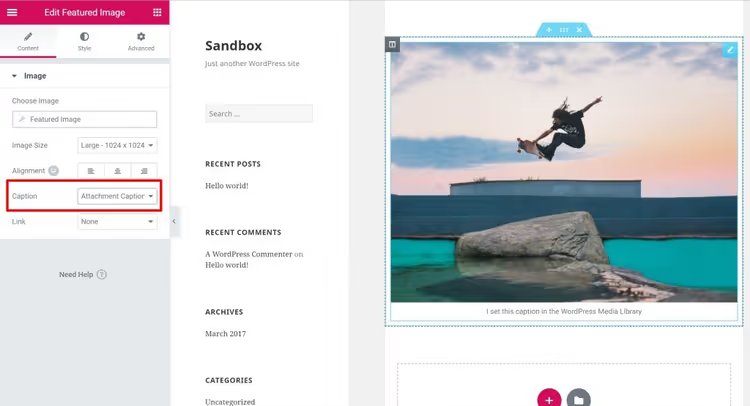
- In the Elementor editor, drag the Featured Image widget onto the canvas, this is your featured image.
- Add the Post Title widget (or Heading with dynamic tag) over the image, configure positioning through Absolute Positioning (available in Pro).
- Publish the template, it will apply to all site posts.
In the Featured Image widget settings, you can select the size (thumbnail, medium, large, full) and set alignment:
Elementor Pro costs money (from $59/year for one site as of June 2026, current prices at elementor.com/pricing), and for the task of "just add text over an image" this is overkill. But if you're already using Elementor for site design, Theme Builder closes the featured image question completely, plus gives control over header, footer, archive pages and 404.
⁉️🤔 Frequently asked questions
Can I add text over featured image without plugins?
Yes, through the built-in Cover block in the Gutenberg editor. You add the block at the beginning of the post, set the image as background and write text on top. Downside, the block is not linked to the post's "Featured Image" field: when changing the featured image in the admin, the Cover block won't update itself, the image needs to be changed manually. Upside, works without any plugins, even on WordPress without plugin installation rights.
Does FSM Custom Featured Image Caption support Divi theme?
Yes, starting with version 1.21 the plugin settings have an "Enable compatibility with Divi themes" option. It replaces the standard featured image output function in Divi with the plugin's hook. The solution is experimental (depends on Divi version and specific layout), but works for most typical layouts. If the caption didn't appear, you'll most likely need to add CSS in Customizer.
What to do if after activating the FSM plugin the caption doesn't display?
Three most common reasons. First: the theme doesn't use
get_the_post_thumbnail()to output the featured image (rare, but happens in custom themes). Second: the "Title" field in the media library is not filled, and custom caption in the post editor is not specified, the plugin has nothing to display. Third: theme CSS conflict (caption is in HTML, but visually hidden or blends with background). Check the page code through browser inspector, if the<figcaption>tag with classwp-caption-textis present, it's a CSS issue.
How is FSM different from the closed Featured Image Caption?
The Featured Image Caption plugin (by Christiaan Conover) was closed on WordPress.org in April 2025 due to directory rules violation and is no longer available for installation. FSM Custom Featured Image Caption is a live and updated alternative: version 1.26 from April 2026, active support, more settings (including shortcode, PHP functions for developers and Divi compatibility mode). If you used Featured Image Caption before, switch to FSM, the logic is similar, and there are more features.
Do I need Elementor Pro if I just want a caption under the featured image?
No. Elementor Pro with Theme Builder is a tool for full control over the post template, not a specialized solution for captions. If the task is limited to text over or under the featured image, the Cover block (free, native) or FSM plugin (free, flexible) will suffice. Elementor Pro makes sense when you're generally building post design on Elementor and want to manage the featured image within the site's unified design system.
Which method suits your site?
The choice comes down to three scenarios, and the answer depends on how your site is set up right now.
If you're working in pure Gutenberg and don't want to install extra plugins, use the Cover block. A minute to set up, zero dependencies, and text over the image looks neat on any device.
If you need exactly a caption as a separate element (text under the image, with styling and shortcode support), install FSM Custom Featured Image Caption. It's free, regularly updated, and covers the overwhelming majority of "featured image caption" scenarios.
If you're already in the Elementor Pro ecosystem, Theme Builder will close the post design question entirely, including featured image with text, metadata, sidebar and comments. But for just a caption, buying a Pro license is not justified: start with the Cover block or FSM.
Try the simplest method for your scenario right now, and if something goes wrong, come back with a question in the comments. We reply.

A professional team of writers and editors specializing in creating quality content.