














🔗 How to fix broken WordPress permalinks
You visit a site, click on a link to a fresh article, and instead of text you see a white page with "404 Page Not Found". A familiar picture.
Permalinks in WordPress are built simply, but break with alarming ease. One broken plugin, a failed update, or an accidental change to .htaccess, and the entire site turns into a collection of broken URLs. According to the official WordPress support forum, permalink structure errors are among the top five most frequent issues.
Below is a diagnostic and repair algorithm, from a quick settings reset to manual editing of server configs. Each step has been tested on real sites. Panic canceled.
💡 Quick overview:
- Reset permalink settings in the admin panel with one click, for most sites the problem disappears instantly
- If the reset didn't work, rename
.htaccessand reset again: WordPress will create a clean file with correct rewrite rules - Check plugins by process of elimination: deactivate all at once and enable them one by one after each permalink reset
- On Apache server, manually enable
mod_rewriteand addAllowOverride Allto the virtual host config
Why WordPress permalinks stop working
A permalink is an unchangeable URL for a post, page, or category. WordPress stores the permalink structure in the database and serves "pretty" URLs through the Apache web server's mod_rewrite module. A break in any link of this chain produces a 404.
Installing a new plugin. Some plugins interfere with the URL formation mechanism: they rewrite .htaccess, add their own redirect rules, or conflict with already active extensions. SEO plugins, caching solutions, and security plugins are in a special risk zone, they all work with URLs at a low level.
Updating the core, theme, or plugins. A major WordPress update or a PHP version change on hosting makes old plugins incompatible. The result is a conflict that crashes rewrite rules. You can't skip security updates, but before each major update, make a backup and check compatibility on a staging copy.
Moving a site to a new domain or server. WordPress migration is one of the most common causes of broken links. Absolute paths change, serialized data in the database and web server settings change. Even adding an SSL certificate after migration can break permalinks, because it requires editing .htaccess for HTTP→HTTPS redirect. If you recently moved a WordPress installation to a subdirectory, check the permalink structure immediately after migration.
Restoring a backup. Restoring a site from a backup sometimes resurrects old problems too. If the backup was made before you configured permalinks, 404s return. Even advanced backup plugins don't guarantee perfect restoration of rewrite rules after complex migrations.
Corrupted .htaccess. The .htaccess file is the link between WordPress and Apache. It stores mod_rewrite directives responsible for "pretty" URLs. A plugin writes garbage, you accidentally delete the file via FTP, and some hosting panels reset it when changing settings. Without a working .htaccess, permalinks turn into ?p=123.
How to fix broken permalinks: step by step guide
We've covered the causes, now let's move to solutions. Go in order: apply each next step only if the previous one didn't work.
Step 1. Reset permalink settings
The fastest and safest method. WordPress stores the permalink structure in the database, and when saving settings it regenerates rewrite rules. Developers call this process "flush rewrite rules".
Go to the admin panel, navigate to Settings → Permalinks:

Temporarily switch to any other structure, for example, "Plain" instead of "Post name", and click Save Changes. Then return the original option and save again. You don't need to change settings permanently: what matters is the fact of saving, which forces WordPress to rebuild the rules.
Reload the site and check if posts open. Works? Problem solved. No, move on.
Step 2. Check and recreate the.htaccess file
If the reset didn't help, the source of the problem is almost certainly in .htaccess. The file is located in the site root, in the same place as wp-config.php and the wp-content and wp-includes folders.

Connect to the server via FTP (FileZilla, WinSCP) or the file manager in the hosting panel:

Find .htaccess, right-click and rename it to .htaccess_old. Don't delete the file, it may contain critical rules like HTTP→HTTPS redirect or compression settings:
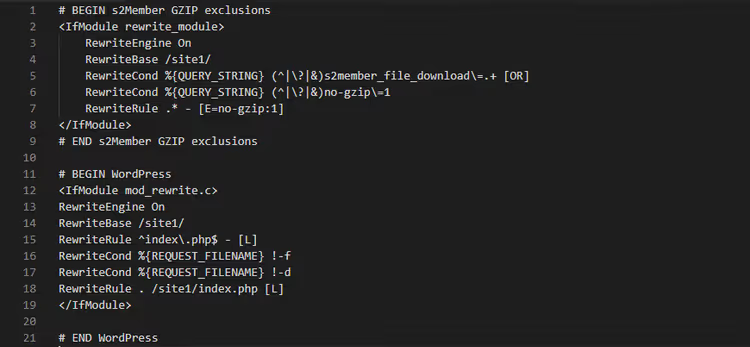
After renaming, WordPress stops seeing the old file. Go to the admin panel and reset permalinks as in Step 1, the system will create a new, clean .htaccess with correct rewrite rules. Keep the old file as a backup copy.
Step 3. Find the conflicting plugin
Did the problem appear after installing a specific plugin? Deactivate it and reset permalinks again, most likely that's enough.
When the culprit is unknown, use the process of elimination:

Deactivate all plugins at once. Reset permalinks. Check the site: if it works, the problem is in one of the plugins. Enable them one by one, after each one resetting settings and checking the site. The plugin after which links break again is the cause.
Replace the found conflicting plugin with an alternative from the WordPress.org directory. Report the problem to the developer: often they know about incompatibilities and can suggest a workaround.
Step 4. Configure the server: AllowOverride and mod_rewrite
If previous steps didn't help and you're using Apache, the problem may be in virtual host settings.
First, make sure the mod_rewrite module is enabled. It's what transforms "pretty" URLs into queries WordPress understands. Check and activate it with the command:
1 sudo a2enmod rewrite
If the module was already enabled, a warning will appear, that's normal. Now restart Apache:
1 sudo systemctl restart apache2
On CentOS/RHEL the restart command is different:
1 sudo systemctl restart httpd
The second required component is the AllowOverride All directive. It allows the .htaccess file to override server configuration within the site directory. Open the Apache configuration file: on Ubuntu it's /etc/apache2/sites-available/your-site.conf, on CentOS it's /etc/httpd/conf/httpd.conf. Find the <Directory> section and bring it to this form:
1 <Directory /var/www/your-site/> 2 AllowOverride All 3 </Directory>
Replace the path /var/www/your-site/ with the actual path to the WordPress root folder on your server. After editing, restart Apache with the command above, then reset permalinks in the admin panel.
These two server actions, AllowOverride All plus mod_rewrite, close virtually all remaining scenarios of broken permalinks on Apache.
Video: step by step permalink restoration
If you prefer watching rather than reading, here's a short guide that shows the entire process from resetting permalink settings to restoring .htaccess on a real site:
⁉️🤔 Frequently asked questions
Why does the 404 error remain after resetting permalinks?
Resetting through the admin panel rewrites rewrite rules in the database. But if
.htaccessis physically inaccessible for writing, incorrect access rights, WordPress can't update the file on the server. Check permissions: usually 755 for directories and 644 for files are required. Also make sure.htaccessphysically exists: after renaming in Step 2, WordPress creates a new one on the next reset. The reset itself doesn't change URLs of existing posts and doesn't break indexing.
Can I just delete.htaccess?
No. Without
.htaccesson an Apache server, WordPress falls back to "plain" links like?p=123, this is ugly and hurts SEO. The correct order: rename the old file while keeping a backup copy, then reset permalink settings in the admin panel. WordPress will create a new.htaccessautomatically. Never delete the file without the ability to restore: it may contain critical HTTP→HTTPS redirect rules or compression settings.
What to do if the site is on Nginx?
On Nginx there's no
.htaccessfile, all rewrite rules are written in the server configuration. The standard block for WordPress:location / { try_files $uri $uri/ /index.php?$args; }. Check the site's configuration file (usually/etc/nginx/sites-available/your-site), add this block to theserversection and reload Nginx:sudo systemctl reload nginx. Steps 1 and 3, resetting links and checking plugins, work for Nginx exactly the same as for Apache.
Which plugin most often breaks permalinks?
Statistically, SEO plugins lead, they directly manipulate URLs, and caching solutions: they create static copies of pages and can "remember" the broken version. In third place are security plugins that modify
.htaccessto block suspicious requests. After disabling a caching plugin, be sure to clear the browser cache or open the site in incognito mode, a static cached version with 404 may be shown even after fixing.
Do I need to check database integrity?
In rare cases, the cause is a corrupted
wp_optionstable where permalink settings are stored. If none of the described methods helped, go to phpMyAdmin, find thewp_optionstable and check the entry withoption_name = 'rewrite_rules'. If the value looks like garbage or a corrupted serialized object, delete this entry, then reset permalink settings in the admin panel. WordPress will recreate rewrite rules from scratch. Most users won't need this step: the vast majority of problems are solved by methods 1-3.
What to do if nothing helped
We've gone from a simple settings reset to Apache and Nginx server configuration. For the absolute majority of sites, one of these methods closes the problem.
If 404s are still there, contact your hosting technical support. Describe the problem and list the steps you've already performed. Often the cause is in the specifics of the hosting environment: mod_rewrite disabled at the provider level, non-standard PHP-FPM configuration, or custom firewall rules blocking requests to index.php. Hosting support sees the server side hidden from you and solves such problems in minutes.
The main rule worth remembering: reset permalinks → rename.htaccess → reset again. This sequence of two actions fixes most cases and requires neither special knowledge nor server access. Start with it next time, and most likely you won't need to go further.

A professional team of writers and editors specializing in creating quality content.