














🔄 WordPress in a subdirectory: how to move your installation from the root and back
A familiar situation: you set up a development site, built out the theme, connected content via WP Migrate DB Pro, and after pushing discovered broken styles, missing images, and a non-functional wp-admin. The reason is almost always the same: production sits in the root while dev is in a subdirectory (or vice versa), and a straightforward search-replace of URLs in the database does not fix this difference.
The problem goes deeper than it appears: in a root installation, WordPress uses the same domain for all links (both to pages and to media files). In a subdirectory installation, content links come from the site address, while resource links (css, js, images) come from the WordPress address. A standard search-replace across the database replaces everything uniformly and breaks half the paths.
In this guide, you will find two proven migration routes (there and back) with specific search-replace settings, wp-config.php preparation, and the correct file transfer sequence. After reading, you will either bring dev and production to a unified scheme or consciously perform a migration between different installation types without a broken frontend.
💡 Quick overview:
- Determine your installation type: do "WordPress Address" and "Site Address" match in Settings → General
- For migrating from subdirectory to root: hardcode WP_SITEURL in wp-config, perform a
/subdir→/replacement in the database, move files up one level, update the root index.php - For migrating from root to subdirectory: replace only paths to
/wp-contentin the database, update the WordPress address in settings, create the subdirectory, copy index.php and .htaccess back to root - After any migration, go to Settings → Permalinks and click "Save": this rebuilds the URL structure and clears the cache
How to determine where WordPress is installed
If you installed WordPress manually, you probably remember whether it was in the domain root or a subdirectory like /wp or /blog. But if the site was inherited from a previous developer, deployed by the hosting provider with one click, or several years have passed, the details fade.
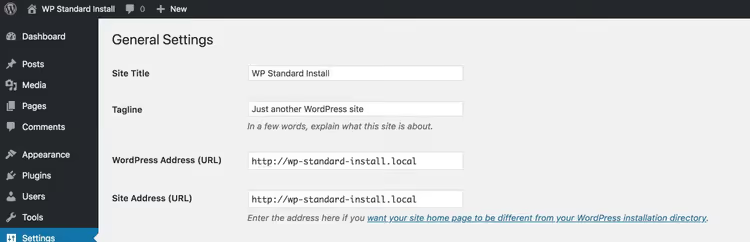
The quickest way: go to the WordPress admin, open Settings → General and look at the "WordPress Address (URL)" and "Site Address (URL)" fields. If the values match, you have a root installation:
If the fields differ, WordPress is installed in a subdirectory (in the example below, this is /subdir):
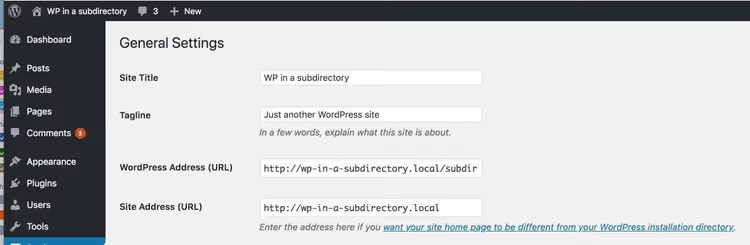
An additional sign of a subdirectory installation: when logging into the admin, the URL contains a subdirectory, for example, example.com/wp/wp-admin/ instead of example.com/wp-admin/.
Why you cannot just transfer directly
The root of the problem lies in the dual URL system that WordPress uses with subdirectory installations. Let us break it down with specific examples.
Suppose you have a root installation at example.com. Absolutely all links in the database, both to a post /2025/about-page and to an image /wp-content/uploads/photo.jpg, start with //example.com. A standard search-replace //example.local → //example.com works perfectly.
Now take an installation in the /wp subdirectory. The link to the same post looks like //example.com/about-page (via the site address), while the link to the same image is //example.com/wp/wp-content/uploads/photo.jpg (via the WordPress address with the subdirectory). A simple replacement //example.local → //example.com will break media files: the system will look for them without /wp in the path and get a 404.
The table below shows which URL groups need updating in each migration direction:
Direction | Page and post URLs | Media and resource URLs | File paths in database |
|---|---|---|---|
Subdirectory → root | Replace | Replace | Replace |
Root → subdirectory | Leave as is | Replace | Replace |
Besides the database, you need to physically move files and update index.php in the root, otherwise WordPress will not find wp-blog-header.php. Next, we will go through both routes step by step.
Method 1: moving WordPress from subdirectory to root
This is the simpler direction: you remove the subdirectory from paths, and all URLs become "flat," as in a standard installation.
Step 0: diagnosing what will go wrong
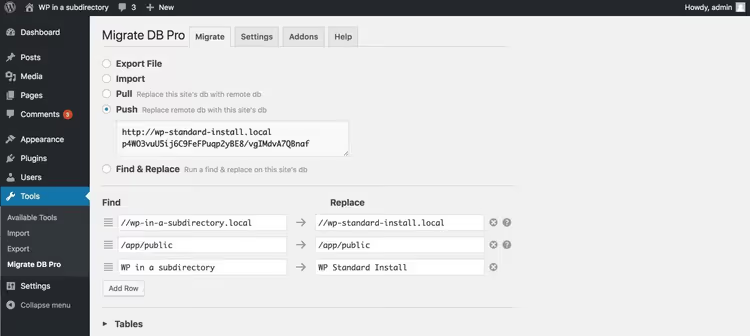
Before intervening, it helps to see the scope of the problem with your own eyes. The screenshot below shows migration settings from wp-in-a-subdirectory.local (WordPress in /subdir) to wp-standard-install.local (root installation). WP Migrate DB Pro settings are standard, plus a site title replacement for demonstration:
The result is predictably dismal: pages open but without styles and with broken images:
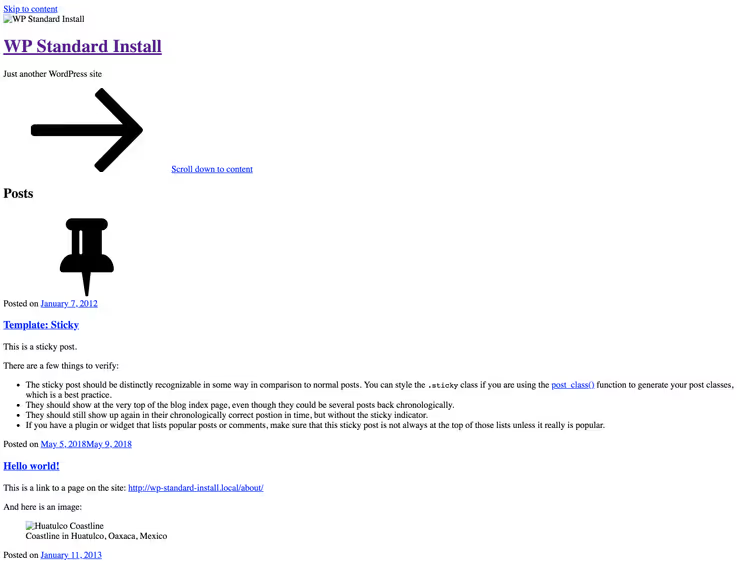
In the HTML, you can see resource links with a dead /subdir path that no longer exists on the target server. Attempting to access wp-admin causes a redirect to wp-standard-install.local/subdir/wp-login.php, but no such file exists. Now let us fix this.
Step 1: preparation
First, protect admin access during the migration. Add constants to wp-config.php that will override settings from the database, so WordPress will continue letting you into the admin via the old path with the subdirectory, even after we clean the database:
1 define( 'WP_SITEURL', 'http://wp-in-a-subdirectory.local/subdir' ); 2 define( 'WP_HOME', 'http://wp-in-a-subdirectory.local' );
Then put the site in maintenance mode: edit index.php in the public root, comment out the line require( dirname( __FILE__ )... and after the closing ?> tag insert an html placeholder with a brief downtime message. Visitors will see this:
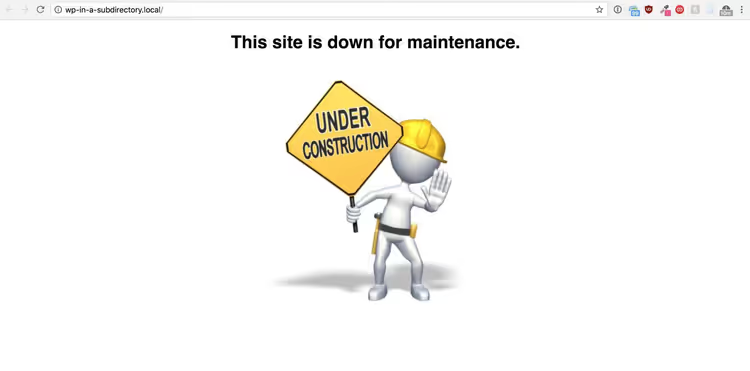
Meanwhile, you continue accessing the admin at http://wp-in-a-subdirectory.local/subdir/wp-admin/ because the WP_SITEURL constant works.
Step 2: search and replace in the database
Now clean the database. Run a search-replace with these pairs (shown in the WP Migrate DB Pro interface, but the same principle works with WP-CLI search-replace or SQL queries via phpMyAdmin):
//wp-in-a-subdirectory.local/subdir→//wp-in-a-subdirectory.local/app/public/subdir→/app/public(file path on the server)
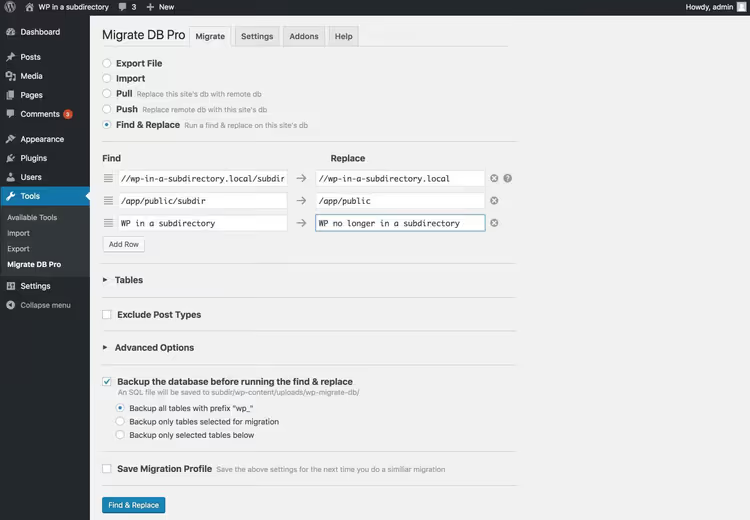
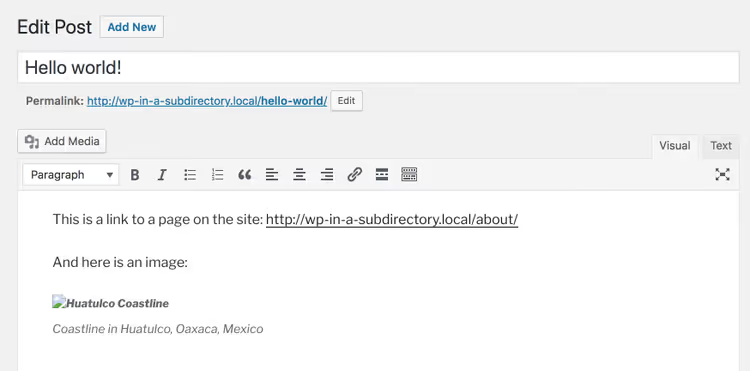
Immediately after migration, the appearance will not change (the maintenance page is still up, the admin works through the hardcoded constant). But if you look at post content, images are not loading yet, and internal links have "lost" the subdirectory, which is exactly what we wanted at this stage:
Step 3: physical file transfer
Remove (or comment out) the lines with WP_SITEURL and WP_HOME from wp-config.php. The admin will now break, so immediately move files from the subdirectory up one level.
Via SSH or command line on the server, this is done in three commands:
1 rm index.php && mv subdir/* . && rm -rf subdir
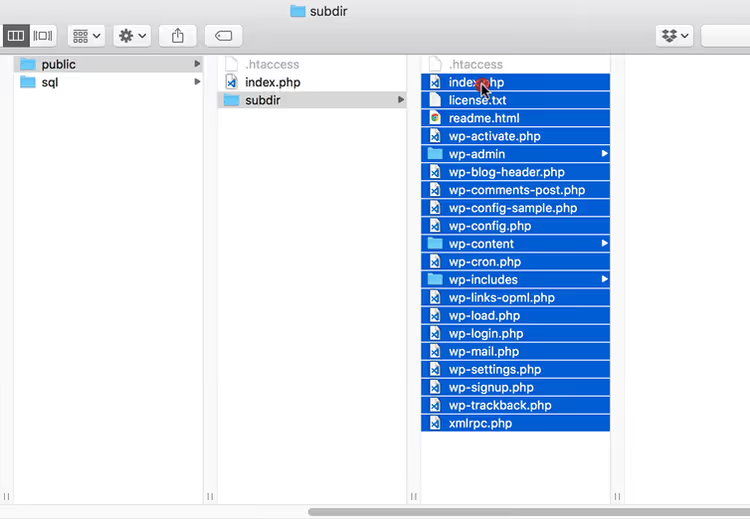
Via FTP or hosting file manager, drag all contents of the subdirectory to the public root, replacing index.php:
Done. The site opens at the root URL; images and styles are in place:
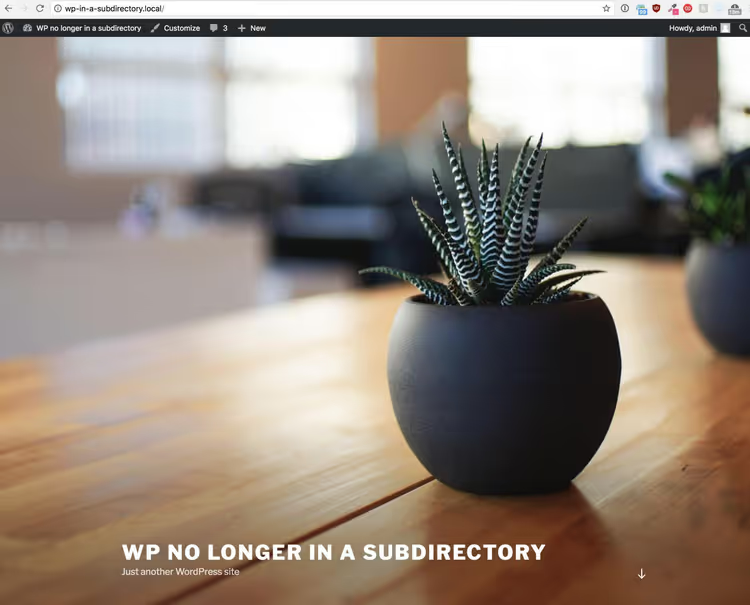
Final touch: go to the admin (now at http://wp-in-a-subdirectory.local/wp-admin without the subdirectory), open Settings → Permalinks and click "Save Changes," even if you changed nothing. WordPress will rebuild the URL structure and clear the cache.
Method 2: moving WordPress from root to subdirectory
Many developers consider installing WordPress in a subdirectory good practice: core files do not clutter the root, management via Git/Composer is simplified, and the domain itself can be used for other applications. But migrating an existing site to a subdirectory is objectively more complex than the reverse, because now some links MUST retain the subdirectory while others must not.
Step 0: diagnostics
Same starting point: we try a standard migration from the root installation wp-standard-install.local to the subdirectory installation wp-in-a-subdirectory.local (WordPress in /subdir):
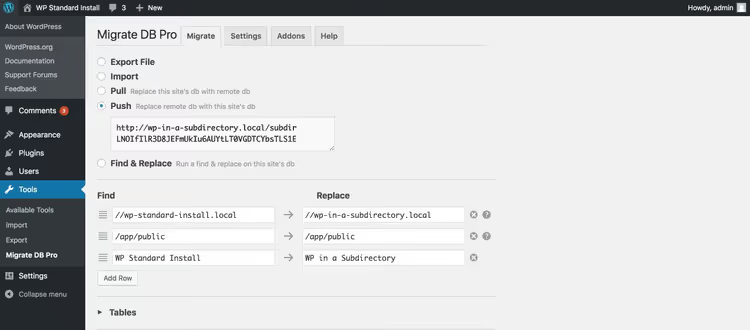
The result is completely expected: pages open but styles and images break because /subdir was not added to their paths:
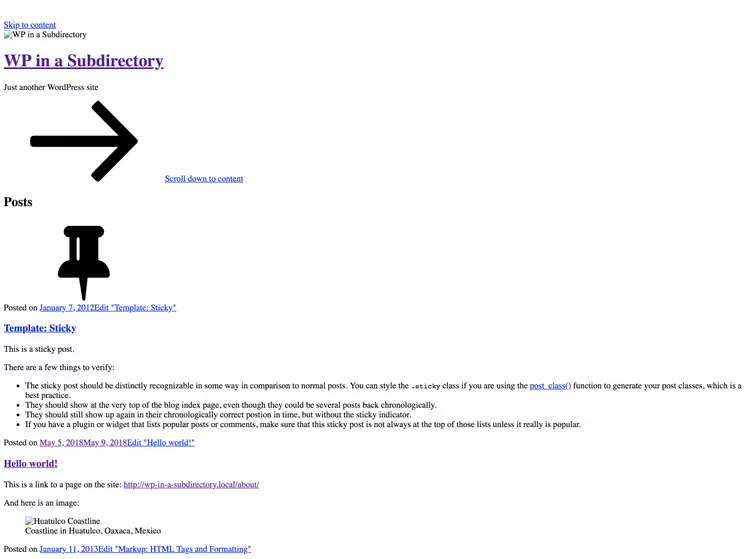
Unlike the first scenario, links to posts and pages work correctly (they should not contain the subdirectory). What breaks are specifically resources (css, js, media), whose paths must now include /subdir.
Step 1: preparation
At this stage, we do NOT set the WP_SITEURL and WP_HOME constants, because our search-replace will not touch these values, and we will update the WordPress address manually a bit later.
Set up the maintenance page the same way: comment out require(...) in index.php and add an html placeholder. Visitors see the maintenance message while you continue accessing the admin at http://wp-standard-install.local/wp-admin/.
Step 2: selective search-replace in the database
The key difference from the first method: we replace ONLY file and resource paths, NOT touching page URLs. To do this, target the replacement using the /wp-content pattern:
//wp-standard-install.local/wp-content→//wp-standard-install.local/subdir/wp-content/app/public→/app/public/subdir(path on the server)
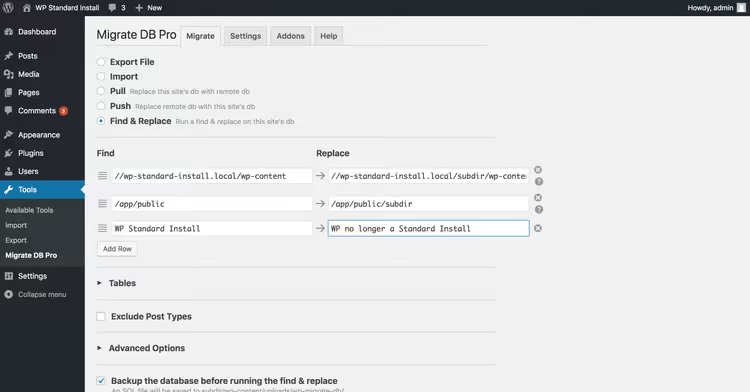
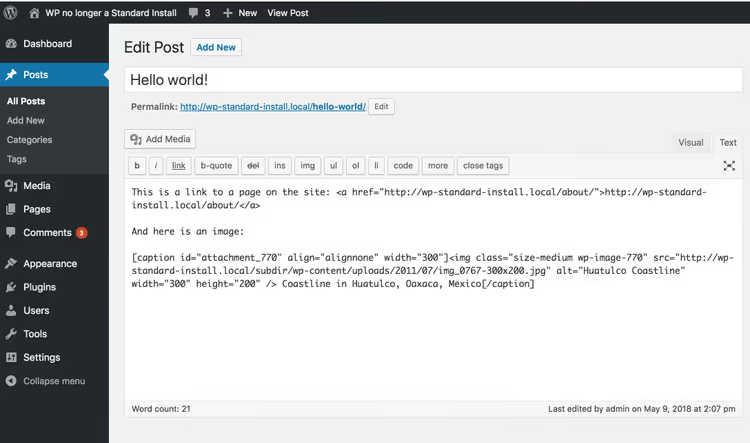
After migration, check post content: links to other site pages do NOT contain the subdirectory (correct), while embedded images do contain it (also correct):
Step 3: updating WordPress address and moving files
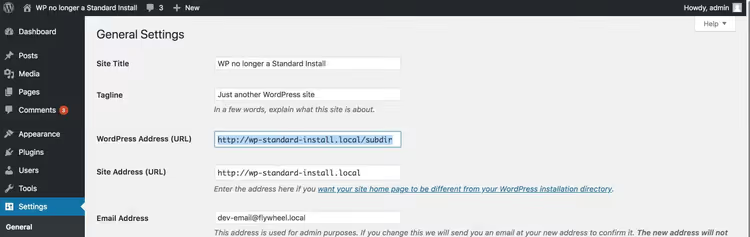
Now go to Settings → General and append the subdirectory to the end of "WordPress Address (URL)," for example, http://wp-standard-install.local/subdir. Immediately after saving, the admin will break because WordPress will try to find files at the new path, but they are not there yet:
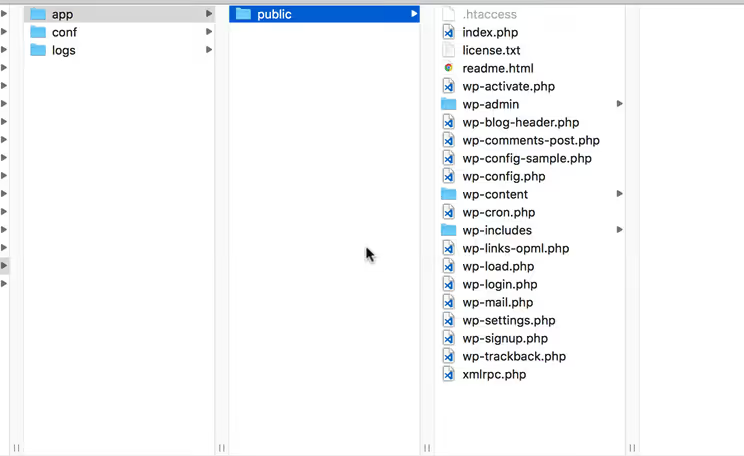
Create the subdir subdirectory in the public root and move ALL WordPress files into it. Then copy index.php and .htaccess BACK to the root so the maintenance page keeps displaying while we finish:
Restore index.php INSIDE the subdirectory to its factory state: remove the html placeholder and uncomment the require line:
1 <?php 2 define( 'WP_USE_THEMES', true ); 3 require( dirname( __FILE__ ) . '/wp-blog-header.php' );
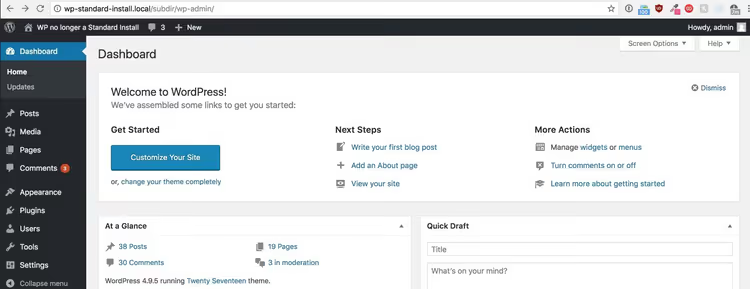
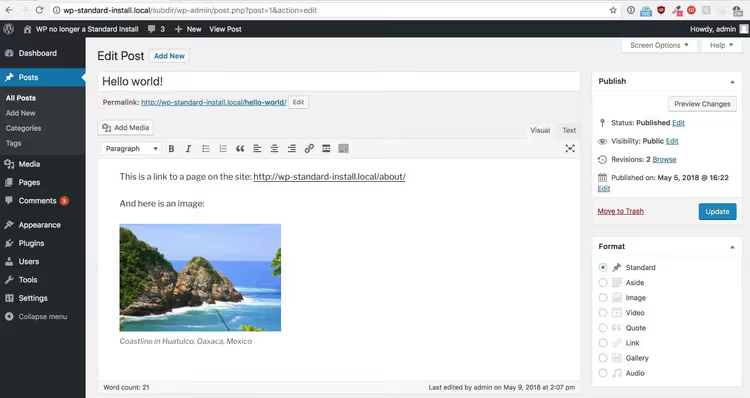
Now the admin is accessible again at http://wp-standard-install.local/subdir/wp-admin/:
Check the content: images are in place, styles are loading:
Final touch: root index.php
All that remains is to update index.php in the public root. Remove the maintenance page and specify the correct path to wp-blog-header.php accounting for the subdirectory:
1 <?php 2 define( 'WP_USE_THEMES', true ); 3 require( dirname( __FILE__ ) . '/subdir/wp-blog-header.php' );
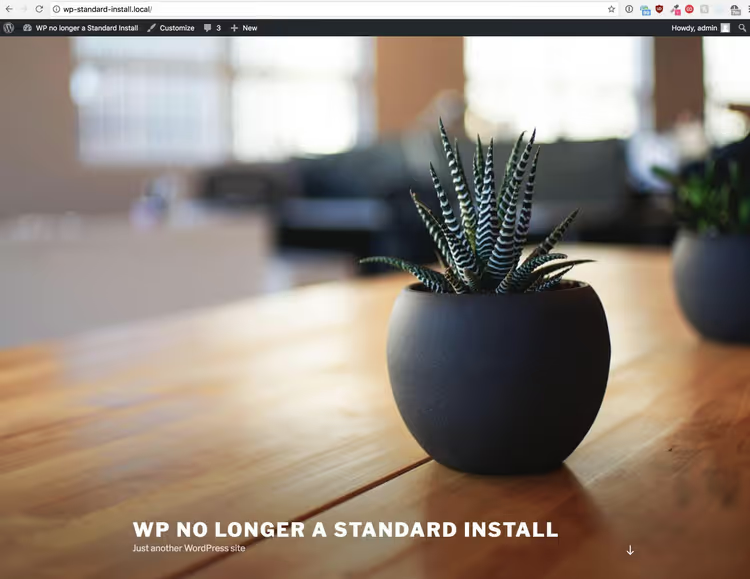
The site opens at the root URL with all resources loaded from the subdirectory:
Again, go to Settings → Permalinks and save without changes so WordPress refreshes the URL structure.
Alternative tools and the official method
The approach described above with WP Migrate DB Pro is convenient but not the only option. Here are other tools you can work with:
WP-CLI
search-replace. The commandwp search-replace '//oldsite.local/subdir' '//newsite.com'with the--dry-runflag will first show how many occurrences will be replaced. For selective replacement (root → subdirectory), narrow the pattern:wp search-replace '//newsite.com/wp-content' '//newsite.com/subdir/wp-content'.Official WordPress method. The documentation at developer.wordpress.org describes the "Giving WordPress Its Own Directory" procedure, with detailed configurations for Apache (.htaccess), nginx (server block), and IIS (web.config). The method requires no plugins and works on any hosting.
Manual SQL. If the volume of edits is small, you can execute
UPDATE wp_posts SET post_content = REPLACE(post_content, '/subdir/', '/')directly in phpMyAdmin, but always with a prior backup, as such replacement will destroy serialized data in wp_options and wp_postmeta.
Whatever tool you choose, the rule is the same: when migrating ROOT → SUBDIRECTORY, replace only /wp-content and file paths; when migrating SUBDIRECTORY → ROOT, replace everything that references the subdirectory.
⁉️🤔 Frequently asked questions
Is WP Migrate DB Pro required for this type of migration?
No. WP Migrate DB Pro simply provides a convenient interface for search-replace with understanding of PHP serialized data. Technically, you can perform the same replacements via WP-CLI (the
wp search-replacecommand also correctly handles serialized strings) or use the official WordPress method with manual file transfer and index.php editing. The plugin saves time on large and medium projects with many occurrences.
What should I do if some images still do not load after migration?
The most common cause: hardcoded URLs with absolute paths from the old server remain in the database and did not match the replacement pattern. Check post content via phpMyAdmin:
SELECT ID, post_content FROM wp_posts WHERE post_content LIKE '%/subdir/%'(or the old domain). The second candidate is browser and CDN cache: clear both and check in incognito mode.
Do I need to update.htaccess after the transfer?
If you use pretty permalinks, yes, but WordPress does this automatically when you click "Save" on the Settings → Permalinks page. If the server lacks write permissions, WordPress will display the ready.htaccess content for you to copy manually. When migrating to a subdirectory, make sure the root.htaccess (not the one inside the subdirectory) does not contain rules conflicting with the new structure.
Is it possible to perform the migration with zero downtime?
Technically yes, if you use the method with.htaccess redirects (Method I from the official WordPress documentation, "Without changing URLs"). With this approach, files are moved to the subdirectory while the root.htaccess seamlessly directs all requests to the new location. Visitors do not notice the move. The downside: you remain on the same domain, and the site URL formally does not change (the subdirectory is not visible in the address bar).
Why does WP Migrate DB Pro not support migration between different installation types out of the box?
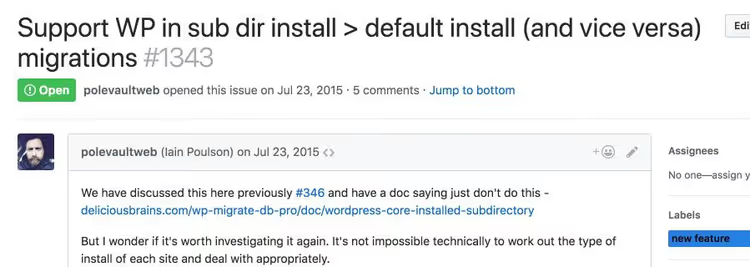
Delicious Brains developers discussed this on GitHub for nearly three years. The root of the problem: the plugin applies ONE search-replace pair to the ENTIRE database, but migration between root and subdirectory requires DIFFERENT replacements for different URL groups (pages vs resources). Automatically determining which URL belongs to which group would require parsing the content structure, which goes beyond simple search-replace. Therefore, the current recommendation is: bring sites to a unified installation scheme BEFORE migration.
Bottom line: root or subdirectory?
The choice between root and subdirectory WordPress installation essentially comes down to one trade-off. Root installation is simpler: fewer moving parts, direct compatibility between dev and production, no surprises with dual URLs. Subdirectory installation is architecturally cleaner: core files are isolated, only index.php sits in the root, updating WordPress via Git/Composer is easier, and hosting multiple applications on one domain is safer.
If you have one production site and one dev site, bring both to a unified scheme (either one) and forget about the problem. If you work on a team where some projects are historically in the root while others are in subdirectories, you now know the exact search-replace patterns for each direction.
The main rule worth bookmarking: when migrating ROOT → SUBDIRECTORY, touch only /wp-content and file paths; when migrating SUBDIRECTORY → ROOT, replace everything containing the subdirectory. And always, always click "Save" in Permalinks after the move.

A professional team of writers and editors specializing in creating quality content.