














🔤 Preloading fonts in WordPress: fixing the PageSpeed Insights warning
When you run a site through PageSpeed Insights, one of the common diagnoses is "Ensure text remains visible during webfont load." The problem is familiar to anyone who has installed Elementor, Astra, or connected Google Fonts: while the browser downloads the font file, the text on the page is simply absent. A white screen instead of a heading, fractions of a second of emptiness, and the visitor has already left.
Technically, this is called FOIT (Flash of Invisible Text). The root of the problem lies in the font-display directive that the browser uses by default. Without explicitly specifying font-display: swap, the browser waits for the font to load and does not show text until the file is received. And if the font loads from a CDN through a third-party domain, the delay accumulates, and PageSpeed Insights flags a warning.
This is solved with two things: first, every @font-face needs font-display: swap added, so the browser immediately shows text in a system font and "swaps" it for the custom one when it loads. Second, critically important fonts (the one used for the heading in the first screen) should be preloaded via <link rel="preload">. Below is a step-by-step breakdown of how to do this in WordPress, accounting for plugins like Elementor and themes like Astra.
💡 Quick overview:
- Open the PageSpeed Insights report and note the problematic fonts from the diagnostics
- Disable plugin and theme styles via wp_dequeue_style in functions.php
- Copy font files to a local folder and recreate font-face with font-display: swap
- Add preload for one or two first-screen fonts
- For Elementor custom fonts, change the path to local and rebuild CSS
Step 1: find the problematic fonts in the report
Run an audit on PageSpeed Insights, wait for the result, and find the diagnostics section. We are looking for the item "Ensure text remains visible during webfont load."
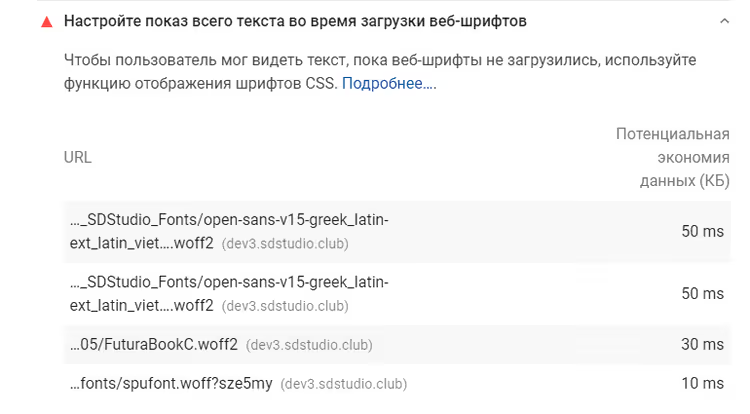
Expand the list to see the specific font URLs that lack font-display: swap. Usually these are:
fontawesome-webfont.woff2, Font Awesome from Elementor;eicons.woff2, Elementor's icon font;- Google Fonts (Open Sans, Roboto, Montserrat), if the theme pulls them via CDN.
Write down the file names; they will be needed for the following steps. The main thing now is to understand which plugin or theme is responsible for each font. Font Awesome and eicons come from Elementor. Google Fonts are most often connected by the theme; in Astra, this is the astra-google-fonts hook.
Step 2: disable the styles that load fonts
Now the task is to remove the standard connection of these fonts so that we can then bring them back with the correct settings. Go to the child theme's functions.php (or a code plugin like Code Snippets) and add:
1 /** 2 * Disable styles that load problematic fonts 3 */ 4 function sdstudio_dequeue_font_styles() 5 { 6 // Astra — Google Fonts 7 wp_dequeue_style('astra-google-fonts'); 8 wp_deregister_style('astra-google-fonts'); 9 10 // Elementor — Font Awesome 4 11 wp_dequeue_style('font-awesome'); 12 wp_deregister_style('font-awesome'); 13 14 // Elementor — eicons 15 wp_dequeue_style('elementor-icons'); 16 wp_deregister_style('elementor-icons'); 17 } 18 add_action('wp_enqueue_scripts', 'sdstudio_dequeue_font_styles', 9999); 19 add_action('wp_head', 'sdstudio_dequeue_font_styles', 9999);
The priority 9999 is important: the hook must run AFTER plugins and the theme have registered their styles. If the font is still loading, check whether another plugin is calling it (for example, a menu or contact form may connect their own version of Font Awesome). Search the plugin files for the string wp_enqueue_style with the corresponding handle.
After adding the code, the Font Awesome icon on the site will temporarily disappear; this is normal. We will bring it back in step 4.
Step 3: copy font files to a local folder
When a font is connected via CDN or through a plugin, the browser makes an extra DNS request to a third-party domain. Local font hosting removes this delay. The algorithm:
Find the font files in the plugin structure. For Font Awesome from Elementor, the path will be:
/wp-content/plugins/elementor/assets/lib/font-awesome/fonts/. For eicons:/wp-content/plugins/elementor/assets/lib/eicons/fonts/. For Google Fonts, download.woff2from the Google Fonts CDN.Create a folder
/wp-content/fonts/in the site root and copy all the necessary files there. The.woff2format (modern browsers) and.woff(fallback for older ones) are sufficient.If the font was connected by the theme via Google Fonts CDN, download the current
.woff2manually via a direct link or using the OMGF plugin (more on that below).
Now each font has a local path like /wp-content/fonts/fontawesome-webfont.woff2. Let's move on to the most important part: connecting them.
Step 4: connect fonts with font-display: swap and preload
Styles are disabled, files are in place. Now we define @font-face with the correct font-display: swap directive and add preload for instant loading. Place the code in functions.php via the wp_head hook:
1 /** 2 * Load fonts locally with font-display: swap and preload 3 */ 4 function sdstudio_inject_font_preload() 5 { 6 ?> 7 <!-- Preload critical fonts --> 8 <link rel="preload" href="/wp-content/fonts/fontawesome-webfont.woff2" as="font" type="font/woff2" crossorigin="anonymous"> 9 <link rel="preload" href="/wp-content/fonts/eicons.woff2" as="font" type="font/woff2" crossorigin="anonymous"> 10 11 <style> 12 /* Font Awesome — icon font */ 13 @font-face { 14 font-family: 'FontAwesome'; 15 font-display: swap; 16 font-style: normal; 17 font-weight: normal; 18 src: url('/wp-content/fonts/fontawesome-webfont.woff2') format('woff2'), 19 url('/wp-content/fonts/fontawesome-webfont.woff') format('woff'); 20 } 21 22 /* eicons — Elementor icons */ 23 @font-face { 24 font-family: 'eicons'; 25 font-display: swap; 26 font-style: normal; 27 font-weight: normal; 28 src: url('/wp-content/fonts/eicons.woff2') format('woff2'), 29 url('/wp-content/fonts/eicons.woff') format('woff'); 30 } 31 </style> 32 <?php 33 } 34 add_action('wp_head', 'sdstudio_inject_font_preload', 5);
Priority 5 in wp_head means that preload tags will appear in <head> among the first, so the browser will start downloading the font before it reaches the CSS. The crossorigin="anonymous" attribute is mandatory for font preloading: without it, the browser will ignore the preload and download the file again.
An important nuance: the URL inside @font-face should not have query parameters like ?#iefix or ?v=4.7.0. PageSpeed Insights stumbles on them during analysis. The link should be clean: /wp-content/fonts/fontawesome-webfont.woff2, and that's it.
After adding the code, clear the cache (caching plugin + Cloudflare, if used) and rerun PageSpeed Insights. The font warning should disappear. Font Awesome icons return to their places, but now they do not block text display.
Step 5: Elementor custom fonts, a special case
If you use Elementor Pro with the "Custom Fonts" feature, the logic is the same, but there are two additional steps.
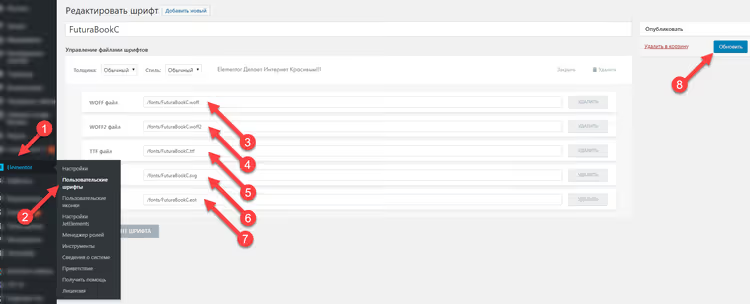
First, change the font path in Elementor settings. Go to Elementor → Custom Fonts, open the desired font, and in the URL field specify the local path /wp-content/fonts/your-font.woff2 instead of an external CDN or Google Fonts link:
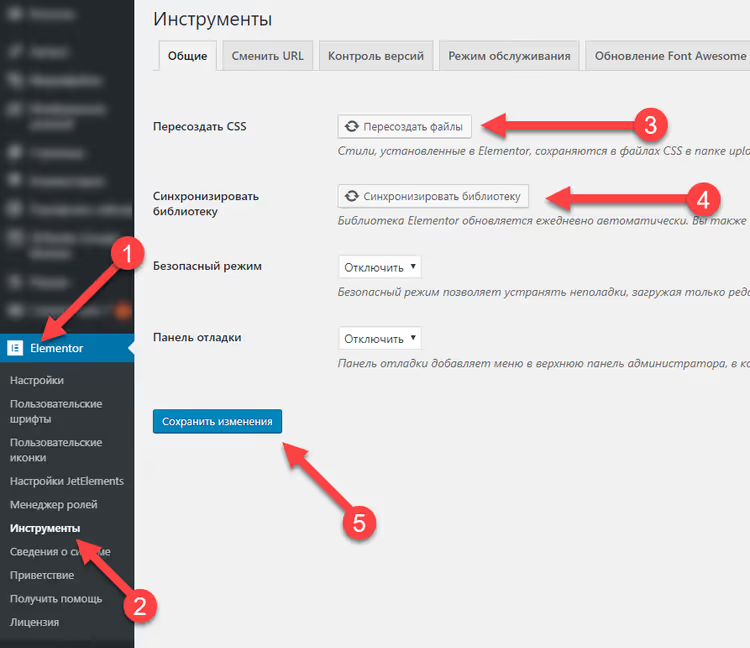
Second, rebuild Elementor CSS. After changing the path, go to Elementor → Tools → Regenerate CSS and click the regeneration button. This will force Elementor to rebuild style files with the new font paths:
After regeneration, verify that the font path in the page HTML leads to the local file, not the CDN. Then in header.php (or via wp_head as in step 4) add preload for this font:
1 <link rel="preload" href="/wp-content/fonts/FuturaBookC.woff2" as="font" type="font/woff2" crossorigin="anonymous">
And the corresponding @font-face with font-display: swap:
1 @font-face { 2 font-family: 'FuturaBookC'; 3 font-display: swap; 4 font-style: normal; 5 font-weight: normal; 6 src: url('/wp-content/fonts/FuturaBookC.woff2') format('woff2'), 7 url('/wp-content/fonts/FuturaBookC.woff') format('woff'); 8 }
Alternative path: plugins for automatic optimization
The manual method gives full control but requires attention when updating plugins (an Elementor update may restore the standard font connection). If you want to automate the process, here are two plugins that solve the task without code editing.
OMGF (Optimize My Google Fonts). A free plugin that scans all Google Fonts on the site, downloads them locally, and adds font-display: swap automatically. Install it, click "Optimize," and all your theme's Google Fonts become local with correct headers. The Pro version can work with Adobe Fonts and any third-party CDN fonts.
Swap Google Fonts Display. A minimalist plugin that does exactly one thing: adds font-display: swap to all Google Fonts on the fly. It does not download locally but removes the PageSpeed Insights warning in 10 seconds of installation. Suitable as a temporary solution or if local font hosting is not critical.
Plugins save time, but remember: they only work with Google Fonts. Icon fonts (Font Awesome, eicons) and Elementor custom fonts are not touched; you will still need to go through manual steps 1-5.
⁉️🤔 Frequently asked questions
Do I need to preload ALL fonts on the site?
No.
<link rel="preload">makes sense only for one or two fonts that appear in the first screen, for example, the H1 heading font and the main text font. Preloading a dozen fonts will have the opposite effect: the browser will spend bandwidth on files that are not needed right now and slow down the loading of critical content. Preload only fonts used in the first viewport. For a typical blog, this is one heading font and one text font, totaling two woff2 files. Preloading an icon font is worthwhile only if an icon appears in the first screen (menu, search). Everything else will load as you scroll without harming PageSpeed metrics.
What if the site "breaks" after disabling styles?
The most common scenario: you disabled
elementor-icons, and the slider arrows or search icon disappeared. The solution is to check which specific elements use the font before disabling. Open DevTools (F12), Elements tab, find the icon, and look at the CSS class. If the class starts withfa-, it is Font Awesome. If witheicon-, it is eicons. Disable only what is actually used, and locally connect the same files; visually nothing will change. The site "breaks" in two cases: either you disabled a style that, besides the font, carried CSS rules (rare but happens with themes like Astra), or you did not reconnect the font locally. In the first case, extract the CSS rules from the disabled file and copy them into yourwp_headblock. In the second case, simply add the missing@font-face.
Does this method work for any WordPress theme?
Yes, with caveats. The principle
dequeue style → local fonts → font-display: swap → preloadis universal. Only the style handles change: for Astra it isastra-google-fonts, for GeneratePress it isgenerate-fonts, for OceanWP it isoceanwp-google-fonts. To find your theme's handle, open the page source (Ctrl+U), find<link rel="stylesheet"with the font, and look at the tag'sid; this is the handle. Then substitute it inwp_dequeue_style. Modern themes (2024-2026) increasingly addfont-display: swapout of the box: Twenty Twenty-Five and block themes based on theme.json already have this setting. Before editing code, check whether your theme already does everything correctly and the warning is caused only by an icon font from a separate plugin.
Is it mandatory to copy fonts locally?
Technically, no.
font-display: swapworks with fonts connected via CDN (Google Fonts, cdnjs) as well. But local hosting provides two advantages: first, you remove an extra DNS request to a third-party domain (saving 50-200 ms), and second, you do not depend on CDN availability. If Google Fonts goes down, your site will remain with readable text. For a production site, local hosting is best practice; for a pet project, it is optional. Exception: icon fonts. Font Awesome, eicons, and dashicons load from the plugin (locally by definition); copying them to the root folder is needed only to "intercept" load control after dequeue. The file itself is already physically on the server.
What to do about the font warning: the final algorithm
Go through the five steps in this guide, and the warning "Ensure text remains visible during webfont load" will disappear from the PageSpeed Insights report. In brief: disable the standard connection → place fonts locally → bring them back with font-display: swap → preload the critical woff2 → for Elementor, additionally change the path and rebuild CSS. As a result, text on the site is visible instantly, LCP and FCP metrics improve, and the visitor does not see a "jumping" page.
If you do not want to dig into code, start with the OMGF plugin for Google Fonts. For icon fonts, there is no plugin "magic pill"; you will still have to process them manually, but it is 20 minutes of work that pays off with higher PageSpeed scores and real loading speed improvements. Try it and test after each change; only a repeated audit will show that the problem is actually solved.

A professional team of writers and editors specializing in creating quality content.