













🔧 How to use Dashicons in WordPress
The standard WordPress admin panel looks tidy, but register a couple of custom post types and the menu turns into a jumble of identical default icons. "Posts," "Pages," your "Portfolio," "Testimonials," all with the same pushpin pictogram. Your eye trips, the client gets confused, and the admin area loses its polish.
You could install a plugin for custom icons. You could load Font Awesome and pull in 2,000+ icons just to use five. Or you could skip both, because WordPress has shipped with the built-in Dashicons icon font since version 3.8. No extra dependencies, no additional CSS. Everything is already on your server.
In this guide we will cover how to use Dashicons for custom post types, in your theme's frontend, and via a convenient shortcode, with working code examples you can copy and paste right now.
💡 Quick overview:
- Register a custom post type, set the
menu_iconargument to a Dashicon CSS class, and the icon appears in the admin without a single plugin. - Enqueue
wp_enqueue_style('dashicons')on the frontend and insert icons via an HTML<span>tag anywhere in your theme. - Create a shortcode
[dashicon icon="..."]and the client adds icons to content without touching code.
What Dashicons are and why you need them
Dashicons is the official icon font for the WordPress admin panel. It arrived in version 3.8 alongside a major admin redesign and has been used for every left-menu item ever since: "Posts," "Media," "Plugins," "Settings," all Dashicons.
The font contains roughly 300 icons covering almost any need: post types, media, social networks, the editor, notifications, taxonomies, widgets. A full searchable catalog is available on the Dashicons page in WordPress Developer Resources.
The main advantage over something like Font Awesome is zero cost to include. Dashicons is already loaded in the admin, and for the frontend you add it with a single line in functions.php. You are not dragging a library of 2,000+ icons onto your site when 90% will never be used. If you do need a custom set, check out Fontello, where you can build a stylesheet from only the glyphs you choose.
One important note: the Dashicons project stopped accepting requests for new icons in June 2023. The existing set is frozen, but for typical WordPress tasks it still covers your needs with room to spare.
Method 1: Icon for a custom post type
The most common scenario is registering a new post type via register_post_type and wanting a meaningful icon next to its name in the admin rather than the default "pushpin."
You do this with the menu_icon argument:
1 /** 2 * Registers a custom post type "Portfolio" with a Dashicons icon. 3 * Code goes into the theme's or child theme's functions.php. 4 */ 5 function sd_register_portfolio_post_type() { 6 register_post_type( 'portfolio', array( 7 'public' => true, 8 'label' => __( 'Portfolio', 'textdomain' ), 9 'menu_icon' => 'dashicons-portfolio', 10 'has_archive' => true, 11 'supports' => array( 'title', 'editor', 'thumbnail' ), 12 ) ); 13 } 14 add_action( 'init', 'sd_register_portfolio_post_type', 0 );
The menu_icon value is the icon's CSS class. Go to the Dashicons page, click the icon you want, and copy its class from the tooltip. Just supply dashicons-{slug}, and WordPress will render the icon in the left menu automatically.
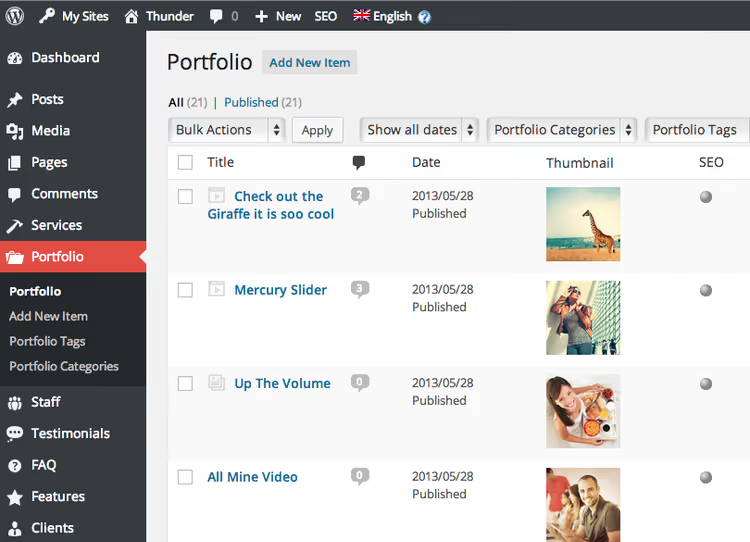
Before Dashicons you had to specify a direct image URL for menu_icon. On a site with a dozen plugins, icons would jump around in style and the admin area looked sloppy. Now all post-type icons inherit WordPress's unified interface style, neat and effortless.
The same approach works for pages added via add_menu_page:
1 add_menu_page( 2 __( 'My Reports', 'textdomain' ), 3 __( 'Reports', 'textdomain' ), 4 'manage_options', 5 'my-reports', 6 'sd_render_reports_page', 7 'dashicons-chart-area', 8 25 9 );
Pass the Dashicon class as the fifth parameter after the callback function, and the new menu item gets an icon from the same family as all the standard ones.
Method 2: Dashicons in your theme's frontend
Icons are useful beyond the admin. Post meta (date, category, author), a search button in the header, a cart icon: these are typical places where an icon makes the interface clearer.
To enable Dashicons on the public side of the site, add to functions.php:
1 /** 2 * Enqueues the Dashicons stylesheet on the frontend. 3 * Code goes into the child theme's functions.php. 4 */ 5 add_action( 'wp_enqueue_scripts', function() { 6 wp_enqueue_style( 'dashicons' ); 7 } );
Now you can insert an icon via HTML in any theme template:
1 <span class="dashicons dashicons-calendar"></span>
Swap calendar for the slug of the icon you need, and it displays. This HTML works anywhere in the theme: header.php, footer.php, single.php, even directly in the "Navigation Label" field of a menu item (WordPress allows HTML in navigation labels).
To group an icon with text, use the helper class dashicons-before; it adds the icon before the element's content without extra markup:
1 <h2 class="dashicons-before dashicons-smiley">Welcome Heading</h2>
Method 3: Shortcode for inserting icons in content
If you are building a site for a client who does not work with HTML, give them a shortcode. You add the code to functions.php once, and the client inserts an icon in any post via [dashicon icon="..."].
1 /** 2 * Registers the shortcode [dashicon icon="..."] to insert Dashicons into content. 3 * Requires prior enqueuing of dashicons via wp_enqueue_style (Method 2). 4 * Code goes into the theme's functions.php or a separate included file. 5 */ 6 add_shortcode( 'dashicon', function( $atts ) { 7 $atts = shortcode_atts( array( 8 'icon' => 'menu', 9 ), $atts, 'dashicon' ); 10 11 if ( ! empty( $atts['icon'] ) ) { 12 return sprintf( 13 '<span class="dashicons dashicons-%s"></span>', 14 esc_attr( $atts['icon'] ) 15 ); 16 } 17 18 return ''; 19 } );
Usage in the editor:
1 [dashicon icon="chart-pie"]
The shortcode assumes you have already enqueued the Dashicons style on the frontend (Method 2). If you have not, the icon will not display. Alternatively, you can embed wp_enqueue_style directly inside the shortcode body so the style loads only when an icon is actually used. But this approach has a caveat: the stylesheet loads in the page footer, causing the icons to "flash" after render. Global inclusion is more reliable.
Bonus: Dashicons in Gutenberg blocks
If you are developing custom blocks, Dashicons work there too. When registering a block via registerBlockType, set the icon parameter to a Dashicon name:
1 registerBlockType( 'my-plugin/my-block', { 2 apiVersion: 2, 3 title: 'My Block', 4 icon: 'dashicons-admin-site', 5 category: 'design', 6 edit() {}, 7 save() {}, 8 } );
For React components in the admin, a ready-made Dashicon component is available from the @wordpress/components package:
1 import { Dashicon } from '@wordpress/components'; 2 3 const MyComponent = () => ( 4 <div> 5 <Dashicon icon="admin-home" /> 6 <Dashicon icon="products" /> 7 <Dashicon icon="wordpress" /> 8 </div> 9 );
This works only in the admin (block editor, settings pages). On the frontend the Dashicon component does not pull in styles; you still need wp_enqueue_style('dashicons') there.
⁉️🤔 Frequently asked questions
Do I need to install a plugin to use Dashicons?
No. Dashicons has been built into WordPress core since version 3.8. In the admin it is loaded by default. For the frontend, a single line (
wp_enqueue_style('dashicons')) infunctions.phpis enough.
Why are Dashicons better than Font Awesome?
Size and zero external dependency. Font Awesome contains 2,000+ icons, most of which you will never need. Dashicons has roughly 300, all tailored for WordPress, and the stylesheet is already on your server. If the icon exists in the Dashicons catalog, use it and avoid the bloat.
What icons are available in Dashicons?
Around 300: post types, media, social networks, editor, notifications, taxonomies, widgets, and WordPress-specific glyphs (Products, Buddicons). A full searchable list is at developer.wordpress.org/resource/dashicons.
Can I add my own icon to Dashicons?
No. Since June 2023 the project no longer accepts requests for new icons. If the glyph you need is not in the catalog, use Font Awesome, Fontello, or upload a custom SVG.
Why are the icons not showing on the frontend?
Most likely you forgot to call
wp_enqueue_style('dashicons'). Check yourfunctions.php: the call should be hooked towp_enqueue_scripts. Another possible cause is a theme or plugin removing Dashicons viawp_dequeue_style.
Is it worth using Dashicons in 2026
Short answer: yes, for the admin and simple frontend needs. Dashicons means zero overhead, predictable rendering, and full integration with the WordPress interface. For custom post types and admin menu items it remains the de facto standard.
Understand the limitations upfront: the icon set is frozen and no new icons will be added. If you are building a site with rich visual design, Font Awesome or a custom SVG sprite will give you more flexibility. But for most typical WordPress tasks the built-in font is more than enough, and dragging in a 2,000+ glyph library for three icons makes no sense.
The fastest way to add an icon for a custom post type is to copy the class from the Dashicons catalog and drop it into menu_icon. It takes 30 seconds and requires no plugins.
If this material was helpful, watch the video tutorial on using Dashicons in navigation menus: it is in English, but every step is shown on screen so you can follow along without a translation.

A professional team of writers and editors specializing in creating quality content.