














🔑 How to get a Plesk trial license: a step-by-step guide
Need a server control panel, but paying $18-50 per month just for testing doesn't appeal. Especially when you're not sure whether Plesk fits your specific needs, or maybe you should go with a different panel altogether.
Plesk offers a fully functional 14-day trial: no credit card required, with all three editions available. That's enough time to set up sites, try out WordPress Toolkit, and figure out if it's right for you.
Below is a step-by-step guide: from filling out the form to activating the license key in the panel.
💡 Quick overview:
- Fill out the form on the official Plesk website: name, email, country, and intended use
- Choose one of three editions: Web Admin, Web Pro, or Web Host
- Receive an email with a license key and enter it in the panel's license section
- The trial lasts 14 days from activation and can be requested once per server
Step 1: filling out the request form
Go to the Plesk free trial page. The form asks for your name, email address, company (optional), country, and intended use, such as "testing before purchase" or "developing client sites."
Note: use an email address you have access to. That's where the license key email will be sent. You can only request a trial once per email address and server, so you won't be able to request it again.
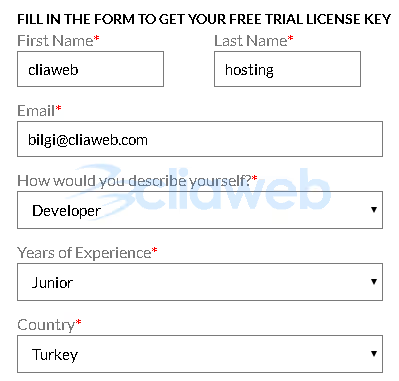
At this step, you also choose your Plesk edition. All three are available:
Edition | Use case | Price after trial |
|---|---|---|
Web Admin Edition | 1-10 domains, basic administration | from $15/mo |
Web Pro Edition | up to 30 domains, extended toolset | from $26/mo |
Web Host Edition | unlimited domains, reseller features | from $48/mo |
If you're unsure, go with Web Host Edition. The trial version of any edition is fully functional, and after the 14 days end, your server data will remain intact. You'll just need to activate a paid license; no reinstallation required.
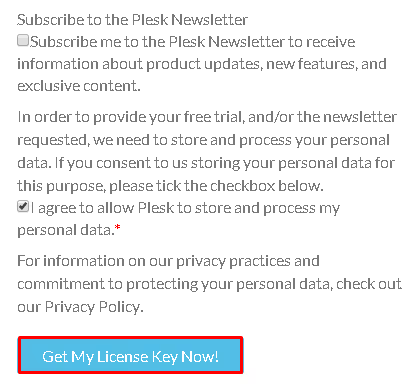
After filling in all fields, click the submit button. The email typically arrives within 10-15 minutes. Check your spam folder if you don't see it in your inbox.
Step 2: receiving the license key
In the email from Plesk, you'll see a list of available licenses. Usually there are three keys, one for each edition. They look like a long string of characters in the format PLS-XXXX-XXXX-XXXX-XXXX.
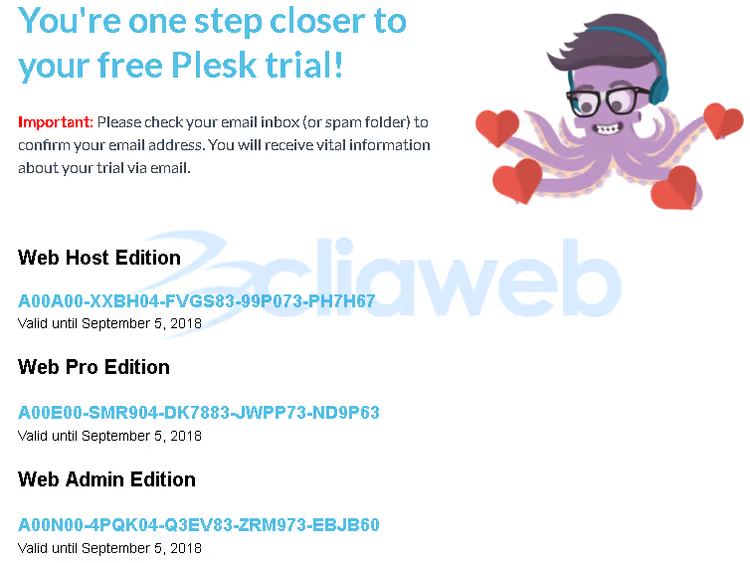
Copy the key for the edition you chose when filling out the form. If you changed your mind, you can use a different one: all three keys work within the same trial period. However, you cannot activate multiple editions on the same server; the system will only accept one.
Step 3: activating the license in the Plesk panel
Open the Plesk panel. If it's not installed yet, download the installer from the official website and run the installation. For Linux servers, it's a single command via SSH; for Windows, it's an executable file.
In the panel, navigate to the licensing section: Tools & Settings → License Management.
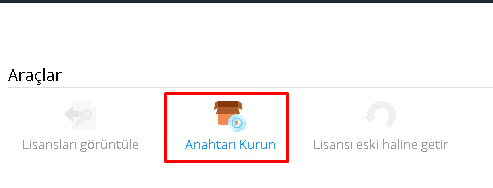
Click "Install License Key" and an input field will appear. Paste the key you copied from the email and confirm.
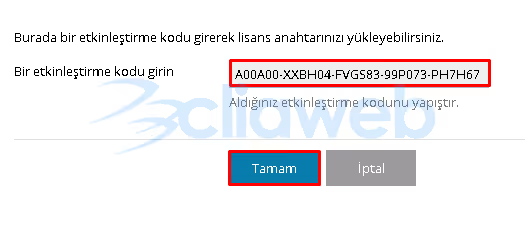
The system will verify the key and activate the license. This is when the 14-day countdown begins. A notification about the trial period with the remaining days will appear in the panel interface.
What the trial includes
For 14 days, you get a fully functional control panel with no feature limitations. This includes:
- WordPress** Toolkit**: bulk site management, cloning, one-click plugin and theme installation, security scanning
- Sitejet Builder: built-in no-code website builder
- Email** management**: creating mailboxes, aliases, autoresponders
- Scheduled backups: full and incremental, with one-click restore
- Let's Encrypt: free SSL certificates in two clicks
- Resource monitoring: CPU load, memory, disk space in real time
After the trial expires, the panel will lock management access, but your server data will remain untouched. To continue working, simply purchase a commercial license and enter the new key; all sites, databases, and settings will be picked up automatically.
The official Plesk video demonstrates the process clearly, from filling out the form to your first login to the panel.
⁉️🤔 Frequently asked questions
Can I request another trial after the 14 days expire?
No, the system tracks requests by email address and server IP. You cannot get another trial license for the same server. For new testing, you need a different server and a different email address. However, if you simply reinstalled Plesk on the same server, you can reactivate the old key as long as 14 days haven't passed since the initial request.
Which edition is best to start with?
For testing Plesk's capabilities, go with Web Host Edition: it includes everything (unlimited domains, reseller features, full WordPress Toolkit). If you know for sure you only need 1-10 sites, Web Admin Edition will suffice. The paid subscription after the trial doesn't obligate you to keep the same edition; you can switch to any.
What happens to my sites after the trial ends?
Your sites, databases, mailboxes, and server settings won't go anywhere. Plesk will stop opening for management, but all server content will be preserved. After purchasing and activating a paid license, the panel will unlock, and you'll continue right where you left off.
Do I need a credit card to get the trial?
No. Plesk doesn't request payment information for a trial license. Just your name and email are enough. When the 14 days end, there's no automatic charge; you decide whether to purchase a license or not.
Can I use the trial on a production server?
Technically, yes, there are no restrictions. But Plesk recommends deploying trials only on servers dedicated to testing. The reason is simple: if you don't purchase a license within 14 days, the panel will lock. For a live site with visitors, this means downtime. It's better to test on a VPS and then migrate sites to a permanent server with a paid license after testing.
Is the Plesk trial worth it: final verdict
Plesk is one of the two major server control panels on the market, alongside cPanel. If you're considering it, the 14-day trial gives you exactly enough time to evaluate WordPress Toolkit, the interface, and domain management without any financial commitment.
The key advantage of this approach: after the trial, your server doesn't turn into a pumpkin. Your data stays intact; you just enter a paid key, and you're right where you left off.
Before requesting a trial, decide on the edition that fits your needs. If you're hosting up to 10 sites, go with Web Admin. If you're working on client projects and need a reseller account, choose Web Host. And when you finish testing, share in the comments which edition worked for you and why.

A professional team of writers and editors specializing in creating quality content.