













 AIIllustrative image: AI-generated
🎹 How to set up hotkeys for web players in Chrome: a complete guide
You're listening to YouTube Music in a browser while working in your IDE, and every time you want to skip a track you minimize the window, hunt for the player tab, focus it, and only then hit a button. Five seconds. Ten times an hour. Almost a minute of lost time and broken concentration.
Desktop apps don't have this problem: media keys on your keyboard always work, regardless of the active window. Browsers were different for a long time: the Play/Pause, Next, and Previous buttons either did nothing or required the tab to be focused.
Chrome learned to handle multimedia keys via the Media Session API back in version 73, and the mechanics have only been refined since. And when built-in capabilities fall short, there are extensions. Let's figure out how to set up keyboard music control in Chrome so it always works without a mouse.
💡 Quick overview:
- Step 1: check
chrome://flags/#hardware-media-key-handling; if the flag is available and conflicts with desktop players, set it to Disabled; if the flag is hidden, add--disable-features=HardwareMediaKeyHandlingto the Chrome shortcut properties - Step 2: open
chrome://extensions/shortcuts, assign key combinations to the extensions you need, and select "Global" in the dropdown - Step 3: for YouTube Music install YouTube Music Media Keys (36 KB, works without configuration)
- Step 4: if you use many services, install Streamkeys (dozens of platforms, custom key combinations)
How Chrome handles media keys
Chrome uses the Media Session API to intercept hardware media keys: Play/Pause, Next Track, Previous Track, Stop. When you press such a key, the browser finds the tab with an active audio or video player and sends the command to it. Sounds convenient, but there's a catch: Chrome steals media keys from other applications.
If you have desktop Spotify or AIMP running, pressing Play/Pause while Chrome is open might pause a YouTube video instead of the track in your player. That's why users look for ways to "fix" media keys, when in fact they don't need fixing, just a priority adjustment.
Global media key handling was historically controlled by the chrome://flags/#hardware-media-key-handling flag. But in early 2024 Google removed it in Chrome 122, then brought it back a month later in Chrome 123. The flag is unstable: it exists in some builds and disappears in others. That's why knowing both methods is more reliable than relying solely on the flag's presence.
If the flag is available, here are its values:
Value | Behavior |
|---|---|
Default | Chrome intercepts media keys when a tab with media is active |
Enabled | Media keys are always handled by Chrome, globally |
Disabled | Chrome doesn't touch media keys; they go to desktop applications |
If you listen to music in the browser and want keyboard control to always work, leave Default or Enabled. If you need media keys for a desktop player and Chrome is intercepting them, switch to Disabled and restart the browser using the Relaunch button at the bottom of the page.
If the flag is missing from chrome://flags, add --disable-features=HardwareMediaKeyHandling to the Chrome shortcut properties: right-click the Chrome icon → Properties → "Target" field → space after the closing quote → paste the flag. It looks like this:
1 "C:\Program Files\Google\Chrome\Application\chrome.exe" --disable-features=HardwareMediaKeyHandling
Apply → OK → restart Chrome. The HardwareMediaKeyHandling functionality is built into the Chromium core; the flag simply controls it. The command line works even when the UI toggle is hidden. This method also works for other Chromium-based browsers: Edge, Brave, Opera.
After changing the flag or shortcut, restart the browser and test media key behavior in your target application.
Setting up hotkeys for extensions
Beyond built-in media key handling, Chrome lets you assign custom keyboard shortcuts to commands in any extension. The key advantage is global scope: the combination works even when Chrome is minimized or you're in a different application.
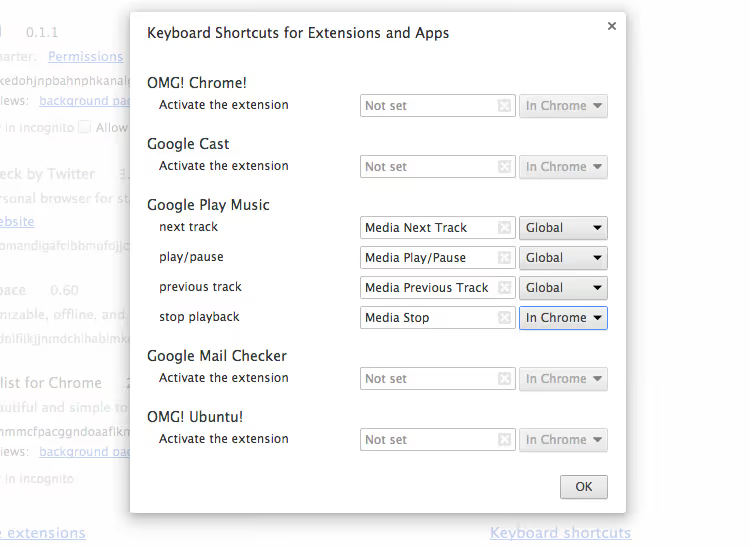
How to set it up:
Open the extensions page: type
chrome://extensionsin the address bar and press Enter.Scroll down and click the "Keyboard shortcuts" link in the lower-left corner, or go directly to
chrome://extensions/shortcuts.Find the extension and its command. Click the field with the current combination, or "Not set", and press the desired key combination.
In the dropdown to the right of the combination, select "Global" instead of "In Chrome". This is the crucial step: without it, the shortcut only works when the browser window is active.
Chrome only accepts combinations with Ctrl or Alt plus one additional key; you cannot natively assign a single key without a modifier. For that scenario, you need system-level third-party tools: AutoHotkey on Windows or Karabiner-Elements on macOS.
Extensions for controlling web players
When Chrome's built-in capabilities aren't enough, extensions add support for specific services and more flexible hotkey settings.
YouTube Music Media Keys is a lightweight extension (36 KB) that enables global YouTube Music control via hardware media keys. No configuration required: install and forget. It works even when the Hardware Media Key Handling flag is disabled; the extension finds the YouTube Music tab on its own and sends commands to it. If the tab isn't open, the extension "sleeps" and doesn't interfere with other applications.
🔗 YouTube Music Media Keys on Chrome Web Store
Streamkeys is an open-source GitHub project offering global hotkeys for dozens of streaming services: YouTube, Spotify Web, SoundCloud, Deezer, Tidal, Pandora, Bandcamp, and others. It lets you assign custom combinations to each action (Play/Pause, Next, Previous, Like/Dislike, volume control).
The original Streamkeys extension on Chrome Web Store is no longer updated, but it works when manually installed: download the repository from GitHub, open chrome://extensions, enable "Developer mode" → "Load unpacked" and select the folder with the source code. For Manifest V3, there's a fork by spacetag that's compatible with current Chrome versions and won't be affected by the deprecation of old MV2 extensions.
Keyata is a minimalist extension for binding media keys to playback on any site. It's not tied to a specific service and detects any open audio or video player through the Media Session API. This is ideal if you use different platforms and don't want to install a separate extension for each.
For Firefox, the browser also supports the Media Session API, and media keys work with web players out of the box. For fine-tuning, there's the Google Music Media Key Fix add-on in the Firefox Add-ons catalog; despite the name, it works with YouTube Music and other services.
⁉️🤔 Frequently asked questions
Why did media keys stop working in Spotify when Chrome is open?
Chrome intercepts hardware media keys via the Media Session API, sending commands to the active tab with media content. When global interception is enabled, the browser captures key events from the system before they reach other applications. To fix this: open
chrome://flags/#hardware-media-key-handlingand set it to Disabled. If the flag is hidden in your version of Chrome, add--disable-features=HardwareMediaKeyHandlingto the shortcut properties and restart the browser. Spotify will receive key commands again.
Can I assign a single key without Ctrl or Alt?
Not with Chrome's built-in tools. The browser only accepts combinations with
CtrlorAltplus one additional key. For single keys, you need system-level tools: AutoHotkey on Windows (a script likeF7::Send {Media_Play_Pause}makes F7 a global Play/Pause) or Karabiner-Elements on macOS with a JSON config in the Complex Modifications section. Both work before events reach the browser.
Why do extension hotkeys only work when Chrome is focused?
Check the command's scope at
chrome://extensions/shortcuts: find the extension and in the dropdown to the right of the combination select "Global" instead of "In Chrome". The default is "In Chrome", meaning the shortcut only works when the browser window is active. "Global" works always, even when Chrome is minimized. You need to change this manually for each command.
Google Play Music shut down, what should I use instead?
Google Play Music ceased operation in December 2020, replaced by YouTube Music. All modern extensions in this guide work with YouTube Music, Spotify Web, Apple Music Web, and other web players. YouTube Music natively supports keyboard shortcuts; the list of combinations is on Google's support page. Remove old Google Play Music extensions because they no longer function.
Chrome on Mac, media keys don't work, what should I do?
On macOS, media keys control the system player (Music.app or Spotify), not the browser. Quick solution: hold Option while pressing a media key to send the command to Chrome. Permanent solution: install YouTube Music Media Keys and assign global shortcuts via
chrome://extensions/shortcuts. On Mac, these work without conflicting with system keys. Alternatively, configure Karabiner-Elements.
What to install for your use case
Controlling music from the keyboard in a browser isn't magic. It's a standard Chrome capability supplemented by extensions for those who need more flexibility.
If you only listen to YouTube Music, install YouTube Music Media Keys and you're done. Need support for a dozen services? Streamkeys covers almost everything. Getting conflicts with desktop Spotify? Disable media key interception via the flag or command line. Want single keys without modifiers? AutoHotkey or Karabiner-Elements.
The main thing to remember: the chrome://extensions/shortcuts page and the "Global" dropdown are the two places where most users lose working hotkeys simply because they didn't check the scope. Check there now and make sure your extensions are set to "Global". Five seconds save hours of mouse-wrestling.

A professional team of writers and editors specializing in creating quality content.