














✅ How to update and check PHP version for WordPress via cPanel and Plesk
You go to the WordPress admin panel and see a yellow banner: "Your site is running an outdated version of PHP." And the plugin you need refuses to install, it requires PHP 8.0, but the server still has 7.4. Sound familiar?
PHP is the engine of your website. Page load speed, security, and plugin compatibility all directly depend on its version. Hosting providers don't always rush to update PHP for you, and some deliberately keep clients on older branches because it's "more stable" and generates fewer support tickets.
In 10 minutes you'll learn how to check the PHP version on your WordPress site and update it through cPanel or Plesk. Without a developer's help and without risking site downtime.
💡 Quick overview:
- Determine your current PHP version with the Display PHP Version plugin in half a minute, no technical skills needed
- Find the version in your hosting panel: cPanel (Select PHP Version) or Plesk (PHP Settings)
- For precise diagnostics, create a file with phpinfo() and open it in your browser
- Before updating, make a full site backup and check plugin compatibility through PHP Compatibility Checker
- Switch the PHP version in two clicks, then run a manual test: homepage, admin panel, forms, cart
What is PHP and why the version matters
PHP is the server-side language that WordPress is written in. When a visitor opens your site, PHP scripts assemble the page from the database and deliver HTML to the browser. Simply put, PHP transforms content from the database into what the user sees.

According to W3Techs, PHP is used by 70.9% of websites whose server-side language is known. About 60% of them run versions 8.x, the rest are on 7.x, and some still have 5.6. Here's what's critical: each PHP version lives exactly 4 years. Two years of active support with bug fixes, then two years of security patches only, and after that comes end of life (EOL). After EOL, security holes are never patched.
WordPress minimum requirements are modest: PHP 7.4 and higher. But that's the minimum. The real speed difference between PHP 7.4 and 8.2 is roughly 1.5 to 2 times on a typical site. On PHP 8.3 with JIT compilation, the gain is even more noticeable for computational operations. According to Kinsta benchmarks from December 2025, WordPress on PHP 8.5 handles 34% more requests per second than on PHP 7.4 with identical hardware.
How to check PHP version: 4 methods
There are several ways to find out which PHP version your WordPress runs on. From the simplest (a one-click plugin) to technical (phpinfo). Choose whichever is more convenient.
Method 1: Display PHP Version plugin
The fastest route. Install the Display PHP Version plugin, activate it, and the PHP version appears right in the "At a Glance" widget on the admin dashboard.

The plugin weighs less than 50 KB and doesn't slow down your site. Hovering over the PHP version also shows the MySQL version, which is handy when diagnosing database issues. It's installed on more than 30,000 sites. The only downside: the plugin hasn't been updated since 2021, but it performs its single function reliably.
Method 2: in cPanel
Log into your hosting's cPanel, find the "Software" section, and click "Select PHP Version."

The page that opens shows your current PHP version right away. You can also switch to a different version here and check the extensions you need. The minimum gentleman's set for WordPress includes mysqli for the database, curl for external requests, gd for images, mbstring for Cyrillic, zip for archives, and openssl for encryption.
Method 3: phpinfo() function
A technical method that shows absolutely everything about the PHP configuration on your server: version, enabled extensions, memory limits, upload file sizes, and dozens of other parameters.
Create a file with any name (for example, info.php) and place this code in it:
1 <?php 2 phpinfo();
Upload the file to your site's root folder via FTP or the hosting file manager. Then open https://yoursite.com/info.php in your browser. The very first line shows the PHP version.
After checking, be sure to delete this file, as attackers can use phpinfo() to gather information about your server.
Method 4: in Plesk
In Plesk, go to "Websites & Domains," select the site you need, and click "PHP Settings." The current version is displayed at the top of the page, along with a selector for switching.
How to update the PHP version
Before updating, the iron rule: make a full site backup. Files and database. Most hosts offer one-click backup through the same cPanel or Plesk. If not, install a plugin like UpdraftPlus and make a backup copy to the cloud.
Updating in cPanel
In the "Select PHP Version" section, simply choose the version you need from the dropdown list and click "Set as current."
Check the PHP extensions that should be active there as well. The minimum set for WordPress includes mysqli for the database, curl for external requests, gd for images, mbstring for Cyrillic, zip for archives, openssl for encryption, json for data exchange, and xml for RSS and sitemaps. If your site uses caching, add memcached or redis. For WooCommerce, soap is required.
After switching the PHP version, the site applies changes instantly. Open the site in another tab and go through the main pages: homepage, admin panel, a couple of posts. Make sure nothing broke.
Updating in Plesk
In Plesk, the path is slightly different. Go to "Tools & Settings," then "Updates and Upgrades," and click "Add/Remove Components."
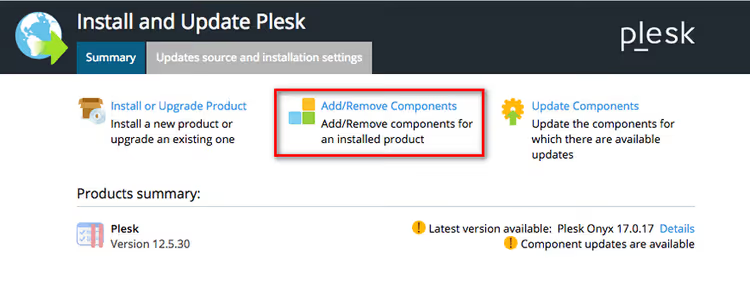
In the web hosting section (for Linux), check the PHP interpreter versions you need. For Windows, in the Plesk hosting features section. After installing the components, return to the specific site's settings and select the new PHP version in "PHP Settings."
An advanced method for those who work with the server via SSH: Plesk Installer commands. For example, to remove PHP 5.6 and install 8.2:
1 plesk installer --select-release-current --remove-component php5.6 2 plesk installer --select-release-current --install-component php8.2
Compatibility check: PHP Compatibility Checker
Before flipping the version switch, it's worth checking: will your plugins and theme handle the new PHP? For this, there's the PHP Compatibility Checker plugin from WP Engine.
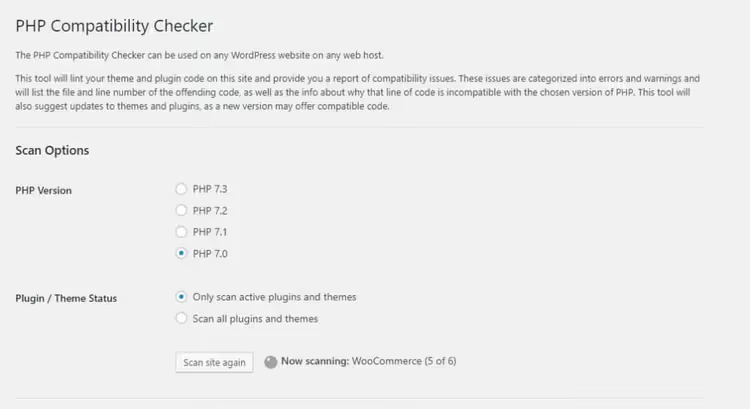
Install it, activate it, go to "Tools," and click "PHP Compatibility." Select your target PHP version (for example, 8.3) and run the scan. The plugin checks your theme and plugin code through the WP Engine Tide service and produces a report: errors (will definitely break) and warnings (might break).
The plugin hasn't been updated since 2023, and reviews complain about freezes and false positives. But it gives a general idea of compatibility. A more reliable approach: create a staging copy of your site (many hosts offer this in one click), switch PHP there, and run a manual test of the main features.
What PHP version is best for WordPress in 2026
As of June 2026, the PHP version landscape looks like this:
Version | Released | Active support until | Security patches until | Status for WordPress |
|---|---|---|---|---|
PHP 7.4 | Nov 2019 | Nov 2021 | Nov 2022 | ❌ EOL, do not use |
PHP 8.0 | Nov 2020 | Nov 2022 | Nov 2023 | ❌ EOL, do not use |
PHP 8.1 | Nov 2021 | Nov 2023 | Nov 2024 | ❌ EOL, do not use |
PHP 8.2 | Dec 2022 | Dec 2024 | Dec 2026 | ✅ Recommended, but 6 months to EOL |
PHP 8.3 | Nov 2023 | Dec 2025 | Dec 2027 | ✅ Optimal choice |
PHP 8.4 | Nov 2024 | Dec 2026 | Dec 2028 | ✅ Fresh, active support |
PHP 8.5 | Nov 2025 | Dec 2027 | Dec 2029 | ✅ Newest, maximum speed |
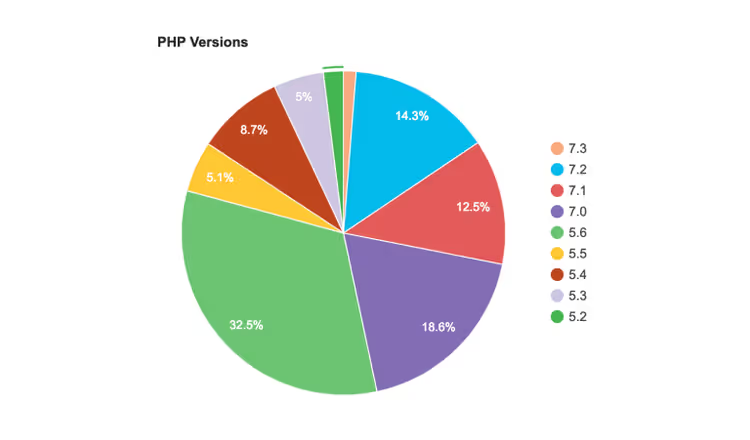
If your host offers a choice, go with PHP 8.3, it's the optimal balance between speed and compatibility. PHP 8.4 will give you a bit more performance thanks to JIT compilation, but some older plugins may act up. PHP 8.5 is for those who keep their site on the cutting edge and are ready for possible incompatibilities with exotic plugins.
The main point: don't stay on versions below 8.2. PHP 8.1 and older no longer receive even critical security patches. According to WordPress.org, as of May 2026 the minimum recommended PHP version for WordPress is 8.3.
Why you should upgrade to PHP 8.x
Switching from PHP 7.4 to 8.2 gives a speed boost of 1.5 to 2 times on a typical WordPress site. This isn't marketing, it's a direct result of architectural improvements.
Here's what you specifically get:
JIT compilation (Just-In-Time, from PHP 8.0). Heavy computations run faster. For a typical WordPress site the effect is modest, but for plugins with analytics, report generation, or image processing, it's noticeable.
Named arguments (PHP 8.0). Make code more readable:
wp_remote_post($url, timeout: 30)instead ofwp_remote_post($url, array('timeout' => 30)).Union types (PHP 8.0) and intersection types (PHP 8.1). Help plugin developers write more predictable code.
Readonly properties (PHP 8.1) and readonly classes (PHP 8.2). Protect objects from accidental changes, fewer runtime bugs.
Enums (enumerations, PHP 8.1). Instead of magic strings like
'publish'and'draft', you get strict status typing.Improved error handling. In PHP 8, fatal errors became exceptions that can be caught. The site doesn't crash entirely because of an error in one plugin, which is especially important after updates.
The main argument for upgrading is simple: outdated PHP branches lose support, and developers stop releasing even critical security fixes. Any vulnerability found in an unsupported version remains open forever.
Video: step-by-step PHP update in cPanel
If you prefer watching to reading, here's a short video demonstrating a PHP update through cPanel:
⁉️🤔 Frequently asked questions
Can I update PHP without access to cPanel or Plesk?
Yes, if you have a VPS or dedicated server. Connect via SSH and install the version you need through the package manager. For Ubuntu:
sudo apt install php8.3. After installation, configure Apache or Nginx to use the new version. If you're on shared hosting and there's no control panel, contact support, they usually change the PHP version upon request.
What should I do if the site stopped working after a PHP update?
Enable WordPress debug mode: add the lines
define('WP_DEBUG', true);anddefine('WP_DEBUG_LOG', true);towp-config.php. The error log will appear in/wp-content/debug.log. Usually the problem is one incompatible plugin. Find it using the log and temporarily deactivate it. Then update the plugin to a version that supports your PHP, or find a replacement. As a last resort, revert to the old PHP version through the same cPanel (it takes two seconds) and troubleshoot calmly on a staging copy.
How do I find out which plugins are incompatible with the new PHP?
Besides PHP Compatibility Checker described above, go to each plugin's page on wordpress.org and check the "Tested up to" section. If a plugin hasn't been tested with WordPress 6.5+ and PHP 8.2+, that's cause for concern. The most reliable way: create a staging copy of your site, update PHP on the copy, and go through all features, publishing posts, uploading media files, forms, cart.
Which PHP extensions must be enabled for WordPress?
The minimum set:
mysqlifor the database,curlfor external requests,gdorimagickfor images,mbstringfor Cyrillic,zipfor archives,opensslfor encryption,jsonfor data exchange,xmlfor RSS and sitemaps. For WooCommerce you needsoap. For caching,memcachedorredis. Everything else is optional.
Should I upgrade to PHP 8.5 right now?
If you're just launching a new site with fresh plugins, yes, go with 8.5, you'll get maximum speed. If your site is several years old and has a couple dozen plugins of varying freshness, start with PHP 8.3, let the site run for a week, then step up to 8.4. A sudden jump from 7.4 straight to 8.5 will almost certainly break something. The simple rule: change no more than one major version at a time, test, and only then move on.
How often should I update PHP?
Once every year to year and a half is a normal rhythm. PHP releases a new major version every November. By the following summer, the main plugins have caught up. Follow the support table in the section above: as soon as your version moves to "security patches only" mode, plan an update to the next one.
What to run on WordPress in 2026: the bottom line
If your site is still on PHP 7.4 or 8.0, you're losing at least half your speed and sitting without security patches. This isn't a scare tactic, it's plain arithmetic: since November 2022 (for 7.4) and November 2023 (for 8.0), holes in these versions have gone unpatched.
The optimal choice for June 2026 is PHP 8.3. Mature enough that all popular plugins work with it, and with support lasting until December 2027. If your host only offers 8.2, that's fine too, but plan a transition to 8.3 within the next six months before 8.2 goes EOL in December 2026.
Updating PHP through cPanel or Plesk takes two minutes. Preparation (backup and compatibility check) takes another half hour. Half an hour once a year or so for a twofold speed boost and closed vulnerabilities: that's a very good deal. Make a backup and update today.

A professional team of writers and editors specializing in creating quality content.