














🔧 Why WordPress is not sending emails and how to fix it
You checked your email and found nothing. No password reset message, no order confirmation, no test email from the contact form. Customers reach out to support, but replies never arrive. WordPress stays silent, and you can't figure out why.
This problem is painfully familiar to anyone who has launched a WordPress site. The default mail server runs through mail(), a built-in PHP function. Hosting providers often block it, and messages end up in spam or don't send at all.
Spoiler: this can be fixed in 15-20 minutes by configuring an SMTP server. Below is a step-by-step breakdown of the causes, diagnostics, and two working setup methods: via Gmail API and via Mailgun. No panic, with screenshots.
💡 Quick overview:
- Check if the WordPress mail server is alive, the
Check Emailplugin shows the real picture in a minute - Learn why
mail()is unreliable and how SMTP solves the problem - Configure Gmail SMTP with OAuth 2.0, step by step, from Google Console to green status
- Connect Mailgun through
WP Mail SMTP, for sites with traffic that need more than 100 emails per day - Address common questions: why emails go to spam, which port to choose, what to do with authentication errors
Why WordPress doesn't send emails
WordPress uses the wp_mail() function by default, which internally calls the PHP mail() function. The problem is that mail() is a basic mechanism without authentication. Modern email services like Gmail, Yahoo and Outlook require encryption and sender verification. Without them, messages are either blocked by hosting or marked as spam by the receiving side.
The second common cause is missing DKIM and SPF records in DNS. These are digital signatures that tell mail servers: "the sender is legitimate, the message is not forged." Without them, Gmail will send your message straight to the "Spam" folder.
Finally, plugins can be to blame. Some anti-spam solutions and contact form plugins intercept the email queue and block "suspicious" sends. This is especially true for bulk mailings, for which mail() is fundamentally unsuitable.
How to check WordPress mail server operation
Before diving into SMTP settings, rule out the dead mail() scenario. The Check Email plugin does exactly this: it sends a test message through the standard WordPress mechanism and shows the result.
Install Check Email from the WordPress repository (Plugins → Add New → type "Check Email"), activate it and go to Tools → Check Email. Enter your address, click "Send test email", and in a couple of seconds you'll see a report.
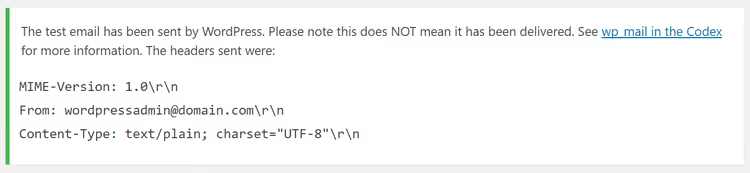
Check the "Inbox" and "Spam" folders. If the message arrived, mail() works and the problem is in a specific plugin (contact form, WooCommerce). Contact that plugin's support. If there's no message, mail() is blocked by hosting and you need SMTP.
How to configure SMTP via Gmail in WordPress
SMTP (Simple Mail Transfer Protocol) is a protocol with authentication and encryption. Unlike bare mail(), emails via SMTP pass identity verification, aren't blocked by hosting and rarely end up in spam.
The first method is the Gmail SMTP plugin, which connects WordPress directly to your Google account via OAuth 2.0. It has over 100 reviews on WordPress.org and regular updates. The free version allows sending up to 100 emails per day, which is enough for a small site or blog.
Install Gmail SMTP from the official WordPress repository, activate it.
Next you need Google Cloud Console. Go to console.cloud.google.com, create a new project.
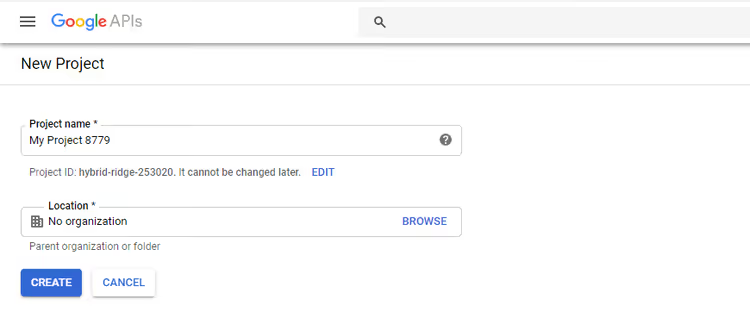
In the sidebar, select "APIs & Services" → "Credentials", click "Create Credentials" and choose "OAuth client ID". The system will ask you to configure the consent screen, specify "External" type and fill in the required fields (application name, support email). Click "Save and Continue".

Return to creating the OAuth client ID: application type is "Web application", name is "Gmail SMTP".

Now switch back to the WordPress admin: in the Gmail SMTP plugin settings, copy the Authorized Redirect URL.

Return to Google Console, paste the copied URL into the "Authorized redirect URIs" field, save. After saving, a window with Client ID and Client Secret will appear, copy both values and paste them into the corresponding plugin fields.
Specify the Gmail address from which emails will be sent (the same one you used to create the project), fill in the "From Email Address" field, set "From Name" (your site name). SMTP port is 587 for TLS. If you use an SSL certificate, set 465. Click "Save Changes", then "Grant Permission" and complete Google authentication.

After successful grant, the plugin will show a green "Connected" status. Send a test email, if it arrives, you're all set.
How to configure Mailgun for sending emails in WordPress
If your site needs more than 100 emails per day and you want reliable delivery infrastructure, look into Mailgun. This is a mail service for developers with a free tier up to 100 emails per day (incoming is free), and paid plans start at $35 per month for 50,000 emails. The main advantage is detailed delivery analytics: you can see whether an email was opened or not, whether it went to spam.
Register at mailgun.com. After creating an account, add a domain, Mailgun will prompt you to enter a subdomain (for example, mg.your-site.com) and provide DNS records: TXT for verification, MX for email routing and CNAME for tracking opens.
Log into your hosting panel (cPanel, ISPmanager or similar), open the DNS editor and add the Mailgun-provided records:
- TXT record: Name is your subdomain, Type is TXT, TTL is 14400, TXT Data is the value from Mailgun panel
- MX record: in the "MX Entry" section, enter the priority and destination from Mailgun
- CNAME: for tracking opens and clicks
DNS updates from a few minutes to 48 hours. Check status in the "Domains" section of Mailgun panel, when it shows "Active", you can proceed.
To connect Mailgun with WordPress, install WP Mail SMTP, the most popular SMTP plugin with 3+ million active installations. Go to Settings → WP Mail SMTP, in "From Email" specify an address on your domain, in "From Name" your site name. In the "Mailer" field, select "Mailgun".
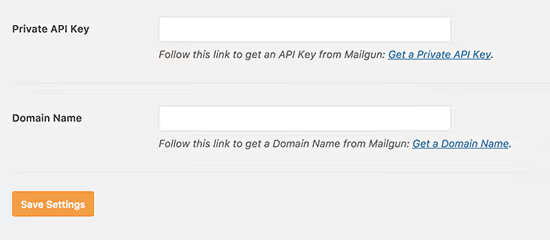
Paste the Private API Key from the Mailgun panel ("API Keys" section) and the domain name you registered. Enable the "Set the return path to match the From Email" option, this aligns the return address and reduces the chance of landing in spam. Click "Save Settings" and send a test via the "Email Test" tab.
Video tutorial: configuring SMTP in WordPress
If you prefer watching over reading, here's a video tutorial on configuring SMTP in WordPress, from plugin installation to the first sent email:
⁉️🤔 Frequently asked questions
Why do emails from WordPress go to spam even when SMTP is configured?
Most often the problem is missing SPF and DKIM records in the domain DNS. Without them, the recipient's mail server cannot verify that your server has the right to send emails from this domain. Add an SPF TXT record (
v=spf1 include:_spf.google.com ~allfor Gmail or similar for Mailgun) and a DKIM key from the mail service panel. The second factor is IP reputation: on cheap hosting, the IP address may have been flagged for spam mailings before you.
Which SMTP port to choose: 587 or 465?
Port
587with TLS is the modern standard recommended by IETF for client email submission. Port465with SSL is an outdated alternative still supported by many providers for compatibility. Use587with TLS unless the mail service explicitly requires465.
The Gmail SMTP plugin gives an authentication error. What to do?
Three most common causes: redirect URLs don't match (check that the same address is in Google Console and the plugin), the application in Google Cloud is in "Testing" status (switch to "Production" or add your Gmail to the test users list), or Google two-factor authentication is enabled without an app password (create an app password in Google security settings).
Can I send bulk mailings via Gmail SMTP?
No. Gmail has strict limits: 100 emails per day via the
Gmail SMTPplugin, up to 2000 via Google Workspace. For email marketing and regular mailings, use Mailgun, Brevo (formerly Sendinblue) or SendGrid, they have WordPress integrations and dedicated delivery infrastructure.
Do I need a paid Mailgun plan for a small site?
Mailgun's free tier (100 emails per day) is enough for an average site: WooCommerce order notifications, password resets, registration confirmations, contact form emails. A paid plan makes sense when daily volume exceeds a hundred or you need open analytics with log storage longer than 24 hours.
Why shouldn't I rely on built-in mail() in WordPress?
The
mail()function doesn't authenticate the sender, doesn't encrypt the connection and doesn't add DKIM/SPF signatures. Most hosting providers either block it at the server level (due to spam attack risk) or pass traffic through shared IPs with low reputation. The result: emails don't arrive in a significant portion of cases, and those that do are often marked as spam.
Is it worth switching to SMTP right now
If password reset emails aren't leaving your site, customers aren't receiving order notifications, and the contact form is silent, the answer is clear: you need SMTP today. This isn't a question of "is it worth it", it's a question of "which one exactly".
For a personal blog and landing page, the Gmail SMTP combo with your Gmail account is enough. Configure it in 20 minutes and forget about it. For a site with products, courses or users, get WP Mail SMTP with Mailgun: the free tier covers the needs of a typical online store, and delivery analytics will alert you if something goes wrong.
Don't delay. While you're reading this paragraph, someone's customer didn't receive a confirmation email. SMTP solves this once and for all.

A professional team of writers and editors specializing in creating quality content.