













 AIIllustrative image: AI-generated
📧 How to set up domain email forwarding to Gmail via Mailgun
You bought a domain, set up the site, but never created email for it. Because the prospect of logging into a separate web interface for hosting every day or switching between Google accounts for a couple of emails is dreary routine. And paying $6/month for Google Workspace for a single hello@ mailbox seems excessive.
Mailgun solves this problem elegantly. It's a transactional email service that not only sends hundreds of thousands of emails through an API but also receives incoming mail on your domain and forwards it anywhere, for example to your regular Gmail. Set it up once and forget: emails to info@your-domain.com land in the same place as everything else.
💡 Quick overview:
- Register with Mailgun and verify your identity with a card (protection against spammers)
- Add your domain, configure DNS records in Cloudflare (or your NS server) and wait for verification
- Create a Route, a rule that tells Mailgun: "everything that comes to
hello@, forward tome@gmail.com" - Configure Gmail to send via Mailgun SMTP so you can reply from the domain address instead of
@gmail.com
Why Mailgun instead of other methods
Before showing the setup, a quick note on what else people try and why Mailgun wins.
Google Workspace (formerly G Suite). Does exactly what you need: log into gmail.com under the domain address. But it hasn't been free for a long time, now it's a subscription starting at $6/month per user. For a personal domain with a couple of addresses, this is overpaying. If you have a school, company, or nonprofit organization, it makes sense; for a personal project, no.
Forwarding from cPanel. Most hosting providers give this option "out of the box." Works while the domain sits on the hosting. But as soon as you leave cPanel hosting (for example, for VPS or a static site), this method disappears with it. MX records must point to the hosting, if DNS is at Cloudflare, it's easy to get confused.
POP3 fetching in Gmail. Gmail can fetch mail from a third-party mailbox via POP3. Problem: you still need that third-party mailbox (hosting, registrar), and the delay when loading emails can be up to 15-30 minutes. Not instant.
Zoho Mail. Free tier for up to 5 users, not bad. But if you only need forwarding, dragging along a full-featured email hosting with Zoho's interface is overkill. Plus not everyone wants to hand their email to yet another third-party service on top of Google.
Amazon SES + AWS Lambda. The most hardcore path: take SES for receiving mail, write a Node.js script for Lambda that forwards emails. The email is not forwarded as-is, the From header is replaced, only Reply-to remains. The setup complexity for simple forwarding is clearly excessive. This option is for those already living in the AWS ecosystem.
Mailgun in this context is the golden middle. On the Flex plan ($0/month, up to 100 emails/day for sending) you get unlimited incoming email reception. Set it up once, it works for years.
Registration and adding a domain in Mailgun
Go to Mailgun and register. The system will ask for bank card details, this is not a charge but identity verification (through Stripe). Email sending is vulnerable to spam, so Mailgun insures itself: a real person with a card = less risk that the infrastructure will be hijacked for mass mailing.
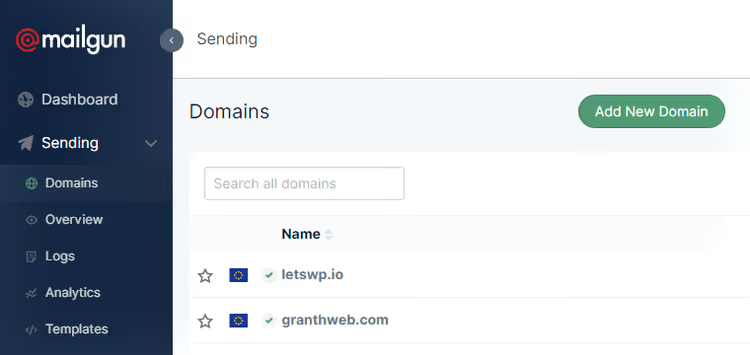
Click Add New Domain.
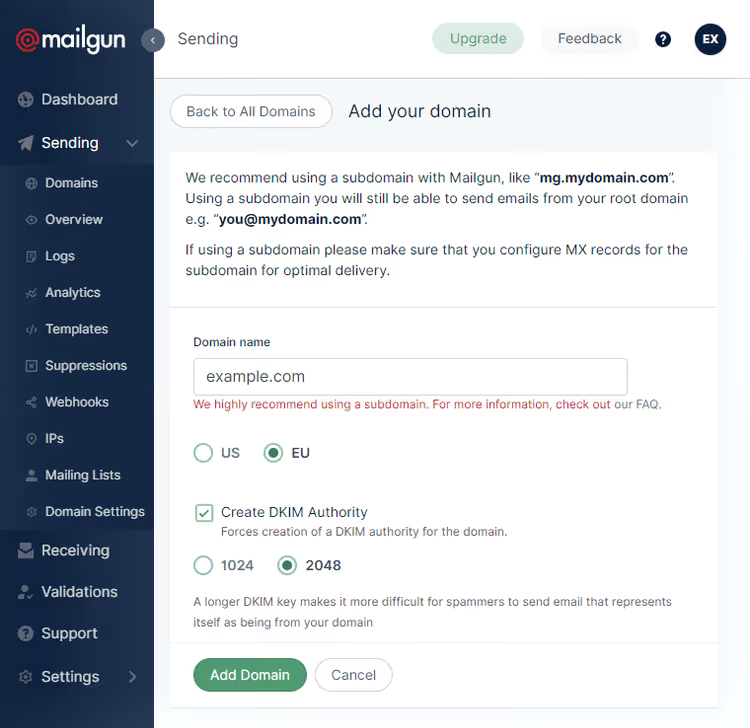
Enter the domain as example.com, without www, without https://, without subdomains. Pay attention to the region choice (US or EU), this is important for GDPR and geolocation, will be useful later when creating Routes.
After adding the domain, Mailgun provides a set of DNS records for verification: CNAME, two MX and two TXT. These need to be configured with your NS provider.
Configuring DNS records (Cloudflare)
The screenshot below shows what it looks like in Cloudflare. Go to domain settings → DNS tab and add records strictly according to the values from Mailgun:
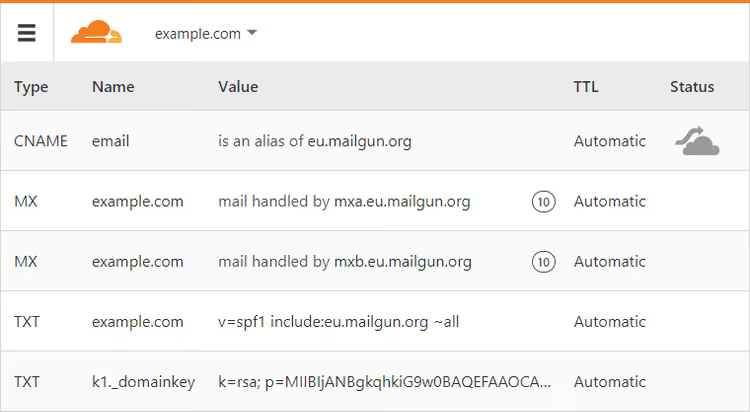
Important: before adding, delete all existing MX and TXT records related to email (for example, from hosting). Conflicting records are the most common reason why forwarding doesn't work on the first try.
After saving the records, Mailgun checks them automatically. Usually this takes from 2 to 48 hours, in practice, with fast NS (Cloudflare), the domain verifies in 5-15 minutes. Click Check DNS Records in the Mailgun panel, but the button doesn't speed up the process, it just triggers verification.
Creating a Route: setting up forwarding
Domain verified? Great. Go to the Receiving section, this is where the main thing is configured: what to do with incoming emails.
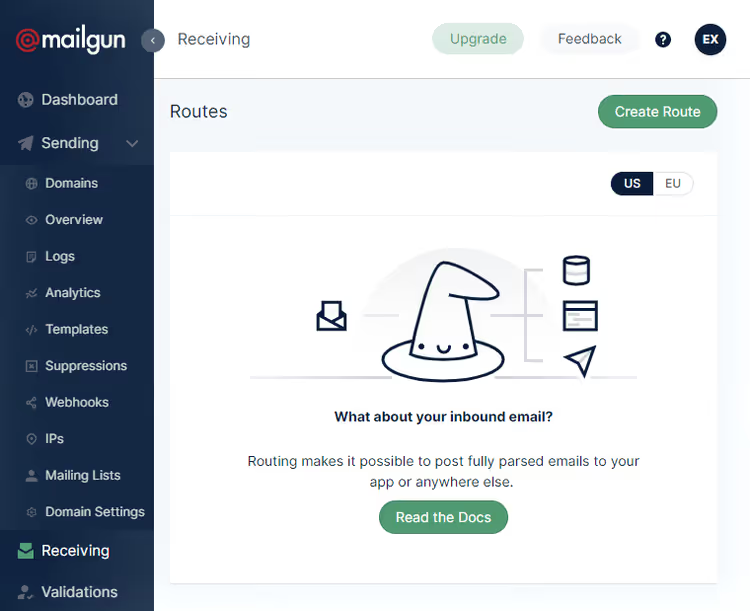
Select the region (US or EU), the same one as when adding the domain. Without selecting a region you won't see previously created rules. Keep in mind: Mailgun doesn't store emails like a mailbox, you won't see "inbox" as a list. Only a log of passed emails.
Click Create Route. Here's the minimally sufficient configuration:
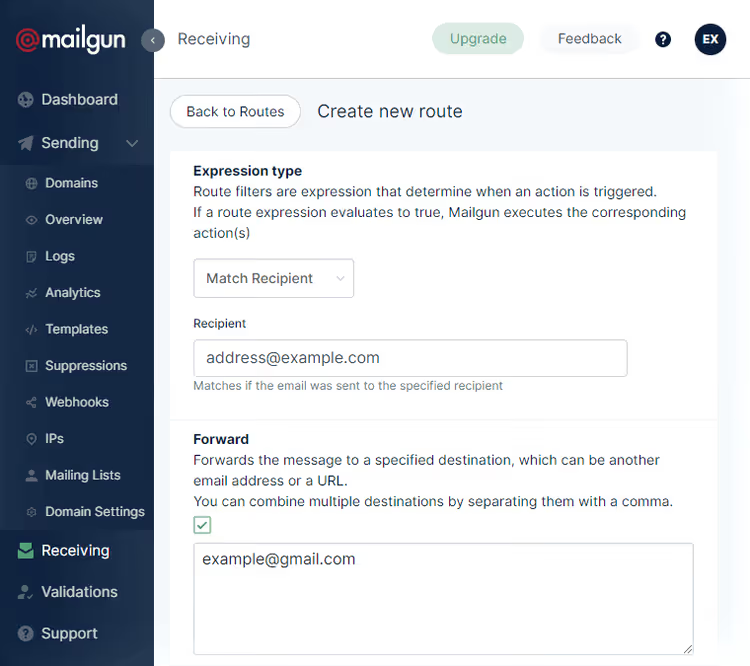
Three types of expressions (Expression Type):
Catch All, everything that comes to any address
@example.comgoes to Gmail. Simple, but attracts spam: bots send toadmin@,webmaster@and other non-existent addresses, and all of this will end up in your inbox.Match Recipient, forwarding only for one specific address (as in the screenshot). Minimum spam, maximum control.
Custom, the best option if there are multiple addresses. Allows you to describe forwarding logic with an expression.
Example code for two addresses:
1 (match_recipient("john@example.com") or match_recipient("jane@example.com"))
For three:
1 (match_recipient("john@example.com") or match_recipient("jane@example.com") or match_recipient("info@example.com"))
The pattern is obvious: wrap each match_recipient(...) in parentheses and connect with or.
All that's left is to verify that forwarding works. Send a test email to the domain address, but not from the Gmail where forwarding is configured (Mailgun silently drops such emails to avoid a loop). Ask a friend or use another one of your addresses.
In Mailgun logs the email should go through the chain: Accepted → Routed → Delivered. After that Gmail will show it in the inbox.
Sending from the domain address through Gmail (SMTP)
Incoming forwarding works. But if you reply to an email, the sender will be your @gmail.com, not the domain address. To reply "properly," you need to teach Gmail to send emails through Mailgun's SMTP servers.
Go to Mailgun → Domain Settings → SMTP credentials tab:
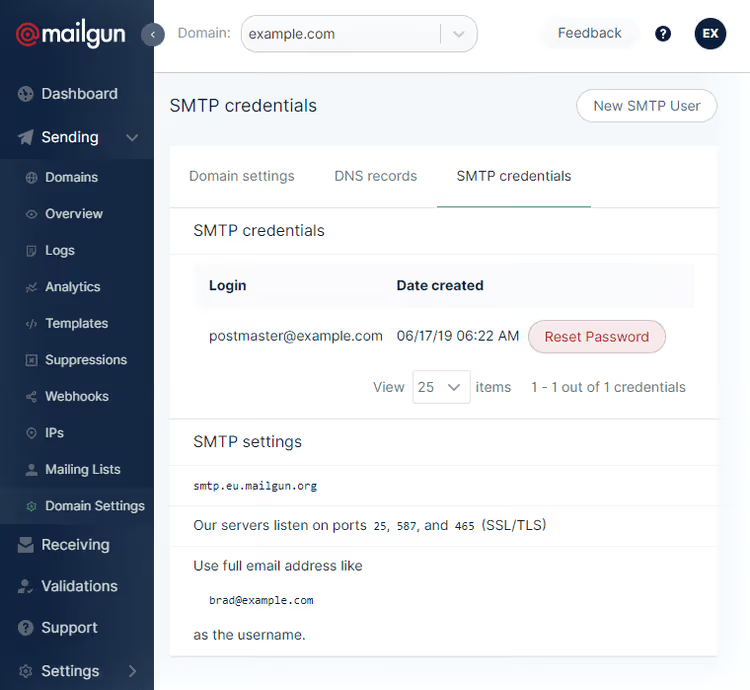
Click the pink Reset Password button, the password will be shown once in a toast notification. Write down three things:
- SMTP server, something like
smtp.eu.mailgun.org(for EU region) - Login, by default
postmaster@example.com - Password, that one-time password
These credentials work for sending from any address on your domain. Don't like postmaster, create new SMTP credentials.
Now Gmail. Go to Settings → Accounts and Import, Send mail as section:
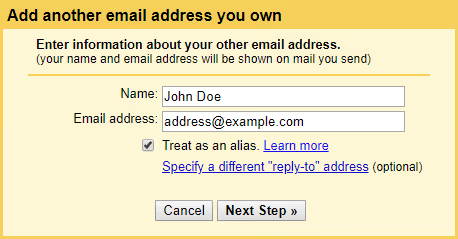
Click Add another email address. Name is what recipients will see in the "From" field. Address is your domain address, for example hello@example.com. The process needs to be repeated for each address.
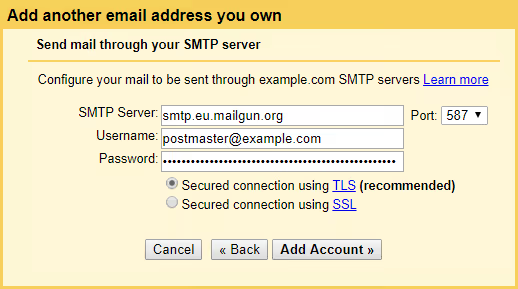
Fill in: SMTP server, login and password from Mailgun. Port, 587, protocol, TLS. Click Add Account.
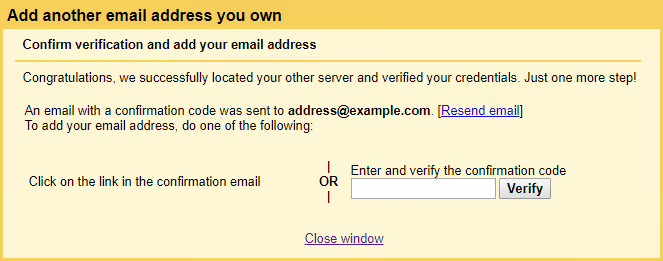
Your domain address (which is already forwarding to Gmail) will receive an email with a confirmation link, click it. Done:
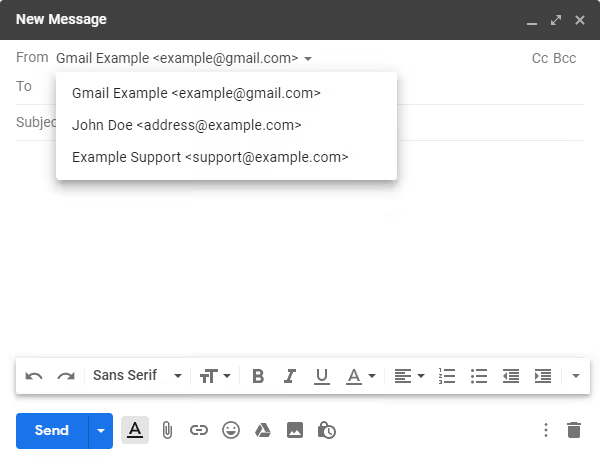
Now when composing an email in Gmail you can select any of the added addresses in the "From" field. And when replying to an email that came to the domain address, Gmail will automatically substitute the correct one.
Mailgun alternatives: what changed in 2026
Mailgun is not the only option, and in the 6 years since the first versions of this guide, new players have emerged. Here's a short overview of three current alternatives for the "forwarding only" task:
ImprovMX, created specifically for email forwarding. Free tier: up to 25 aliases per domain. No card needed. Downside: sending (SMTP) only in paid plans from $9/month. If you only need incoming forwarding, simpler than Mailgun doesn't exist.
Forward Email, open source, privacy focused. Free for personal use. Paid plans from $3/month. Good for those who don't want to show their card and prefer self-hosted solutions.
Cloudflare Email Routing, appeared in 2022 and is now built into the free Cloudflare plan. If your DNS is already on Cloudflare, it turns on in literally two clicks. Downside: only forwarding, sending from the domain address is not provided. For that you'll still need to configure third-party SMTP (for example, the same Mailgun or SendGrid).
If DNS is already in Cloudflare and you don't need sending, Email Routing will close the task without registrations. If you need both forwarding and sending, Mailgun remains the most balanced option in terms of "capabilities/complexity" ratio.
⁉️🤔 Frequently asked questions
Why does Mailgun ask for bank card details?
This is not a charge, the card is used only for identity verification through Stripe. Email infrastructure is a tasty morsel for spammers, so Mailgun protects itself: a real person with a card won't send millions of spam emails. It also filters out mass spammers, and your email delivery doesn't suffer from malicious neighbors on the same IP. If you categorically don't want to enter a card, check out ImprovMX or Cloudflare Email Routing (the "Alternatives" section above). Free alternatives that don't ask for a card exist, but almost always with limitations, either in the number of addresses or without SMTP sending.
Can you use Mailgun only for forwarding, without sending?
Yes, and that's exactly what most people do. On the free Mailgun tier you pay $0/month as long as you don't exceed 100 outgoing emails per day. Incoming forwarding is unlimited, receive and forward as much as you want. SMTP sending is only needed for replies from the domain address. Separate the tasks: Route in Mailgun only for incoming forwarding, and for outgoing replies, separate SMTP credentials in Gmail. This makes it easier to control limits: even with mass replies to clients, 100 emails/day for personal correspondence is more than enough.
What to do if emails don't arrive after configuration?
Three typical reasons: old hosting MX records not deleted (conflicting with Mailgun), region not selected in the Receiving section (rules not visible), or testing from the same Gmail address where forwarding is configured, Mailgun drops such emails. Check Mailgun logs: even if the email didn't reach Gmail, in the Logs section you'll see the status.
Acceptedmeans Mailgun received the email.Routed, the rule worked.RejectedorFailed, look for the problem in the spam filter or DNS record conflict. Absence ofAcceptedmeans the email didn't reach Mailgun at all, check MX records throughdig MX example.comor online tools.
Do you need to renew the domain in Mailgun?
No. Domain verification is a one-time procedure. As long as DNS records (MX, TXT, CNAME) are configured on your NS server, Mailgun receives mail. The domain doesn't "expire" and doesn't require renewal. The only thing worth doing once every six months is logging into the panel and checking domain status. If you accidentally deleted a TXT record when changing hosting, Mailgun will warn in the interface. Fixing is a minute's work: add the record back and click "Check DNS".
Is there any point in paying for Mailgun if the Flex tier is enough?
For personal forwarding with a couple of addresses, the Flex tier is more than sufficient. Paid tiers (from $15/month) make sense when: you send transactional emails from the site (registrations, password reset), you need dedicated IP reputation for high deliverability, or you send marketing campaigns through the API. A useful "feature" even on the free tier is logging: every incoming email is written to the log with body and headers. For debugging or finding a registration email that "got lost somewhere," priceless.
Is it worth bothering with Mailgun in 2026?
If you have one domain, DNS on Cloudflare and don't need sending, turn on Cloudflare Email Routing. Two clicks, free, without a card.
If there are multiple domains, you need both forwarding and sending from domain addresses, Mailgun on the Flex tier closes the task completely. Yes, they'll ask for a card, but this is a one-time verification, not a subscription. Set it up once, and email from hello@your-domain.com arrives in the same place as everything else. Without separate tabs, without hosting web interfaces, without monthly bills for Google Workspace.
Try it: Mailgun registration takes 5 minutes, the first forward will work within an hour.

A professional team of writers and editors specializing in creating quality content.