














🚀 How to convert WordPress to a static site: a step by step guide
You publish a post, and WordPress assembles the page on the fly. PHP queries the database, loads plugins, pulls in the theme. Hundreds of operations per request. For a blog with a hundred visitors, that's fine. For a site with tens of thousands in traffic, it's already a problem. And the database plus plugins also expand the attack surface.
There's a workaround: a static copy of the site. No database, no PHP in production, no plugin vulnerabilities. Just HTML, CSS, and a bit of JavaScript. It loads 3-5 times faster and handles any traffic. Below is how to build such a copy using two plugins and a cloud service.
💡 Quick overview:
- Determine whether static suits your site: blogs, portfolios, landing pages, and corporate sites benefit most; WooCommerce stores do not (yet).
- Install Simply Static from the WordPress repository (Plugins → Add New) and configure the destination URL. Choose a delivery method: ZIP archive, FTP, or deploy to Cloudflare Pages.
- Click "Generate" and wait for completion; the plugin crawls every page on the site and saves them as HTML files. For a small blog the process takes 1-2 minutes.
- Upload the static files to your hosting or CDN (Netlify, Cloudflare Pages) and verify: are all pages present, do links work, is the layout intact?

What a static site is and how it differs from dynamic WordPress
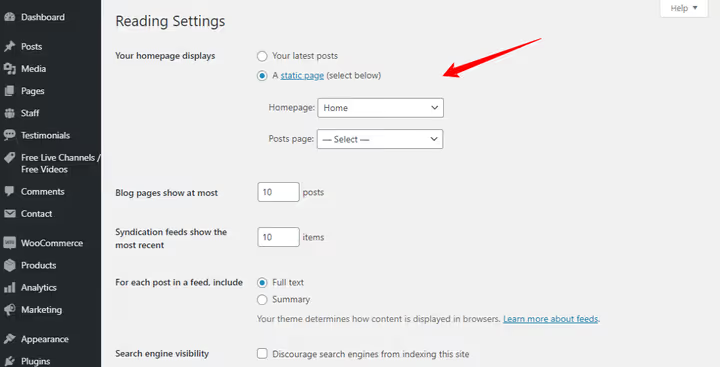
A regular WordPress site is dynamic. When a visitor opens a page, the server runs PHP, which retrieves content from the MySQL database, applies theme and plugin logic, builds the HTML, and sends it to the browser. Dozens or even hundreds of operations per request.
A static site works differently. It's simply a set of ready-made HTML files, CSS stylesheets, and JavaScript files. No database. No PHP runtime. The server just serves a file as if you had opened a saved web page from your hard drive.
The difference is fundamental. A dynamic site generates a page on every request. A static site serves a ready-made one. Hence all the advantages: speed, security, simplicity.
But you don't lose WordPress. You continue writing posts, changing the design, installing plugins; you just do it in a closed (local or staging) version. And what goes out to the public is a static copy. This is called headless architecture: WordPress works as a backend for content, while the frontend lives separately.
Why turn WordPress into static: four reasons
Turning a dynamic site into a static one delivers not abstract "improvements" but concrete, measurable gains. Here are the four main ones.
Loading speed

PHP processing + database queries + plugin execution = time. On shared hosting, those milliseconds add up to seconds. And every extra second of load time increases the bounce rate; visitors simply won't wait.
A static HTML file is served by the server instantly. No server-side processing. No database calls. The result: page load accelerates 3-5 times, and Time to First Byte (TTFB) drops to 50-100 milliseconds. For Google, this is a direct signal to rank the site higher; for the user, no frustration.
You can speed up dynamic WordPress too: caching via WP Rocket, CDN, image optimization. But static solves the problem architecturally by simply removing the source of latency.
Security
 AIIllustrative image: AI-generated
WordPress is the most popular CMS in the world. And the most attacked. SQL injections, XSS attacks, vulnerabilities in plugins and themes: every day dozens of new entries are added to WPScan. According to SolidWP, more than 11,000 vulnerabilities were discovered in the WordPress ecosystem in 2025.
A static site has no attack surface for these threats. No database means nothing to inject. No executable PHP means nothing to exploit. No plugins in production means nothing to have vulnerabilities. You still update WordPress in a closed environment, but hackers can't reach it.
A radical solution: hide the WordPress admin behind a password via .htaccess and serve only the static version to the public. Content gets updated, static gets regenerated.
Less maintenance
 AIIllustrative image: AI-generated
Dynamic WordPress requires constant attention. Core updates, theme updates, plugin updates. Compatibility checks. Security monitoring. Backups. Database optimization. And if you skip an update, the site becomes vulnerable; outdated plugins with known bugs open access to attackers.
With a static version, this burden almost disappears. You update WordPress in the background, while the production server simply serves HTML. No database to optimize. No executable code to break due to PHP version incompatibilities.
But your local WordPress installation still requires updates. This is insurance: if something goes wrong, the problem stays in an isolated environment.
Scalability
 AIIllustrative image: AI-generated
A $5/month shared hosting plan handles dynamic WordPress while traffic is modest. But once a post hits the top of Google or goes viral on social media, the server crashes. Each visitor creates load on PHP and the database, and the hosting provider simply shuts down the site for exceeding limits.
A static site on the same hosting can handle tens of times more visitors. Serving an HTML file consumes negligible resources. And if you add a CDN, static files spread across dozens of data centers worldwide and are delivered from the one closest to the user. You can handle a million visitors a day.
Free services like Cloudflare Pages or Netlify host static sites with no charge for traffic. Meanwhile, your WordPress lives in a closed environment and consumes no production hosting resources.
Simply Static: turning WordPress into static in three steps
Simply Static is the flagship plugin for generating static sites from WordPress. As of early 2026, it has 30,000+ active installations and a 4.5-star rating on WordPress.org. The plugin does exactly what's needed: it scans the site, pulls all pages, and saves them as static HTML files.
Step 1: installation and basic setup
Install Simply Static from the WordPress repository: Plugins → Add New → "Simply Static" → Install → Activate. After activation, a Simply Static → Settings item appears in the menu.
On the settings page, specify:
- Destination URLs: what URL the static version will have. You can specify a domain (example.com) or subdomain (static.example.com).
- Delivery Method: where to upload files. Options: local directory (ZIP archive), FTP/SFTP, GitHub Pages, Cloudflare Pages, BunnyCDN, S3-compatible storage.
For an initial test, choose Local Directory; the plugin will create a ZIP archive with a complete static copy of the site. Extract it to the root of the desired domain or a local folder and open index.html in a browser.
Step 2: generating the static site
Go to Simply Static → Generate. Click the Generate Static Files button. The plugin will start crawling the site: home page, posts, pages, media files, CSS, JavaScript. Everything needed to display the site will be downloaded and saved.
Generation time depends on site size. A small blog (50-100 pages) processes in 1-2 minutes. A large portal (thousands of pages) may take 15-30 minutes. Progress is displayed in real time.
Step 3: deploy and testing
When generation is complete, download the ZIP archive. Upload it to hosting or a deployment service (Netlify, Cloudflare Pages, GitHub Pages). Open the site at the new URL and check:
- Are all pages present?
- Do internal links work?
- Do images display?
- Is the layout intact?
The first rule after deploying static: test on a real domain, not localhost. Some paths and resources behave differently.
The plugin also supports incremental generation: when content is updated in WordPress, you can rebuild only the changed pages rather than the entire site. This saves time on large projects.
StaticPress2019: a free alternative with full control
StaticPress2019 is a fork of the original StaticPress maintained by volunteers. The plugin is minimalist but fully functional. It's suited for those who don't want to depend on a commercial product and are ready for a bit more manual work.
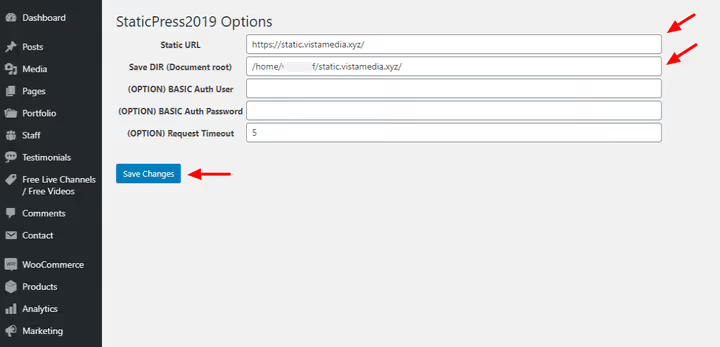
After installation and activation, go to StaticPress2019 → Settings. Specify the static site URL and root directory on the server. For example, static.yoursite.com as the URL and /home/user/static.yoursite.com as the path.

Then open the StaticPress2019 section in the left menu. You'll see the generation management page.

Click the Rebuild button. The plugin will start crawling all site pages and saving them as static HTML files.
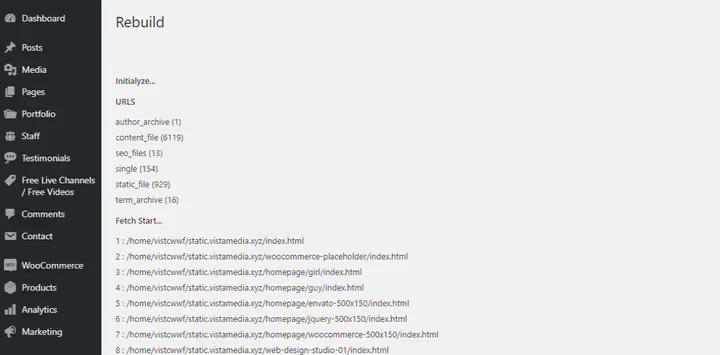
Wait for the process to complete. Processing time depends on the number of pages. For a site with 50-100 pages, about 2-5 minutes.

The original site looks normal. And here's the result after conversion:
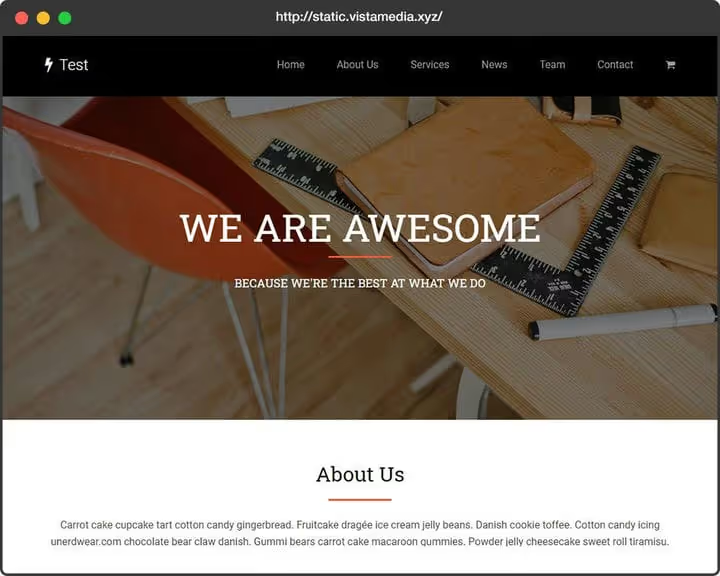
You won't notice a difference. But measure the speed in PageSpeed Insights; it will be noticeably higher. All images, styles, scripts, and blog posts are in place. Responsive layout is preserved.
An important note: after each content update in WordPress, you need to return to StaticPress2019 and click Rebuild. New pages and edits are not picked up automatically.
Paid alternatives: HardyPress and Shifter
If you don't want to deal with generation and deployment manually, there are cloud services that handle everything for you.
HardyPress is hosting tailored for static WordPress. You simply connect your site, and HardyPress automatically generates the static version and hosts it on their servers. When content is updated, static is rebuilt. Plans start at €15/month (current pricing on the site). Advantage: built-in support for search and comments through third-party services (features typically lost when switching to static).
Shifter is specialized serverless hosting for WordPress. Unlike HardyPress, Shifter uses containerization: WordPress, the database, and PHP are packaged into an isolated container from which the static version is generated. This provides additional protection against attacks during the build phase. Prices start at $25/month (pricing on the Shifter site). Suitable for sites that need enterprise-grade stability.
Both services solve the "loss of dynamic features" problem. Comments can be connected via Disqus, search via Algolia, forms via third-party services like JotForm.
The video above shows the process of turning a WordPress site into static via Simply Static. 12 minutes covering all steps from installation to deployment.
⁉️🤔 Frequently asked questions
What is lost when switching to static WordPress?
Static sites lose server-side features: contact forms, WooCommerce cart, built-in search, comment system, dynamic widgets. Most of these can be restored via JavaScript services: forms through JotForm, search through Algolia or Fuse.js, comments through Disqus. But if the site consists almost entirely of a WooCommerce store, static doesn't fit; keep dynamic WordPress with good caching.
Does static WordPress pass Core Web Vitals?
Yes, with plenty of margin. Largest Contentful Paint (LCP) on a static site is significantly lower than on a dynamic site on the same hosting; according to Simply Static, the difference reaches 3-5x faster loading. First Input Delay (FID) is essentially zero since JavaScript runs on the client without server-side processing delays. Cumulative Layout Shift (CLS) is also minimal because the browser loads ready-made markup without "jumps" during dynamic block loading.
Static WordPress passes Core Web Vitals significantly better than dynamic. LCP drops by 60-80%, FID is close to zero, CLS is minimal. Google directly factors these metrics into ranking; switching to static delivers measurable SEO gains.
Can content be updated after switching to static?
Yes, this is the core workflow. You continue using WordPress for writing posts, editing pages, and uploading media files, but in a closed environment (local server, staging domain, or password-protected subdomain). With each change, you trigger static regeneration; the plugin rebuilds the changed pages and uploads them to production. The process can be automated via webhooks: post updated → plugin receives signal → rebuilds page → uploads to hosting.
Content updating is a standard process. You edit WordPress in a closed environment, trigger static regeneration (manually or via webhooks), and changes appear in production. Update frequency is unlimited.
What to do if the static site doesn't display some content?
Check resource paths. The most common issue is absolute URLs pointing to the original dynamic domain instead of the static version's domain. Simply Static automatically replaces URLs during generation, but some themes and plugins may use hardcoded paths. Solution: search through the generated HTML files for links to the old domain. If the problem persists, add the old domain to the URL replacement list in Simply Static settings.
The problem usually lies in absolute URLs that weren't replaced during static generation. Find links to the old domain in HTML files using grep, add replacement rules in the plugin settings, and regenerate the site. This takes about 5 minutes to fix.
Why create a static site from WordPress if you can just build a site with a static generator like Hugo or Astro?
Static generators are excellent tools for developers. But they require writing content in Markdown, setting up templates through code, and deploying via Git. WordPress provides a visual editor, media library, thousands of plugins for extending functionality, and an admin panel understandable to non-technical users. A static WordPress version is a compromise: you get the convenience of content management in WordPress and the performance of a static site as output.
WordPress as a CMS for editors plus static HTML as a delivery method is the best of both worlds. Editors work in a familiar interface while users get instant loading. Hugo, Astro, Eleventy are for teams where developers write the content.
Static WordPress in 2026: worth it or not
Static WordPress has solved the platform's main problem: speed and security are no longer a trade-off. You don't give up the familiar editor, media library, and plugin ecosystem. You simply change the content delivery method from dynamic generation to ready-made HTML files.
For blogs, portfolios, corporate sites, and landing pages, this is the architecturally correct solution. For WooCommerce stores, not yet: cart and payment gateways require a live server. But for the vast majority of WordPress projects, static is not just possible but desirable.
Start with Simply Static. It's free, it has 30,000 installations, it takes three steps from installation to the first static copy. Try it on a test subdomain. Measure speed before and after. Most likely, the results will convince you to convert your main site to static as well.

A professional team of writers and editors specializing in creating quality content.