













 AIIllustrative image: AI-generated
🖼 36 best free image compressors for Windows in 2026
A RAW file from a DSLR weighs 25 MB. Three days of shooting eat up half a disk. Email cuts attachments at 10 MB, and the site editor complains that PNG loads in three seconds.
A desktop compressor solves this without compromise: files stay with you, no limits, no internet needed. We've gathered 36 free utilities for Windows, from a portable 200 KB EXE to viewers with batch optimization.
💡 Quick overview:
- Portable utility on a flash drive without installation: Compressed (205 KB) or VJC (221 KB)
- Batch processing hundreds of files in one pass: FastStone Photo Resizer, ImBatch, Light Image Resizer
- Live "before and after" preview in real time: RIOT, Caesium
- Compression directly from Windows Explorer: SendTo-Convert, JPEG Compressor (SourceForge)
- Open and compress without parsing settings: FILEminimizer Pictures, Mass Image Compressor
Comparison table: top 12 by key parameters
Program | Batch mode | Input formats | Portable version | Size | Explorer integration |
|---|---|---|---|---|---|
Caesium | ✅ | JPG, PNG, BMP, TIFF, WebP | ✅ | ~8 MB | ❌ |
IrfanView | ✅ | 50+ formats | ✅ | ~3 MB | ❌ |
FastStone Image Viewer | ✅ | 30+ formats | ✅ | ~7 MB | ❌ |
RIOT | ✅ | JPG, PNG, GIF, BMP, TIFF | ✅ | ~3 MB | Plugin for IrfanView/GIMP |
FILEminimizer Pictures | ✅ | JPG, PNG, GIF, BMP, TIFF | ❌ | ~5 MB | ❌ |
PhotoScape | ✅ | JPG, PNG, GIF, BMP, TIFF | ❌ | ~20 MB | ❌ |
Light Image Resizer | ✅ | 15+ formats | ❌ | ~5 MB | ✅ |
ImBatch | ✅ | 30+ formats | ✅ | ~16 MB | ❌ |
FastStone Photo Resizer | ✅ | 20+ formats | ✅ | ~5 MB | ❌ |
Pixillion Image Converter | ✅ | 20+ formats | ❌ | ~3 MB | ❌ |
SendTo-Convert | ❌ | JPG, GIF, BMP, PNG, TIFF | ❌ | ~1 MB | ✅ |
Compressed | ❌ | JPG, BMP, PNG | ✅ | ~205 KB | ❌ |
1. FILEminimizer Pictures

A utility from Balesio with extremely simple mechanics: add files, hit "Optimize Files", get compressed copies. Supports JPG, PNG, GIF, BMP, TIFF and EMF. You can choose standard or custom compression, set renaming rules. Balesio released version 3.0, the official site is working.
Pros:
- Minimal settings, even a beginner can handle it
- Batch mode without limitations
Cons:
- No support for WebP and AVIF
- Only standard formats
Price: Free
2. File Sizer

A universal compressor from NCH Software for images, audio and video at once. It compresses pictures via drag-and-drop: drag a file and get the result. Image compression here is a supporting, not a core function.
Pros:
- Multiformat: photo, audio and video in one window
- Drag-and-drop without extra clicks
Cons:
- The interface is visually outdated
- Image compression is not the main specialization
Price: Free
🔗 Download from NCH Software site
3. Pixillion Image Converter
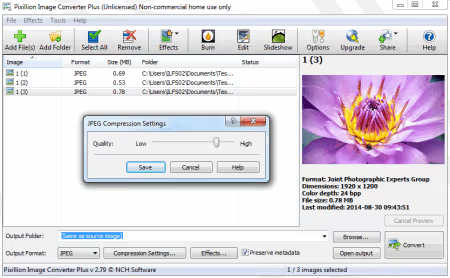
A tool from NCH Software for converting and compressing photos. Pass camera shots through Pixillion, get optimized JPEG without noticeable loss. Free for non-commercial use.
Pros:
- Good JPEG quality without noticeable artifacts
- Batch conversion between formats
Cons:
- Only for personal use in the free version
- The interface hasn't been updated in years
Price: Free (for personal purposes)
4. eezPix
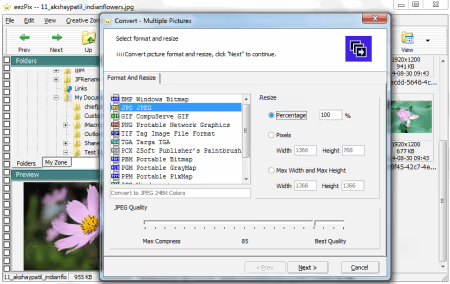
A multifunctional viewer with a step-by-step wizard: besides compression it can crop, rotate and change resolution. The free version is limited to 10 images per pass. The project is abandoned, the developer's site is unavailable, but the utility runs on modern Windows.
Pros:
- Step-by-step wizard, no instructions needed
- Cropping and rotation in one window
Cons:
- Limit of 10 files per pass in the free version
- Project abandoned, official site unavailable
Price: Free (with limitation)
5. RIOT (Radical Image Optimization Tool)
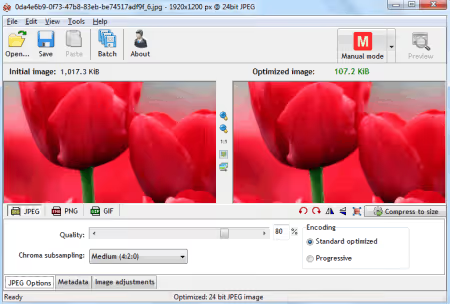
One of the best free optimizers with dual real-time preview: original on the left, compressed version on the right. Move the quality slider and immediately see the difference. Integrates as a plugin into IrfanView, XnView and GIMP.
Pros:
- Live "before and after" preview in real time
- Plugin integration with IrfanView, XnView, GIMP
Cons:
- Interface from the Windows XP era
- Export only to JPG, PNG and GIF
Price: Free
6. JPEG 2000 Compressor
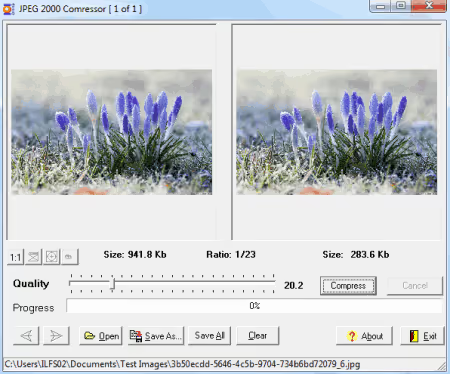
A niche utility for converting to JPEG 2000 format (.jp2). Compression is adjusted with a slider, there's batch mode via "Save All". The JP2 algorithm is more efficient than classic JPEG, but the format is not supported by all viewers. Take it only if JP2 is explicitly needed: medical imaging, prepress, archives.
Pros:
- Batch mode via "Save All"
- JP2 compresses more efficiently than regular JPEG
Cons:
- Only JP2 output, limited compatibility
- JPEG 2000 never became a mass web standard
Price: Free
7. Voralent Antelope
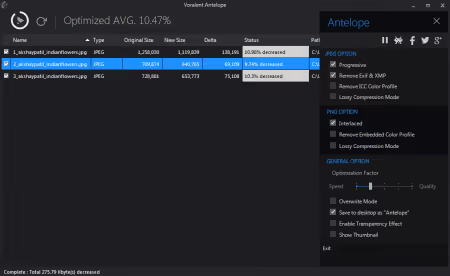
A lightweight optimizer: drag files, set settings, press Optimize. You can save to a separate folder or overwrite originals. Available in a portable version, works without installation. The developer's site is unavailable, the project is abandoned, but the build runs on Windows 10 and 11.
Pros:
- Portable version without traces in the system
- Simple work mechanics
Cons:
- Project abandoned, no support
- Minimal compression settings
Price: Free
8. Caesium
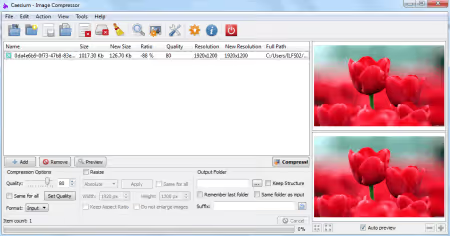
A modern compressor with open source code. Version 2.8.5 was released in September 2025, the project is actively developing. Works with JPG, BMP, TIFF, PNG and WebP, has preview and batch processing.
Pros:
- Open source code, active development
- Modern interface with WebP support
Cons:
- No AVIF output
- Export limited to basic format set
Price: Free (Open Source)
🔗 Official Caesium site | 🔗 Caesium on GitHub
9. Mass Image Compressor
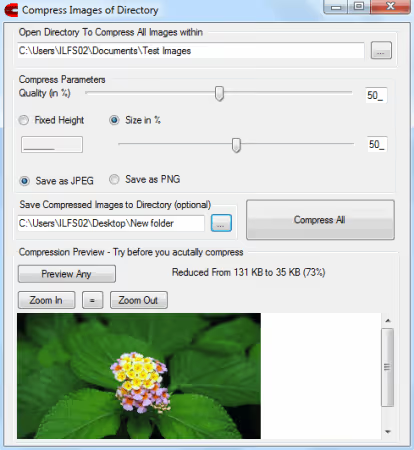
A minimalist batch utility: set the quality percentage and maximum size by side, choose JPG or PNG, run. Compressed files are saved to a separate folder, originals are not touched. The project is not updated, but it works.
Pros:
- Saves copies, originals are safe
- Takes up practically no disk space
Cons:
- Only JPG and PNG output
- Project is not updated
Price: Free
10. One Simple Image Compressor
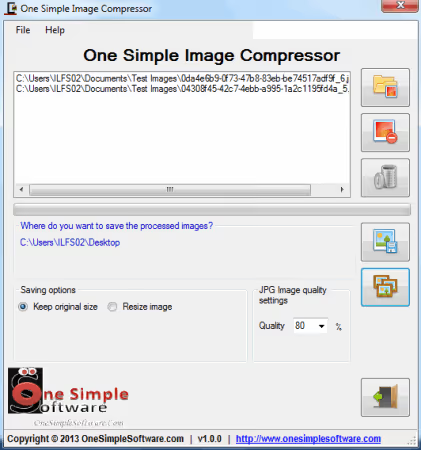
A maximally simple compressor: load JPG, GIF, BMP or PNG, choose quality via slider, specify output folder and press "Process Batch". The interface has four elements: impossible to get confused.
Pros:
- Minimal interface elements
- Clear quality slider with numbers
Cons:
- Settings coarser than competitors
- Only basic formats
Price: Free
🔗 Download One Simple Image Compressor
11. Compressed
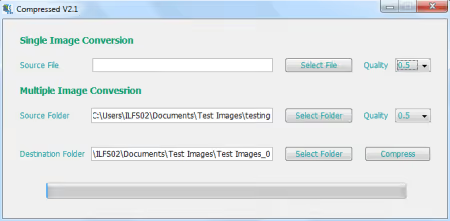
A tiny utility, 205 KB in a single EXE file. Doesn't require installation. Accepts JPG, BMP and PNG, compresses with adjustable quality. Ideal for an emergency admin flash drive: takes up less space than the photo being compressed itself.
Pros:
- 205 KB, smaller than the processed photo
- Portable, without installation and traces in the registry
Cons:
- Only three input formats
- No batch mode
Price: Free
12. PhotoRazor
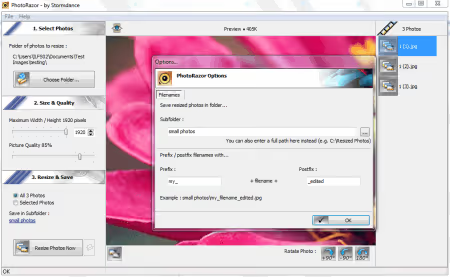
A program from Stormdance with a simple three-step process: choose photo, set size and quality, press "Resize Photos Now". Can also rotate images. Designed for a household scenario: reduce photo before sending by email. The developer's site is periodically unavailable.
Pros:
- Three steps from launch to finished file
- Built-in rotation function
Cons:
- Not for professional processing
- Developer's site is hard to access
Price: Free
13. JPEG Compressor (SourceForge)
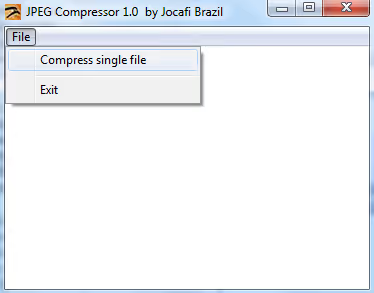
Embeds in the Windows context menu: select images in Explorer, right-click, choose "Compress", files are compressed. Works without a separate window. Forcibly reduces files larger than a given resolution.
Pros:
- Full integration into Explorer context menu
- Instant compression without launching a program
Cons:
- Forced reduction of large images, cannot be disabled
- Zero quality settings
Price: Free
🔗 JPEG Compressor on SourceForge
14. PngOptimizer
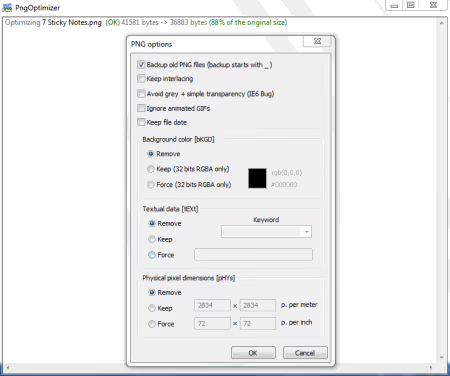
A specialized utility for cleaning PNG: removes metadata, hidden layers, unused palettes and other things bloating the file. Input PNG, BMP, TGA and GIF, output clean PNG. Creates backup copies of originals, converts images from clipboard.
Pros:
- Cleans PNG from hidden junk, radically reduces size
- Automatic backup of originals
Cons:
- Only PNG output
- Specialized tool, not for everyday JPEG
Price: Free
15. Jpeg Compressor (Farhad Kargaran)
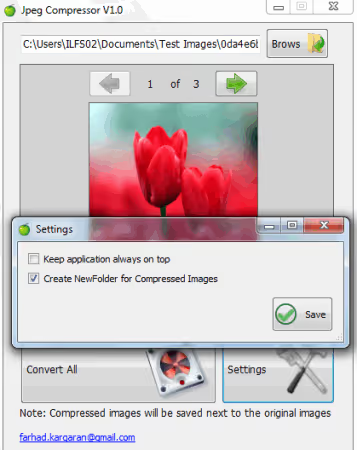
173 KB in one EXE. Accepts JPG, JPEG, BMP, PNG, ICO and TIFF: drag files into the window and get compressed JPEG. Portable, works from a flash drive without administrator rights. Reads even ICO files, which is rare for micro-utilities. Project abandoned.
Pros:
- Microscopic size, 173 KB
- Reads ICO files
Cons:
- Only JPEG output
- Project abandoned
Price: Free
16. JPEG Resampler
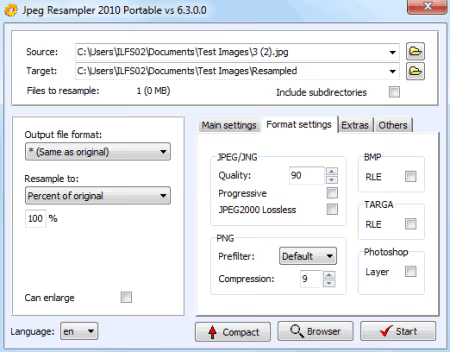
A utility for recompressing digital photographs with quality and format adjustment. Supports main graphic formats. Switches interface language on the fly. A simple slider determines the balance between size and quality. The developer's site is periodically unavailable, but the program works on modern Windows.
Pros:
- Interface language switching without restart
- Conversion between formats together with compression
Cons:
- Minimalist interface, without preview
- Developer's site periodically unavailable
Price: Free
🔗 Official JPEG Resampler site
17. ImageSizer
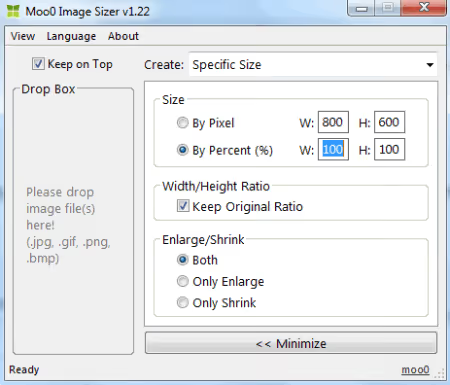
A program from Moo0 with signature clean design. Change size via width, height or percentage, the image is compressed without visible quality loss. Supports JPG, GIF, PNG and BMP, works for reduction and enlargement. A rare pleasant interface among free compressors.
Pros:
- Clean, uncluttered design from Moo0
- Compression and enlargement in one tool
Cons:
- Only four formats
- Updates come out rarely
Price: Free
🔗 Official Moo0 ImageSizer site
18. JPEG Reducer
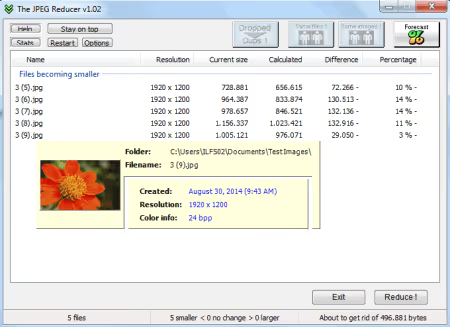
A utility for reducing JPEG: drag images into the window, size is reduced. Built-in duplicate search. The developer's site is unavailable, project abandoned. Important: JPEG Reducer overwrites originals without warning. Before launching, be sure to copy files to a separate folder.
Pros:
- Image duplicate search
- Minimal interface
Cons:
- Overwrites source files without backup and without warning
- Project abandoned
Price: Free
19. IrfanView
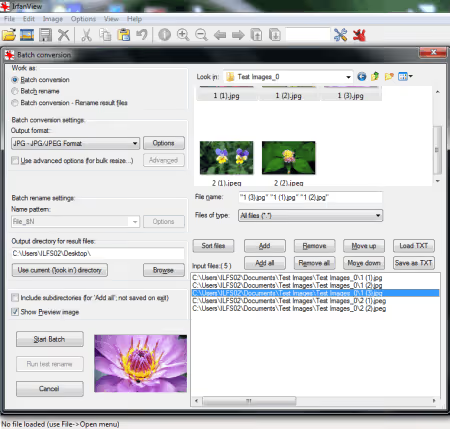
A legendary viewer opening 50+ graphic formats. Via File → Batch Conversion/Rename it compresses hundreds of files per pass. Color depth, JPEG quality, resolution and output format are configurable.
Pros:
- 50+ formats, dozens of optimization settings
- Portable version, plugins, integration with RIOT
Cons:
- Interface from the 2000s, visually outdated
- A beginner needs an hour to master batch settings
Price: Free (for non-commercial use)
20. Image Tools
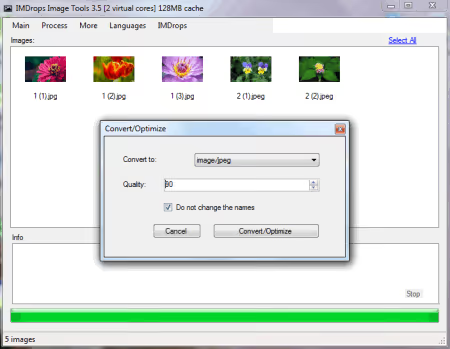
A batch converter with optimization: add files via Ctrl+E, choose Process → Convert/Optimize, set folder, quality and format. Input and output: BMP, JPEG, TIFF, GIF, PNG and EMF. Works noticeably faster due to a simple engine.
Pros:
- High processing speed
- Keyboard shortcuts for fast work
Cons:
- Distribution only through CNET
- Project is not updated
Price: Free
21. Image Optimizer ImOp
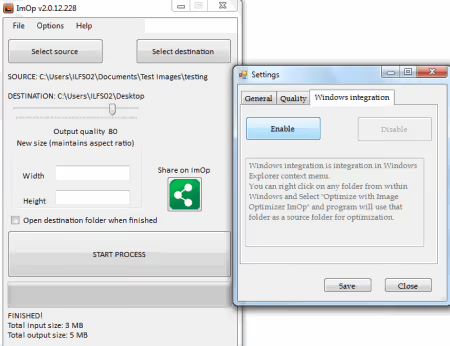
A simple optimizer with two-panel logic: choose source and destination folder, quality, press "Start Process". Can be embedded in the Explorer context menu for repetitive tasks.
Pros:
- Integration with Windows context menu
- Clear two-panel interface
Cons:
- Distributed only through CNET
- Project looks abandoned
Price: Free
22. Imagine
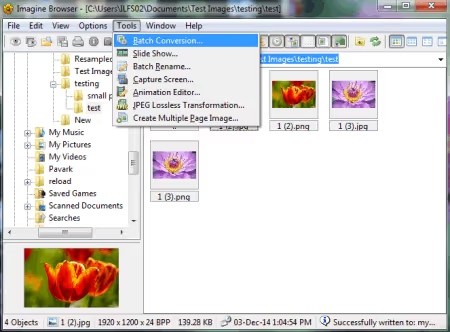
A viewer and converter with batch optimization function. Preserves proportions during lossless compression. Supports animation and rare formats. The main function is viewing, compression is secondary.
Pros:
- Animation and rare formats
- Preserves proportions by default
Cons:
- Compression is a supporting function, not the main one
- The interface is not localized to Russian
Price: Free
23. Photo Resizer
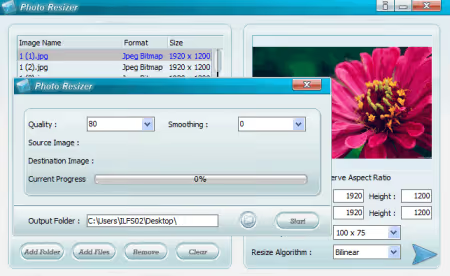
A batch resizer with compression: add files or entire folders, choose size from the list or set manually, choose interpolation algorithm (Bilinear, Bicubic, Nearest Neighbor), set quality and run.
Pros:
- Adding entire folders with images
- Interpolation algorithm selection
Cons:
- Two separate windows for settings
- Distributed only through CNET
Price: Free
24. FastStone Image Viewer
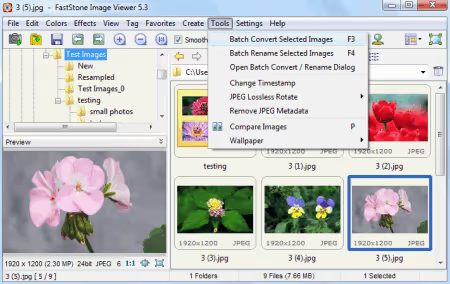
One of the best viewers for Windows with a built-in batch converter. Explorer-style interface: folder tree on the left, preview on the right. Select images, press F3 or Tools → Batch Convert, get fine compression tuning with preview.
Pros:
- Explorer-like interface, instant orientation
- Batch conversion in two clicks right while viewing
Cons:
- Closed source code
- Only for personal and educational use
Price: Free (for personal use)
🔗 Official FastStone Image Viewer site
25. FastStone Photo Resizer
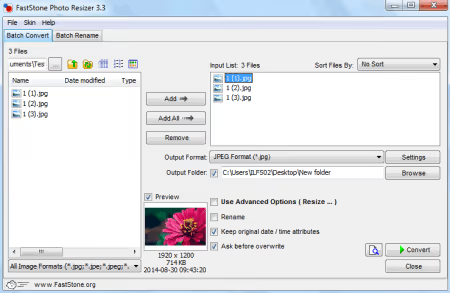
A lightweight version from FastStone, designed for batch processing. Choose folder, mark files, press Convert. Besides compression it can batch rename. Available in portable version from the official site.
Pros:
- Portable version from official site
- Batch renaming as a bonus
Cons:
- Fewer formats than the senior Image Viewer
- Windows only
Price: Free (for personal use)
🔗 Official FastStone Photo Resizer site
26. DS Picture Optimizer
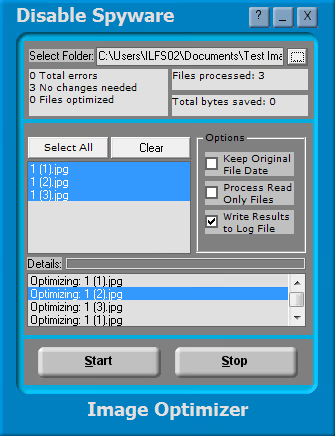
A simple JPG optimizer: choose folder, mark files, press Start. After completion shows how many megabytes were saved. Processes files with "read-only" attribute without needing to manually remove attributes. Visible result statistics, not just "done".
Pros:
- Visible saved space statistics
- Processing read-only files without additional actions
Cons:
- JPEG only
- Distributed through CNET
Price: Free
27. PhotoScape
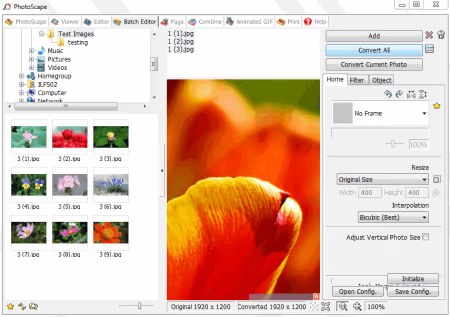
A popular "all-in-one" photo editor. For compression there are two paths: Editor for single photos and Batch Editor for batches. In Batch Editor choose files, press "Convert All", set quality. As a bonus: frames, filters, collages, GIF animation. Developers released a modern version PhotoScape X (v4.3, June 2026), which is actively updated.
Pros:
- Full-featured editor with compression included
- Modern version PhotoScape X for Windows 10/11
Cons:
- ~20 MB, heavier than most pure compressors
- The interface is overloaded for the task "just compress"
Price: Free
28. Light Image Resizer
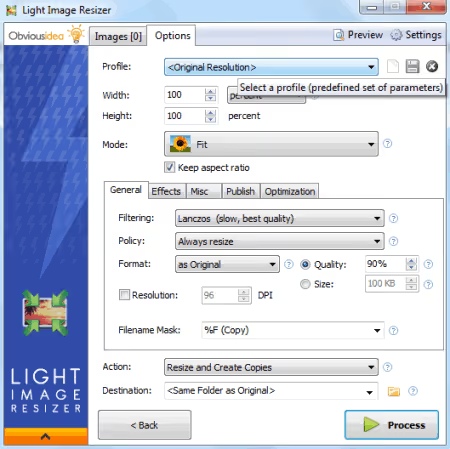
A powerful batch tool from ObviousIdea with support for 15+ formats, including rare JP2, PPM, EMF and WMF. Step-by-step wizard: add files or folder, configure, press Process. Preview before processing. Version 7.6.3, updated in 2026.
Pros:
- Support for exotic formats (JP2, EMF, WMF)
- Preview before actual compression
- Actively updated in 2026
Cons:
- Free only for personal use
- Step-by-step wizard slows down experienced users
Price: Free (for personal purposes)
🔗 Official Light Image Resizer site
29. Bulk Image Resize Manager
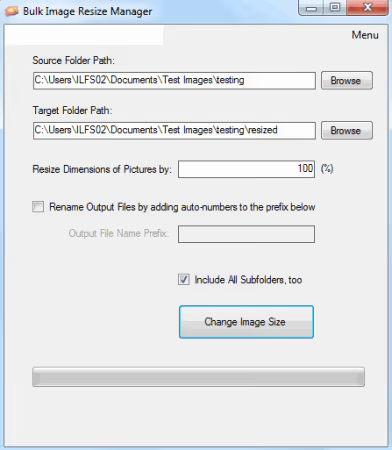
Saves compressed copies to a "resized" subfolder, originals are not touched. There's an option to compress without resizing: reduces file weight while keeping original pixel dimensions.
Pros:
- Originals intact, copies in a separate subfolder
- Compression without changing resolution if desired
Cons:
- Minimal set of settings
- Distributed only through CNET
Price: Free
30. Free Image Resizer
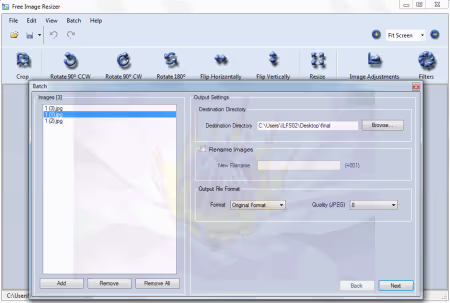
A lightweight batch resizer with compression. Via the Batch menu add files, choose folder and quality. Additionally: rotation, flipping and renaming output files.
Pros:
- Rotation and renaming in one batch pass
- Small distribution
Cons:
- Only basic formats
- Quality settings without numerical values
Price: Free
31. ImBatch
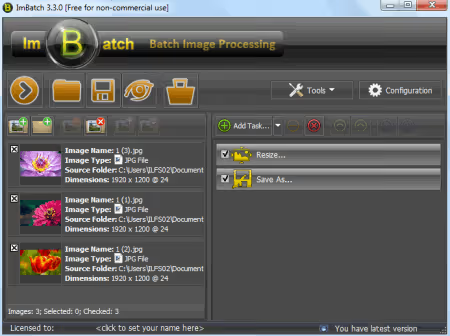
The most flexible batch processor in the collection. Task system: add files, build an operation chain (resize, compression, renaming, watermark) and launch with one click. Version 7.6.4 was released in March 2026.
Pros:
- Task pipeline with customizable sequence
- 30+ formats, actively updated
Cons:
- ~16 MB, heavier than most analogs
- Learning curve for the task pipeline
Price: Free
32. VJC (Visual JPEG Compression)
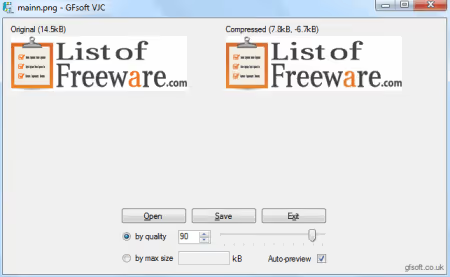
A tiny program, 221 KB. Opens BMP, GIF, PNG and TIFF, converts to compressed JPEG. Quality slider and live preview with final size display right under the window. You see size in kilobytes before saving: convenient when you need to hit a specific limit.
Pros:
- Live preview with size in kilobytes
- Ultra-lightweight, 221 KB
Cons:
- Only JPEG output
- No batch mode
Price: Free
33. Smith Image Converter
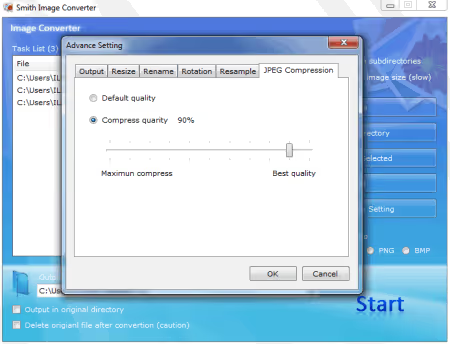
A converter and compressor: JPG, PNG and BMP on input and output. Compression is configured via the "JPEG Compression" tab in Advanced Settings, with slider or manual input. You can set a separate output folder. The project was hosted on CodePlex (platform closed), the utility is available through CNET.
Pros:
- Fine tuning of JPEG compression level
- Separate input and output folders
Cons:
- Only three formats
- Project no longer developed
Price: Free
34. Advanced Batch Image Converter
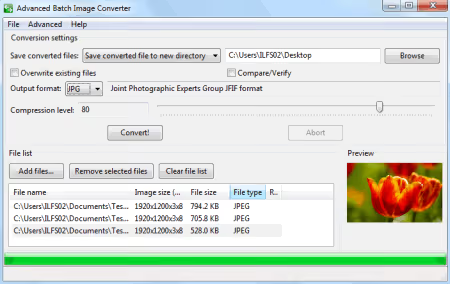
A converter with open source code: add files, choose output format, use slider to set compression level, Convert. There's an option to overwrite originals and choose a separate folder. Enough for unpretentious batch work.
Pros:
- Open source code, can be checked
- Minimal actions to result
Cons:
- Project not updated
- Only basic formats
Price: Free (Open Source)
🔗 Advanced Batch Image Converter on SourceForge
35. SendTo-Convert
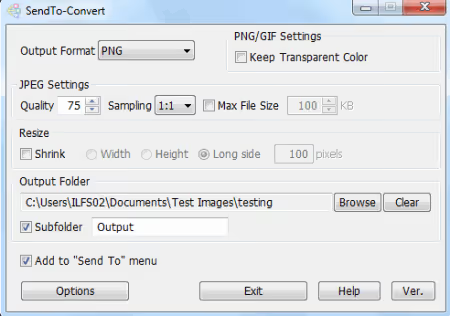
A utility living in the Explorer "Send to" menu. Configure once: format, quality and folder. Now compression is called with a right-click on any selected file. Input: JPG, GIF, BMP, PNG and TIFF, output: JPG, GIF, BMP, PNG. Set up once, use for years.
Pros:
- Deep integration into "Send to" menu
- Set up once, works without launching the program
Cons:
- Initial setup requires time
- Project is not updated
Price: Free
🔗 Official SendTo-Convert site
36. PearlMountain Image Resizer
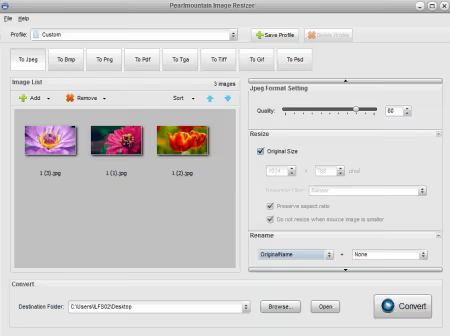
A resizer-compressor from PearlMountain Software. Add files, set quality with slider, press Convert. The main feature: saving custom presets. Convenient for typical scenarios: "preview for email", "compression for site", "archival quality". Clear interface with minimal buttons.
Pros:
- Preset saving for different scenarios
- Clear interface with minimal buttons
Cons:
- Only basic compression functions
- Distributed through Softpedia
Price: Free
🔗 PearlMountain Image Resizer on Softpedia
Image compression is not a task you want to spend time on. A good desktop utility does this in the background: throw files, press a button, move on.
This video shows the workflow in Caesium: from installation to batch processing and comparing sizes before and after.
⁉️🤔 Frequently asked questions
Is JPEG compression irreversible?
Yes, lossy JPEG compression is irreversible: each repeated pass adds artifacts. Always work with a copy, not the original. For storing source files without loss use PNG or TIFF with LZW compression: they restore pixel-by-pixel.
Why is batch mode important?
Manual processing of 100 screenshots takes an hour. The batch function in FastStone Photo Resizer or ImBatch compresses the same hundred in 15-20 seconds. If you process more than five images at a time, batch mode is a necessity, not a luxury.
How is a desktop compressor better than an online service like TinyPNG?
An offline tool doesn't upload files to a third-party server, works without internet and has no limit on the number or size of files. For confidential documents and large volumes only desktop. TinyPNG is convenient for one-time optimization of one or two PNG, not for a folder with 200 photos.
How to choose a program for my task?
For one-time compression a drag-and-drop utility is enough: Compressed (205 KB) or VJC. Need regular batch processing: FastStone Photo Resizer or Light Image Resizer. Working with RAW and rare formats: IrfanView with RIOT plugin. Explorer integration is important: SendTo-Convert or JPEG Compressor (SourceForge).
Why are there few tools with WebP and AVIF support in the list?
Most programs were developed in the era of JPEG and PNG dominance. Caesium (version 2.8.5) supports WebP. For working with AVIF look towards Squoosh (web) or ImageMagick (CLI). Desktop free utilities with AVIF output are still rare.
What to install on Windows in 2026
One tool for all cases: IrfanView with RIOT plugin. For purely batch work: FastStone Photo Resizer (simpler) or ImBatch (more flexible, updated in 2026). For compression with a modern interface and WebP: Caesium. Non-standard formats: Light Image Resizer.
- Explorer integration: SendTo-Convert
- Portable EXE for flash drive: Compressed (205 KB) or VJC (221 KB)
- Need "before and after" preview: RIOT or Caesium
The main rule: test compression on copies. JPEG doesn't forgive errors, and backup saves nerves. What tool do you use, write in the comments.

A professional team of writers and editors specializing in creating quality content.