














🚀 13 best graphic tools for web developers in 2026
Compression, creation, editing: a complete graphics workflow for web developers
💡 Quick overview:
- Compress PNG and JPEG without quality loss: TinyPNG and JPEGmini do it in seconds, while Optimizilla provides a slider for precise tuning.
- Create graphics from scratch: Sketch for vector UI, Canva for quick mockups and social media, GIMP 3.2 as a full-featured replacement for Photoshop.
- Edit and adapt: Adobe Express for cropping in the browser, Landscape for slicing for all social networks at once, Patternizer for CSS backgrounds without images.
- Handle favicons and outsourcing: RealFaviconGenerator generates a complete set of icons for iOS, Android and PWA, Dribbble for direct access to illustrators.
Images are the heaviest part of a page. A single unoptimized 2 MB image can tank Largest Contentful Paint on mobile and drag a site into the yellow zone of Core Web Vitals. Yet visuals remain the main hook: users scan a page in 2.6 seconds and their eyes catch photos first, not text.
A developer building a landing page or assembling a client blog on WordPress solves three tasks simultaneously: compress source files without losing color accuracy, lay out graphics for five breakpoints, and avoid spending half a day on it. For each of these tasks there's a tool, often free or with minimal entry barrier.
Below are 13 tools that cover the complete image workflow: from compression and favicon generation to vector design and finding an illustrator. Each has been tested on live traffic, screenshots are current as of June 2026.
Tool | Category | Platform | Price | Main feature |
|---|---|---|---|---|
TinyPNG | Compression | Web, WP plugin, Photoshop | Free (up to 20 at a time) | AVIF support and batch compression |
JPEGmini | Compression | macOS, Windows, WP plugin | $59/year Pro | Up to 80% compression without visible loss |
PI-xel | Compression | Android, source on GitHub | Free (open source) | "Shallow focus" algorithm |
Optimizilla | Compression | Web | Free | Slider for precise compression tuning |
ImageOptim | Compression | macOS | Free | Strips EXIF and color profiles |
Sketch | Creation | macOS, Web | $12/mo (Standard) | Vector artboards for screens |
Canva | Creation | Web, iOS, Android | Free / $15/mo Pro | Ready templates for social media and blogs |
GIMP | Creation | Windows, macOS, Linux | Free (open source) | Full Photoshop replacement, v3.2 with non-destructive editing |
Adobe Express | Editing | Web, iOS, Android | Free / $9.99/mo Premium | Cropping, filters, collages in browser |
Landscape | Editing | Web | Free | Auto-slicing for all social networks at once |
Patternizer | Backgrounds/patterns | Web | Free | CSS patterns without images |
RealFaviconGenerator | Favicons | Web | Free | Complete set for iOS, Android, PWA |
Dribbble | Outsourcing | Web | Free (search) | Direct access to illustrators and designers |
Image compression tools
1. TinyPNG
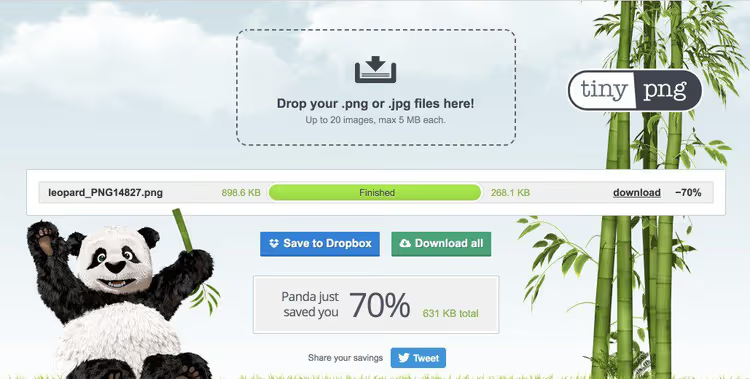
TinyPNG is a veteran among online compressors that hasn't lost ground over a dozen years. The tool uses lossy compression: it discards excess color information invisible to the eye and reduces PNG and JPEG size by 50-80%. Recently it added support for AVIF and WebP, you can upload multiple formats at once and get optimized versions in batch.
The free web version accepts up to 20 files at a time with a 5 MB limit per file, enough for most client sites. For WordPress there's an official plugin that compresses images uploaded to the media library on the fly. Convenient when the client fills the blog themselves and doesn't think about optimization.
Pros:
- Dead simple drag-and-drop interface.
- AVIF and WebP, what you need for Core Web Vitals in 2026.
- WP plugin and Photoshop export for automation.
Cons:
- Free limit of 20 files per batch: for large migrations you need Pro subscription.
- Don't compress the same image twice: quality degrades on the second pass.
2. JPEGmini
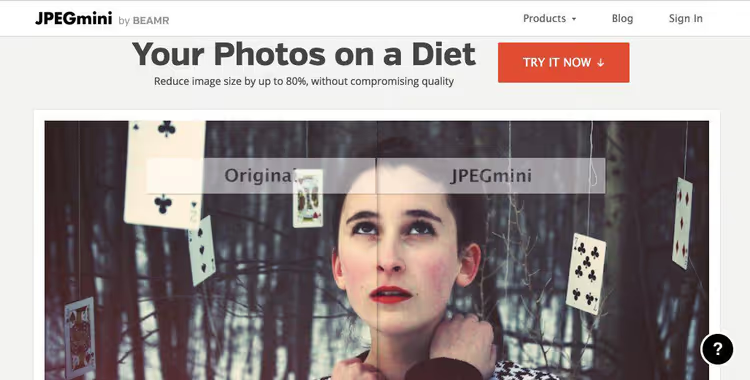
JPEGmini specializes in one format, JPEG, and does it at a level unavailable to universal compressors. The algorithm analyzes human eye perception and removes details that nobody will notice. Result: size reduction up to 80% with no visual difference even in pixel-by-pixel comparison.
In 2026 JPEGmini offers three tiers: Free (up to 20 images per day), Pro at $59/year (unlimited plus Photoshop plugin) and Pro Suite with batch folder processing. For production environments where JPEG still dominates (product cards, photo galleries, blog posts), this is one of the most reliable compressors. The WordPress plugin lets you compress media files right in the admin panel without manual export.
Pros:
- Compression up to 80% without artifacts.
- Native plugin for Photoshop and Lightroom.
- Pro Suite can watch a folder and compress automatically.
Cons:
- JPEG only: PNG and WebP are out.
- Pro version is paid, free limit is modest.
3. PI-xel
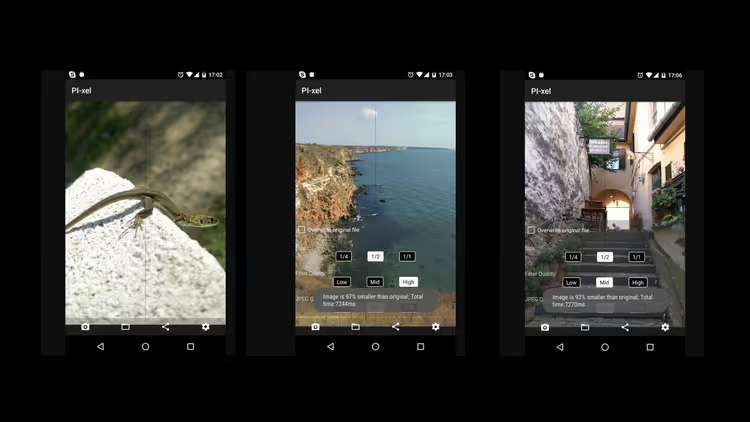
The most experimental tool in the collection. PI-xel uses software simulation of the photographic "shallow focus" technique: the algorithm highlights foreground objects and softens the background, simultaneously reducing file weight. For images published on social media or blogs with blurred backgrounds, this gives a double win: artistic effect plus compression.
Source code is available on GitHub under open license, there's an Android app with intuitive interface. The project is niche and hasn't been actively updated for the past couple years, but as a concept and sandbox for experimenting with algorithmic compression it deserves a spot on the list.
Pros:
- Unique approach: compression through optics emulation.
- Open source, you can customize it.
- Simple Android app.
Cons:
- Experimental status: not for production pipeline.
- No desktop version or web interface.
4. Optimizilla
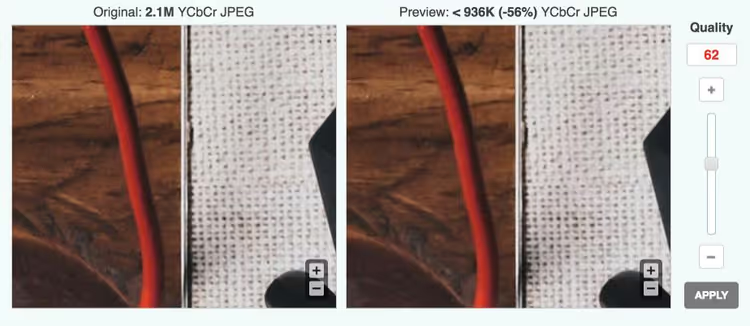
Optimizilla is a free online compressor for JPEG and PNG, whose main feature is a slider for precise compression tuning. You upload up to 20 images, move the slider and see a preview in real time: how quality changes at each compression level. This saves you when you need to find balance between weight and sharpness of a logo or product photo.
No accounts or limits on number of batches: upload, compress, download. For one-time tasks and quick optimization before uploading to a site, one of the most convenient options. Under the hood is a combination of lossy algorithms that at medium settings gives substantial size savings without visible quality loss.
Pros:
- Manual compression control with live preview.
- Completely free, no registration.
- Supports batch processing up to 20 files.
Cons:
- JPEG and PNG only: WebP and AVIF not supported.
- No API or CMS plugin.
5. ImageOptim
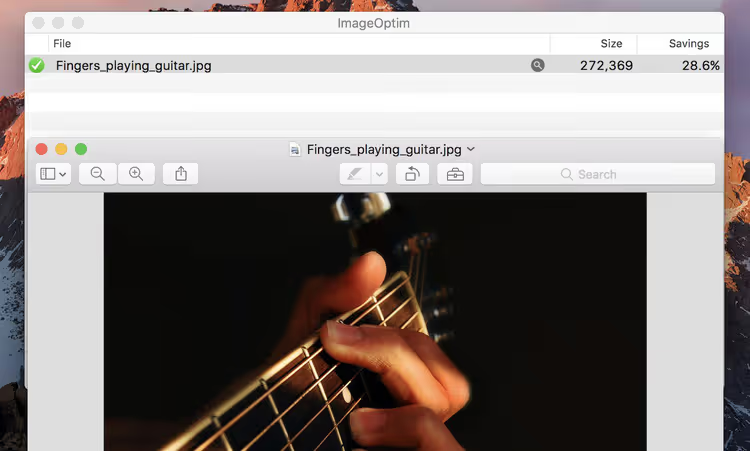
ImageOptim is a macOS tool that works differently: instead of aggressive recompression it strips metadata. EXIF tags, GPS coordinates, color profiles, hidden preview images that cameras and smartphones embed in every file, all this goes away and weight drops 10-40% without a single pixel of quality loss.
The app works on drag-and-drop principle: drag files into the window, get optimized versions. Originals don't disappear: ImageOptim sends them to macOS trash, from where you can restore if needed. For production pipeline where every byte counts but quality can't be touched, a must-have.
Pros:
- Lossless compression.
- Automatic EXIF and junk metadata cleanup.
- Free and open source.
Cons:
- macOS only: Windows and Linux are out.
- Doesn't compress as aggressively as lossy compressors.
🔗 ImageOptim, download for macOS
Creating images
6. Sketch
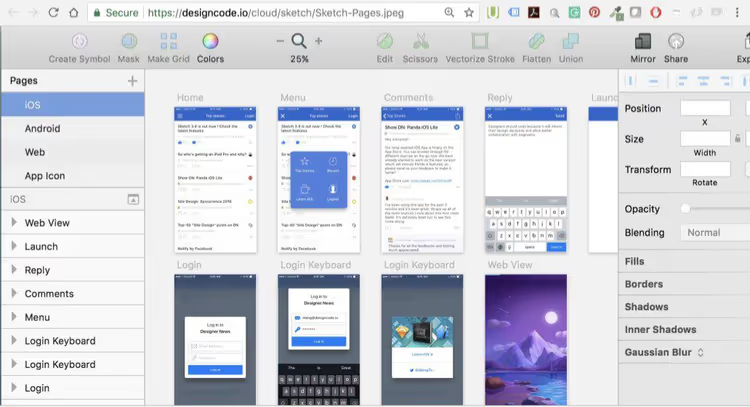
Sketch is a vector editor for macOS tailored for web design and interfaces. Unlike universal Illustrator, Sketch was designed from the start for screen design: artboards for specific resolutions, export to SVG and PNG with one click, built-in support for grids and guides. This is a tool for laying out landing pages and interfaces, not just drawing pictures.
In 2026 Sketch works by subscription: Standard at $12/mo (Mac app only), Mac+Web at $15/mo (browser viewing and handoff to developer). For a web studio that hands off design to client and developer, the browser access option pays for itself on the first project through time saved on approvals.
Pros:
- Tailored for web design: artboards, export, guides.
- Lighter and faster compared to Adobe Illustrator.
- Browser viewing of mockups for clients.
Cons:
- macOS only: won't run without a Mac.
- Subscription instead of perpetual license.
7. Canva
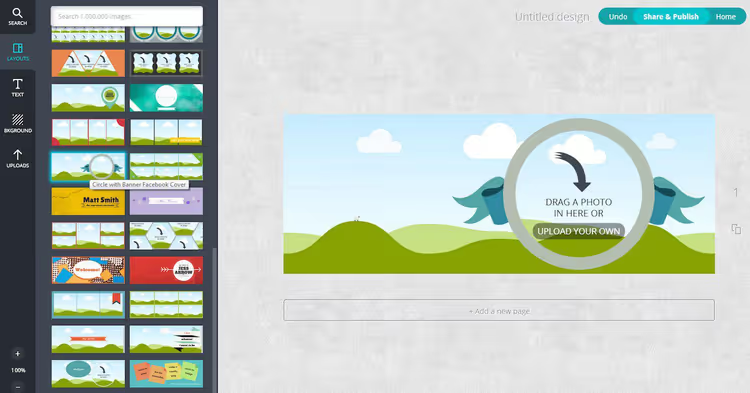
Canva has grown from "Photoshop for bloggers" into a full design platform with AI generation, team brand libraries and content scheduler. For a web developer Canva is useful in three scenarios: quick mockup for client (presenting a concept in 10 minutes), graphics for project social media (unified style without hiring a designer) and creating blog illustrations through built-in AI generator.
Free tier includes access to templates and basic fonts. Pro at $15/mo gives brand kit, magic background replacement and Team libraries, relevant for agencies managing multiple client projects.
Pros:
- Zero entry barrier: anyone who's never opened Photoshop can handle it.
- Ready sizes for all social networks and formats.
- AI image generation and background removal.
Cons:
- Not for complex raster retouching and color correction.
- Free templates are used by thousands of projects, uniqueness is questionable.
8. GIMP
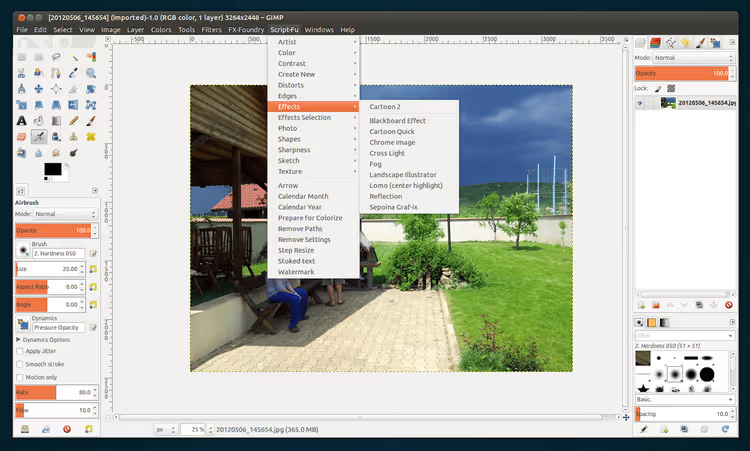
GIMP is a free open-source editor that in March 2025 got version 3.0, and by April 2026 grew to GIMP 3.2.4. Release 3.0 brought non-destructive layer editing (like in Photoshop), Adobe RGB color space support and completely rewritten interface on GTK 3. Version 3.2 added Link Layers, SVG export and accelerated rendering. This stopped being a "free compromise" and became a tool that covers 90% of commercial designer tasks.
For a web developer GIMP is valuable in the chain: retouch → crop for screens → export to WebP and AVIF. Plus plugin ecosystem (resampling, batch processing, filters) and cross-platform, works on Windows, macOS and Linux without Wine dances.
Pros:
- Completely free and open.
- GIMP 3.2: non-destructive layers, Link Layers, modern UI, Adobe RGB.
- Export to WebP, AVIF, JPEG XL out of the box.
Cons:
- CMYK and prepress is still a weak spot.
- No native integration with Figma and Sketch (only through export).
Editing images
9. Adobe Express
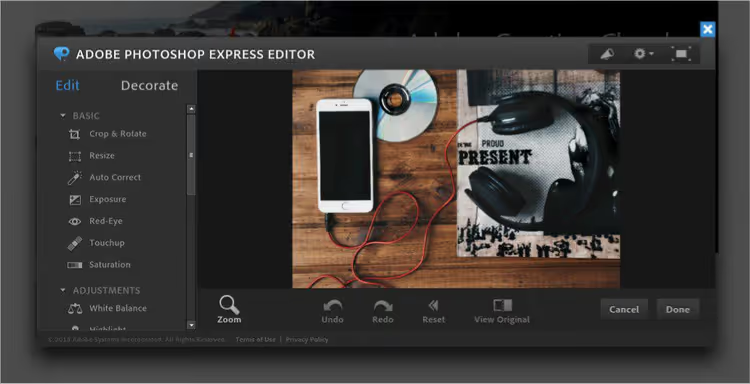
What used to be called Photoshop Express Editor is now part of the Adobe Express ecosystem, a free online editor in the browser. Crop, resize, apply filter or text, adjust brightness and contrast, all without downloading heavy desktop Photoshop. For a web developer who needs to fit an image to a product card or banner, browser editor is more than enough.
Free tier includes basic tools and some premium templates. Premium at $9.99/mo adds full access to Adobe Stock library, AI generation and extended branding capabilities. Also works as a mobile app on iOS and Android.
Pros:
- Free access to cropping and color correction tools.
- Works in browser, nothing to install.
- Direct integration with Adobe Stock and other Creative Cloud products.
Cons:
- Advanced retouching and layers are only in desktop Photoshop.
- Some features require Adobe ID registration.
🔗 Adobe Express, open in browser
10. Landscape
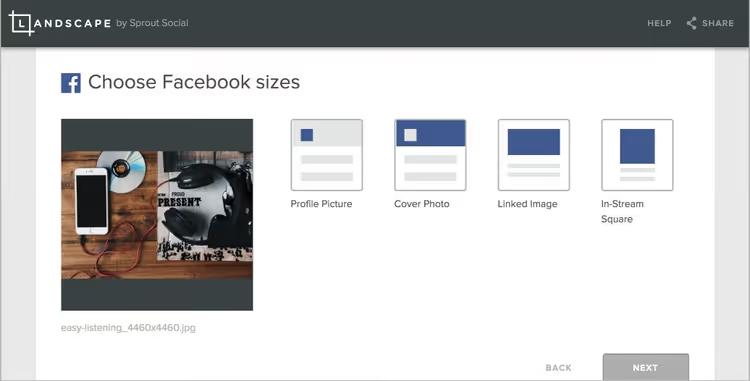
Landscape by Sprout Social solves a single but very painful task: adapting one image to formats of all social platforms. You upload an image, the tool outputs versions for Instagram (square, portrait, stories), Facebook, X (Twitter), LinkedIn and Pinterest with correct proportions and resolutions.
For a web studio managing client social media, this saves at least an hour per week: instead of manual slicing in Photoshop, one upload. Service is completely free and works in browser, no registration. As of June 2026 Landscape functions as part of Sprout Social's free toolkit.
Pros:
- Instant slicing for all platforms.
- Completely free, no registration.
- Correct proportions and resolutions out of the box.
Cons:
- Resize only: can't edit the image itself.
- Dependent on Sprout Social, if service shuts down the tool disappears.
Specialized tools
11. Patternizer
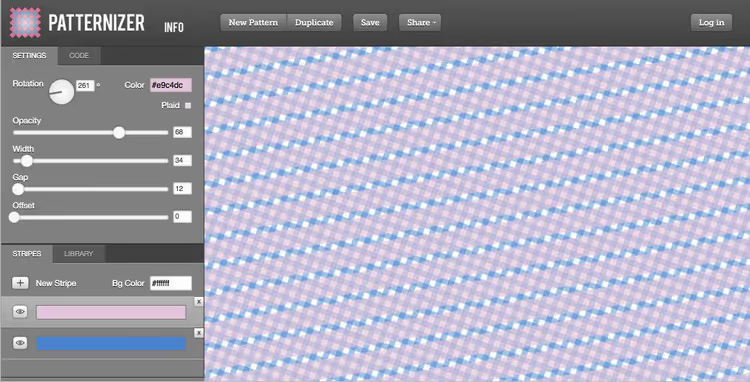
Patternizer is a niche tool for creating striped backgrounds in pure CSS. No images: you move sliders (stripe width, angle, colors, transparency) and get ready CSS snippet that copies with one click into stylesheet. For customizing WordPress themes or quick background prototyping this is easier than cutting repeating texture in graphics editor.
You can share the ready pattern by link, convenient for approval with client. Tool is free and judging by stable operation as of June 2026, supported by author.
Pros:
- CSS patterns without loading images, zero weight.
- Live preview and instant CSS code.
- Free and no registration.
Cons:
- Striped patterns only: gradients and complex shapes are out.
- Interface hasn't been updated and looks archaic.
🔗 Patternizer, CSS background generator
12. RealFaviconGenerator
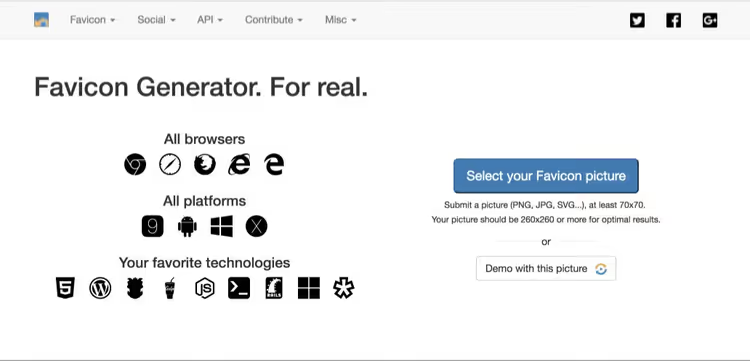
RealFaviconGenerator solves a problem developers often postpone "for later": favicons that display correctly everywhere. Each platform (iOS Safari, Android Chrome, PWA manifest, classic desktop browser) requires its own format and icon size. You upload one image (preferably SVG or large PNG), service generates complete set: from 16×16 favicon.ico to 512×512 PWA icon.
Output is a ZIP archive with icons and ready HTML code block for inserting into <head>. For WordPress there's a plugin that automates the process: you update logo, favicons regenerate themselves. Project has been maintained since 2013 and in 2026 remains de-facto industry standard.
Pros:
- Support for all platforms: iOS, Android, Windows, macOS, PWA.
- Ready HTML code for insertion.
- WP plugin for auto-updating.
Cons:
- Favicon-themed only: useless for other tasks.
- Requires uploading logo to third-party service (privacy).
🔗 RealFaviconGenerator, generate icons
Graphics outsourcing
13. Dribbble
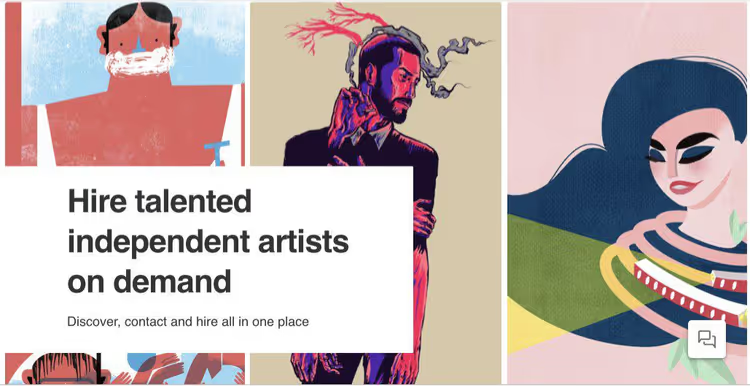
Not all graphics are created in-house. Former boutique platform Easle, which curated a pool of illustrators for web projects, ceased operation by 2026. Closest alternative with the same idea of manual curation is Dribbble, a platform where illustrators and designers publish portfolios and clients find performers directly. Unlike conveyor marketplaces like Fiverr, Dribbble is focused on quality: each profile is a showcase of real work, by whose style you can see if the artist fits the project.
For a web studio needing unique illustration for landing page or series of icons in unified style, searching on Dribbble is faster and more accurate than blind hiring on general marketplaces. Platform is free for searching and hiring, Pro account for designers costs from $12/mo.
Pros:
- Direct access to illustrators with verified portfolio.
- Free search and hiring.
- Narrow specialization in graphics and design.
Cons:
- No built-in transaction system and arbitration, communication and payment outside platform.
- Quality of performers varies: you'll have to look at portfolios.
Systematic approach to graphics
Graphics tools for web developer are not just a list of browser bookmarks. It's a pipeline: compressed source files in TinyPNG or JPEGmini, refined in GIMP or Sketch, sliced for social media through Landscape, generated favicons in RealFaviconGenerator and uploaded to site. Each stage is covered by one or two tools from the list above, and all of them, except Sketch and JPEGmini Pro, are free in basic functionality.
Below is a video breakdown of graphics tools chain for typical web developer workflow: from compression to icon generation with specific export settings.
⁉️🤔 Frequently asked questions
Compress lossy or lossless, what to choose for client site?
For product cards and blog photos, lossy (TinyPNG, JPEGmini): savings of one and a half to two times with difference invisible to the eye. For logos, icons and interface screenshots, strictly lossless (ImageOptim): metadata out, pixels untouched. In practice the vast majority of images on typical WordPress site can be compressed lossy without consequences.
Is Canva suitable for professional web graphics?
For social media, banners and quick mockups, yes. For pixel-perfect layout, complex retouching and color correction for print, no. Canva fills the gap "need it yesterday and without designer", but doesn't replace Figma or Sketch in production pipeline.
What makes GIMP 3.2 fundamentally different from version 2.10?
Version 3.0 (March 2025) brought non-destructive layer effects, applied shadow or gradient can be edited anytime without undoing history. Added Adobe RGB support for accurate color reproduction when exporting to WebP and AVIF. Interface completely rewritten on GTK 3 with HiDPI display support. Release 3.2 (April 2026) added Link Layers, SVG export and accelerated rendering. Essentially GIMP caught up with Photoshop in basic editing mechanics.
Is JPEGmini needed if you already have TinyPNG?
If you work predominantly with JPEG (photos, product cards), yes, JPEGmini gives better compression ratio on this format. If it's a mix of PNG, WebP and AVIF, TinyPNG is more universal. Ideally have both: TinyPNG as everyday tool, JPEGmini Pro for pipeline with thousands of JPEG files.
Is it mandatory to pay for Sketch if there's free GIMP?
Sketch solves a different task, vector UI design with artboards for screens. GIMP is a raster editor. If you lay out interfaces and hand off mockups to developer, Sketch or Figma. If you edit photos and create raster graphics, GIMP. Tools don't compete, they complement each other.
How to replace closed Easle for finding illustrator?
Direct analog with manual curation is Dribbble: illustrator portfolios with search by style and specialization. For projects with budget, Behance and 99designs (contest model) work. For one-time tasks, Fiverr or Upwork, but quality there is less predictable.
Summary: which tool to choose
Web developer graphics stack is assembled not by "one for everything" principle, but as a set of narrow tools for each task. Selection matrix:
- Compress photos for blog, TinyPNG (universal) or JPEGmini (if pure JPEG).
- Strip metadata without quality loss, ImageOptim (macOS).
- Play with algorithmic compression, PI-xel (experiments).
- Draw interface from scratch, Sketch (macOS) or Figma (cross-platform).
- Make mockup in 10 minutes, Canva.
- Replace Photoshop for free, GIMP 3.2.
- Crop and fit image in browser, Adobe Express.
- Slice for all social networks at once, Landscape.
- Generate CSS background without image, Patternizer.
- Make favicons for all platforms, RealFaviconGenerator.
- Find illustrator, Dribbble.
None of these tools require long onboarding. Each covers its task in minutes, and together they form a pipeline that saves hours per week and keeps Core Web Vitals in the green zone.

A professional team of writers and editors specializing in creating quality content.