














👥 Beginner's guide to BuddyPress and bbPress for WordPress
A blog where only the author speaks gets boring fast. Readers show up, skim the article and leave with zero interaction. It's a different story when subscribers talk to each other, exchange opinions, start discussions in a forum and feel like part of a community. A site like that lives, grows and attracts new members on its own.
WordPress gives blog owners two powerful tools for building a community right on the site: BuddyPress and bbPress. Both were developed with contributions from the WordPress team, both are free and deeply integrated with the platform. BuddyPress turns your site into a social network with profiles, groups and an activity feed, while bbPress adds a full-fledged discussion forum. And you can use them together.
💡 Quick overview:
- Install BuddyPress and choose the social network components
- Set up community pages and plugin settings
- Pick a compatible theme and extensions
- Install bbPress, create a forum and configure permissions
- Link both plugins to enable forums inside groups
What is BuddyPress
BuddyPress is a free plugin for creating a social network on WordPress. It doesn't try to replace Facebook or VKontakte; instead it gives site owners tools to build a small or medium community around shared interests: a sports team, a church group, a fan club, an educational portal, a drama club. It works for large projects too.
As of June 2026, BuddyPress has more than 200,000 active installations. The plugin receives regular updates and is supported by the WordPress community.
Installing and configuring BuddyPress
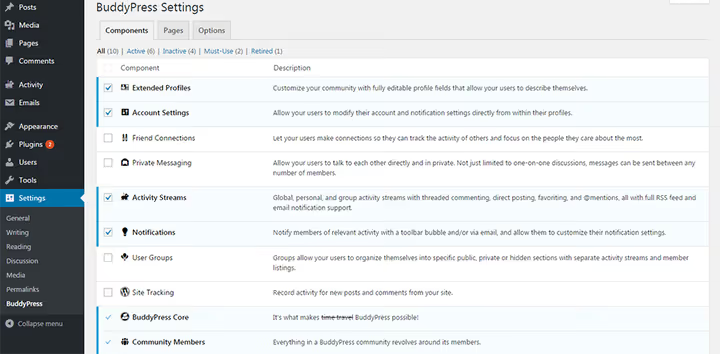
The plugin installs directly from the WordPress dashboard: "Plugins" → "Add New" → search for BuddyPress → "Install" → "Activate." After activation a menu appears under "Settings" → "BuddyPress" with three tabs: "Components," "Pages" and "Options."
Components
A social network consists of separate components. BuddyPress has 10, and each can be enabled or disabled independently. Available options:
User profiles: every member registers, creates and edits an account, fills out a detailed profile about themselves;
Friend connections: members add each other as friends and form their own circles;
Private messages: private conversations between any number of users;
Groups: members create groups that others can join;
Activity feed: displays recent community events with support for RSS feeds and email notifications;
Notifications: alerts about other members' actions with fine-grained control over which events trigger them;
Site tracking: subscriptions to updates from other members.
Most components are enabled by default, but friend connections, private messages, site tracking and groups need to be activated manually if your community requires them.
Pages
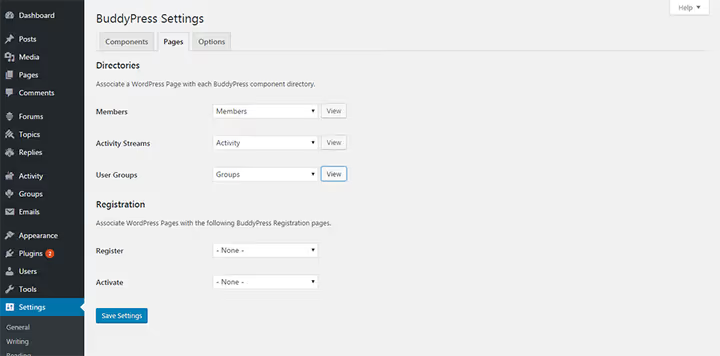
Once you've chosen your components, go to the "Pages" tab. BuddyPress has already created three pages automatically: a members page, an activity page and a groups page. You still need to create two more: one for registration and one for account activation.
Use the dropdown menus in the settings to assign the correct page to each BuddyPress function. When you're done, save.
Options
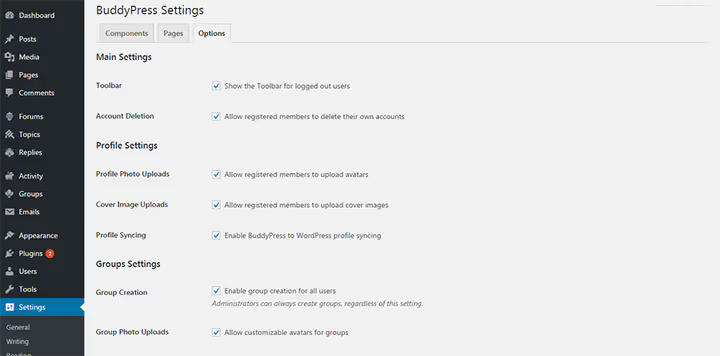
The third tab contains toggles: allow avatar and cover image uploads, restrict profile visibility, set up automatic moderation and other options. Enable whatever suits your community.
If you're working with a WordPress multisite network, you can activate the plugin either across the entire network or only on selected sites. When the multisite feature is enabled, BuddyPress stores centralized data that displays content across all sites in the network. A relatively recent addition is the ability to embed activity: any action a member shares can be placed in a post or on a page simply by copying and pasting that action's URL.
BuddyPress themes and extensions
BuddyPress works with most WordPress themes, but if social interaction between users is important for your project, look into themes with built-in templates for each BuddyPress component. These themes correctly display profiles, groups, activity feeds and registration pages without additional setup.
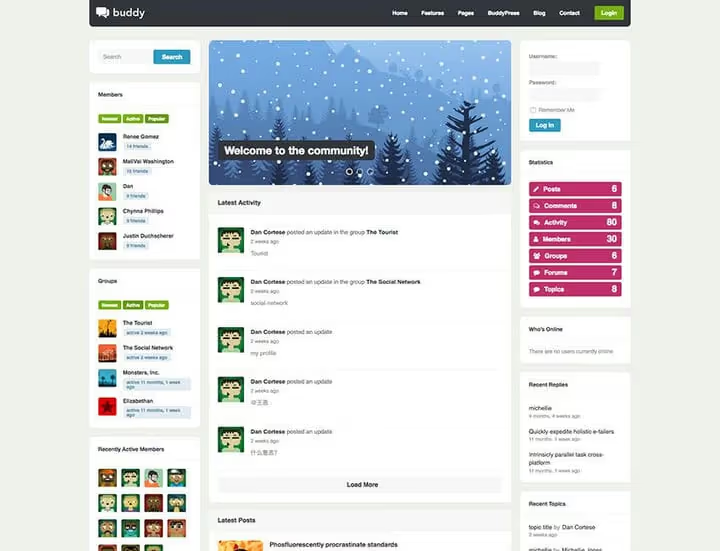
Choose a theme using the "BuddyPress" filter in the WordPress.org directory; you'll find free options with clean markup and full compatibility. Commercial themes with BuddyPress support usually offer more flexibility: custom widgets, color customization, unlimited sidebars, Retina graphics and translation files.
BuddyPress capabilities expand through hundreds of third-party add-ons. A few useful examples:
Media and uploads. rtMedia for WordPress, BuddyPress and bbPress lets members upload albums, photos, audio and video through a user-friendly interface. The plugin works on mobile devices and tablets, supports lightbox, album privacy and dozens of additional modules (from Instagram effects to RSS podcasts).
Real-time chat. A built-in messenger with live communication between members. Better Messages works well here; it integrates closely with BuddyPress and supports WebSockets for instant message delivery.
Spam protection. BuddyPress communities often become targets for spam registrations. The solution: a specialized anti-spam service like CleanTalk, or Akismet combined with additional moderation rules for profiles and private messages.
When installing BuddyPress, choose your hosting provider carefully. Community software (BuddyPress included) consumes noticeably more database resources than a standard blog.
What is bbPress
bbPress adds a discussion forum to your site: classic, lightweight and integrated with WordPress. The same developer as BuddyPress (the Automattic team) and the same philosophy: two-click installation, a familiar admin interface and full compatibility with the platform.
Installing and configuring bbPress
The plugin installs via "Plugins" → "Add New." After activation a "Forums" section appears in the admin sidebar. Click "Add New" and your first forum is ready.
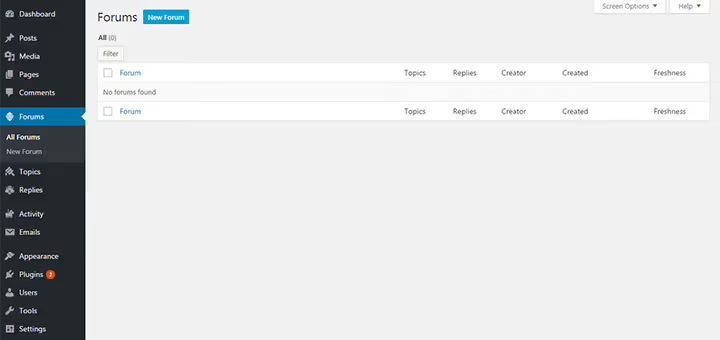
By default all forums are active across the entire site: any member of any group has access to any forum. We'll cover how to restrict this below.
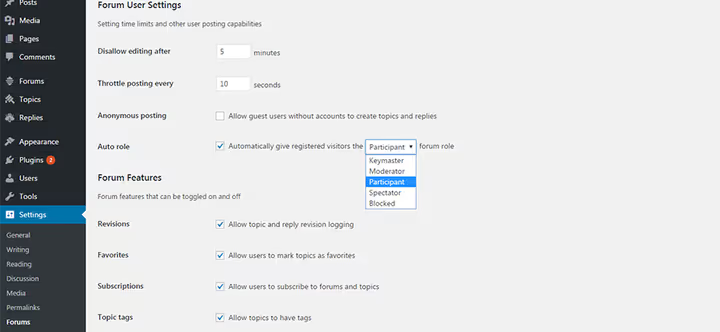
After creating forums, go to "Settings" → "Forums." Here you can:
define forum settings (editor size, auto-embedding of media, file upload permissions);
assign roles to members (participant, moderator, keymaster) or block a user;
allow or disallow anonymous posting, reply editing, adding topics to favorites, subscribing to forums and topics;
enable forum search.
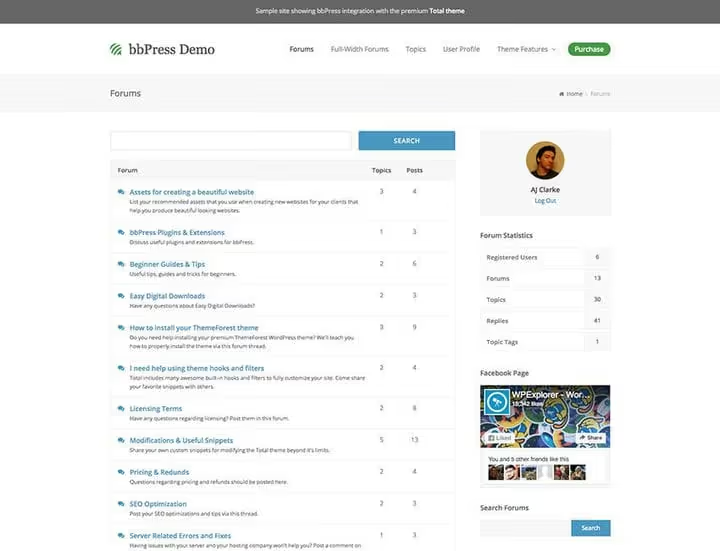
bbPress ships with a set of shortcodes for flexible forum organization: [bbp-forum-index] outputs a list of all forums, [bbp-topic-index] displays a list of topics, and shortcodes for login and registration forms embed that functionality on any page.
bbPress extensions
As with BuddyPress, bbPress capabilities grow through third-party plugins. A few tried-and-tested options:
GD bbPress Attachments lets members attach files to topics and replies via the media library. File size is limited and images display as thumbnails. A Pro version with extended attachment types and additional widgets is available. The plugin is compatible with BuddyPress.
bbPress Moderation adds an approval queue for new topics and replies. A moderator reviews each submission before it appears on the forum, which significantly reduces spam and unwanted content. Topics receive a "pending" status and are held until approved.
Voting. The bbPress Votes plugin lets members vote for or against any topic and reply, similar to StackOverflow. Note that it hasn't been updated in a while (last tested with WordPress 5.3), so check compatibility with the latest version of the platform before installing. An alternative is to search for modern topic-rating plugins in the WordPress.org directory.
Integrating BuddyPress and bbPress
A BuddyPress community and a bbPress forum work independently, but the real magic happens when you link them. Members of BuddyPress groups get their own forums for discussions, all within a unified community.
To make forums function inside community groups you need to do two things:
In the bbPress settings, create a parent forum (category) for all BuddyPress forums. Set the attribute to "Category" and publish.
Go to the "BuddyPress Integration" tab in the bbPress settings and select the forum you just created. Save.
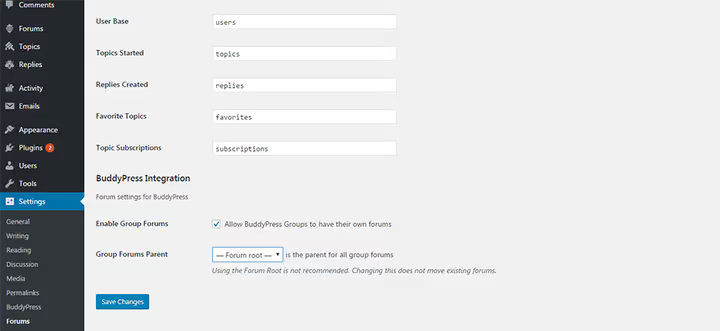
Now for new groups: when creating a group in BuddyPress, check the box "Allow this group to have a forum." For existing groups, go to the group settings, find the "Group Forums" section and enable the option. Save the changes.
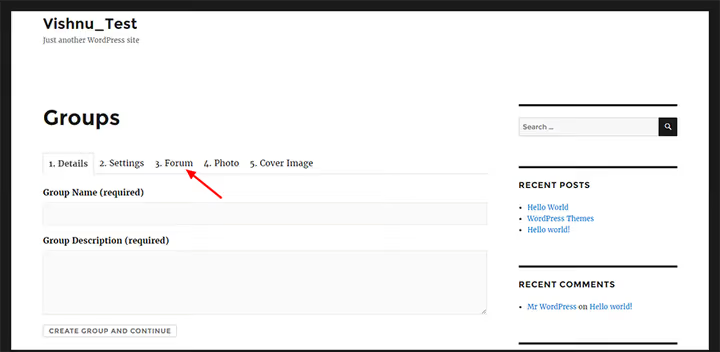
A "Forum" tab appears in the group menu. The administrator or authorized members can create new forums there on different topics. Each user's topics, replies, favorites and subscriptions appear in their BuddyPress profile; the system transparently links both plugins.
You can install BuddyPress and bbPress in any order. Deactivating one plugin doesn't affect the other; they are completely independent and simply complement each other when used together.
⁉️🤔 Frequently asked questions
Do I have to use BuddyPress and bbPress together?
No, the plugins are fully independent. You can deploy only a bbPress forum for classic discussions or only a BuddyPress social network for interaction without a forum. Using them together gives you the most possibilities: BuddyPress groups get their own forum spaces, and forum activity appears in the community feed.
What hosting is best for BuddyPress?
A social network on WordPress generates intensive database activity: profiles, messages, activity feeds, notifications. A VPS or specialized WordPress hosting with dedicated MySQL/MariaDB resources is recommended rather than cheap shared hosting. As your community grows to thousands of members, consider solutions with object caching (Redis/Memcached).
Does BuddyPress work with any WordPress theme?
Technically yes, but display quality depends on the theme. A standard theme may incorrectly show profile, group and registration pages. It's better to choose themes labeled "BuddyPress" or "BuddyPress Compatible," whose developers have tested the integration and included templates for the plugin's components.
Can I restrict access to forums inside groups?
Yes. When setting up the bbPress integration with BuddyPress, you bind the forum to a specific parent group. Members of other groups don't see a different community's forum; each forum is isolated within its own group. Role and access permissions can also be fine-tuned in the bbPress settings.
How does BuddyPress differ from social network plugins like PeepSo?
BuddyPress is a free open-source plugin developed by the WordPress community. PeepSo is a freemium product with a more modern interface out of the box, but some features are locked behind a paid subscription. BuddyPress offers more flexibility for developers and an ecosystem of hundreds of extensions; PeepSo wins on UX "right now" without additional setup.
What to install for a specific task
Choosing between BuddyPress, bbPress and their combination comes down to simple logic. If you need discussion threads, topic search, quoting and voting, go with bbPress. If you want a social network with profiles, groups, an activity feed and private messages, install BuddyPress. And if you need a complete ecosystem where members communicate in groups and discuss topics on forums, install both. They were designed to work together and don't conflict.
Give it a try: start with one plugin, configure it for your audience and launch a discussion. Within a week or two you'll know whether you need the second one.

A professional team of writers and editors specializing in creating quality content.