













 AIIllustrative image: AI-generated
✂️ 5 tips for customizing excerpts in WordPress
You land on your blog's homepage and see enormous chunks of posts stretched across three screens. A reader won't scroll three screens for a single article, they leave. Or the opposite: previews cut off mid-sentence, the "Read More" link doesn't appear, and the RSS feed looks like sentence fragments with no beginning or end.
By default, WordPress cuts excerpts at the first 55 words and adds a standard ellipsis. No length settings, no link text customization, and excerpts aren't even available for Pages. All of this can be fixed, but not by clicking checkboxes, by adding a few lines of code.
Below are 5 working techniques: from changing excerpt length for the entire site to fine-tuning by category and automatically inserting a "Read More" link. Each with a ready snippet that you copy and paste into functions.php.
💡 Quick overview:
- Change excerpt length for the entire site with one function in functions.php
- Set different lengths for different categories using the in_category() condition
- Add a "Read More" link at the end of each excerpt
- Enable excerpts for WordPress Pages with one line of code
- Manage excerpts without programming using the plugin Advanced Excerpt
What excerpts are in WordPress and how they work
An excerpt is a brief description of a post that appears in post lists: on the homepage, in category archives, in search results, and in RSS. Unlike the <!--more--> tag, which cuts content at an arbitrary point, the excerpt is an independent entity: WordPress either takes your manual text from the "Excerpt" metabox or generates it automatically from the first 55 words of the post.
Manual excerpts always take priority. If you've filled in the "Excerpt" field in the editor, the system will show exactly that, ignoring automatic trimming. This gives full control: you can write a meaningful summary instead of settling for the first two sentences that happen to be at the beginning of the text.
The problem is that the "Excerpt" metabox is hidden by default. It's enabled in "Screen Options" (button at the top of the post editing page), check the box next to "Excerpt" and the field will appear below the editor. Then customization begins: the five techniques below cover all typical scenarios.
1. Change excerpt length through functions.php
This is the foundation. WordPress by default cuts at 55 words, not enough for a clear preview but sufficient for a reader to understand the topic. If you need more (or less), the excerpt_length filter solves the task with one function.
What the code does: overrides the number of words WordPress returns in the_excerpt(). Doesn't touch manual excerpts, if you've filled in the field in the editor, it will display as is.
- Open
functions.phpin your theme (Appearance → Theme Editor →functions.php) or via FTP - Add at the end of the file (before
?>if it exists):
1 function my_excerpt_length($length) { 2 return 110; 3 } 4 add_filter('excerpt_length', 'my_excerpt_length');
- Save the file
The number 110 is the word count. For a typical blog, 80-120 words give 3-4 sentences, enough for a meaningful preview without overloading the homepage. RSS readers will also appreciate it: they have their own limits, and an excerpt that's too long might get cut more aggressively than you planned.
If you're using a block theme (Block Theme, FSE), functions.php may be missing or not work as expected. In this case, create a child theme or use the Code Snippets plugin, it adds snippets without editing theme files.
2. Different excerpt lengths for different categories
News needs 30 words, while reviews and guides need 100-120. The excerpt_length filter in its basic version gives one value for the entire site, not flexible. The following code separates length by category.
Scenario A, one category with a special length. You have a "Reviews" category where excerpts should be shorter:
1 function excerpt_length_category($length) { 2 if (in_category('Reviews')) { 3 return 20; 4 } else { 5 return 60; 6 } 7 } 8 add_filter('excerpt_length', 'excerpt_length_category');
Replace Reviews with your category slug, the numbers with what you need.
Scenario B, multiple categories with different lengths. An if/elseif/else cascade covers three levels: one category, a group of categories, and everything else:
1 function excerpt_length_category($length) { 2 if (in_category('Review')) { 3 return 35; 4 } elseif (in_category(array('News', 'Videos', 'Editorial'))) { 5 return 60; 6 } else { 7 return 55; 8 } 9 } 10 add_filter('excerpt_length', 'excerpt_length_category');
in_category() accepts a category slug (string) or an array of slugs. Conditions are checked in order, the first match triggers. In the example above: posts from "Review" get 35 words, from "News", "Videos" and "Editorial" get 60, everything else gets 55.
After saving, check the homepage and a couple of category pages, excerpt lengths should differ depending on which category the post is assigned to.
3. Add a "Read More" link at the end of the excerpt
The excerpt cuts off, and readers don't always understand that this is just a preview, not the entire article. A link at the end of the excerpt solves the problem: an explicit call to click and read in full.

WordPress by default puts [...] where it cuts, but that's not a link. The excerpt_more filter replaces the ellipsis with a custom string containing HTML:
1 function excerpt_readmore($more) { 2 return '... <a href="' . get_permalink($post->ID) . '" class="readmore">' . 'Read More' . '</a>'; 3 } 4 add_filter('excerpt_more', 'excerpt_readmore');
What you can change:
- Link text, replace
Read Morewith your version, for exampleContinue readingorLearn more - CSS class,
readmorein theclassattribute can be replaced with your own and styled via CSS (color, size, spacing, underline) - Separator, the ellipsis with space
'... 'before the<a>tag can be removed or replaced with|or,
After saving, open the blog homepage or archive, each excerpt will have a clickable link to the full post at the end. This works in RSS too (most readers display HTML links correctly).
4. Enable excerpts for WordPress Pages
Pages in WordPress don't support excerpts out of the box. The page post type isn't registered with excerpt support, and the metabox doesn't appear in the editor, even if you enable it in "Screen Options". But sometimes you need it: a landing page with previews of child pages, custom output via WP_Query, service pages as cards.
The solution is one function that adds excerpt support to the page post type:
1 function wploop_pages_excerpt() { 2 add_post_type_support('page', 'excerpt'); 3 } 4 add_action('init', 'wploop_pages_excerpt');
After saving functions.php:
- Go to the editor of any page
- Click "Screen Options" at the top
- Check the "Excerpt" box, now it's there
- Scroll down the page, the excerpt field has appeared
If you're using a custom post type (CPT), replace page with your CPT slug, the mechanics are the same. When registering a CPT via register_post_type() you can immediately specify 'supports' => array(..., 'excerpt') and avoid additional code.
5. Manage excerpts through the Advanced Excerpt plugin
Don't want to mess with code? The Advanced Excerpt plugin gives visual control over all aspects of excerpts through the admin panel.

After installation and activation (free, from the WordPress repository), an Advanced Excerpt page appears in the "Settings" menu with the following options:
- Excerpt length, in characters or words. Characters are more precise for layout control, words for readability
- Ellipsis, the symbol or HTML code that ends the excerpt. Default is
…(ellipsis…). Can be replaced with[...], an arrow, an icon, or left empty - Trimming method, by characters (a word might cut mid-word) or by sentences (always a complete sentence, but the excerpt will be longer than the stated limit)
- "Read More" link, enable/disable, set text, wrap in custom HTML
- Don't show manual excerpts, if enabled, the plugin generates excerpts automatically always, even if you've filled in the field manually
- Remove shortcodes from excerpt, definitely keep this enabled so
[contact-form-7]or[shortcode]don't stick out in the preview - Filter, choose which function the theme uses to output excerpts:
the_excerpt(),the_content(), or both. If unsure, leave both checkboxes on
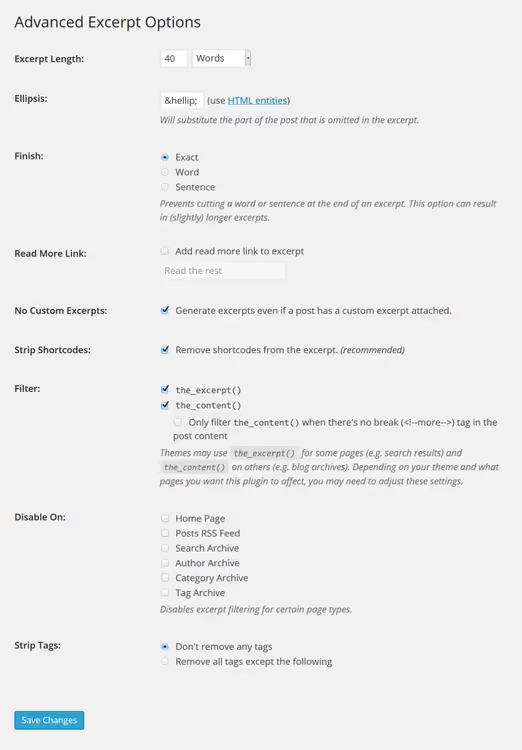
The plugin uses the same excerpt_length and excerpt_more hooks as manual code from tips 1-3, but wraps them in an interface. Developer documentation on GitHub Wiki describes filters for custom integration.
As of 2026, the plugin is active on 80,000+ sites but updates infrequently: the last release came out in January 2024 and is tested up to WordPress 6.4. Before installing on a fresh WordPress version, check compatibility in a staging environment.
Before moving to frequently asked questions, a short video about working with excerpts in WordPress in practice:
⁉️🤔 Frequently asked questions
How does a manual excerpt differ from the <!--more--> tag?
An excerpt is a separate field that's output via the
the_excerpt()function in theme templates. The<!--more-->tag is inserted into the post body and cutsthe_content()at a specific point. Excerpts are shown in post lists and RSS, the more tag only works wherethe_content()is used. For a brief summary in archives, use excerpts, for cutting a long post on the homepage, the more tag is sufficient.
Why doesn't the excerpt appear even though I wrote it in the editor?
The theme doesn't call
the_excerpt()in the required template. Check the archive.php, category.php, home.php, and search.php templates. Ifthe_content()is there, manual excerpts are ignored. Replace withthe_excerpt()or use a conditional constructionif (has_excerpt()) { the_excerpt(); } else { the_content(); }.
Can I show a post thumbnail next to the excerpt?
Yes, the theme should call
the_post_thumbnail()beforethe_excerpt()in the loop. Most modern WordPress themes do this by default. If not, add the thumbnail call to the template before the excerpt. For custom markup, wrap both calls in<div class="post-card">and style via CSS.
How do I remove excerpts only from the homepage, keeping them in archives?
Use the conditional tag
is_home()inside the filter. For example, infunctions.php:
1 function disable_excerpt_on_home($excerpt) { 2 if (is_home()) { 3 return ''; 4 } 5 return $excerpt; 6 } 7 add_filter('get_the_excerpt', 'disable_excerpt_on_home');
For more precise settings by page type, category, or post type, use the Advanced Excerpt plugin from tip 5: its settings have "Disable on..." checkboxes for homepage, archives, search, and individual pages.
What to do with excerpts right now
Implementation order, from simple to complex. Start with tip 1: one function, one number, and excerpt length across the entire site is already under control. Then add the "Read More" link (tip 3), this is critical for clickability on the homepage and in RSS. If you run a blog with sections of different formats, tip 2 about length by category will eliminate dissonance between news and long reads.
Take the Advanced Excerpt plugin (tip 5) if you want to avoid code completely or if your theme uses a non-standard way of outputting content and the excerpt_length/excerpt_more filters don't fire. In other cases, code from functions.php is more reliable: fewer dependencies, creates no load, works with any theme.
1

A professional team of writers and editors specializing in creating quality content.