














📙 8 best table of contents plugins for WordPress 2026 (free and paid)
You land on a long article, see a wall of text, and close the tab within 3 seconds. Sound familiar? Your readers do exactly the same thing if the page doesn't have a table of contents.
A table of contents solves three problems at once: users instantly understand the structure of the material, jump to the section they need with one click, and search engines get a beautiful snippet with anchor links right in the results. For long posts, guides and documentation, this isn't decoration, it's a navigational must-have.
But which plugin to choose when there are dozens in the WordPress.org directory? We tested 8 of the most prominent table of contents solutions, from minimalist Gutenberg blocks to feature-packed combines with floating panels. In this review, only the plugins that actually work, get updated and don't slow down your site.
💡 Quick overview:
- Choose a plugin by task: for Gutenberg, SimpleTOC or Joli TOC, for maximum automation, Easy TOC, for a widget in Elementor, the built-in Pro widget
- Install the plugin from the WordPress.org directory and configure auto-insertion by post type
- Check the table of contents on mobile, anchor links should work without offset
- Customize colors, spacing and heading depth to match your site theme if needed
Comparison table: all 8 plugins in 30 seconds
Plugin | Auto-insert | Gutenberg block | Shortcode | Floating TOC | Price |
|---|---|---|---|---|---|
Easy Table of Contents | ✅ | ✅ | ✅ | ❌ | Free |
Table of Contents Plus | ✅ | ❌ | ✅ | ❌ | Free |
SimpleTOC | ❌ | ✅ | ❌ | ❌ | Free |
LuckyWP Table of Contents | ✅ | ✅ | ✅ | ❌ | Free |
Joli Table of Contents | ✅ | ✅ | ✅ | ✅ (Pro) | Free / Pro $29 |
Heroic Table of Contents | ✅ | ❌ | ❌ | ❌ | Free |
CM Table of Contents | ✅ | ❌ | ✅ | ❌ | Free |
Elementor TOC Widget | ❌ | ❌ | ❌ | ❌ | Included in Pro $49/year |
1. Easy Table of Contents
The most popular table of contents plugin in the WordPress.org directory, and for good reason. Easy Table of Contents installs in a couple of clicks, automatically parses content headings and generates a table of contents with anchor links. Under the hood, it's a fork of the proven Table of Contents Plus, but with a refined interface and support for modern editors.
The plugin can automatically insert a table of contents at the beginning of a post, page or custom post type. Heading depth is configurable, the list can be numbered or bulleted, hierarchical or flat. If the standard color themes don't suit you, build your own: background, border, link colors can be changed from the admin panel without a single line of CSS.
A separate plus, compatibility with Rank Math: Easy TOC plays nicely with its schema markup and doesn't create conflicts in snippets. The plugin works with Classic Editor, Gutenberg, Divi, Elementor, WPBakery and Visual Composer.
Pros:
- Instant auto-insertion without shortcodes
- Custom TOC color themes
- Native Gutenberg block support
- Hierarchical or flat display
Cons:
- No floating table of contents
- With very deep nesting (H5-H6) the table of contents becomes unwieldy
🔗 Easy Table of Contents on WordPress.org
2. Table of Contents Plus
A veteran of the niche, and still going strong. Table of Contents Plus was the gold standard TOC plugin long before Gutenberg became the default. It hasn't acquired a block for the new editor, but its [toc] shortcode and rich settings panel still cover the vast majority of scenarios for the classic editor.
The plugin can build a dynamic sitemap with a list of all pages and categories, a unique feature that competitors don't have. Insertion rules are flexible: you can set a minimum number of headings for the TOC to appear, exclude unwanted levels (H5, H6), override behavior with a shortcode on a specific page.
Numbering is implemented using the Wikipedia scheme, simple and CSS-independent. This is a plus for cross-browser compatibility, but a minus for visual customization: appearance can only be changed through custom CSS.
Pros:
- Dynamic sitemap generation
- Fine-tuned control through admin panel
- Proven stability on thousands of sites
- Heading exclusion by level
Cons:
- No Gutenberg block
- Last update, November 2024, pace has slowed
- Interface looks archaic
🔗 Table of Contents Plus on WordPress.org
3. SimpleTOC
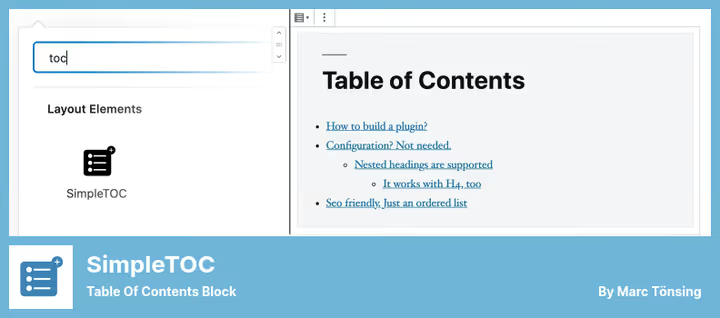
A minimalist Gutenberg block for those who don't want a single unnecessary setting. SimpleTOC adds exactly one block to the editor, "Simple TOC", which automatically collects a table of contents from the current page's headings. No admin panel, no global settings, no JavaScript.
In the block's sidebar, two things are configurable: maximum heading depth and whether to show the "Table of Contents" heading. That's it. The output, semantically clean HTML (unordered or ordered list), inherits the theme's styles. For headings that shouldn't appear in the TOC, add the CSS class simple-toc-hidden.
The block is fully optimized for Gutenberg: column layouts, groups, conversion to reusable block, everything works out of the box. An excellent choice for landing pages, documentation and corporate sites where code transparency and absence of bloated functionality are important.
Pros:
- Zero overhead: the plugin adds neither JS nor CSS
- Clean HTML, works with any theme
- Reusable block for repeated use
- Active updates (v7.1.0, June 2026)
Cons:
- No auto-insertion: block needs to be added manually on each page
- Not suitable for classic editor
- Minimal customization options
4. LuckyWP Table of Contents
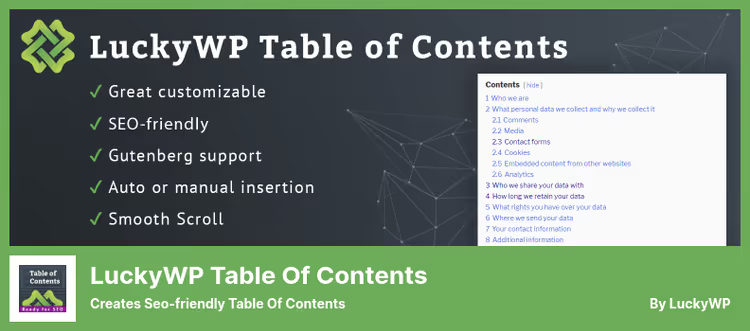
LuckyWP focuses on SEO: its schema markup is ready for Google snippets with anchor links right in the search results. At the same time, the plugin doesn't sacrifice customization, appearance settings (width, float, header font size, colors) are available out of the box.
Auto-insertion works by post type. There's a shortcode, Gutenberg block and classic widget, all placement methods are covered. Numbering supports two formats: Roman and decimal numerals, hierarchically or linearly. You can set a minimum heading threshold (say, show TOC only if there are 3+ H2s in the text), which saves short notes from an empty table of contents.
Heading selection is flexible: by level (from H2 to H6) and by text. A quick insert button is placed on the classic editor toolbar, convenient for those who haven't switched to blocks.
Pros:
- SEO schema markup for Google snippets
- Extensive styling settings without CSS
- Roman and decimal numbering
- Toolbar button in classic editor
Cons:
- Updates infrequently (latest, April 2025)
- Hierarchical view by default doesn't suit everyone
- When float is enabled, may conflict with some themes
🔗 LuckyWP Table of Contents on WordPress.org
5. Joli Table of Contents
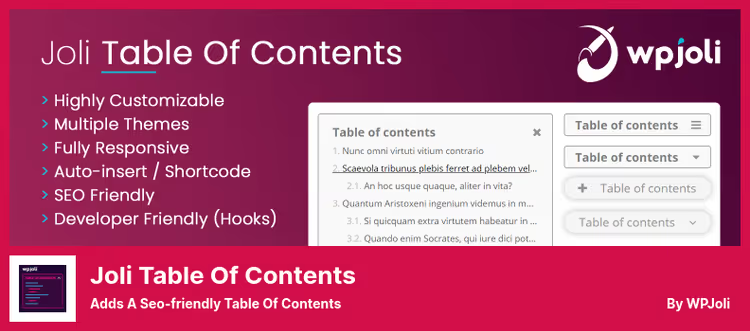
If you need a floating TOC widget that follows the scroll, this is Joli TOC. The free version gives you auto-insertion, shortcode, choice of heading depth (H2-H14) and 4 icons for collapse buttons. Pro for $29 adds 20 icons, additional styling themes and the actual floating panel that highlights the current section.
Joli TOC loads scripts and styles only on pages where the TOC is actually shown, a smart performance approach that owners of fast sites will appreciate. The TOC can be forcibly enabled or disabled for a specific post, which is convenient for non-standard layouts.
Hierarchy is configurable: you can set your own indent for each nesting level, choose flat or tree view. Numbering is optional, added with a prefix.
Pros:
- Floating TOC (Pro) with section highlighting
- Conditional loading of assets (performance-friendly)
- Force enable/disable at post level
- 4 collapse icons in free version
Cons:
- Key feature (floating widget), Pro only
- Fewer free styling themes than Easy TOC
- Pro $29/year, not a one-time purchase
🔗 Joli Table of Contents (Lite) on WordPress.org🔗 Joli Table of Contents Pro
6. Heroic Table of Contents

Heroic TOC does one thing and does it elegantly: 4 ready-made styling templates cover the visual part without fiddling with colors and spacing. This is a plugin for those who want "set it and forget it".
Auto-detection of headings, two display modes (collapsed and expanded), positioning anywhere in the content. TOC sections can be collapsed and expanded with a click, a nice UX touch for long articles with a dozen subsections. There's no limit on the number of TOCs per page: you can insert one at the beginning and an additional one at the end of a section.
Among the drawbacks, no shortcode and Gutenberg block. The plugin relies on auto-insertion, which isn't always convenient if the post layout is non-standard.
Pros:
- 4 beautiful templates out of the box
- Collapse/expand sections
- Multiple TOCs per page
- Configure list of displayed headings
Cons:
- No shortcode and Gutenberg block
- Fewer fine-grained settings than Easy TOC
- Reliance on auto-insertion limits flexibility
🔗 Heroic Table of Contents on WordPress.org
7. CM Table of Contents
CM Table of Contents stands out with a non-standard approach to TOC formation, it's built not only by headings but also by tags, classes and element IDs. This opens up scenarios impossible with competitors: for example, collect a TOC from blocks with a custom CSS class or from elements wrapped in a specific tag.
The plugin supports multi-level TOCs, shortcodes for manual insertion and auto-generation for all site pages. The TOC heading is customizable, font size is configurable. When the page loads, the TOC is collapsed by default, saving space on mobile screens.
However, the settings interface is noticeably overloaded, and the visual styling is basic, without ready-made themes and styling. CM TOC loses out on convenience for beginners, but wins for technically savvy users who need control over the TOC data source.
Pros:
- TOC by tags, classes and IDs, a unique feature
- Auto-generation for all site pages
- Collapsed state on load
- Shortcode for manual placement
Cons:
- Overloaded settings interface
- Basic styling without ready-made themes
- No Gutenberg block
🔗 CM Table of Contents on WordPress.org
8. Elementor Table of Contents Widget

If your site is built on Elementor, you don't need a third-party plugin. The built-in Table of Contents widget appeared in Elementor Pro 2.8 and has since become the standard tool for everyone working in this builder.
The widget lets you choose a tag for its heading, specify the list of included content headings (from H1 to H6) and switch the list style, numbered or bulleted. The TOC is styled with standard Elementor tools: fonts, spacing, colors are selected visually, without code. Responsive design works out of the box.
Schema markup for search engines is built in, Google sees anchor links. Plus sticky highlighting of the current section helps readers not get lost in long materials. The only minus, dependency on Elementor Pro: using the widget outside the builder ecosystem is impossible, and the annual subscription costs $49.
Pros:
- Full integration with Elementor visual editor
- Visual styling without code
- Sticky highlighting of active section
- Built-in schema markup
Cons:
- Requires Elementor Pro ($49/year)
- Doesn't work outside the Elementor ecosystem
- Limited to one page, no global settings
🔗 Elementor Table of Contents Widget
If you're more of a visual learner, here's a short video on installing and configuring Easy Table of Contents, the most popular plugin from our review:
⁉️🤔 Common questions
Is a table of contents needed for SEO?
Yes, and here's why. Google uses anchor links (
#section) to form enhanced snippets with quick jumps, users from search results land directly in the section they need. Plugins like LuckyWP Table of Contents and Easy TOC specifically generate structured schema markup for this. A TOC doesn't directly impact rankings, but it increases snippet CTR and reduces bounce rate, and those are ranking signals.
Which plugin works best with Gutenberg?
SimpleTOC and Joli Table of Contents are designed as native Gutenberg blocks, they don't drag along settings menus in the admin and work directly in the editor. Easy TOC also offers a block, but it duplicates the auto-insertion functionality rather than replacing it. If your site is fully on blocks and you want minimalism, get SimpleTOC. If you need a floating TOC with section highlighting, Joli TOC Pro.
Can you install two different TOC plugins at the same time?
Technically yes, but there's zero point. Two TOCs on a page create duplicate anchor links and confuse search engines. If you need multiple TOCs (for example, a general one at the beginning and a local one in the middle of a long section), Heroic Table of Contents supports multi-insertion out of the box and does so without conflicts.
Why hasn't Table of Contents Plus been updated in a while?
The last TOC Plus update came out in November 2024, this isn't critical for a plugin whose code has stabilized over a decade. However, the development pace has indeed slowed: no Gutenberg block, interface not redesigned for modern WordPress. If you're starting from scratch, get Easy TOC (it's a fork with active development). If TOC Plus is already installed and working, no need to switch, but keep the long-term perspective in mind.
What to do if the TOC conflicts with the theme?
First, check the float settings: in LuckyWP and Easy TOC you can switch float from left/right to none, this solves most conflicts. Second, if the theme rigidly sets styles for lists, SimpleTOC inherits the theme's styles without adding its own and will suit best. Third, Heroic TOC has 4 isolated templates that don't depend on the theme's CSS resets.
What to install on your site in 2026: final breakdown
Eight plugins doesn't mean you need to choose blindly. Here's a short decision matrix we derived from practice:
- You need maximum automation, install Easy Table of Contents. Auto-insertion by post type, built-in themes, works with any editor. The golden mean for the absolute majority of sites.
- You live in Gutenberg, SimpleTOC for minimalists, Joli TOC for those who need a floating TOC. Both native, both don't load extras.
- **You're on **Elementor, don't even think about third-party plugins, the built-in Pro widget covers everything.
- You need a unique data source (not headings but tags/classes), CM Table of Contents. A rare scenario, but when needed, there are no alternatives.
- Visual neatness without CSS fiddling is important to you, Heroic TOC with its 4 templates.
Go to the plugin directory, install the one that fits your editor and task, and configure auto-insertion. Five minutes, and your readers will thank you.

A professional team of writers and editors specializing in creating quality content.