













 AIIllustrative image: AI-generated
📂 8 best WordPress media library plugins 2026 (free and paid)
Over a couple of years, the WordPress media library accumulates thousands of files: article screenshots, product images, PDF guides, icons. Finding the right image turns into scrolling through an endless feed of thumbnails.
The default WordPress media library doesn't provide folders. Files sit in one flat feed, the date filter only helps if you remember when you uploaded the file.
Below are eight plugins that bring order: from folder managers to auto-optimization of sizes and bulk renaming. Each has been tested on a live site, each gets an honest breakdown of pros and cons.

💡 Quick overview:
- Install FileBird or Folders to create a tree-like folder structure with drag & drop and unlimited nesting
- Set up Imsanity to auto-crop giant uploads to reasonable sizes
- Use Media File Renamer to automatically rename files by title and update links across the site
- Create galleries through FooGallery: seven layouts, built-in lightbox, lazy loading
Product | For whom | Price | Key feature |
|---|---|---|---|
FileBird | Those who need folders like on a PC | Free / Pro $39 (lifetime) | Drag & drop, compatibility with 30+ builders |
Real Media Library | Large libraries (5000+ files) | Free / Pro from $39/year | File shortcuts, dynamic galleries |
Imsanity | Blogs with a team of authors | Free | Auto-cropping of giant uploads on upload |
Media File Renamer | SEO optimizers | Free / Pro $19/year | AI renaming, auto-updating of links |
1. FileBird: folders with a computer-like interface

FileBird adds a tree-like folder structure with drag & drop to the media library, just like in Windows Explorer or Mac Finder. 200,000+ active installations and a 4.9 rating on WordPress.org.
The free version is enough for the vast majority of sites: unlimited folders and subfolders, context menu by right-click, folder search directly from the post editor. Smart loading loads files one folder at a time, even on a library of 10,000+ files the interface doesn't lag.
Pro version for $39 (lifetime license) adds: sorting by file size, folder color labels, export folder to ZIP, organization of pages and posts, integration with WooCommerce and 30+ builders.
- Pros: speed on large libraries, one-time payment for Pro, category migration from Enhanced Media Library, smart loading without lag.
- Cons: dark theme interface only in Pro, when updating sometimes need to download ZIP manually.
- Price: Free / Pro $39 lifetime.
- Download: 🔗 FileBird on WordPress.org🔗 FileBird Pro (lifetime)
2. Real Media Library: shortcuts and dynamic galleries
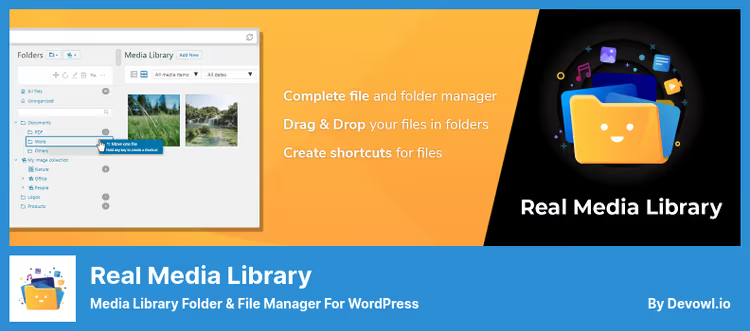
Real Media Library from devowl.io goes beyond folders: it provides file shortcuts, collections and gallery folders. The same file can sit in two folders simultaneously through a shortcut, there's no physical duplication.
Free version: unlimited number of main folders, drag & drop, upload directly to folder. Pro adds subfolders, custom sort order, dynamic galleries through a Gutenberg block and [rml_gallery] shortcode.
React-based interface. Compatibility with WPML, Polylang, WooCommerce, Elementor. Built-in migration from FileBird, Folders, Enhanced Media Library.
- Pros: shortcuts (one file in multiple folders), import from competing plugins, modern React interface, multisite.
- Cons: subfolders only in Pro, annual subscription, free version limited to main folders.
- Price: Free / Pro from $39/year.
- Download: 🔗 Real Media Library on WordPress.org🔗 Pro version
3. Folders: organizer for everything (media, pages, posts)

Folders from Premio organizes not only media files, but also pages, posts and custom post types. 90,000+ active installations, 4.8 rating on WordPress.org.
Free version: unlimited folders for media, pages and posts, drag & drop, file replacement without broken links. Pro for $39/year adds: dynamic galleries through FooGallery, organization of WooCommerce products.
Good for agencies: folder per client, pages and media laid out.
- Pros: folders for pages and posts, star bookmarks, compatibility with FooGallery, file replacement on the fly.
- Cons: dynamic galleries require separate plugins, Pro, annual subscription.
- Price: Free / Pro $39/year.
- Download: 🔗 Folders on WordPress.org🔗 Pro version
4. Enable Media Replace: file replacement without broken links

Enable Media Replace from ShortPixel solves a common problem: you need to replace an image or PDF without breaking links. You upload a new file directly in the media editing window, the plugin swaps it, all embeds remain working. 600,000+ active installations, 4.7 rating.
Free version: file replacement with the same name, automatic update of all embeds, optional thumbnail replacement. Works with images, PDFs, documents.
- Pros: one-click replacement, auto-update of all embeds, support for any file types.
- Cons: only replacement, no organizing, not suitable for bulk replacement of dozens of files.
- Price: Free.
- Download: 🔗 Enable Media Replace on WordPress.org
5. Imsanity: auto-cropping of giant uploads

An author uploads a photo straight from a camera, resulting in a file the size of a good PDF. After a month hosting is clogged, pages load slower and slower. Imsanity solves the problem automatically: you set a maximum width and height, the plugin crops everything on upload. Free. 200,000+ installations, 4.9 rating.
Setup takes a minute: Settings → Imsanity, set width and height limit, choose JPG quality, and forget. The plugin works through standard WordPress hooks, doesn't create its own tables.
Bonus: built-in bulk resize utility, you can run the entire library and free up gigabytes. Supports AVIF and WebP, compatible with PHP 8.5 and WordPress 7.0.
- Pros: works invisibly after setup, bulk resize of old files, AVIF and WebP support.
- Cons: doesn't compress (only resizes), for compression you need a separate optimizer like EWWW, original is replaced with cropped.
- Price: Free.
- Download: 🔗 Imsanity on WordPress.org
6. Media File Renamer: AI renaming for SEO

IMG_4267.JPG, a typical file name from a phone. Google doesn't understand it. Media File Renamer from Jordy Meow (Meow Apps) automatically renames files to human-readable: IMG_4267.JPG turns into red-chair-in-interior.jpg.
Free version: manual and automatic renaming on upload based on title, auto-update of all links on the site, bulk renaming of existing files. Pro for $19/year adds AI image analysis (Vision).
The plugin updates links in real time. Renamed a file, and all pages where it's embedded continue to work. Before bulk processing, make a backup.
- Pros: auto-update of links across the entire site, AI suggestions in Pro, bulk renaming in one click.
- Cons: free version without AI analysis, for bulk renaming better to first run 2-3 files.
- Price: Free / Pro $19/year.
- Download: 🔗 Media File Renamer on WordPress.org🔗 Pro version
7. FooGallery: galleries from folders in a couple of clicks

Organized media files by folders, now they need to be beautifully shown to visitors. FooGallery makes galleries by dragging: chose a layout (responsive, masonry, justified, carousel), threw in images, set up lightbox, done.
Seven free layouts cover practically any scenario. Lightbox built in out of the box, customizable: colors, transitions, captions. Galleries lazy load, SEO-friendly (ALT, title, integration with Yoast and Rank Math).
Dynamic galleries in Pro Expert: gallery automatically picks up files from a folder. Pro Commerce for $49/year integrates with WooCommerce: photo sales, watermarks.
- Pros: 7 free layouts, built-in lightbox, lazy loading out of the box, SEO-friendly.
- Cons: dynamic galleries in Pro Expert ($49/year), video galleries there too.
- Price: Free / Pro Starter $30/year / Pro Expert $49/year / Pro Commerce $49/year.
- Download: 🔗 FooGallery on WordPress.org🔗 Pro version
8. Media Library Organizer: categories and taxonomies for media files

Media Library Organizer from Themeisle, a functional alternative to the abandoned Enhanced Media Library. Does the same, but better: creating folders through taxonomies, categories and tags for files, drag & drop reordering.
Free version: unlimited folders, filtering by categories, setting default ALT for uploaded files, export of folder structure. Pro version adds: AI categorization of images, advanced search, EXIF and IPTC editing.
If you have Enhanced Media Library, it's time to migrate: FileBird and Real Media Library can import EML categories. 20,000+ active installations, 4.7 rating, last update May 2026.
- Pros: taxonomic approach (categories plus tags), setting default ALT, export of folder structure.
- Cons: more WordPress-like interface without the familiar tree-like explorer, some features in Pro.
- Price: Free / Pro, prices on the developer's site.
- Download: 🔗 Media Library Organizer on WordPress.org🔗 Pro version
Visual video tutorial in English from Elegant Themes: how the WordPress media library works, uploading and editing files, adding ALT texts and optimizing images.
⁉️🤔 Frequently asked questions
Do I need a plugin for the media library if I only have 200 files?
It all depends on how often you search for these files. 200 images without folders, that's 10 screens of scrolling in grid mode. FileBird or Folders in free version solve the problem in 2 minutes of installation. If you have 50-100 files, it may not be needed.
Which is better: virtual folders or real server ones?
Virtual folders (FileBird, Real Media Library, Folders) are safer: they don't touch the file system, media file URLs remain the same. Real folders (WP Media Folder) give human-readable URLs like
/products/chair.jpg, a plus for SEO, but require backup and are not compatible with all plugins.
Does Imsanity compress images or only crop?
Only crops to specified dimensions. For compression without quality loss you need EWWW Image Optimizer or ShortPixel, they work great in tandem. The combo Imsanity plus EWWW closes both problems.
Can I use two folder plugins simultaneously?
Better not, taxonomy conflict is almost guaranteed. Choose one. FileBird for simplicity and lifetime license, Real Media Library for shortcuts and dynamic galleries, Folders if you need folders for pages and posts.
How to transfer categories from Enhanced Media Library to a new plugin?
Both FileBird and Real Media Library have a built-in migration tool from Enhanced Media Library. The process takes a couple of minutes, category structure is preserved. Before migration, make a database backup.
💎 Conclusions: which media library plugin to choose
Eight plugins are actively updated and compatible with WordPress 7.0 and PHP 8.5. Enhanced Media Library has been abandoned since July 2024, migration to any of the listed organizers takes minutes.
- If you need a simple folder structure like on a PC and a one-time payment, take FileBird.
- If the library is huge (5000+ files) and you need shortcuts, Real Media Library.
- If order is needed not only in media, but also in pages and posts, Folders.
- If the problem is giant uploads from authors, Imsanity.
- If file names are unreadable and this hurts SEO, Media File Renamer.
- If you need to show beautiful galleries from organized folders, FooGallery.
- If migrating from Enhanced Media Library and want categorization through taxonomies, Media Library Organizer.
Start with free versions of FileBird or Folders, most needs are covered without payment. What plugin do you use, write in the comments.

A professional team of writers and editors specializing in creating quality content.