














🔍 6 best WordPress digital asset management plugins 2026 (free and paid)
Media files clutter a site faster than you think. Five authors, three editors, two thousand images, and the standard WordPress library turns into a dump without search or structure. Finding the right logo or banner for yesterday's post becomes a half-hour quest.
Properly configured digital asset management (DAM) solves this problem at its root. Folders, tags, taxonomies, fast search, the media library starts working for you, not against you. We've selected 6 WordPress plugins that organize files without unnecessary magic.
💡 Quick overview:
- Add folders and subfolders to the media library with
FileBirdorFolders - Set up custom taxonomies and tags with
Enhanced Media LibraryorMedia Library Categories - Connect a cloud DAM platform with AI through
Brandfolder - Automate metadata and bulk editing with
Media Library Assistant
Comparison table:
Plugin | Free version | Pro price | Drag-and-drop | Custom taxonomies | AI/auto-tags |
|---|---|---|---|---|---|
| Yes (Lite) | Subscription | No | No | Yes (NLP + ML) |
| Yes (Lite) | Subscription | Yes | No | No |
| Yes | One-time | No | Yes | Yes (auto-categorization) |
| Yes | Free | No | Yes | No |
| Yes (Lite) | One-time | Yes | No | No |
| Yes | Free | No | Yes | No |
1. Brandfolder
Brandfolder, this isn't just a plugin for folders in the media library. It's a full-fledged DAM platform that stores, indexes, and distributes digital assets through the cloud. Suitable for teams where media files are used simultaneously by designers, marketers, and developers.
Under the hood, AI based on NLP and machine learning. The platform analyzes file content, automatically assigns tags, and tracks who, when, and how uses each asset. You see statistics on views, downloads, and sharing right in the dashboard.
Integrations, Brandfolder's strong suit: WooCommerce, Shopify, Google Workspace, HubSpot, Salesforce, Marketo, Canva, Slack. If your stack already includes these tools, DAM integrates into the workflow without scripts and workarounds.
Pros:
- AI content indexing and automatic tags
- Deep file usage analytics
- Dozens of ready integrations with external platforms
- Access control at role and user level
Cons:
- Overkill for small sites without a team
- Pro version is noticeably more expensive than competitors
- No drag-and-drop in WordPress interface
Price: Lite free, Pro, paid subscription.
🔗 Brandfolder on WordPress.org🔗 Official site
2. FileBird
FileBird solves the main pain of WordPress media library, the lack of folders. Install the plugin, get a tree structure of directories right in the standard upload interface. The interface is so native that after an hour you forget: this is a third-party plugin, not part of the core.
The mechanics are simple: right click to create, rename, and delete folders, drag-and-drop to move files. No training, sit down and work. Supports thousands of media files without interface speed drops.
Pro version adds unlimited folders, subfolders, six months of priority support, and compatibility with popular builders like Elementor. Files are inserted into posts through a dropdown category list right in the editor.
Pros:
- Native interface, indistinguishable from standard
- Drag-and-drop without delays even on large libraries
- Compatibility with Elementor and other page builders
- Multilingual out of the box
Cons:
- No automatic file categorization
- Pro, annual subscription, which is higher than one-time licenses of analogs
- Doesn't add custom taxonomies to files
Price: Lite free, Pro, annual subscription.
🔗 FileBird on WordPress.org
3. Enhanced Media Library
Enhanced Media Library extends the standard media library with custom taxonomies. You create categories and tags for files the same way as for posts, then filter and search by them. No folders, just a flexible label system.
The plugin has a steeper learning curve: you need to configure taxonomies, link them to media files, define display rules. But after setup you get a powerful categorization tool that isn't tied to physical folder structure.
Pro version (one-time payment) removes restrictions on bulk editing and adds advanced search. Separate plus, automatic categorization: the plugin can distribute files by defined rules itself.
Pros:
- Full custom taxonomies for media files
- Automatic categorization by rules
- One-time Pro payment without subscription
- Compatibility with taxonomies from other plugins
Cons:
- Interface looks dated compared to competitors
- Complex initial setup process
- No drag-and-drop and folder structure
Price: Free, Pro, one-time payment.
🔗 Enhanced Media Library on WordPress.org🔗 Developer site
4. Media Library Assistant
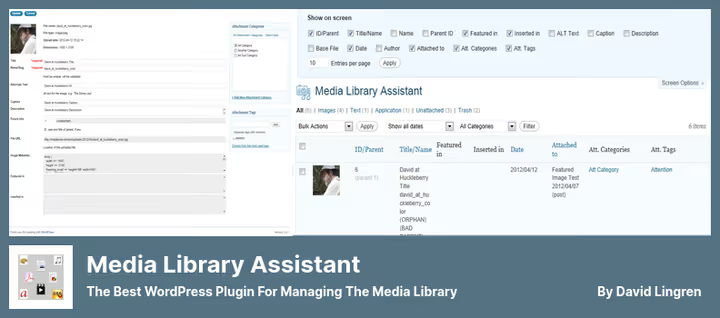
Media Library Assistant, a combine harvester for those who need not just to store files, but to manage them programmatically. Shortcodes for galleries with filtering by taxonomies, bulk editing of authors and metadata, search by alt texts and captions, a set of tools for advanced users.
The plugin is completely free, open-source. It doesn't impose its structure, but extends the existing WordPress logic: adds filters, columns, views. Works well with WPML and Polylang for multilingual sites.
There's integration with Jetpack and other popular plugins. For automatic file tagging, Enhanced Media Library is better, but if you need shortcodes and batch operations, MLA is unmatched.
Pros:
- Powerful shortcode system for galleries
- Bulk editing of metadata and taxonomies
- Completely free, open-source
- Multilingual support through WPML and Polylang
Cons:
- No automatic file tagging
- Learning curve higher than competitors
- Conservative interface, no drag-and-drop
Price: Free.
🔗 Media Library Assistant on WordPress.org
5. Folders
Folders does what follows from the name, adds folders. But not only to the media library: the plugin works with posts, pages, and custom post types. All site content is laid out in a hierarchical structure that you customize.
Drag-and-drop without code, subfolder support, file replacement without losing links, downloading entire folders, basic operations implemented without frills. Pro version (one-time payment) adds dynamic folders with auto-filtering by authors and dates, plus the ability to undo actions.
The plugin doesn't integrate with Jetpack, which can be a minus for sites on that stack. Otherwise, a simple and reliable tool for structuring content.
Pros:
- Folders for any post types, not just media files
- File replacement without losing links
- Downloading folders entirely
- Pro, one-time payment, not subscription
Cons:
- No integration with Jetpack
- Dynamic folders only in Pro
- Doesn't add taxonomies and tags to files
Price: Lite free, Pro, one-time payment.
🔗 Folders on WordPress.org🔗 Developer site
6. Media Library Categories
Media Library Categories adds the standard "Categories" taxonomy to media library files. You group images, documents, and videos by categories, and filter with a dropdown list right in the upload interface. Everything is simple, without frills.
Bulk category assignment, shortcode to output gallery from files of one category, filtering when inserting media into posts, a basic set that covers the needs of most sites. The plugin is completely free and doesn't slow down the admin.
The interface is spartan, but does the job. If you need folders with drag-and-drop, look at FileBird or Folders. If you need categories with filtering, Media Library Categories does it excellently.
Pros:
- Free, without Pro restrictions
- Doesn't slow down admin
- Bulk category assignment in a few clicks
- Shortcode for gallery by category
Cons:
- Minimalist interface
- No drag-and-drop and folders
- Categories, the only available taxonomy
Price: Free.
🔗 Media Library Categories on WordPress.org
Video: WordPress media file management in practice
The topic of organizing the media library is better revealed live. This tutorial shows working with folders, filters, and metadata through a DAM plugin, on a real site, with real files:
⁉️🤔 Frequently asked questions
How does a DAM plugin differ from the standard WordPress media library?
The standard WordPress media library is a flat list of files without folders, tags, and filtering by categories. A DAM plugin adds at minimum a tree folder structure, and at maximum, AI indexing, integrations with cloud storage, and usage analytics. The difference is like between a box of papers and a card catalog.
Can you use multiple media library plugins simultaneously?
Technically yes, but not recommended.
FileBirdandFoldersconflict over folder structure,Enhanced Media LibraryandMedia Library Categories, over taxonomies. Choose one for your task: folders OR taxonomies, but not both types simultaneously.
Which plugin is better for a large number of files, 10,000 and above?
FileBirdandMedia Library Assistanthandle the load best.FileBirdis optimized for tree navigation in large libraries,MLAis tailored for batch operations with metadata.Brandfolderhandles enterprise volumes, but it's a cloud solution, not a local plugin.
Is a DAM plugin needed if one person runs the site?
If there are fewer than 200-300 media files, the standard media library is more than enough. But as soon as files exceed five hundred, searching for the right image starts taking time. In this case, free
FoldersorMedia Library Categories, an easy solution in 5 minutes of installation.
How to transfer existing files to folder structure after installing the plugin?
All plugins from this collection show existing files immediately after activation. Drag them into created folders via drag-and-drop (
FileBird,Folders) or assign categories in bulk (Media Library Categories,Enhanced Media Library). The files themselves don't physically move, the plugin works with virtual structure.
What to do if the plugin stopped updating?
Check alternatives. For example,
Enhanced Media Librarywas updated a year and a half ago, for basic categorization it still works, but for new projects it's better to take actively supportedFileBird(update, May 2026) orFolders(June 2026). Before migration, make a media library backup.
What to install in 2026
If you just need folders and nothing extra, FileBird with its native interface is the best choice for daily work. Love versatility and don't want to pay a subscription, Folders with one-time payment covers both media files and posts.
When a project requires tags and custom taxonomies, not folders, Media Library Assistant gives maximum capabilities for free. For automatic categorization, Enhanced Media Library is still relevant, despite the interface age. And if you have a distributed team and need cloud DAM with AI, Brandfolder pays for itself in the second month of use.
Try two plugins from the collection on a test site and choose the one that fits your workflow. Order in the media library saves not minutes, hours every month.

A professional team of writers and editors specializing in creating quality content.