














🗂️ 11 best plugins for organizing WordPress media library 2026
You uploaded a dozen images for a post, attached a PDF guide to a documentation page, added an audio version of an article. A month later, another author uploads the same files again, couldn't find them already in the library. Six months later, the media library has 4000+ files without a single folder, and finding a sidebar banner is a half-hour quest. Sound familiar?
WordPress out of the box gives you only a thumbnail grid and search by filename. No folders, no categories, no filters by type. For a business card site, this is still tolerable. For a blog with hundreds of posts, a product catalog, or a news portal, it's a disaster. The good news: plugin developers have solved the problem, and solved it differently, from drag-and-drop folders to advanced taxonomies with SEO bonuses.
We tested 11 plugins for organizing the WordPress media library that actually work in 2026, and selected the best ones. Below, an honest breakdown: what we install on production sites, and what we leave for specific scenarios.
💡 Quick overview:
- Folders and subfolders, the foundation: FileBird, Real Media Library, and WP Media Folder cover most typical site needs.
- Taxonomies and categories, for those who need not just hierarchy, but flexible filtering: Media Library Assistant, WP Media Library Categories, and WP Media Category Management.
- File replacement without renaming, a separate scenario that Enable Media Replace handles (and only it does this correctly).
- Choice by scenario: for a photographer, one thing, for an online store, another, for a newsroom of 5 authors, a third. In the conclusions, a correspondence matrix.
Comparison table of plugins
Plugin | Free version | Folders | Categories | Drag & Drop | File replacement | Active installations |
|---|---|---|---|---|---|---|
FileBird | Yes (Lite) | ✅ | ❌ | ✅ | ❌ | 400,000+ |
Real Media Library | Yes (Lite) | ✅ | ✅ | ✅ | ❌ | 100,000+ |
WP Media Folder | Yes (limited) | ✅ | ❌ | ✅ | ❌ | 50,000+ |
Media Library Assistant | Yes | ❌ | ✅ | ❌ | ❌ | 80,000+ |
Media Library Organizer | Yes | ❌ | ✅ | ❌ | ❌ | 10,000+ |
Folders | Yes | ✅ | ❌ | ✅ | ❌ | 200,000+ |
Media Library Plus | Yes | ✅ | ❌ | ✅ | ❌ | 30,000+ |
Organize Media Library | Yes | ✅ | ❌ | ❌ | ❌ | 5,000+ |
WP Media Library Categories | Yes | ❌ | ✅ | ❌ | ❌ | 30,000+ |
WP Media Category Management | Yes | ❌ | ✅ | ❌ | ❌ | 8,000+ |
Enable Media Replace | Yes | ❌ | ❌ | ❌ | ✅ | 700,000+ |
1. FileBird, WordPress media library folders
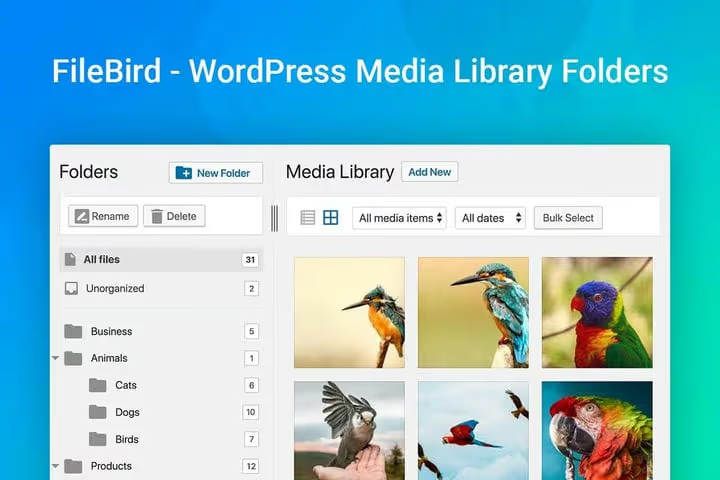
🔗 FileBird on WordPress.org | 🔗 Live demo
FileBird, the most popular file manager for the WordPress media library. At the time of writing, 400,000+ active installations and version 6.5.4, compatible with WordPress 7.0.
The main feature, context menu on right click. Create a folder, rename, delete, all without reloading the page. Drag-and-drop works like in a file explorer: grab a file with the mouse and drag it to the desired folder. No learning curve, users seeing the WordPress admin for the first time master FileBird in a couple of minutes.
Features:
- Context menu on right click, create, rename, delete a folder without reloading.
- Drag-and-drop, dragging files between folders, upload directly to a selected folder.
- **Compatibility with all **page builders, Elementor, Divi, Beaver Builder, Gutenberg, and dozens of others.
- Migration from other plugins, import folder structure from Enhanced Media Library and Media Library Folders.
- Gutenberg image block, insert images through the FileBird interface right in the editor.
- Multilingual, interface translated into 20+ languages, including Russian.
Pros: lightning-fast interface, free version covers basic functionality, compatibility almost with everything.
Cons: advanced sorting and unlimited subfolders, in Pro on CodeCanyon (from $39/year).
FileBird, the default choice if you need "set it and forget it". The free Lite version is enough for 90% of sites. The Pro version on CodeCanyon adds unlimited folder nesting, sorting by date/name/size, and a Gutenberg gallery.
2. Real Media Library, folders, collections, and galleries
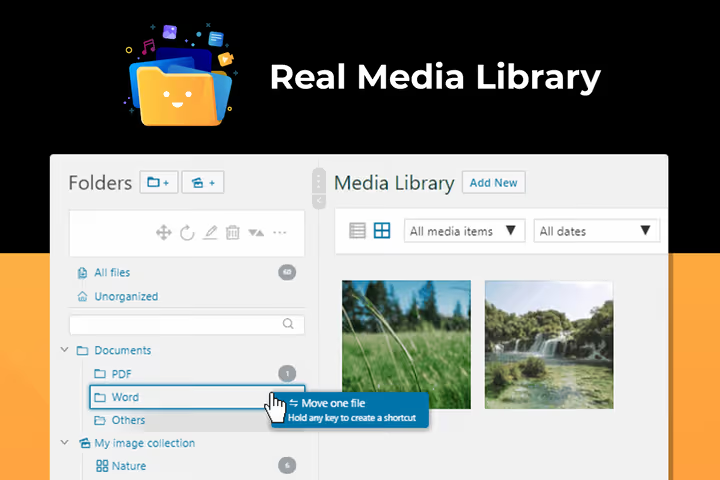
🔗 Real Media Library Lite on WordPress.org | 🔗 Pro version on CodeCanyon
Real Media Library, a file manager for those working with thousands of files. Unlike simple folder plugins, it introduces three levels of organization: folders, collections, and galleries. Folders, physical hierarchy, collections, logical grouping without moving files, galleries, ready-made sets for frontend display.
The plugin confidently handles 10,000+ uploads without performance degradation. Shortcuts allow you to reference one file from multiple collections, without duplication in the media library. Automatic sorting arranges files by name, date, or custom order.
Features:
- Folders, collections, and galleries, three organization tools in one plugin.
- Shortcuts, one file in multiple collections without duplication.
- 10,000+ files without lag, tested on production installations.
- Automatic sorting, by filename, upload date, size.
- Integration** with FooGallery and Justified Image Grid**, galleries work out of the box.
- 9 interface languages, Russian is on the list.
- SEO bonus with Real Physical Media, physically reorganizes files on the server according to your folder structure (separate add-on).
Pros: three levels of organization, confident handling of huge libraries, shortcuts without duplication.
Cons: galleries and collections, only in Pro version on CodeCanyon (from $39).
Real Media Library is justified for sites with a team of authors, news portals, and media archives. If FileBird is a screwdriver, then Real Media Library is a professional mechanic's toolkit.
3. WP Media Folder, folders, filters, and galleries

🔗 WP Media Folder on WordPress.org | 🔗 Screenshots and demo
WP Media Folder from JoomUnited, a plugin that turns the media library into something like an operating system file manager. Folders and subfolders, the base. But the main thing, filters: by file size, type, name. If you're looking for a specific image among thousands, the size filter often finds it faster than remembering which folder it's in.
Features:
- Folders and subfolders, upload one or multiple files directly to the desired folder.
- Filters, by file size, type, and name.
- Gallery from folder, automatically picks up new files from the folder, 4 design themes (standard, masonry, slider, portfolio).
- Gallery size settings, choose thumbnail size and number of columns.
- WooCommerce integration, separate folders for products.
Pros: filters by size and type, galleries with automatic updates, design themes.
Cons: free version is limited; full functionality, in Pro on JoomUnited.
WP Media Folder, a good choice for photographers and design studios, where both folders and quick preview and frontend galleries are important.
4. Media Library Assistant, taxonomies and shortcodes
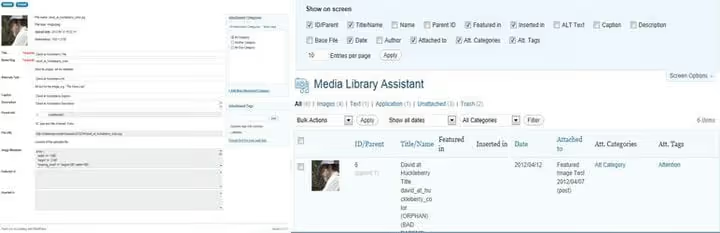
🔗 Media Library Assistant on WordPress.org | 🔗 Screenshots and demo
Media Library Assistant, a veteran with 80,000+ active installations and completely free. Its approach differs from folder plugins: instead of hierarchy, taxonomies, meta fields, and shortcodes. You attach arbitrary tags and categories to files, then output them through shortcodes with filtering.
The plugin adds slideshows, thumbnail feeds, and special effects to galleries without additional tools. The interface mirrors the standard media library, the entry threshold is minimal.
Features:
- Taxonomies for media files, tags, categories, custom attributes.
- Shortcodes with filtering,
[mla_gallery]with flexible selection parameters. - Slideshows and special effects, built-in, without additional plugins.
- Bulk editing, change attributes for hundreds of files at once.
- Compatibility with WPML and Polylang, for multilingual sites.
- IPTC/EXIF, reading image metadata.
Pros: completely free, taxonomies instead of folders, powerful shortcodes.
Cons: no visual folders, for those used to file explorer, adaptation is needed.
Media Library Assistant, the right choice if you need not just folder hierarchy, but semantic markup of media files with the ability to select by criteria.
5. Media Library Organizer, sorting by date and name

🔗 Media Library Organizer on WordPress.org | 🔗 Screenshots and demo
Media Library Organizer does exactly what the name promises: organizes. No folders, no drag-and-drop, just classification and filtering of photos, videos, and other media types through an intuitive interface.
Features:
- Sorting, by upload date and filename.
- Works with all views, list, grid, all media library modes.
- Import and export, classification data can be transferred between sites.
Pros: simple, lightweight, free.
Cons: functionality is minimal, only sorting and filtering, no folders.
Media Library Organizer is suitable for small sites where there are few files and only basic sorting is needed. For libraries with hundreds of images, better to look towards FileBird or Folders.
6. Folders, one plugin for pages, posts, and media

🔗 Folders on WordPress.org | 🔗 Screenshots and demo
Folders, an unexpectedly universal tool. It adds folders not only to the media library, but also to the "Pages", "Posts" sections and custom post types. For a newsroom with multiple authors, this means: each has their own folder with drafts, and in the media library, folders by issue topics.
Features:
- Folders for pages, posts, and media files, unified organization logic across the entire site.
- Bulk drag-and-drop, select multiple files, drag them to a folder.
- Collapsible panel, when folders aren't needed, the panel hides to the side, freeing up space.
- Folder tree, customizable view, subfolders without limits (in Pro).
Pros: folders for all content, not just media; bulk transfer; 200,000+ installations.
Cons: free version is limited to one nesting level; Pro version removes this limitation, but requires a paid subscription.
Folders, the ideal choice when the mess is not only in the media library, but also in pages and posts. One plugin, order everywhere.
7. Media Library Plus, folders and SEO attributes for images

🔗 Media Library Plus on WordPress.org | 🔗 Screenshots and demo
Media Library Plus adds folders with drag-and-drop to the media library and one rare feature, automatic filling of ALT and TITLE attributes on upload. This is not just organization, but SEO optimization of images on the fly.
Features:
- Media library folders, create, rename, delete.
- Drag-and-drop, move, copy, and delete files and folders.
- Thumbnail regeneration, regenerates thumbnails after size changes.
- Image SEO, automatic ALT and TITLE specification on upload.
- Lost file scanning, finds files on the server not linked to the media library.
Pros: SEO attributes on upload, drag-and-drop, thumbnail regeneration.
Cons: interface is a bit more archaic than competitors.
Media Library Plus is good if you regularly upload dozens of images and want ALT to be filled automatically, not manually after the fact.
8. Organize Media Library by Folders, minimalist folders

🔗 Organize Media Library on WordPress.org | 🔗 Screenshots and demo
Organize Media Library by Folders, a minimalist solution that adds one function to the media library: folders. No filters, taxonomies, galleries. Just create a folder, put files there, search through the folder filter.
An interesting detail, the plugin generates its own URL for each folder that can be used in content. For bloggers and online magazines, this means direct links to themed image collections.
Features:
- Folders with direct URLs, each folder gets its own address for insertion in content.
- Search filter by folders, quick finding of files in a specific folder.
- Minimal interface, nothing extra, only folders.
Pros: simplicity, direct folder URLs, doesn't distract from work.
Cons: install base only 5,000+, functionality is minimal, infrequent updates.
Suitable for those who need exactly one function from the plugin, folders, without extras. For more active work with media files, better to take Folders or FileBird.
9. WP Media Library Categories, categories like for posts

🔗 WP Media Library Categories on WordPress.org | 🔗 Screenshots and demo
WP Media Library Categories approaches media file organization the same way WordPress organizes posts, through categories. You create categories for images, assign them to files one by one or in bulk, and filter the media library by categories in list or grid mode.
Features:
- Bulk category assignment, select multiple files, change the category for all at once.
- Customizable taxonomy, you can create your own category structure.
- Filter by categories, in list view and grid view.
- **Shortcode **
[media_category], output media files by category on the frontend.
Pros: familiar category logic, bulk actions, frontend shortcode.
Cons: no folders, only categories, which may not suit those used to file explorer hierarchy.
WP Media Library Categories, the right choice for sites where a category system for posts is already established and you want to extend it to media files. Especially relevant for news portals and magazines.
10. WP Media Category Management, bulk category management

🔗 WP Media Category Management on WordPress.org | 🔗 Screenshots and demo
WP Media Category Management, a free plugin focused on bulk operations with media file categories. If WP Media Library Categories provides the interface, WP Media Category Management provides speed: batch taxonomy switching, default category on upload, and a shortcode for filtering galleries.
Features:
- Bulk taxonomy switching, hundreds of files to a new category in one operation.
- Default category, each new file automatically goes to a specified category.
- Gallery shortcode,
[media_category]filters files in a gallery by category. - Compatibility, works with taxonomies created by other plugins (MLA, WP Media Library Categories).
Pros: speed of bulk operations, default category, compatibility.
Cons: only categories without folders, interface is spartan.
A plugin for administrators who need to sort through backlogs in a media library of thousands of files. Paired with WP Media Library Categories, it covers all taxonomic organization scenarios.
11. Enable Media Replace, file replacement without renaming

🔗 Enable Media Replace on WordPress.org | 🔗 Screenshots and demo
Enable Media Replace from ShortPixel solves one task, but solves it perfectly: replaces an existing file in the media library with a new one, without deleting, renaming, and re-uploading with the same name. Replaced a logo with a new one, updated a PDF price list, corrected a banner, and the file URL remained the same. No broken links to old versions.
A bonus feature, image background removal through the ShortPixel API. Upload an image, click "Remove background", and the plugin returns a preview with a transparent background.
Features:
- One-click file replacement, new file takes the place of the old one, URL doesn't change.
- Background removal, through ShortPixel API, right in the media library.
- Metadata update, when replacing you can change ALT, title, and description.
- 700,000+ active installations, the most popular plugin in this roundup.
Pros: solves a specific problem flawlessly, huge install base, completely free.
Cons: this is not an organizer, no folders and categories.
Enable Media Replace is not a competitor to FileBird or Real Media Library, it complements them. Install it together with any folder plugin, and the media library will be both organized and easily updateable.
⁉️🤔 Frequently asked questions
Do I even need a plugin for organizing the media library if I have a 5-page business card site?
If you upload 2-3 images a month, you don't need one. The standard WordPress grid is enough. But practice shows: sites have a property of growing. In a year, the "business card" grows a portfolio of 30 works, a blog of 40 posts, and a testimonials section with photos. At this point, 300+ unsystematic files already cause pain. Our advice: install Folders or FileBird Lite right away, they're free, weigh zero, and will save hours when the library grows.
How do folder plugins affect the actual file location on the server?
Most plugins (FileBird, Folders, WP Media Folder) create a virtual folder structure. Files physically remain in
/wp-content/uploads/YYYY/MM/, and folders exist only in the database. An exception, Real Physical Media (an add-on to Real Media Library), which physically reorganizes files on the server according to your folder hierarchy. This gives an SEO bonus: file URLs become human-readable, not/2021/01/post-72041-hash.avif.
What should I do if I already have one folder plugin installed and want to switch to another?
FileBird and Folders offer built-in migration tools, import folder structure from Enhanced Media Library and Media Library Folders. If your old plugin isn't supported by the new one, the standard path: screenshot of folder structure → disable old one → install new one → manually recreate. For libraries with thousands of files, this can take an hour or two. Choose a plugin right away with an eye to years ahead.
Can I use two media library plugins at the same time?
Technically, yes, and in many cases it's justified. A classic combo: folder plugin (FileBird, Folders) + Enable Media Replace. The first provides organization, the second, file replacement without changing URLs. But we don't recommend installing two folder plugins at the same time: they can conflict over media library hooks, and two parallel folder hierarchies will only confuse.
Which plugin is better for a WooCommerce online store?
WP Media Folder from JoomUnited, built-in WooCommerce integration, separate folders for products, watermarks. In second place, FileBird Pro with Gutenberg gallery and compatibility with major WooCommerce themes. If the budget is minimal, Folders (free version) with folders for pages, posts, and media files.
Which media library plugin to choose
All 11 plugins from the roundup are active and updated in 2026. The choice comes down to the use scenario, not an abstract "better". Here's a correspondence matrix:
"I want folders like in a file explorer and for it to work right away", FileBird Lite. Free, 400,000+ installations, interface without surprises.
"I have 10,000+ files, multiple authors, and a media archive", Real Media Library Pro. Folders + collections + shortcuts. Worth its money for large projects.
"Mess in pages, posts, and media at the same time", Folders. Unified panel for all content, bulk drag-and-drop.
"I need flexible filtering, not just folders", Media Library Assistant. Taxonomies, shortcodes, EXIF. Free and powerful.
"Only file replacement, everything else is fine", Enable Media Replace. One function, 700,000+ installations, no questions.
"WooCommerce online store", WP Media Folder Pro. WooCommerce integration, watermarks, galleries.
Install Enable Media Replace alongside any folder plugin, and you can forget about file replacement as a problem. And if you're torn between FileBird and Folders, try both: their free versions don't conflict in test mode, and the interface will show in 10 minutes which approach is more convenient for you.

A professional team of writers and editors specializing in creating quality content.