













 AIIllustrative image: AI-generated
🖌 CSS for WordPress calendar widget: ready-made code and breakdown
The default WordPress calendar, the detail that gives away a half-baked theme in the first three seconds. A dense table without spacing, gray background by default, cramped text in cells. The theme developer spent a week on fonts and colors but forgot about #wp-calendar.
Twenty lines of CSS change everything. Below is code you can copy into any project, along with a line-by-line breakdown so you don't just paste it but understand what each selector does.
💡 Quick overview:
- Ready-to-use CSS for
#wp-calendar, one block, copy it whole - Where to insert the code: Customizer, snippet plugin, or child theme
- What to do if CSS doesn't work, specificity and how to override it
- Why the shadow in the screenshot is for the article only, it's not in the actual code
How the calendar widget works
Before copying the code, here's a quick look at the structure. WordPress generates this markup for the widget:
.widget_calendar, widget container in the sidebar#wp-calendar, the table itself (each widget has its ownid)#wp-calendar caption, month name (table heading)#wp-calendar thead th, abbreviated day names#wp-calendar tbody td, day cells; dates with posts become links#wp-calendar tbody .pad, empty cells before the first and after the last day#wp-calendar tfoot #prev/#next, links to previous and next month
These classes haven't changed in years and work in all WordPress versions from 5.0 to the latest releases. No magic, just standard core markup.
A short video on how to add and configure the calendar widget in the admin:
Ready-to-use CSS: copy and paste
Add this code to your theme styles. The result is a light table with gray cells, white hover effect, and disabled background for empty days.
1 /* calendar widget — minimalistic styling */ 2 .widget_calendar {float: left;} 3 #wp-calendar {width: 100%;} 4 #wp-calendar caption { 5 text-align: right; 6 color: #333; 7 font-size: 12px; 8 margin-top: 10px; 9 margin-bottom: 15px; 10 } 11 #wp-calendar thead {font-size: 10px;} 12 #wp-calendar thead th {padding-bottom: 10px;} 13 #wp-calendar tbody {color: #aaa;} 14 #wp-calendar tbody td { 15 background: #f5f5f5; 16 border: 1px solid #fff; 17 text-align: center; 18 padding: 8px; 19 } 20 #wp-calendar tbody td:hover {background: #fff;} 21 #wp-calendar tbody .pad {background: none;} 22 #wp-calendar tfoot #next { 23 font-size: 10px; 24 text-transform: uppercase; 25 text-align: right; 26 } 27 #wp-calendar tfoot #prev { 28 font-size: 10px; 29 text-transform: uppercase; 30 padding-top: 10px; 31 }
Breakdown by groups:
Container and width. .widget_calendar {float: left;} prevents float collisions in narrow sidebars. #wp-calendar {width: 100%;} forces the table to stretch to the full width of its parent; without this, the calendar behaves like an inline element and shrinks to content width. More about CSS in WordPress.
Month heading. caption is right-aligned, dark gray color with top and bottom margins. The month reads as a caption for the table, not as orphaned text.
Header with day names. thead and th, small 10px font and bottom padding. Abbreviated day names (Mon, Tue, Wed) don't draw attention to themselves.
Day cells. Main text color #aaa, muted gray. Each cell gets a #f5f5f5 background and white border that visually separates the days. padding: 8px gives breathing room around the numbers. On hover, the cell turns white, simple and clear hover with no animations.
Empty cells. .pad removes the background fill so "holes" at the beginning and end of the month don't look like active days.
Month navigation. tfoot #prev and #next, links to adjacent months. Both in small uppercase font; #prev on the left, #next on the right.
Note: the shadow around the calendar in the screenshot below is for article illustration only. It's not in the actual code.
Three ways to add CSS to your site
From simplest to most proper.
Method 1: Customizer. Go to Appearance → Customize → Additional CSS and paste the code. Pros: instant preview, no need to touch files. Cons: styles are tied to the theme, lost when you switch themes.
Method 2: Snippet plugin. Install free Code Snippets or WPCode and add the code as a CSS snippet activated sitewide. Pros: styles live independently of the theme. Cons: one more plugin in the admin.
Method 3: Child theme. Create style.css in a child theme and paste the code there. This is the right path for production projects: styles survive parent theme updates and live in version control. If you don't have a child theme yet, the WordPress.org guide will walk you through in ten minutes.
Result
After adding the CSS, the widget looks like this:
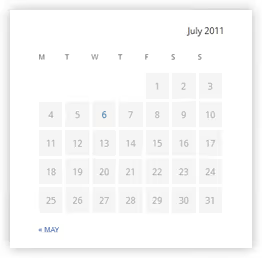
Days are center-aligned, cells are separated by white borders, hover turns the background white. Empty cells don't distract, they have no gray background. The month name reads as a neat caption.
What to do if CSS doesn't work
If the widget hasn't changed after pasting the code, your theme already contains styles for #wp-calendar with higher priority. Open the browser inspector (F12), find the #wp-calendar tbody td element, and check which rules are overriding background and padding.
To override built-in theme styles, add the sidebar ID to the selectors or wrap the code in a more specific context, for example, #sidebar .widget_calendar #wp-calendar tbody td. This raises specificity without !important.
Widget or block: what to use
With the release of Gutenberg, the core introduced a "Calendar" block, a modern replacement for the classic widget. It outputs the same #wp-calendar table and is styled with the same CSS. The difference is in placement:
- Classic widget, through Appearance → Widgets, works only in sidebars and theme widget areas.
- "Calendar" block, inserted into any page or post through the block editor, plus in widget areas through Appearance → Widgets (from WordPress 5.8, blocks are available there too).
The CSS from this article works with both options without changes. Choose the block if you need the calendar in the page body; the classic widget if it's only in the sidebar and you don't want to change your familiar workflow.
⁉️🤔 Frequently asked questions
Why isn't my calendar responding to CSS from the article?
Most likely, your theme already contains styles for
#wp-calendarwith higher priority. Open the inspector (F12 in the browser), click on a calendar cell, and see which rule is overriding yourbackground. Solution: add the sidebar container ID before the selector, for example,#secondary .widget_calendar #wp-calendar tbody td. This raises specificity without!important.
Is it necessary to create a child theme for 20 lines of CSS?
For one widget, no. Start with Additional CSS in the Customizer (Appearance → Customize). When you accumulate enough custom rules for a full customization, then create a child theme. The "it's time" threshold is roughly 50 lines of CSS or the first
functions.phpchange.
Does this CSS work with the "Calendar" block in Gutenberg?
Yes, completely. The "Calendar" block renders the same
#wp-calendartable with the same classes. The code works without changes.
Can I change the color scheme?
Easily. Replace
#f5f5f5(cell background) and#fff(hover and border) with your theme colors. For a dark scheme, trybackground: #2c2c2c; color: #ccc;fortbody tdandbackground: #1a1a1a;for hover. The main thing is to maintain contrast between cell background and text.
Is the calendar widget even needed in 2026?
For news sites and active blogs, yes. The calendar gives readers navigation through old materials without searching by categories. For business cards and landing pages, it's useless. But if your theme is sold on a marketplace, a styled widget is mandatory: the buyer shouldn't see a bare table, even if they don't use the calendar itself.
WordPress calendar: fix in five minutes or forget
The calendar is a small thing that completely gives away an unfinished theme. Fixed by copy-pasting twenty lines of CSS.
- Making a theme for yourself, copy the code into Additional CSS in Customizer and forget it.
- Writing a theme for sale, include the styles in the child theme's
style.css, it's basic hygiene. - Don't need the calendar at all, style it anyway. A theme buyer might enable the widget, and it shouldn't look broken.
Check how your calendar looks right now: add the widget to the sidebar through Appearance → Widgets and open the site. Bare table? The code is above, grab it and fix it in five minutes.

A professional team of writers and editors specializing in creating quality content.