













 AIIllustrative image: AI-generated
🛠️ Error 500 in WordPress: 7 steps from white screen to working site
White screen. Five characters: 500 Internal Server Error. The site is down, the client is messaging you, and you have no idea where to start.
The 500 error is the most frustrating HTTP status code. Unlike 404 ("page not found") or 403 ("access denied"), it doesn't name a culprit. It just says "something went wrong on the server." Then you're on your own: a plugin, theme, bad PHP, hosting, corrupted .htaccess. There are dozens of possibilities, and each requires a different fix.
The good news: a 500 error can always be fixed. Without panic, without reinstalling WordPress from scratch, and in most cases, without a developer. In 7 steps (from 30-second diagnostics to surgical replacement of system files) you'll find the cause and bring your site back online. Every method includes specific files, lines of code, and screenshots.
💡 Quick overview:
- Step 1: enable
WP_DEBUGand read the logs to immediately see which file is at fault - Step 2: rule out hosting issues while you dig through code
- Step 3: fix
.htaccess, the number one cause according to support statistics - Step 4: raise the PHP memory limit, a common culprit when uploading media or logging into the admin
- Step 5: re-upload the WordPress core when files are corrupted by an auto-update failure
- Step 6: disable plugins via FTP, a method that resolves more than half of all cases
- Step 7: reset to the default theme, a step that's often overlooked
What the 500 error is and where it comes from
HTTP 500 is a server response meaning "internal error." The request from the browser arrived, Apache or Nginx accepted it, PHP started running, and then it tripped. Unlike 404 or 403 (where the server consciously answers "no"), a five at the start of the code means something broke inside the script, and the server doesn't know what.
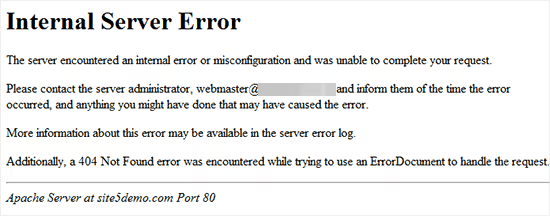
In WordPress, the 500 error occurs in four typical scenarios:
- You installed or updated a plugin, and it conflicts with other code in the system.
- You modified
.htaccess, and a syntax error crashed Apache. - A PHP script exhausted its allocated memory (white screen with
Allowed memory size of X bytes exhaustedin the logs). - Core files are corrupted: an auto-update failure, a broken FTP transfer, a misbehaving plugin that tampered with system folders.
Less commonly: a theme with a fatal error in functions.php, hosting-side issues (overload, disabled PHP module), or a broken shortcode from a removed plugin inside page content.
Before you begin: make a full backup of your site. Without a backup, any action on server files is a risk. Most hosts offer a backup button in the control panel (cPanel, ISPmanager, aaPanel) with just two clicks.
1. Enable WP_DEBUG and read the logs
The fastest way to find the cause is to make WordPress reveal it. By default, the core hides PHP errors behind a white screen (this is "don't scare the visitors" mode). But WordPress has a built-in debugging mechanism: the WP_DEBUG constants.
Enabling debug mode
Open wp-config.php in your site's root via FTP or your host's file manager. Find this line:
1 /* That's all, stop editing! Happy blogging. */
Before it, insert this block:
1 // Enable debug mode 2 define( 'WP_DEBUG', true ); 3 4 // Write errors to /wp-content/debug.log 5 define( 'WP_DEBUG_LOG', true ); 6 7 // Do not show errors to visitors on screen 8 define( 'WP_DEBUG_DISPLAY', false ); 9 @ini_set( 'display_errors', 0 );
What's happening here:
WP_DEBUGis the main switch; withouttrue, the other constants don't work.WP_DEBUG_LOGdirects all errors towp-content/debug.loginstead of the screen. Visitors don't see scary messages.WP_DEBUG_DISPLAY+@ini_setforcibly hides errors from page output.
Save the file, refresh the problem page on your site, and download wp-content/debug.log via FTP. In the log you'll see the specific file and line: Fatal error: Cannot redeclare my_function() in /home/user/public_html/wp-content/plugins/broken-plugin/broken.php on line 42.
Disable debugging after diagnostics. Comment out or delete the lines you added. WP_DEBUG on a live site slows performance, and debug.log can grow to gigabytes over time.
2. Contact your hosting provider
If logs are empty or weren't created, the error might be on the server side rather than in WordPress code. This is especially common on cheap shared hosting plans with strict process limits.
Open a support ticket and attach three things:
- The exact time the error appeared, with the server's time zone.
- The URL of the page where the error reproduces.
- A screenshot of the error, if available.
Support will check Apache or Nginx server logs, CPU and memory load, and available PHP modules. Problems often get resolved at this step: a host admin restarts PHP-FPM or adjusts the process limit.
How to tell whose side the problem is on
Create a file called info.php with a single line:
1 <?php phpinfo(); ?>
Upload it to your site's root via FTP and open your-site.com/info.php. If you see a table with PHP parameters, the server is working and the error is in WordPress code. If you see 500, the error is at the server level; bring this URL to support.
After the test, **delete **info.php. phpinfo() exposes server versions, paths, and modules, creating a security hole.
3. Fix the.htaccess file
.htaccess is an Apache configuration file in your site's root. WordPress uses it for human-readable URLs, redirects, and basic security rules. One extra bracket, a conflict between rules from two plugins, and the entire site goes down with a 500 error. According to support ticket statistics, .htaccess turns out to be the number one cause.
Quick check: rename .htaccess to .htaccess_old via FTP and refresh the site. If it works, the problem is definitely in this file.
Now restore .htaccess: go to WordPress admin, Settings → Permalinks and click "Save Changes" without changing the structure. WordPress will generate a new, clean .htaccess with standard rules:
1 RewriteEngine On 2 RewriteRule .* - [E=HTTP_AUTHORIZATION:%{HTTP:Authorization}] 3 RewriteBase / 4 RewriteRule ^index\.php$ - [L] 5 RewriteCond %{REQUEST_FILENAME} !-f 6 RewriteCond %{REQUEST_FILENAME} !-d 7 RewriteRule . /index.php [L]
If you had custom rules in .htaccess (redirects, caching, security), add them back one at a time and check the site after each one. This way you'll identify the killer line.
4. Increase the PHP memory limit
WordPress PHP scripts need RAM. When a plugin or theme requests more than allocated, the script crashes. The result: a 500 error or white page with Allowed memory size of X bytes exhausted.
The standard limit on many hosts is still 64 MB. For a modern WordPress site with a dozen plugins, that's catastrophically low. The recommended minimum is 256 MB.
Method 1: via wp-config.php (preferred)
Add this to wp-config.php before /* That's all, stop editing! */:
1 define( 'WP_MEMORY_LIMIT', '256M' );
This constant overrides the PHP limit for the front end of the site. For the admin area, WordPress automatically raises the ceiling to WP_MAX_MEMORY_LIMIT (256 MB by default).
Method 2: via php.ini (if your host doesn't let you edit wp-config)
Create a php.ini file with this content:
1 memory_limit = 256M
Upload it to the site root and to the wp-admin/ folder. If that doesn't help, create or edit .user.ini in the site root with the same line.
If neither method works, your hosting plan physically limits memory. Time to upgrade your plan or switch hosts.
5. Re-upload WordPress core files
A corrupted core file is an uncommon but insidious cause. An auto-update failure, a broken FTP transfer, a plugin that modified system files, and wp-admin or wp-includes contains garbage.

Procedure:
- Download a fresh WordPress ZIP archive from wordpress.org.
- Extract the archive on your computer.
- Via FTP, go to your site's root and delete the
wp-adminandwp-includesfolders (only those two; don't touchwp-content!). - Upload the
wp-adminandwp-includesfolders from the fresh archive. - Do not overwrite
wp-content; that's where your themes, plugins, and uploads live.

Root files (wp-settings.php, index.php, and others) can also be replaced with fresh ones from the archive. **Except **wp-config.php; don't touch it because it contains your database credentials. After the replacement, refresh the site; the error will disappear if the cause was corrupted system files.
6. Disable plugins
A killer plugin is the most likely cause of a 500 error. You updated several plugins at once, and one collided with another: hello, white screen.
If the admin area works
Go to Plugins → select all → bulk action "Deactivate" → "Apply." If the error disappears, enable plugins one by one, refreshing the site after each. When you find the culprit, delete it or report the issue to the developer.
If the admin area is inaccessible
Connect to the server via FTP and rename the wp-content/plugins folder to plugins_off. WordPress will stop loading all plugins and the site will come back to life. Return the folder to its original name and rename plugin subfolders one at a time; this way you'll find the problematic one without entering the admin.
What to watch for: caching plugins (W3 Total Cache, WP Rocket) sometimes write their own rules to .htaccess and wp-config.php. After deactivating such a plugin, the error might persist; check these files and remove the lines between markers like # BEGIN W3TC and # END W3TC or similar.
7. Switch to the default theme
The active theme is an underestimated but real source of 500 errors. Especially if you added a snippet with a fatal error to functions.php.
The check is simple: via FTP, rename the active theme's folder in wp-content/themes/ (for example, mytheme → _mytheme). WordPress will detect that the active theme is missing and automatically switch to a standard one: Twenty Twenty-Five or another default theme installed in the system.
If the site works on the default theme, the problem is in yours. Return the theme's original name, open functions.php, and look for errors in custom code. If you didn't add the code yourself, contact the theme developer.
⁉️🤔 Frequently asked questions
What should I do if the 500 error appears only when logging into the admin?
Most likely, the PHP memory limit isn't enough specifically for the admin panel, which loads all plugins at once and is heavier than the front end. Add the line
define( 'WP_MAX_MEMORY_LIMIT', '512M' );towp-config.php; this is a separate limit for the admin, higher than the front-endWP_MEMORY_LIMIT. Also check your plugins folder: in our experience, the most common culprits are security plugins like Wordfence or backup plugins that consume memory when loading the admin bar. Disable them via FTP (theplugins_offfolder from step 6) and check.
Can I fix a 500 error without FTP access?
Yes. Most hosts provide a file manager in the control panel: cPanel → File Manager, ISPmanager → Files. Through it you can rename
.htaccess, plugin and theme folders, and editwp-config.php; all the steps are the same. Without any file access at all, your only option is the host's support team. Pro tip: if you have a snippet plugin installed (Code Snippets, WPCode) and your last action was adding a snippet, try openingyour-site.com/?code_snippets_safe_mode=1or a similar safe-mode URL for your plugin. This disables all snippets without FTP.
The 500 error appears only on one page. What's the cause?
A broken function or shortcode inside the content of that specific page. Open the page in the WordPress editor (if the admin works) and temporarily remove all shortcodes, Gutenberg blocks, and code embeds. If the admin is inaccessible, find the post in the database via phpMyAdmin (the
wp_poststable), copy the content to a text editor, and remove suspicious shortcodes. The most common culprits: shortcodes from deleted plugins ([dead_plugin]remains but the plugin is gone), broken PHP in content blocks, or incorrectly nested Gutenberg blocks.
After recovery, the 500 error returns after a few hours. How do I find the cause?
A cyclical error with an interval is almost always one of three scenarios: a WordPress cron task runs a broken process on schedule, a caching plugin generates corrupted cache, or the host periodically hits process limits (especially on cheap shared plans). Install WP Crontrol and check the list of cron tasks; find the one that coincides with the crash time. Clear your caching plugin's cache. Ask your host about the Entry Processes or PHP Workers limit; on shared plans they're often cut to 5-10, and a traffic spike takes down the site.
Do I need to go through all 7 steps, or can I skip some?
The first two steps (WP_DEBUG and hosting) are diagnostic: they don't break anything and provide information. In our experience supporting WordPress sites, step 3 (
.htaccess) and step 6 (plugins) resolve the vast majority of cases. The rest come down to PHP memory, corrupted core, and the theme. In a typical situation you'll solve the problem at steps 3 or 6 without going through the entire chain.
Where to start right now
Don't repeat the typical scenario: panic → delete everything randomly → make things worse. Follow the order from diagnosis to fix:
Situation | First step |
|---|---|
Error after updating a plugin or theme | Go straight to step 6: deactivate plugins or the theme |
Error after editing | Step 3: rename |
White screen everywhere, including the admin | Step 1: enable |
Error when uploading photos or logging into the admin | Step 4: raise |
All 7 steps completed, nothing helped | Write to your host (step 2) with the debug.log; it's a server-level issue |
The main rule for WordPress repairs: one action, one check. Never make two fixes at once; you won't know which one worked. And write down exactly which plugin or edit caused the error. Next time you'll fix everything in 30 seconds.

A professional team of writers and editors specializing in creating quality content.