













 AIIllustrative image: AI-generated
🔧 PHP missing MySQL extension error in WordPress: how to fix it in 10 minutes
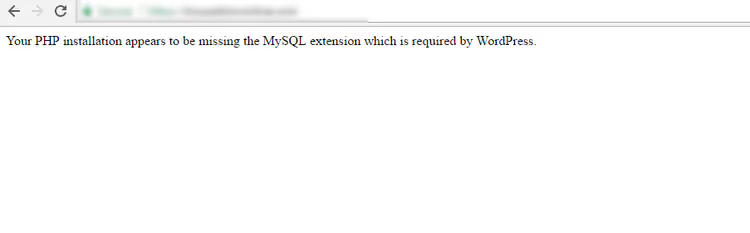
You visit your WordPress site to check the admin panel, but instead you see a white screen with an error: "Your PHP installation appears to be missing the MySQL extension which is required by WordPress". Restarting doesn't help, the hosting provider stays silent, the site hangs dead weight.
This error isn't a death sentence for your server and no reason to panic. Most often it appears after a PHP update, moving the site to another VPS, or changing the operating system. WordPress loses the bridge between PHP and MySQL, and you can restore it in 10 minutes.
Below is a step-by-step guide: from diagnostics to the final configuration reload. All commands are current for PHP 8.0-8.4, servers on Ubuntu, RedHat-compatible distributions, and hosting with cPanel.
💡 Quick overview:
- Check the current PHP version and active extensions through WordPress Site Health
- Install missing modules:
sudo apt install php-mysqlfor Ubuntu orsudo dnf install php-mysqlndfor RHEL - Check the
extension_dirdirective in php.ini, during server migration the path often gets corrupted - Enable
mysqliandpdo_mysqlthrough your hosting panel (cPanel, Plesk) in two clicks - Make sure WordPress versions and PHP are compatible: both should be current
1. Check PHP version and active extensions
The fastest diagnostic method is WordPress's built-in Site Health tool. Go to the admin panel: Tools, Site Health, Info tab. Expand the Server section, here you'll find the PHP version. If it's below 7.4, it's time to update: according to WordPress requirements, the minimum PHP version for WP 6.x is 7.4, and the recommended is 8.0+.
Now expand the Database section. If the mysqli and pdo_mysql rows are empty or missing, you've found the cause of the error. WordPress is trying to use an extension that doesn't exist in the PHP build.
While you're there, check the Filesystem section: permission issues can indirectly affect PHP module loading.
If the admin panel is inaccessible (complete white screen), create a file info.php in the site root with the code <?php phpinfo(); and open it in your browser. The first line will show the exact PHP version, and searching for mysqli will show whether the extension exists.
2. Install mysqli and PDO MySQL extensions through the console
Connect to the server via SSH and check what's installed:
1 php -v 2 php -m | grep -E 'mysqli|pdo_mysql'
If mysqli and pdo_mysql are missing from the output, install them. Commands differ depending on the distribution.
Ubuntu / Debian:
1 sudo apt update 2 sudo apt install php-mysql
The php-mysql package pulls in mysqli, pdo_mysql, and the mysqlnd driver, everything WordPress needs. If you have multiple PHP versions, specify a particular one: php8.2-mysql, php8.3-mysql. Installation details are described in the PHP mysqli manual.
RHEL / CentOS / AlmaLinux:
1 sudo dnf update 2 sudo dnf install php-mysqlnd
After installation, restart the web server:
1 sudo systemctl restart apache2 2 sudo systemctl restart php8.3-fpm 3 sudo systemctl restart nginx
In most cases the error disappears immediately after restart.
3. Check the extension_dir directive in php.ini
Packages are installed, but WordPress keeps complaining? This happens during site migration: the PHP configuration "moved" with old paths to the new server.
Open info.php in your browser and find the Loaded Configuration File parameter, this is the path to the active php.ini.

Now find extension_dir, the directory from which PHP loads modules. If the value is empty or points to a non-existent folder, mysqli.so won't load and WordPress won't see MySQL.

Open php.ini (you already know the path) and find the extension_dir line. Update it to the current value. On Ubuntu 22.04/24.04 with PHP 8.3 it's usually:
1 extension_dir = "/usr/lib/php/20230831"
On servers with cPanel the path is different, check the exact value in info.php.
After making changes, save php.ini, restart the web server, and be sure to delete info.php, a public phpinfo() exposes module versions and server absolute paths.
4. Enable extensions through hosting control panel
Working through a panel instead of console? Most hosting panels manage extensions with a mouse:
- cPanel: Select PHP Version, checkboxes next to
mysqliandpdo_mysql, save. While there, switch PHP version to a modern one. - Plesk: Domains, your domain, PHP Settings, find
mysqliandpdo_mysqlin the extensions list. - DirectAdmin: Extra Features, Select PHP Version, check the needed extensions.
- **SiteGround, Cloudways, **Kinsta and other managed hosting: PHP Extensions section in the site panel.
After enabling extensions the panel will restart PHP automatically, the site will work within a minute.
5. Make sure WordPress and PHP versions are compatible
WordPress 6.x (current version in 2026) requires minimum PHP 7.4 and recommends 8.0+. If you're on PHP 7.0 or 7.1, even installed extensions won't help: WP core expects modules for a modern PHP version.
Check compatibility: admin panel, Tools, Site Health, Info, Server. PHP below 7.4, update:
- Shared hosting: control panel (cPanel/Plesk), switch PHP to 8.2 or 8.3.
- VPS: update through package manager:
1 sudo apt update 2 sudo apt install php8.3 php8.3-mysql php8.3-xml php8.3-curl php8.3-mbstring
After updating PHP, update WordPress too: Dashboard, Updates, Update Now. Old WP versions reference the mysql extension, which was removed from PHP back in 2015, hence the error.
By the way, about a related problem: if WordPress complains about memory shortage during migration, we have a breakdown on how to increase PHP memory limit in WordPress.
What else can go wrong
If you've tried all 5 methods and the error persists, here are two edge cases.
Outdated lines in php.ini. After updating PHP from 5.x to 8.x, php.ini might have leftover extension=mysql.so lines. In PHP 8 this file doesn't exist: the module was removed from the core. Open php.ini and comment out or delete mysql.so, mysql.dll, and libmysql. List of removed extensions is in the PHP migration guide.
Multiple PHP versions on the server. On VPS, PHP 7.4 and PHP 8.3 often coexist. The php -m command shows modules for the CLI version, but the site might use a different one, the one configured in Apache/FPM. Check info.php: the first line shows the exact PHP version for the web. Install packages for it.
A video from the Hostinger team shows extension installation through cPanel and console, 4 minutes and the picture is completely clear.
⁉️🤔 Frequently asked questions
Why does the error mention MySQL extension when mysqli is needed?
The error message hasn't changed since the PHP 5.x era. Back then the extension was called
mysql, and WordPress checked for it specifically. In PHP 8.x themysqlextension was completely removed, WordPress usesmysqliorPDO_MySQL. The error text remained the same for historical reasons. Install thephp-mysqlpackage: it containsmysqli,pdo_mysql, andmysqlnd, everything WordPress needs.
Can you fix the error without server access?
Yes, if the site is on shared hosting. Log into the control panel (cPanel, Plesk, DirectAdmin), find "Select PHP Version" or "PHP Settings", enable
mysqliandpdo_mysqlwith checkboxes. The panel will restart PHP automatically, console access isn't needed. On hosting like Hostinger or Bluehost these extensions are enabled by default; if the error appeared after changing plans, support will activate the modules in a couple minutes.
What to do if the site doesn't work after all fixes?
Check three things. First: open
info.phpand make suremysqlidisplays with a Client API version. No section means the module didn't load, recheckextension_dir. Second: restart the entire web server,sudo systemctl restart apache2(ornginxplusphp-fpm). Third: verify DB_HOST, DB_NAME, DB_USER, and DB_PASSWORD inwp-config.php, sometimes the error masks incorrect database credentials.
Do you need to switch to MariaDB if the error repeats?
No, replacing the database server won't solve the problem. The error is exclusively related to PHP extensions. MariaDB is a MySQL fork, and WordPress works with it through the same
mysqliorPDO. Most hosting providers have already switched to MariaDB by default, WordPress sites function perfectly with it.
Is it mandatory to install specifically PHP 8.3?
No, any PHP 8.x version (8.0-8.4) will work. The main thing is not below 7.4. We recommend 8.2 or 8.3: these are stable branches with active security support in 2026, according to the official PHP schedule. PHP 8.0 and 8.1 are already in security-fixes-only status, and PHP 7.4 hasn't received patches since November 2022.
Should you panic over this error
The "missing MySQL extension" error looks frightening, but essentially it's a signal: the server isn't fully configured. PHP without a module for database work is like a car without ignition keys. The described methods cover the absolute majority of cases, a system administrator isn't required.
After fixing, do some housekeeping: delete info.php, update WordPress and plugins to the latest versions, set up automatic backups through UpdraftPlus or the hosting panel. Then the next migration or PHP update will go without surprises.

A professional team of writers and editors specializing in creating quality content.