














⚙️ How to increase the PHP memory limit?
Did your site crash with a "white screen of death" after installing a plugin? Or did WordPress spit out a long string containing "Allowed memory size exhausted"? Sooner or later, every WordPress site owner runs into the PHP memory limit. In our experience, nine out of ten such errors can be fixed in five minutes without calling a developer.
The problem is that hosting providers set a modest default limit: 32, 64, or 128 megabytes. For a bare WordPress installation, this is enough. But once you install a couple of heavy plugins like WooCommerce, a page builder, or an SEO suite, memory runs out.
Below are all the working methods to raise the limit, from the simplest to server-level. Choose the method that fits your hosting panel: the first three work everywhere, while the rest are for specific interfaces.
💡 Quick overview:
- Check your current memory limit: Site Health in the WordPress admin or a
phpinfo()file on the server - The fastest way to raise the limit is through
wp-config.php: one define and the error is gone - If your host blocks
wp-config.php, tryphp.inior.htaccess - cPanel, Plesk, GoDaddy, WHM, and XAMPP users will find separate instructions below
- When nothing works, contact your host or upgrade your plan
What is a PHP memory error and why does it occur
WordPress runs on PHP. And PHP, like any program on a server, receives a limited amount of RAM from the operating system for processing requests. The server administrator (or hosting provider) sets this limit in the PHP settings via the memory_limit parameter.
When a WordPress script tries to use more memory than it has been allocated, PHP terminates execution and throws a fatal error. It looks something like this:
1 Fatal error: Allowed memory size of 33554432 bytes exhausted (tried to allocate 2348617 bytes) in /home4/xxx/public_html/wp-includes/plugins.php on line xxx
The number 33554432 is 32 megabytes in bytes. 32M is still the standard default on cheap hosting, although it has long been insufficient for modern WordPress with a couple of plugins. WordPress officially recommends a minimum of 256M. In practice, we advise setting 256M immediately after installing the CMS: it saves a lot of frustration.
How to check your current PHP memory limit
Before changing anything, find out your current limit. There are two simple methods.
Site health tools
WordPress 5.2 and higher includes a built-in "Health Check." Go to the admin panel: Tools → Site Health. Switch to the "Info" tab and scroll down to the "Server" section. In the "PHP memory limit" row, you will see the current value.

This method works as long as the admin panel is accessible. If the site has crashed completely, move on to the second method.
A PHP file with phpinfo()
Create a file on the server with any name, for example info.php, and put a single line in it:
1 <?php phpinfo(); ?>
Upload the file to the site root via FTP or your hosting file manager. Then open https://your-site.com/info.php in a browser. Find the line memory_limit in the output: the number after it is the current PHP limit. After checking, delete the file from the server: leaving phpinfo() open is not safe.
9 ways to increase the PHP memory limit
The methods are arranged from simplest to server-level. The first three work on any hosting where you have access to site files. The rest are for specific control panels.
Method 1: wp-config.php (universal)
The most reliable method that works on any hosting. The wp-config.php file is located in the WordPress root directory.
Open wp-config.php via FTP or the cPanel file manager. Find the line:
1 /* That's all, stop editing! Happy publishing. */
Immediately BEFORE this line, add:
1 define('WP_MEMORY_LIMIT', '256M');
You can change the number: 256M is enough for the vast majority of sites, while 512M is used for very heavy setups with WooCommerce and lots of plugins. Going above 512M is usually unnecessary: if even that is not enough, the problem is likely with a specific plugin rather than the limit.
Save the file, and the error should disappear immediately after refreshing the page. No server restart is needed.
Note that some cheap hosts block the override of WP_MEMORY_LIMIT via wp-config.php at the server level. If this method does not work, proceed to the next ones.
Method 2: php.ini
The php.ini file controls PHP settings on the server. If your host gives you access to it, this is the second most reliable method.
Find php.ini in the site root or in the wp-admin folder. On shared hosting, the file may not exist, in which case you need to create it.
If the file already exists: open it, find the memory_limit line, and change the value to 256M:
1 memory_limit = 256M
Save and reload the site.
If the file does not exist: create a text file named php.ini, paste the line above into it, and upload it to the site root or the wp-admin folder. On some hosts, php.ini in the root is ignored, so place it specifically in wp-admin.
Check the result via Site Health or the phpinfo() page.
Method 3:.htaccess
The .htaccess file is the Apache web server configuration. It is located in the site root. By default, it is hidden: in the cPanel file manager, enable showing hidden files; in FileZilla, go to Server → Force showing hidden files.

Download .htaccess to your computer (be sure to make a backup!), open it in an editor, and add the line:
1 php_value memory_limit 256M
Save and upload back to the server, replacing the original. Refresh the site.
This method only works on Apache with mod_php enabled. On hosts with Nginx or PHP-FPM, the php_value directive is ignored. In such cases, use wp-config.php or php.ini.
Method 4: cPanel
cPanel is the most common hosting control panel. There are two ways to change the limit in it.
Option 1: go to cPanel → Software section → Select PHP Version → Go to PHP Settings. Find memory_limit in the list and set the desired value. Changes apply instantly.
Option 2: cPanel → Software → MultiPHP INI Editor. Select your domain from the list, scroll to memory_limit, and change the number. This method is more convenient if you have multiple sites on the account: each can have its own limit.
Method 5: Plesk
Plesk is a popular alternative to cPanel that works on both Windows and Linux.

To change the limit for a specific site:
1 Plesk → Domains → example.com → PHP Settings → memory_limit
To change the limit globally for all sites on the server:
1 Plesk → Tools & Settings → PHP Settings → PHP Handler → php.ini
Find memory_limit in the opened php.ini and set a new value.
Method 6: GoDaddy
GoDaddy has its own approach: instead of the standard php.ini, it uses a file called php5.ini.

Go to the GoDaddy panel → File Manager. In the root directory, find or create the file php5.ini. Add the following to it:
1 memory_limit = 256M
Save. Then go to the Statistics & Monitors section → System Processes → click End All. This restarts PHP processes; without this step, the changes may not take effect.
Method 7: WHM
WHM (Web Host Manager) is a server panel used to administer cPanel accounts. If you have a VPS or dedicated server with WHM, log in and find PHP Configuration Editor in the left menu. In the list that opens, find memory_limit and set the desired value.
After saving, WHM will automatically update php.ini on all server accounts.
Method 8: XAMPP (local server)
If you are developing a site locally on XAMPP, the limit is changed in the XAMPP configuration itself.
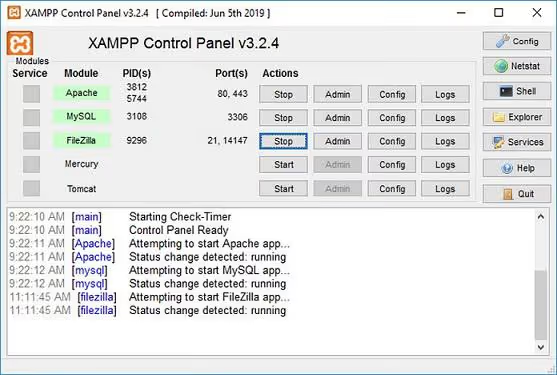
Open the file C:\xampp\apache\bin\php.ini (Windows) or /opt/lampp/etc/php.ini (Linux). Find memory_limit and change the value. After saving, restart Apache through the XAMPP control panel.
Method 9: Contact your host
If none of the methods above worked, the reason is most likely plan restrictions. On cheap shared hosting, the provider rigidly fixes memory_limit at the server level and does not let the client change it through any of these files.
Write to your hosting support and ask directly: "What is the PHP memory limit on my plan and can it be increased?" Often, support will raise the limit upon request for free. If not, change your plan or hosting. A modern WordPress site with 256M of memory runs stably; anything below that will cause errors as the site grows.
WP_MEMORY_LIMIT not applying: why and what to do
Sometimes the define is added to wp-config.php, but the error persists. There are three reasons:
The host blocks the override. On shared hosting, the provider may ignore
WP_MEMORY_LIMITat thephp_admin_valuelevel in Apache: a server directive is stricter than a define in a PHP file. Solution: usephp.iniorphp5.ini(as in the GoDaddy method), or contact support.The wp-config.php file was edited with an error. Make sure the define is added BEFORE the line
/* That's all, stop editing! */and that the quotes in the code are straight, not "curly" (text editors like Word sometimes replace'with'and'). The code must be exact:
1 define('WP_MEMORY_LIMIT', '256M');
- The problem is not the memory limit. The "Allowed memory size exhausted" error sometimes masks a different issue: a plugin has gone into an infinite loop or is trying to process too much data. Temporarily disable all plugins via
/wp-admin/plugins.php(if the admin panel is accessible) or rename the/wp-content/plugins/folder via FTP. If the error disappears, enable plugins one by one to find the culprit.
Video: how to increase the PHP memory limit via cPanel
This short tutorial shows the process through the cPanel panel, from login to saving settings. Follow along with the author and the error will be gone in a couple of minutes.
⁉️🤔 Frequently asked questions
What is the optimal PHP memory limit for WordPress?
WordPress officially recommends a minimum of 256M. In practice: 128M is enough for a blog with a couple of plugins, for a site with WooCommerce and a page builder set 256M, and for a large store or multisite set 512M. Going above 512M is almost never necessary: if your site does not have enough with a gigabyte of memory, look for a problematic plugin rather than increasing the limit.
How can I find the memory limit if the WordPress admin is inaccessible?
Create a file
info.phpwith the code<?php phpinfo(); ?>, upload it to the site root via FTP, and open it in a browser. Find the linememory_limit: that is the current limit. Delete the file after checking.
Which is better: editing php.ini or wp-config.php?
wp-config.phpis simpler: you always have access, you edit a single file, and it does not depend on the host.php.iniis needed when the host blocks the define inwp-config.phpor when the limit needs to be raised for all PHP scripts on the server, not just WordPress.
Why did the site crash with a 500 error after editing.htaccess?
Most likely, your server does not run Apache with mod_php but Nginx with PHP-FPM. The
php_valuedirective in.htaccess only works on Apache; on other servers, it causes a fatal error. Remove the added line from.htaccess and usewp-config.phporphp.ini.
Can I increase the memory limit on free hosting?
Almost never. Free hosts rigidly fix the limit at minimal values (usually 32M or 64M) and do not allow changes. Such a limit is unworkable for WordPress. Switch to paid hosting: even the cheapest plan for a couple of dollars a month provides 256M.
What should I do if the site still crashes with a memory error after increasing the limit?
Perform diagnostics: disable all plugins at once (rename the
/wp-content/plugins/folder). If the error disappears, enable plugins one by one and track which one causes the error to return. Most likely, a specific plugin contains a memory leak or unoptimized code. Replace it with an alternative or contact the developer.
Final breakdown: what to choose for your situation
The method depends on what you have access to:
- You have FTP or a file manager: start with
wp-config.php(method 1). This works on most hosts and takes a minute. - Method 1 did not work: try
php.ini(method 2), then.htaccess(method 3). One of the three will almost certainly work. - You use cPanel, Plesk, GoDaddy, or WHM: use the corresponding method (4-7). Changing the limit through a control panel is more convenient than digging into files.
- You are developing locally on XAMPP: method 8, editing
php.iniin the Apache folder. - Nothing worked: write to your host. If support refuses to raise the limit, consider changing your plan or hosting: 256M in 2026 is a basic necessity for WordPress, not a luxury.
If the error remains after all the edits, read our breakdown of the WordPress HTTP error: one of the causes there also comes down to PHP memory. And if you ran into the input variables limit, here are three methods to increase max_input_vars.

A professional team of writers and editors specializing in creating quality content.