













🛠 How to troubleshoot WordPress theme issues
Changed your theme, and the site broke? Layout fell apart, menu disappeared, pages throw 404. A familiar scene for anyone who administers WordPress.
The platform holds 41.5% of all sites on the internet according to W3Techs data from June 2026. The theme is the foundation of every site's appearance: fonts, colors, grid, widget placement. When it works incorrectly, everything suffers, from readability to conversion. But the good news: most theme problems can be solved without a developer if you follow a clear sequence.
Below are eight steps that bring your site back online. From simple to complex, without panic and ritual dancing.
💡 Quick overview:
- Make a full backup before any theme manipulation; this is your entry point and insurance.
- Reset permalinks through Settings → Permalinks → Save Changes; this fixes 404 errors after theme changes.
- Update your theme to the latest version and make sure it's compatible with your WordPress version.
- Check the site URL in Settings → General; a mismatch between WordPress Address and Site Address breaks resource loading.
- Isolate plugins: disable all and enable one by one; plugin-theme conflicts cause most strange symptoms.
- Clear browser cache, caching plugin cache, and CDN cache; changes not displaying is most often a cache issue.
- If nothing helps, temporarily activate a default theme (Twenty Twenty-Five) and debug the problem from a clean base.
1. Back up before migration

Any theme change is a risky operation. Even if everything looks smooth visually, internal theme settings (customizer options, shortcodes, widgets) may not transfer or may conflict with the new theme. Therefore, the first and main rule: full backup.
Create a backup copy of files and database. If you're on managed hosting (WP Engine, Cloudways), backup is usually built into the panel. On regular hosting, use a plugin like UpdraftPlus: export the archive to the cloud, and only then click Activate on the new theme.
Separately, verify the theme source. The official WordPress.org directory, ThemeForest, and developer websites are safe platforms. Third-party "nulled" builds with free premium themes often carry bugs or backdoors. Saving $60 isn't worth cleaning your site from malicious code.
When the backup is ready, go to the admin console: Appearance → Themes. Click Activate on the theme you need. Migration may happen gradually; menus, widgets, and customizer settings don't sync instantly. After activation, open the site in an incognito browser and check the main pages. What the admin sees while logged in doesn't always match what visitors see.
2. Reset permalinks
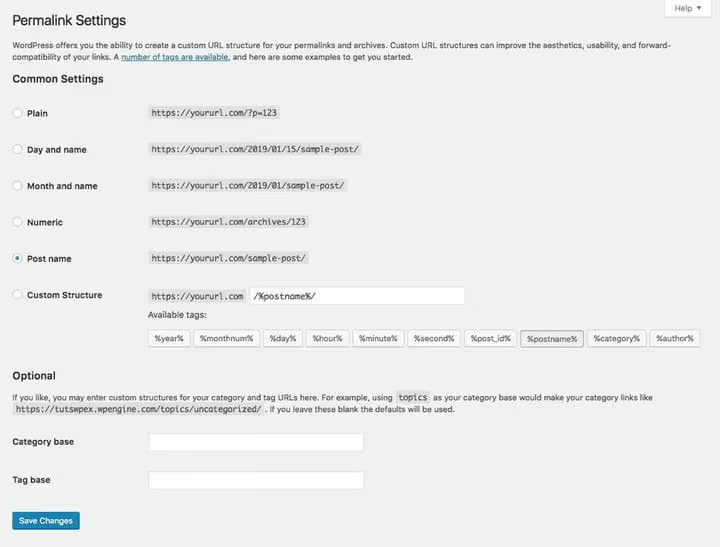
After changing themes, pages often throw 404. The reason: the theme registered custom post types or taxonomies, and the URL structure got corrupted. Or conversely, the old theme maintained its own permalink format that the new theme doesn't understand.
The solution takes ten seconds. Go to Settings → Permalinks and simply click Save Changes without changing any settings. WordPress will regenerate URL rewrite rules, and internal links will fall into place.
If the problem persists after Save Changes, check whether the theme overrides permalinks through its own code in functions.php. Specifically look for calls to add_rewrite_rule(), add_rewrite_endpoint(), or manipulations with $wp_rewrite. This is usually the domain of complex themes with portfolios, catalogs, and custom fields. In that case, after editing the code, go to Permalinks again and click Save Changes; the rule should take effect.
3. Update the theme to the current version
A theme that hasn't been updated in six months will very likely conflict with WordPress 7 core or recent PHP 8.3+ versions. Developers constantly patch vulnerabilities and adapt code to new platform versions.
Check for updates in Dashboard → Updates. If the theme is from the WordPress.org directory, updates arrive automatically. For themes from ThemeForest, you'll need the Envato Market plugin: it links your purchase to the WordPress panel and pulls new versions directly.
Note: if you edited parent theme files directly (without a child theme), the update will overwrite your changes. This is another reason to use a child theme; updates proceed without losing customizations.
After installing the fresh version, open the site and check the problem areas. Often this is enough.
4. Check the site URL
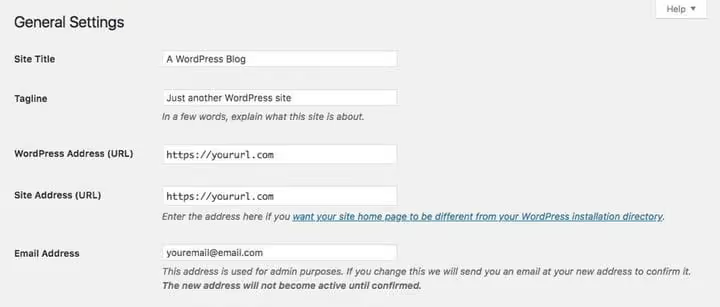
Site loading without styles? Images not displaying? Admin panel opens at one address while frontend opens at another? Almost certainly the problem is in the URL settings.
Open Settings → General and look at two fields:
- WordPress Address (URL): the address where the WordPress engine is installed.
- Site Address (URL): the address visitors see.
Most often they match. But sometimes the theme or hosting provider changes one of the fields, and WordPress starts loading resources (CSS, JS, fonts) from the wrong path. The browser sees the mismatch and blocks loading; the layout falls apart.
Make sure both fields contain the correct URL with https://. If the site works through Cloudflare or another proxy, WordPress Address should point to the actual server, while Site Address should point to the public domain. After making changes, save the settings and check the site in incognito mode.
5. Find the conflicting plugin

The most common culprit behind a "broken" theme is a plugin. In my experience, eight out of ten strange symptoms after changing themes are caused by a conflict with one or two plugins.
A plugin adds functionality on top of the theme: a comment form, slider, script compression. During installation, it injects its own styles and scripts, and if the theme uses the same CSS selectors or hooks the same actions, the result is unpredictable.
The diagnostic method is isolation:
- Go to Plugins → Installed Plugins.
- Select all plugins, choose Deactivate in the Bulk Actions menu, and click Apply.
- Check the site. Problem gone? Great, the culprit is among the deactivated.
- Enable plugins one by one, checking the site each time. As soon as the symptom returns, you've found the conflict.
Found the problematic plugin? Check its version. An outdated plugin with a theme written for WordPress 7 almost guarantees a conflict. Update the plugin. Didn't help? Contact the developer or find an alternative.
A rule that saves hours: don't install two plugins for the same task. Two SEO plugins, two caching plugins, two page builders: that's not "backup," it's a source of conflicts. For each function, one proven tool.
6. Speed up your site after changing themes
A new theme often brings new scripts, fonts, and styles; site speed drops. According to Hosting Canada measurements on a thousand US and Canadian sites, page load times ranged from 226 ms to 2850 ms. A difference of twelve times.
If your site ended up closer to the upper bound after changing themes, start with three quick steps:
- Check speed. Five tools for measuring performance, from PageSpeed Insights to GTmetrix, will show what exactly is slowing things down.
- Add a CDN. Cloudflare (free tier) or BunnyCDN serve static content from the server closest to the visitor. For content sites, the gain is 30-50% on load metrics.
- Optimize images. Compression through ShortPixel or Imagify and conversion to AVIF/WebP cuts image weight in half without visible quality loss.
And separately about hosting. If the site is on a cheap shared plan, changing themes merely highlighted the problem rather than created it. A theme with quality architecture (Astra, GeneratePress, Kadence) will still be slow on slow hosting. As traffic grows, it makes sense to look toward managed WordPress hosting: automatic resource scaling under load solves the problem at its root.
7. Clear cache at all levels

Made changes to the theme, but the site shows the old version? Cache. The browser, caching plugin, and CDN store copies of pages, styles, and scripts to load them faster on the next visit. When changing themes, these copies become the enemy: visitors see styles from the old theme.
Clear cache at three levels, sequentially:
Level 1: caching plugin. WP Super Cache: Settings → WP Super Cache → Delete Cache. W3 Total Cache: Performance → Purge All Caches. WP Rocket: Clear Cache button in the admin bar. If you're on WP Engine, go to WP Engine → General Settings → Purge All Caches.
Level 2: CDN. Cloudflare: log into your account → select the site → Caching → Purge Everything. Wait 30 seconds for the clearing to propagate across data centers. For other CDNs, the procedure is similar.
Level 3: browser. Open the site in incognito mode (Ctrl+Shift+N in Chrome); this bypasses local cache. Alternatively: DevTools (F12) → Network tab → check Disable Cache.
We don't recommend completely disabling caching; site speed will drop. Just clear it manually after each round of edits.
8. Return to the default theme
When seven steps are complete but the problem remains, activate the default theme. In WordPress 7 this is Twenty Twenty-Five. Clean, no dependencies, no custom post types or complex logic.
Activated it and the problem disappeared? That means the issue is specifically in the theme. Most likely there's an error in functions.php or a conflict with the WordPress version. If the theme is custom, contact the developer with a specific description of symptoms and a list of active plugins. If the theme is public, check its page on WordPress.org: the Support tab shows whether other users have encountered the same problem.
Activating the default theme doesn't break content: posts, pages, and media files remain untouched. After diagnostics, you simply switch your theme back.
And yes, choosing the right theme from the start saves you from most headaches. Look for a theme that covers your needed scenarios "out of the box": portfolio, social links in the header, WooCommerce support. Don't count on "fixing it with plugins later"; that approach is precisely what creates conflicts.
⁉️🤔 Frequently asked questions
Changed theme and see a white screen. What should I do?
The "white screen of death" (WSOD) is a fatal PHP error. Enable
WP_DEBUGinwp-config.php:define('WP_DEBUG', true);, and an error message will appear on screen indicating the file and line. Most often the culprit is a conflicting plugin or exhausted memory limit. Adddefine('WP_MEMORY_LIMIT', '256M');towp-config.phpand try again. Didn't help? Rename the problematic plugin's folder via FTP; this instantly disables it.
After changing themes, customizer settings disappeared. Is this permanent?
No. Customizer settings are tied to the theme through
theme_mod, and when switching, WordPress doesn't delete them; they simply stop applying. Return to the old theme and the settings will be restored. To transfer settings between themes, you need manual export/import through the database, and even then full compatibility isn't guaranteed because theme structures differ too much.
Theme won't update, the Update button doesn't appear. What's wrong?
Three possible reasons. First: the theme wasn't installed from the WordPress.org directory; updates for premium themes come through a license mechanism (Envato Market, Freemius). Second: you edited the theme's
style.cssand changed its identifier; WordPress stops recognizing it. Third: the license expired and the developer blocked updates. Check each point in order.
How do I know if the problem is in the theme versus a plugin?
Activate the default WordPress theme. Symptom gone? Problem is in the theme. Still there? Disable plugins one by one, starting with those that add frontend functionality (sliders, builders, popups). In most cases, the culprit is found within 10 minutes.
Site got slower after changing themes. Is it the theme or the hosting?
Install Query Monitor: it shows page generation time, number of database queries, and loaded scripts. If generation time on the default theme is 0.3 s but 1.8 s on the new one, the theme is overloaded. If both themes show equally high times, the problem is in the hosting or heavy plugins.
What to do if the theme keeps failing
The decision matrix is short. If you've gone through all eight steps and the theme still works incorrectly, either there's an error in its code (contact the developer) or a conflict with the PHP version (check the theme requirements). In both cases, it's easier to switch to a proven alternative theme.
If the problem was solved at one of the steps, great. Remember which step worked: next time diagnostics will take a minute, not an hour. And most importantly, keep a list of 10 common theme problems handy: half the questions are resolved with a link rather than ritual dancing.
What symptom did you have after changing themes and what helped? Share in the comments.

A professional team of writers and editors specializing in creating quality content.