













💻 10 common WordPress theme problems and how to fix them
Every WordPress theme installation should end the same way: click "Activate," see a beautiful site, and go grab coffee. Reality is harsher. Instead of the demo design, a white screen, instead of menus, emptiness, and demo data import fails with an error you've never seen before in your life.
WordPress forums are packed with the same questions. Theme developers answer them in circles for years. We've compiled the 10 most common WordPress theme problems that both beginners and experienced users encounter, and attached a working solution to each case. No magic, only documented fixes.
💡 Quick overview:
- Fix "stylesheet missing" error: proper zip archive structure
- Set up the homepage to match the demo: reading settings and templates
- Remove 404 errors after changing themes: reset permalinks
- Restore menus, featured images, and working sliders: step-by-step instructions
- Save edits when updating the theme: child themes and CSS plugins
Watch this video for a visual breakdown of typical theme problems and their solutions:
1. Stylesheet missing

You downloaded a theme, upload the zip file through the admin panel, and get a dry message: "The package could not be installed. The stylesheet is missing." First thought, the developer sent a broken build.
In the vast majority of cases, the issue isn't with the theme but with the archive structure. When you download a theme from a marketplace or developer's site, inside the zip file there's often not the theme itself but a folder with documentation, license, demo data, and the actual theme in a subdirectory. WordPress expects to find style.css in the archive root and instead finds a wrapper folder.
How to fix: unpack the archive on your computer. Find the folder that contains style.css, functions.php, and index.php, that's the theme root. Pack it into a new zip and upload via "Appearance → Themes → Add New." If the theme came without style.css, it happens but rarely, contact the developer.
2. Demo data import errors

The theme is installed, and you launch demo content import via XML file. WordPress throws an error, the import cuts off halfway, and media files didn't upload.
Two typical scenarios here.
Scenario 1: post import error. WordPress tries to create custom post types (portfolio, testimonials, staff) that aren't registered yet. Simple solution: activate the theme before importing, it's the theme that registers custom post types. If the error persists, check the documentation: perhaps a required plugin (for example, JetEngine or ACF) isn't installed.
Scenario 2: media import error. Images from the demo set don't load. Check "Download and import file attachments" before starting the import. If the box is checked and files still won't load, the developer's server is temporarily unavailable. Contact the theme support, they'll send images as a separate archive.
3. Homepage doesn't match the demo
The theme is activated, data imported, but the homepage doesn't look like the demo site. Where's the post grid? Where's the slider? Where are the blocks with icons?
The reason is almost always in homepage display settings and templates.

Option A: wrong reading settings. Go to "Settings → Reading." If the theme uses a custom homepage template, select "A static page" and assign the needed page as homepage. If the theme is built on displaying latest posts, choose "Your latest posts."

Option B: template not selected. Open the page assigned as homepage in the editor. In the sidebar "Page Attributes → Template," look for options named Home, Front Page, Homepage, or similar. Select the template, save the page, and refresh the site.
If there are no templates, check the theme documentation. Some developers use a separate companion plugin for the homepage layout.
4. Ugly URL addresses

Fresh WordPress installation produces URLs like yourwebsite.com/?p=1. For SEO and human readability, this is a disaster.
Fix** in 10 seconds:** "Settings → Permalinks" and choose "Post name." This gives a clean URL yourwebsite.com/post-name/. If the site is already indexed with old URLs, install a redirect plugin (for example, Redirection) to avoid losing traffic. For new sites, confidently set "Post name" and save, no additional actions required.
5. Posts return 404 error
Changed the theme, and some pages suddenly went to 404. Posts are in place, visible in admin, but direct links are empty.
The root problem is custom post types. Many themes register their own types (portfolio, events, products). When changing themes, URL rewrite rules reset, and WordPress "forgets" how to build links for these types.
Solution: go to "Settings → Permalinks" and simply click "Save Changes" without changing anything. This forces WordPress to regenerate the URL structure. Works almost always. If it didn't work, check write permissions for the root .htaccess (the server must be able to update it).
Read more about permalink configuration in WordPress documentation.
6. Menu empty after theme installation

Installed the theme, and in the header, emptiness. No links, no pages, although the demo had a neat menu with dropdown items.
WordPress theme by default shows a fallback menu from created pages. Premium themes don't do this: the developer expects you to specify which menu and in which area to display.
Step by step:
- "Appearance → Menus," create a new menu (or edit an existing one).
- Add pages, categories, custom links to the menu structure.
- At the bottom of the page, find the "Display location" block, check the needed theme area (Primary Menu, Main Navigation, Header Menu, etc.).
- Save the menu.
More details: WordPress menu setup guide.
7. Theme uses featured images, but old posts don't have them
 AIIllustrative image: AI-generated
Migrated from an old theme that didn't support featured images (post thumbnails). The new theme displays beautiful post grids with images, but hundreds of your articles have a gray placeholder instead of a preview.
Manually setting featured images for each old post is hours of routine.
Quick solution: Easy Add Thumbnail plugin. Install, activate, and the plugin automatically assigns the first image from the post content as featured. If the first image doesn't fit, the plugin allows setting a default image. For new posts, simply make it a rule to fill the "Featured image" block before publishing.
8. Sliders, accordions, tabs don't work

The theme advertises sliders, tabs, accordions, and mobile menu, but none of it works: the slider froze on the first slide, tabs won't switch, mobile menu won't open.
The problem is a JavaScript conflict. Themes and plugins load their scripts, and when two extensions use different jQuery versions or improperly implement loading, all frontend interactivity breaks.
Culprit search methodology:
- Disable all plugins at once.
- Clear cache, server, plugin, and browser.
- Check if sliders work. If yes, enable plugins one by one and refresh the site after each.
- The plugin after which everything broke is the conflict source.
Found the guilty plugin, look for an alternative with similar functionality or contact the plugin and theme developers, attaching the name and version of the conflicting party.
9. CSS changes don't apply
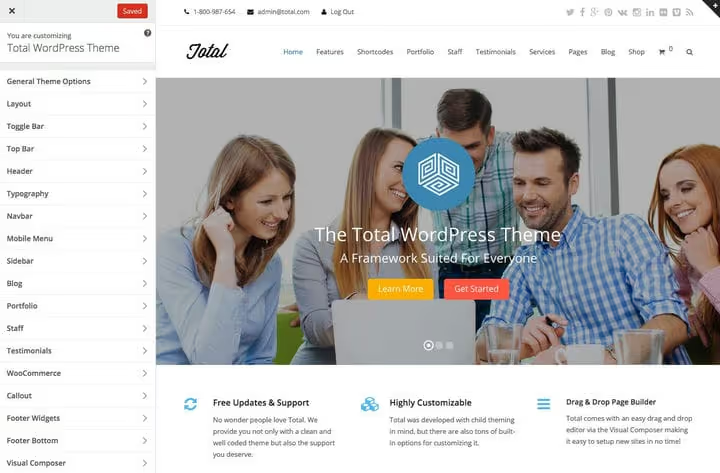
Added custom CSS through the customizer, saved, refreshed the site, zero reaction. Colors, fonts, and spacing remained as they were.
The culprit is cache, often multi-layered: a caching plugin like W3 Total Cache compresses and stores the old CSS version, the browser keeps it too, and hosting adds server cache.
Checklist by layers:
- Disable the caching plugin and clear its cache.
- In the customizer, click "Save" and refresh the page with a hard browser cache reset (
Ctrl+Shift+R). - If the background doesn't change, the theme might have written a background image in style.css. Upload a test background image: it will override the default.
- If editing CSS via "Appearance → Editor" and getting a save error, the problem is file access permissions on the server. More details: WordPress documentation.
10. Updated the theme and all edits disappeared
You manually edited style.css, functions.php, or a page template directly in the theme files. A theme update arrived, you clicked "Update," and all changes were overwritten with the developer's clean code.
This isn't a bug but an architectural feature of WordPress: updates replace all theme files. Never edit theme source files directly.
What to do right now: check if your host has daily backups. Many hosts keep 30-day backups. If there's no backup and edits aren't documented, alas, changes are lost.
How to prevent recurrence:
Child theme. Create a child theme, it inherits everything from the parent and allows overriding templates, styles, and functions without risk during updates. We have a complete guide to WordPress child themes.
CSS plugins. For small visual edits, a plugin is enough. Yellow Pencil provides a visual on-the-fly style editor, and CSS Hero offers a library of ready-made CSS snippets. Both don't touch theme files and are safe during updates.
Backup. Set up regular site backups. Leader among free solutions: UpdraftPlus with flexible scheduling and backup storage in Dropbox, Google Drive, or S3. For commercial projects, check out Solid Backups (formerly BackupBuddy) from SolidWP: legacy solution with full cloud backup and convenient migration. Plugin backups differ from host server backups, you control the schedule and restore points yourself.
Change log. Record what and when you changed. A simple Google Doc with dates and edit descriptions will save hours during debugging.
⁉️🤔 Frequently asked questions
Why does the site show a white screen after installing a theme?
White Screen of Death is most often caused by a fatal PHP error: theme conflict with a plugin or exhausted PHP memory limit. Raise
memory_limitto 256M in php.ini or through the hosting panel. If it doesn't help, rename the plugins folder via FTP to disable all at once, and enable one by one.
How do I find out which plugin conflicts with the theme?
Disable all plugins. If the problem disappears, enable one by one and check the site after each. The plugin on which the error returned is the conflicting one. Report to the theme developer the name and version, most conflicts are resolved by updating one side.
Is it mandatory to create a child theme for a couple lines of CSS?
No. For a small amount of CSS, use "Appearance → Customize → Additional CSS" in the customizer. This block isn't overwritten during theme updates. A child theme is needed when you edit PHP templates, add hooks, or override functions.
Can I restore edits after a theme update without a backup?
Alas, no. Theme update physically replaces files on the server. The old version isn't stored anywhere except in your backup. Therefore, the first rule of customization: child theme or CSS plugins from day one.
Why did post URLs change after installing the theme?
Some themes call
flush_rewrite_rules()on activation, which can reset permalink structure. Go to "Settings → Permalinks," select your format, and save. If URLs are already indexed, install the Redirection plugin and set up 301 redirects from old addresses.
What to do if the theme broke: final algorithm
Universal action sequence for any non-standard situation with a WordPress theme:
- Clear cache. Caching plugin, hosting CDN, browser, three layers. Half of "broken" themes are just showing a cached version.
- Disable plugins. All at once. Worked, look for the conflicting one by enabling one by one.
- Save permalinks. Go to settings and click "Save," this fixes 404 and broken URLs.
- Check browser console.
F12 → Console: red lines will point to the failed script.
Didn't help, the theme developer and Reddit r/WordPress know the answer.

A professional team of writers and editors specializing in creating quality content.