














🛠 How to add Expires headers in .htaccess: step by step guide
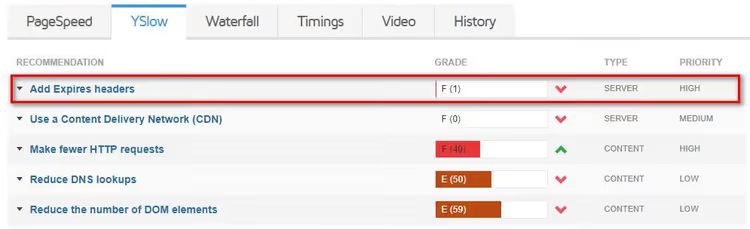
You ran a test in GTmetrix, and there it is in red: "Add Expires Headers". A familiar sight. The site is on WordPress, hosting on Apache, and the speed test demands you configure browser caching through some .htaccess.
The error isn't critical, but it's annoying. Without Expires headers, the browser reloads images, CSS, and scripts from the server with every visit. Repeatedly. Even if nothing has changed. Speed drops, users wait, Google lowers rankings.
You can fix this in five minutes. Two methods: manually through code in.htaccess or with a plugin in two clicks. Below, both, with ready-made code and settings.
💡 Quick overview:
- Understand how Expires and Cache-Control headers manage browser cache
- Add ready-made code to.htaccess: copy, paste, check
- Install the AEH Speed Optimization plugin in one minute if you don't want to touch code
- Configure optimal caching periods for images, CSS, JS, and fonts
How Expires headers work
When a visitor lands on a site, the browser loads dozens of files: the HTML page, CSS styles, JavaScript, fonts, icons, images. Each file is a separate HTTP request to the server. The more requests, the longer the load time.
The Expires header tells the browser: "this file doesn't change, save it to cache and don't ask again until such-and-such date." On repeat visits, the browser pulls files from local cache instead of fetching from the server again. Result: dozens fewer requests and fast loading.
The modern equivalent is the Cache-Control header with the max-age directive. It sets cache lifetime in seconds, not a specific date, and is now considered primary. We recommend configuring both headers simultaneously: Expires for old browsers and proxies, Cache-Control for everything modern. Both are written in the same.htaccess block.
Method 1: code in.htaccess
The most direct path is to add caching rules directly to the Apache configuration file. The .htaccess file sits in the site root (same place as wp-config.php). If you don't see it, enable hidden file display in your FTP client or hosting file manager.
Before editing, download a copy of the file to your computer. A syntax error in.htaccess can crash the site with a 500 error, a backup lets you roll back in a second.
Open .htaccess in an editor and add the following block before # BEGIN WordPress:
1 # Browser caching: Expires and Cache-Control headers 2 <IfModule mod_expires.c> 3 ExpiresActive On 4 5 # Images 6 ExpiresByType image/jpg "access plus 1 year" 7 ExpiresByType image/jpeg "access plus 1 year" 8 ExpiresByType image/gif "access plus 1 year" 9 ExpiresByType image/png "access plus 1 year" 10 ExpiresByType image/webp "access plus 1 year" 11 ExpiresByType image/avif "access plus 1 year" 12 ExpiresByType image/svg+xml "access plus 1 year" 13 ExpiresByType image/x-icon "access plus 1 year" 14 15 # CSS and JavaScript 16 ExpiresByType text/css "access plus 1 month" 17 ExpiresByType application/javascript "access plus 1 month" 18 19 # Fonts 20 ExpiresByType font/woff2 "access plus 1 year" 21 ExpiresByType font/woff "access plus 1 year" 22 23 # PDF and other documents 24 ExpiresByType application/pdf "access plus 1 month" 25 26 # Default 27 ExpiresDefault "access plus 2 days" 28 </IfModule> 29 30 # Cache-Control headers for modern browsers 31 <IfModule mod_headers.c> 32 <FilesMatch "\.(jpg|jpeg|png|gif|webp|avif|svg|ico|woff2|woff)$"> 33 Header set Cache-Control "max-age=31536000, public" 34 </FilesMatch> 35 <FilesMatch "\.(css|js)$"> 36 Header set Cache-Control "max-age=2592000, public" 37 </FilesMatch> 38 </IfModule>
What's happening here. The first block <IfModule mod_expires.c> activates the Expires module and sets storage periods for each file type. One year for images and fonts, they almost never change. One month for CSS and JavaScript, they get updated periodically.
The second block <IfModule mod_headers.c> adds the modern Cache-Control with the same periods but in seconds: 31536000 = one year, 2592000 = one month.
Important: the mod_expires and mod_headers modules must be enabled on the server. On most Apache hosts they're active by default: support enables them during initial setup. If caching doesn't work after saving, write to hosting support: "enable mod_expires and mod_headers."
After pasting, save the file and upload it back to the site root. Open the site in a browser, go to DevTools (F12) → Network → refresh the page. Click any CSS or JS file, in the Headers tab you should see Expires and Cache-Control with non-zero values.
Run GTmetrix again, the error should be gone.
Method 2: AEH Speed Optimization plugin
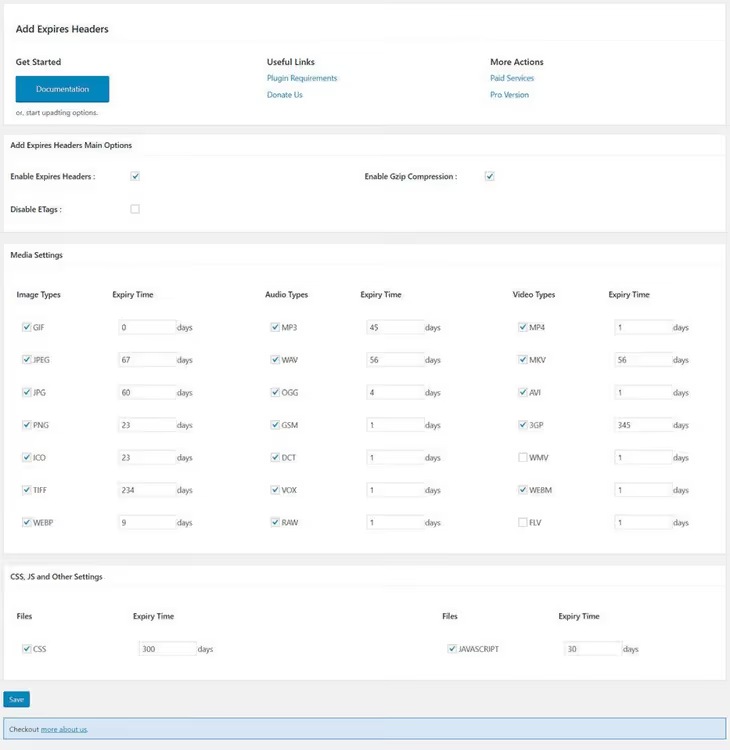
If you don't want to dig into.htaccess manually, there's a plugin. It used to be called simply Add Expires Headers, today it's grown into AEH Speed Optimization. Besides caching headers it can do CSS minification, lazy loading of images, and compression.

Installation steps:
Plugins → Add New, in the search type "AEH Speed Optimization"
Click Install Now, then Activate
Go to Settings → AEH Speed Optimization
On the Cache Settings tab, check file types and set storage periods in days

- Click Submit
The plugin will write rules to.htaccess itself, you don't need to write a single line of code. For most sites the free version is enough. The Pro version adds Gzip compression, external resource caching (Google fonts, CDN scripts), and custom file types.
🔗 AEH Speed Optimization on WordPress.org
If you already have a caching plugin like W3 Total Cache or WP Rocket, you don't need a separate Expires plugin. Any serious cache plugin can add Expires and Cache-Control headers to.htaccess automatically. Go to your plugin settings and check that the Browser Cache tab is active.
What caching time to set
There's no universal answer, the period depends on how often you change a specific file type.

File type | Recommended period | Why |
|---|---|---|
Images (jpg, png, webp, avif, gif, svg) | 1 year | Change rarely, weigh a lot, maximum cache benefit |
Icons and favicon | 1 year | Don't change for years |
Fonts (woff2, woff) | 1 year | Connected once and not updated |
CSS styles | 1 month | You edit from time to time; when redesigning, clear cache |
JavaScript | 1 month | Same logic as for CSS |
PDF and documents | 1 month | Downloaded rarely but can be updated |
General rule: the more stable the file, the longer the period. For images one year is standard. For CSS and JS one month is a reasonable compromise between speed and freshness.
If you're actively developing the site and styles change every week, set CSS to one week, not a month. When you finish edits, return to one month.
⁉️🤔 Common questions
I added code to.htaccess but GTmetrix still shows the error. Why?
The most common reason is that the
mod_expiresormod_headersmodules aren't enabled on the server. Write to hosting support with a request to activate both modules. Second reason: you inserted code after# BEGIN WordPress, not before it. WordPress overwrites everything that comes after its marker. Third, a caching plugin (W3 Total Cache, WP Rocket) already manages.htaccess and overwrote your rules with its own. In this case, configure Browser Cache inside the plugin itself, not manually.
What's the difference between Expires and Cache-Control?
Expiressets a specific date and time ("valid until June 15, 2027").Cache-Controlwith themax-agedirective sets duration in seconds from the request moment ("valid for 31536000 seconds").Cache-Controlis more flexible and has priority: if both are set, the browser followsCache-Control. We recommend writing both for maximum compatibility with old and new clients.
The site is on Nginx,.htaccess doesn't work. What to do?
The
.htaccessfile is Apache configuration. Nginx ignores it. For Nginx, caching rules are added to theserversection of the site configuration file with theexpiresdirective. If you have Nginx (hosts like Kinsta, Cloudways), use the AEH Speed Optimization plugin: it works on any web server because it manages headers through PHP, not through server configuration.
Do I need to configure Expires if I'm already using a CDN?
Yes. A CDN (Cloudflare, BunnyCDN) caches content on its servers worldwide, but browser cache is a separate layer. Properly configured
ExpiresandCache-Controlreduce requests even to the CDN: the browser doesn't go to the network at all for a file if its local copy is still fresh. Two cache layers, CDN + browser, work together, not replace each other.
Does the AEH Speed Optimization plugin conflict with my cache plugin?
It can if both try to write rules to.htaccess. Before installing AEH Speed Optimization, disable Browser Cache in your main caching plugin, or conversely, keep one plugin that manages both page cache and browser cache. WP Rocket and W3 Total Cache can do everything out of the box, a separate Expires plugin isn't needed with them.
Should you configure Expires manually or is a plugin enough?
If you work confidently with FTP and aren't afraid of a code editor, manual configuration through.htaccess gives full control and doesn't add an extra plugin to the admin. The code above: copy, paste, and the question is closed.
For everyone else, the AEH Speed Optimization plugin solves the task without risk of a typo in the config. Plus it provides minification and lazy loading, which also speed up the site.
The main thing is to not leave the GTmetrix error as-is. Five minutes to configure Expires headers gives a noticeable speed boost, and speed is both user experience and search rankings.

A professional team of writers and editors specializing in creating quality content.