














🔤 How to change the WordPress admin language: 4 methods from settings to plugin
You log into the admin panel and half the menu items are in a language you don't understand. Or the opposite: your client from Germany asks to switch the interface for them, but you can't touch the site itself.
There are dozens of situations like these. And WordPress has long been able to handle them without jumping through hoops.
We've collected four working methods to change the admin panel language: from a couple of clicks in settings to manually uploading language files. Plus one plugin that makes switching instant, right from the top bar.
💡 Quick overview:
- The simplest path: the built-in "Site Language" setting in Settings, General, changes the admin language for all users at once.
- Since version 4.7, each user can choose their own language in their profile without affecting others.
- The Simple Admin Language Change plugin adds a switcher to the admin bar and saves a couple of clicks.
- If the language you need isn't in the dropdown, language files can be installed manually via wp-content/languages.
Method 1: change the site language through settings
The most obvious method, and it was added to core back in WordPress 4.1, at the end of 2014. It works when you need to translate the admin panel for all users at once.
Go to Settings → General and find the Site Language option:
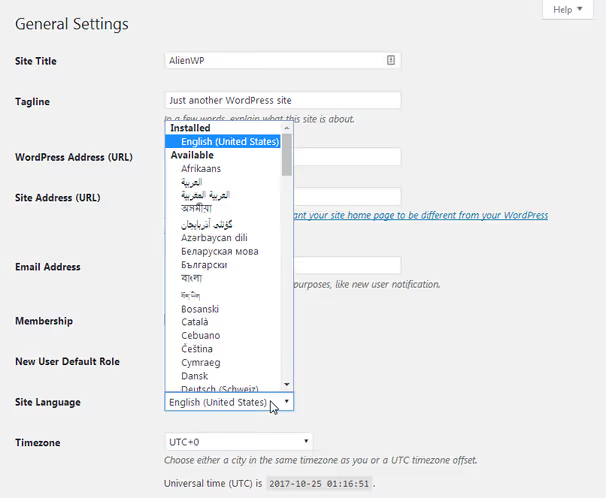
Choose a language from the dropdown and click Save Changes. WordPress will automatically download and install the language pack; no additional actions required.
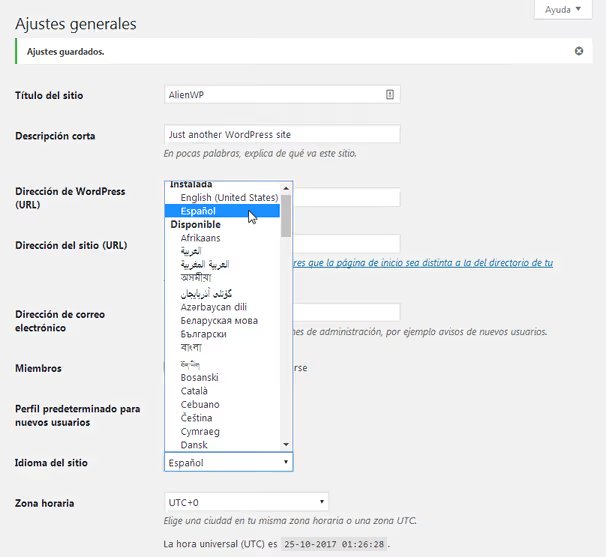
Done. The interface has switched, the frontend remains unchanged. Note: this method changes the language for all accounts. If several people with different language preferences work on the site, see the second method.
Method 2: individual language for each user
With WordPress 4.7 (December 2016), the language setting became personal: each user chooses their admin language independently from others. No plugins needed; everything is built into the profile.
Open Users → Profile and find the Language dropdown:
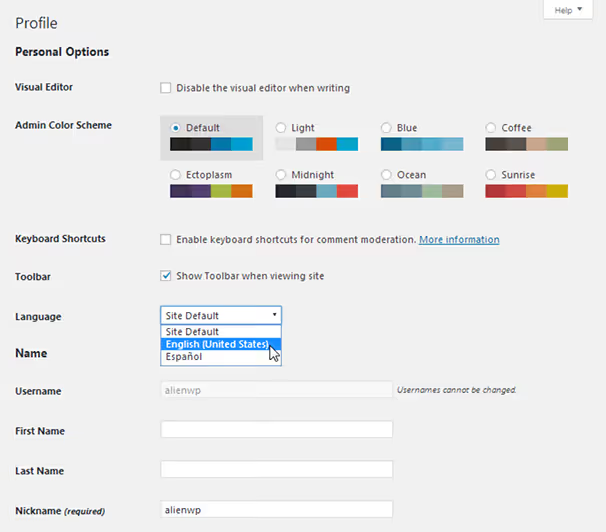
Choose the language you need, save the profile, and the interface will switch only for this user. Other site members will see the language they chose for themselves.
This mechanism works at the core level and doesn't depend on plugins. The only caveat: the language you need must be installed in the system (via Settings → General, as in the first method). If it isn't, WordPress will offer to install it automatically.
In practice, this method covers the vast majority of scenarios. Plugins are only needed when you want to switch faster.
Method 3: quick switching via the Simple Admin Language Change plugin
When you're testing a multilingual site or frequently switch between Russian and English interfaces, going to your profile every time means extra clicks. The Simple Admin Language Change plugin solves exactly this problem.

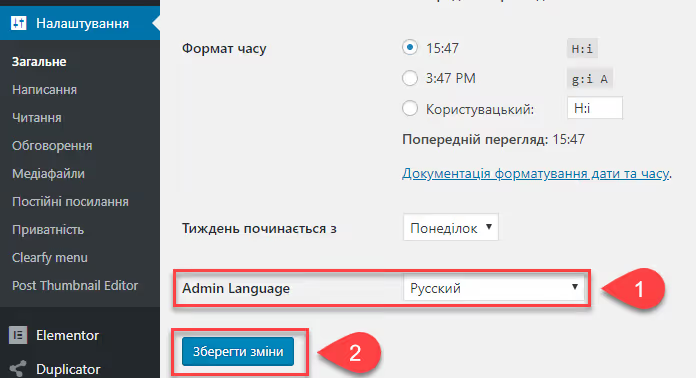
After activating the plugin, a dropdown with all installed languages appears in the admin bar. One click, and the interface is switched. The frontend is not affected. The plugin uses the same built-in WordPress mechanism (user locale), just places it in a convenient location.
In the Settings → General section, an additional block appears, Admin Language:
Plugin specifications as of June 2026:
- Active installations: 10,000+
- Rating: 4.7 / 5 (based on 23 reviews)
- Last updated: March 2026 (version 2.1.0)
- Compatibility: WordPress 4.7, 6.9.4
- Price: free, no Pro version or ads
The plugin is lightweight, not a single unnecessary request. If you need to limit the set of languages in the dropdown, the developer added a salc_languages filter for customization.
For those who keep their site in their native language but prefer an English admin panel (for example, to make it easier to search for errors on English-language forums), this is probably the best tool.
🔗 Simple Admin Language Change on WordPress.org
Method 4: manual installation of language files
Sometimes the language you need doesn't appear in the settings dropdown, for example, for a rare dialect or when WordPress for some reason cannot download the pack automatically. In that case, language files are installed manually.
Step 1: find and download the translation
Go to the WordPress translation teams page. You'll see a table with dozens of language projects:
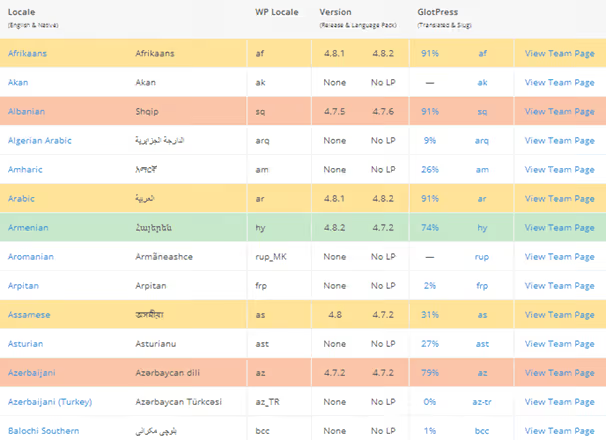
Color coding shows translation currency:
- Green: translation matches the latest WordPress version
- Yellow: behind by minor versions
- Orange: behind by one major version
- Red: behind by several major versions
- White: translation in development, not yet released
Percentages next to the name show how complete the project is. Choose green for fewer incompatibilities.
Click on the language name in the left column; the download page will open:
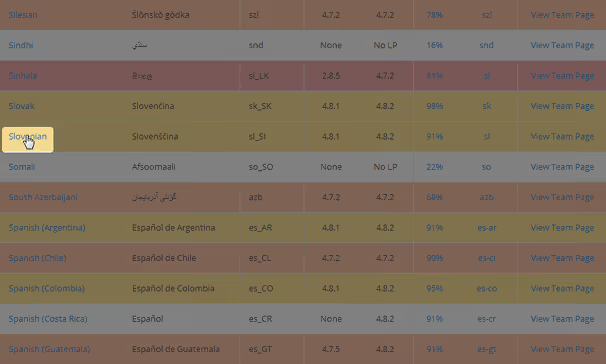
Click the Download button on the right side of the page:
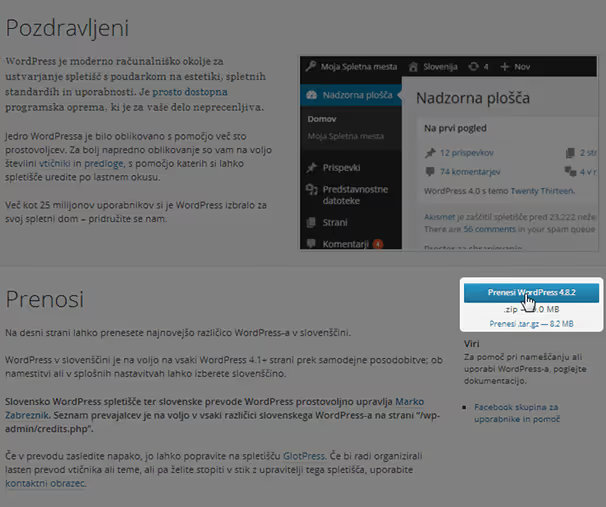
This is a ZIP archive with the full WordPress core in the selected language. You only need two file types from it.
Step 2: extract the language files
Unpack the archive. Inside, find the folder wordpress → wp-content → languages. The files you need have .mo and .po extensions; this is the standard WordPress translation format:
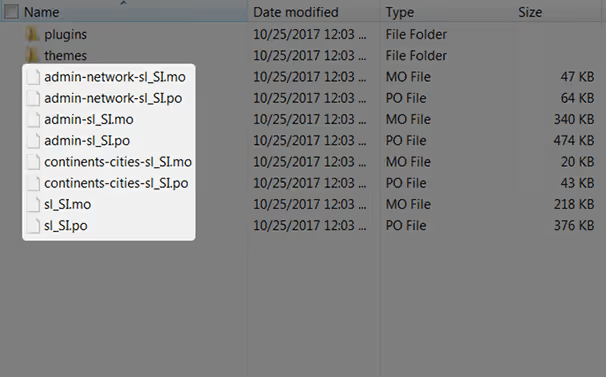
Step 3: upload to the server
Open your hosting file manager or FTP client (for example, FileZilla). Navigate to wp-content on your site. If the languages folder doesn't exist yet, create it.
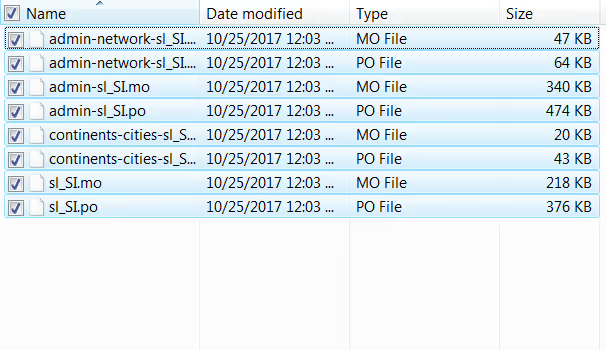
Copy the.mo and.po files to wp-content/languages:
Step 4: activate (if not detected automatically)
In most cases, WordPress will detect the new files on its own, and the language will appear in the "Site Language" and "User Language" dropdowns. If not, check the language locale.
Previously, to activate, you would add the WPLANG constant to wp-config.php:
1 define('WPLANG', 'ru_RU');
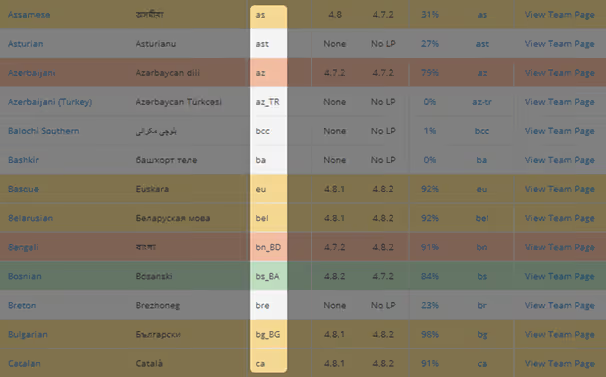
Now this isn't required; WordPress uses the setting from the database. But if the language doesn't work after manual upload, try adding the constant. Look up the locale for your language in the third column of the translation teams table (screenshot above).
⁉️🤔 Frequently asked questions
Does the frontend language change when you change the admin language?
No. The site language setting (Site Language) and the language choice in the user profile affect only the admin panel. Visitors see the site in the language it was created in. For a multilingual frontend, you need separate plugins: WPML, Polylang, or TranslatePress.
How do I install a language that isn't in the dropdown?
Use Method 4 from this article: download the language pack from the translation teams page on WordPress.org, extract the.mo/.po files, and upload them to wp-content/languages on your site. After that, the language will appear in the list. If it doesn't, add
define('WPLANG', 'xx_XX')to wp-config.php with the correct locale.
Why doesn't the language switching plugin work on the frontend?
Because the admin bar on the frontend is controlled by the "Site Language" setting, not the user's choice. This is a known WordPress core limitation; Simple Admin Language Change hides the switcher on the frontend precisely for this reason. The developer opened a corresponding ticket in Trac and is waiting for a core-level solution.
WordPress stayed half in English after changing the language. What's wrong?
The language pack is incomplete. Each translation has a completion percentage (visible on the translation teams page, from green to red). The lower the percentage, the more strings will remain in English. Solution: wait for the translation to be updated or choose a language with green marking.
Is it mandatory to install a plugin just to switch languages?
No. Since WordPress 4.7, user-level language switching is built into core: Users → Profile → Language. The Simple Admin Language Change plugin simply moves the switcher to the admin bar for convenience. If you change the language once a month, the profile is enough.
What you actually need to change the WordPress admin language
For most users, the first and second methods are sufficient: Settings → General for the overall site language and Users → Profile for individual settings. It's free, built-in, and has worked since 2016.
If you test multilingual sites or regularly switch between Russian and English interfaces, install Simple Admin Language Change. Ten thousand active installations and a 4.7 rating speak for themselves. The plugin doesn't overload the site and does exactly what it promises.
Manual installation of language files is a backup option. It's useful for rare languages or when automatic package installation is blocked at the hosting level.
Choose the method that fits your task, and the admin panel will speak your preferred language in a couple of minutes.

A professional team of writers and editors specializing in creating quality content.