













 AIIllustrative image: AI-generated
🔧 Translating a WordPress site into any language: complete 2026 guide
English is the native language of WordPress. Every admin button, every system notification, and every menu label is displayed in English by default. For a user from Berlin, São Paulo, or Kyiv this creates constant micro-stress: instead of quickly writing a post or configuring a plugin, the brain is occupied with mentally translating the interface.
The platform itself has been ready for multilingualism for a long time. The Polyglots community has translated the core into more than 200 language variants, about 70 of which have reached 100%. But translating the core is only the foundation. Themes, plugins, and site content remain in English until you take localization into your own hands.
In half an hour you can transform an English-language admin panel into a fully Russian-language one. A few more hours, and all plugins will speak the language you need. And if a project requires support for multiple languages simultaneously, ready-made SaaS services do this automatically, with search engine indexing.
💡 Quick overview:
- Change the WordPress admin language through the built-in switcher or manual installation of a
.mofile. - Translate themes and plugins through Loco Translate, a free editor right in the browser, without Poedit and FTP.
- Set up an automatic multilingual site through Weglot, GTranslate, or WPML.
- Compare all tools in a table and choose based on your task and budget.
Step 1. Changing the WordPress admin language
The shortest path to a Russian-language admin panel is the built-in switcher. Open Settings → General and scroll to the very bottom of the page. The "Site Language" dropdown list contains all language packs whose translation has been completed by the Polyglots team: from Arabic to Japanese.
Select a language, click "Save Changes," and the admin panel switches instantly. No additional files, no FTP, no edits to wp-config.php. Works for all fully translated locales.
If the language you need is not in the list, no problem. Many language teams have partially translated WordPress, and their packages are available for manual installation. A complete list of supported languages and translator team contacts is collected on the Polyglots Teams page.
Manual installation of a language pack
For languages not present in the dropdown list, the process is slightly longer but still elementary:
- Go to your language team's page through the translator teams list
- Download the
.mofile for your locale - Connect to the server via FTP and create the folder
/wp-content/languages/(if it doesn't exist) - Upload the
.mofile to this folder - Return to Settings → General, the language will appear in the list
On a multisite network, each site switches independently through its own settings panel. The default language for the entire network is set in "Network Admin → Settings."
Step 2. Translating themes and plugins through Loco Translate
Translating the WordPress core gives you a Russian-language admin panel. But themes and plugins are a separate story. Their strings are stored in their own translation files, and without a special tool you cannot access them.
Checking if an element is ready for translation
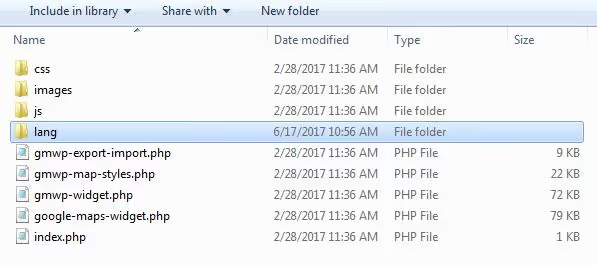
Not all themes and plugins are equally translator-friendly. Before starting work, open the theme or plugin folder and find the languages or lang directory. Inside should be files of one of three types:
.pot, a translation template with all source strings.po, a file with the translation itself.mo, a compiled machine object that WordPress reads directly
The presence of these files means the developer has prepared the product for localization, and you can proceed with translation. This is also often mentioned in the plugin or theme description.
Loco Translate: a translation editor right in the browser
Loco Translate is a free plugin with more than one million active installations and a rating of 4.8 out of 5 in the WordPress.org catalog. It replaces external applications like Poedit and works directly from the admin panel.
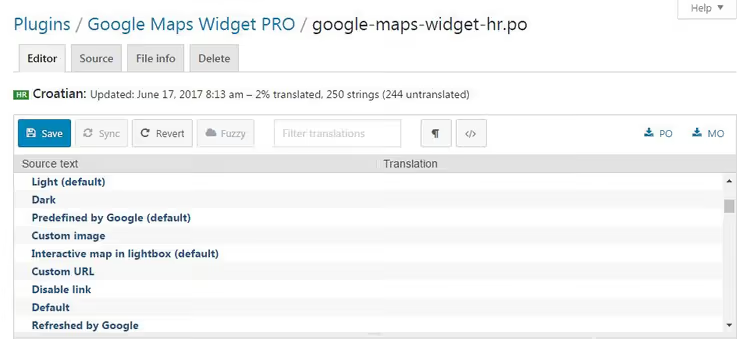
After installation and activation, the plugin adds a "Loco Translate" item to the admin sidebar menu. Hover and select what to translate: themes, plugins, or the WordPress core itself.
Starting a translation takes six clicks:
- Loco Translate → Plugins (or Themes)
- Select a plugin or theme from the list
- Click the "New language" button
- Select the target language from the dropdown list
- Leave the file location as "author" (recommended)
- Click "Start translating"
The translation editor
After clicking the button, the plugin opens an editor with four panels:
- Source text, a full list of strings available for translation
- English source text, the original of the selected string
- Translation, the field for entering localized text
- Comments, developer hints, if any
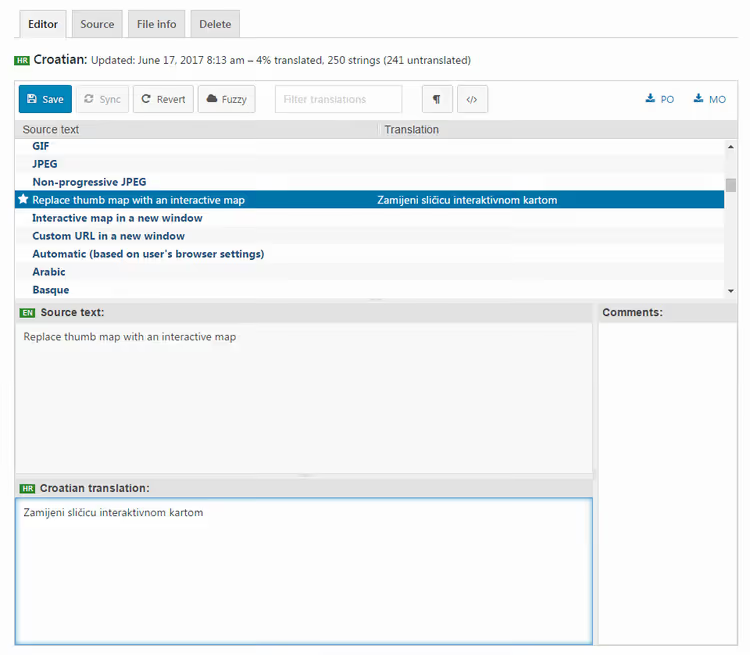
Work proceeds line by line: select a string, enter the translation, move to the next. Each edited string is marked with a yellow star, convenient when the plugin has several hundred strings and you return to the translation a day later.
When typing, the new translation is immediately displayed next to the source string in the "Source text" panel. You can quickly evaluate how changes look in the overall list.
Translation management
At the top of the editor is an information panel with the percentage complete and the number of remaining strings. Nearby are buttons for saving, synchronizing, and canceling changes.

A couple of useful features that save time:
- String search, enter a text fragment and instantly find the needed string among hundreds
- "Fuzzy" mark, for strings whose translation still needs work. Fuzzy strings can be excluded from export so that only verified translations are displayed on the site
- File download, if write permissions are restricted, you can download the
.poor.moand upload to the server manually
Even partial translation works immediately. Save a couple of strings, switch the site language in Settings → General, and those strings are already displayed in the target language. No additional activation buttons.
What to do if a plugin has no translation files
Loco Translate can scan the source code of a plugin or theme and automatically generate a .pot template. The quality of such an auto-generated template is inferior to what a developer creates, but it is a working solution when translating an "untranslatable" element is essential at any cost.
Step 3. Manual translation of site content
A separate scenario is translating the content itself: pages, posts, widgets. If the site is small (a five-page landing page or a blog with a dozen posts), the manual method is quite viable.
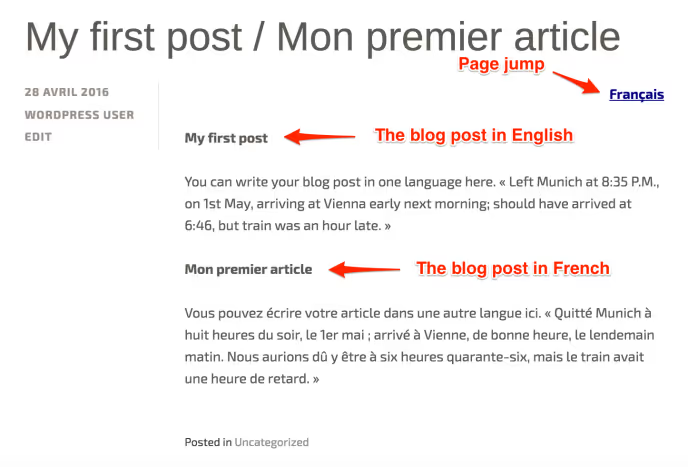
The approach is extremely simple: create a copy of each page in the target language and translate the text manually. The advantage is complete control over translation quality, no machine translation artifacts and awkward phrasings. The disadvantage is obvious: on a site with a hundred posts this turns into weeks of work.
Step 4. Automatic site translation with services
When there is a lot of content and you need to support multiple languages, the manual method is not an option. Specialized services and automatic translation plugins enter the scene.
Google Translate Widget, a quick start
The simplest built-in tool for WordPress.com sites is the Google Translate widget. It is added through Appearance → Widgets: drag the "Google Translate" block to the desired area, set the title, save.
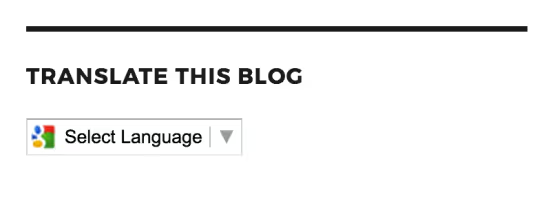
The visitor selects a language from the dropdown list, and the page is translated on the fly. Fast? Yes. High quality? Google machine translation has become significantly more accurate in recent years, but it is still far from professional. For a brochure or personal blog, it will do. For a business site, you need a more serious tool.
Weglot, automatic translation with manual refinement
Weglot combines first-layer automatic translation with the ability to manually edit each string. After installation and entering the API key, the plugin translates the entire site into selected languages within minutes and adds a customizable language switcher.
Key Weglot features:
- Automatic translation of content, metadata, and URLs into 110+ languages
- Built-in visual editor for correcting translations right on the page
- SEO-friendly architecture: translated pages are indexed by search engines
- Compatibility with all themes and page builders, including Elementor and the Gutenberg block editor
The free plan covers sites up to 2,000 words; paid plans start at $15 per month. A 10-day trial is available without restrictions.
GTranslate, translation at the network level
GTranslate approaches the task differently: instead of a plugin working inside WordPress, it uses a proxy server that translates the site on the fly. Just add a DNS record, and the service starts serving translated versions of pages.
This approach works on any hosting and any CMS: WordPress.com, self-hosted WordPress, Joomla, static HTML. The service translates content, URLs, metadata, and ensures indexing of translated pages by search engines.
Plans range from free (with a limited set of languages) to enterprise with a full feature set.
WPML, a professional multilingual engine
WPML is a veteran among WordPress multilingual plugins. Unlike Weglot and GTranslate, which work on a SaaS model, WPML is installed as a regular plugin and stores translations in your database.
The plugin offers full control over each translated element: posts, pages, taxonomies, menus, widgets, Advanced Custom Fields fields. The built-in translation management system allows you to assign translators and track progress.
WPML is paid: licenses range from $39 to $199 per year, depending on the required feature set and number of sites (current WPML pricing). For complex multilingual projects with a team of translators, this is the industry standard.
Comparison of WordPress translation tools
Tool | Type | Free version | Auto-translation | SEO indexing | Price from |
|---|---|---|---|---|---|
Loco Translate | Plugin (editor) | Yes | No (manual) | - | Free |
Google Translate Widget | Widget | Yes | Yes | No | Free |
Weglot | SaaS + plugin | Up to 2,000 words | Yes | Yes | $15/mo |
GTranslate | Proxy service | Limited | Yes | Yes | Free / paid |
WPML | Plugin | No | Through integrations | Yes | $39/year |
⁉️🤔 Frequently asked questions
Do I need to translate WordPress if all site content is already in Russian?
The WordPress admin panel and site content are two different layers. If you write posts in Russian but the admin interface remains in English, translating the core will solve the problem: all system labels, notifications, and menu items will become Russian-language. The content will not change.
Can I translate a WordPress site into multiple languages simultaneously?
Yes, this is exactly what multilingual plugins exist for: WPML, Weglot, GTranslate, and others. Each adds the ability to create parallel versions of pages in different languages and switch between them. The difference is in approach: WPML stores translations locally in your database, while Weglot and GTranslate store them on their servers.
Which translation method is suitable for a WooCommerce online store?
For a store, SEO indexing of translated pages and compatibility with WooCommerce are critical. WPML and Weglot both work well with WooCommerce and provide indexing. WPML gives more fine-grained control over translating products, categories, and attributes but requires manual work. Weglot translates automatically and allows you to edit the result in a visual editor.
What should I do if my language is not in the WordPress language list?
Go to the Polyglots language teams page and find your locale. If a team already exists but the translation is not complete, you can join and help translate the remaining strings. If a team does not exist yet, create one; WordPress.org provides all the infrastructure for this.
Loco Translate or Poedit, which should I choose for translating a plugin?
Both tools solve the task but differently. Loco Translate works right in the WordPress admin panel and does not require installing a separate application. Poedit is a desktop program with a more powerful translation memory editor. For a one-time translation of a single plugin, Loco Translate is sufficient. If you regularly translate many plugins and themes, Poedit with its performance will be more convenient.
What to install in 2026: the final breakdown
The choice of tool depends on exactly three factors: budget, content volume, and quality requirements.
If you have a small personal blog in one language and simply want a Russian-language admin panel, the built-in language switcher in WordPress settings and Loco Translate for a couple of untranslated plugins will be enough. It is free and takes an hour.
If you are launching a multilingual business site, online store, or corporate blog, go with Weglot or WPML. Weglot is easier to set up and launches faster. WPML gives deeper control and does not tie you to a monthly subscription.
GTranslate is a niche choice for situations where plugin installation is restricted by the hosting or when you need to translate a site at the DNS level without touching the engine itself.
Start small: translate the WordPress admin panel, master Loco Translate. And when the site grows to an international audience, connect Weglot or WPML. The language barrier is no longer a reason to keep a site in English.

A professional team of writers and editors specializing in creating quality content.