














🔍 How to compare two text files using Notepad++
You open two similar files and try to figure out how they differ. Comparing line by line manually is a dead end: your eyes glaze over after just a few dozen lines, and a small change in the middle of a configuration file is easy to miss.
Developers solved this problem long ago with diff tools. But installing a separate utility for occasional text file comparisons is not always justified. It is much easier to use an editor that most technical users on Windows already have.
Notepad++ can compare files through the free Compare plugin and does it quickly: color highlighting, synchronized scrolling, navigation between differences. No terminal, no separate applications: two clicks and all differences are right in front of you. You spend less than a minute on installation and save hours on every subsequent comparison.
💡 Quick overview:
- Make sure Plugins Admin is active in Notepad++; in the current version 8.9.6 it is enabled by default
- Use Plugins Admin to find and install the Compare plugin, then restart the editor
- Open both files, run the comparison, and examine the color-highlighted differences
What is Notepad++ and why compare files
Notepad++ is a free, open-source text editor for Windows. Its native environment is programming: syntax highlighting for dozens of languages, line numbering, auto-completion, macros. But people use it far beyond development, from editing configs to quick notes.
File comparison (diff) is needed in dozens of everyday scenarios. A system administrator compares configuration files before and after changes. A web developer looks for differences between two versions of CSS. A copywriter checks what exactly changed in a contract after review. A student compares a term paper with a draft from three days ago. In all cases, a visual diff saves dozens of minutes.
Windows has no built-in diff tool. There is fc in the command line, but its output is hard to read for files longer than ten lines. The Compare plugin for Notepad++ fills this need, free of charge and without installing additional software. As of June 2026, the current version of Notepad++ is v8.9.6, and the Compare plugin works reliably on all builds.
Step 1. Install the Compare plugin
First, make sure Plugins Admin is available. In Notepad++ versions starting from 7.6, it is enabled by default. If you have an older build, update from the official website.
Installation procedure:
- Open Notepad++.
- Go to the menu Plugins → Plugins Admin.
- In the window that opens, go to the Available tab.
- Find Compare in the list; the easiest way is to type "compare" in the search bar.
- Check the plugin and click the Install button.
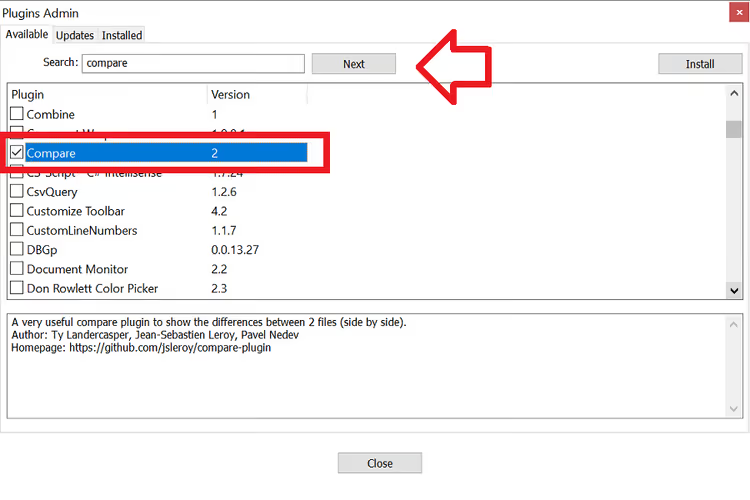
- After installation completes, Notepad++ will prompt for a restart; agree (Yes).
If the plugin list is empty, check your internet connection. In rare cases, the problem is in proxy settings: Settings → Preferences → Proxy.
Step 2. Compare two files
Once the plugin is installed, the comparison process itself takes just a few seconds.
- Open both files in Notepad++ the usual way (
File → Openor drag the files into the editor window). Do not manually arrange windows in split-screen mode; the plugin will do this automatically. - Go to the menu Plugins → Compare → Compare.
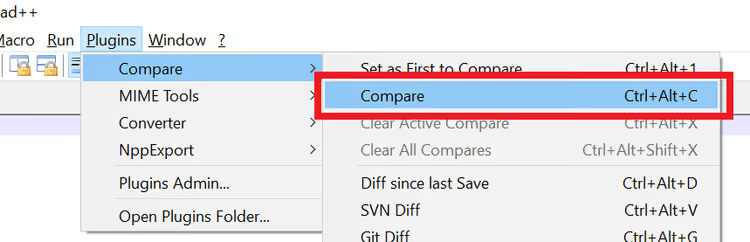
- The files will be displayed side by side. Differences are highlighted: Green means lines were added (present in the new file, absent in the old);
- Red means lines were deleted;
- Orange means lines were changed.
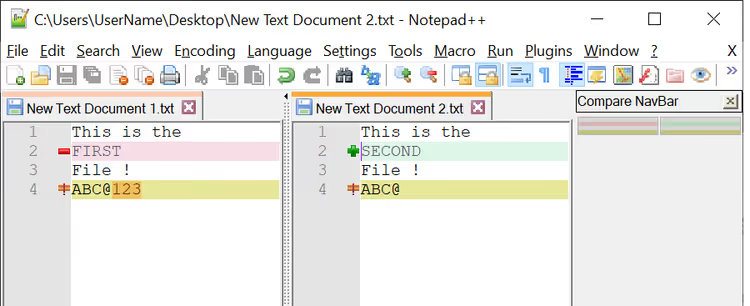
Synchronized scrolling is enabled automatically: when you scroll one file, the other moves in parallel. This is convenient when there are many differences and you need to maintain context.
Tips for effective comparison
Keep the old version on the left. The plugin treats the left file as the "original" and the right as the "new." If you swap sides, the color coding will be confusing: deleted lines will appear as added and vice versa.
Use keyboard shortcuts. Ctrl+Alt+C starts comparison without going through the menu. Ctrl+Alt+Shift+C clears comparison results and returns to normal view.
Collapse identical blocks. Through Plugins → Compare → Navigation Bar you can enable a navigation panel where red bars mark only the places with differences. Clicking on a bar instantly jumps to that block of changes. In long files (500+ lines), this feature saves the most time.
Compare more than just text. The plugin works with any text format: HTML and CSS, JavaScript and PHP, XML and CSV, INI configs and logs. For tabular data, the result is especially clear with syntax highlighting enabled.
If you need to disable comparison and return the editor to normal mode, use Plugins → Compare → Clear Results or Ctrl+Alt+Shift+C.
Below is a visual video of the entire process from installation to comparison:
⁉️🤔 Frequently asked questions
Does the Compare plugin work on the 64-bit version of Notepad++?
Yes, the Compare plugin is fully compatible with 64-bit builds. Starting from version 2.0, the plugin ships in a universal build that automatically detects the editor's architecture.
Can I compare three or more files simultaneously?
No, Compare works with only two open files at a time. If you need to compare three versions, compare them in pairs: first the original with the second, then the second with the third. Notepad++ works for this task, but professional diff tools like Meld or Beyond Compare handle it more conveniently.
What should I do if the Compare plugin won't install?
Check that your Notepad++ version is at least 7.6; that is when Plugins Admin was introduced. On older builds, the plugin manager may be missing. Second step: check the file
C:\Program Files\Notepad++\updater\gpup.exe; if your antivirus blocks it, plugin installation will not work. Add the Notepad++ folder to your security software exceptions.
How can I compare files without installing a plugin?
Notepad++ has no built-in diff. Without Compare, you can only open files side by side manually (
View → Move/Clone Current Document → Move to Other View) and compare by eye, which is primitive and unreliable. An alternative without plugins: WinMerge (a separate portable utility) orfc /N file1.txt file2.txtin the Windows command line.
Does the plugin save comparison history?
No, Compare is stateless: it shows differences "here and now" and does not write logs. For repeated comparison of the same files, it is convenient to configure an external diff tool in your version control system (Git difftool), while using Compare for one-off comparisons.
Comparing files in Notepad++ is fast and requires no extra software
Comparing two text files should not require a separate application. The Compare plugin turns an already familiar editor into a neat diff tool with color highlighting, synchronized scrolling, and navigation through changes, in two minutes from installation to first result.
For occasional comparisons of configs, code, contracts, and drafts, this is more than enough. If you have not updated Notepad++ yet, download the current version 8.9.6 from the official website: in recent builds, Plugins Admin works without additional configuration, and Compare itself installs in one click.
Try it right now: open two similar files and press Ctrl+Alt+C.

A professional team of writers and editors specializing in creating quality content.